Raspberry Pi Button Relay

Hướng dẫn này sẽ chỉ bạn cách sử dụng Raspberry Pi và button để điều khiển relay. Bằng cách kết nối relay với khóa điện từ, bóng đèn, LED strip, motor, hoặc actuator..., chúng ta có thể dùng button để điều khiển chúng. Chúng ta sẽ học hai ứng dụng khác nhau:

Ứng Dụng 1 - Trạng thái relay đồng bộ với trạng thái button. Chi tiết:

Ứng Dụng 2 - Trạng thái relay được chuyển đổi mỗi khi button được nhấn. Cụ thể:

Trong Ứng Dụng 2, chúng ta cần debounce button để đảm bảo hoạt động đúng cách. Chúng ta sẽ thấy tại sao điều này quan trọng bằng cách so sánh hành vi của relay khi sử dụng code Raspberry Pi có và không có debouncing button.

Phần cứng cần chuẩn bị

1×Raspberry Pi 5
1×breadboard-mount Button with Cap
1×breadboard-mount Button Kit
1×Panel-mount Push Button
1×mô-đun nút nhấn
1×Relay
1×breadboard (bo mạch thí nghiệm)
1×dây jumper (dây cầu nối)
1×(Tùy chọn) Solenoid Lock
1×(Tùy chọn) 12V Power Adapter
1×(Tùy chọn) DC Power Jack
1×(Khuyến nghị) Screw Terminal Block Shield for Raspberry Pi
1×(Khuyến nghị) Raspberry Pi Prototyping Base Plate & Breadboard Kit
1×(Khuyến nghị) HDMI Touch Screen Monitor for Raspberry Pi

Or you can buy the following kits:

1×DIYables Sensor Kit (30 sensors/displays)
1×DIYables Sensor Kit (18 sensors/displays)

Về Relay và Button

Nếu bạn chưa quen với relay và button (bao gồm pinout, hoạt động và lập trình), các hướng dẫn sau có thể giúp bạn:

Sơ Đồ Kết Nối

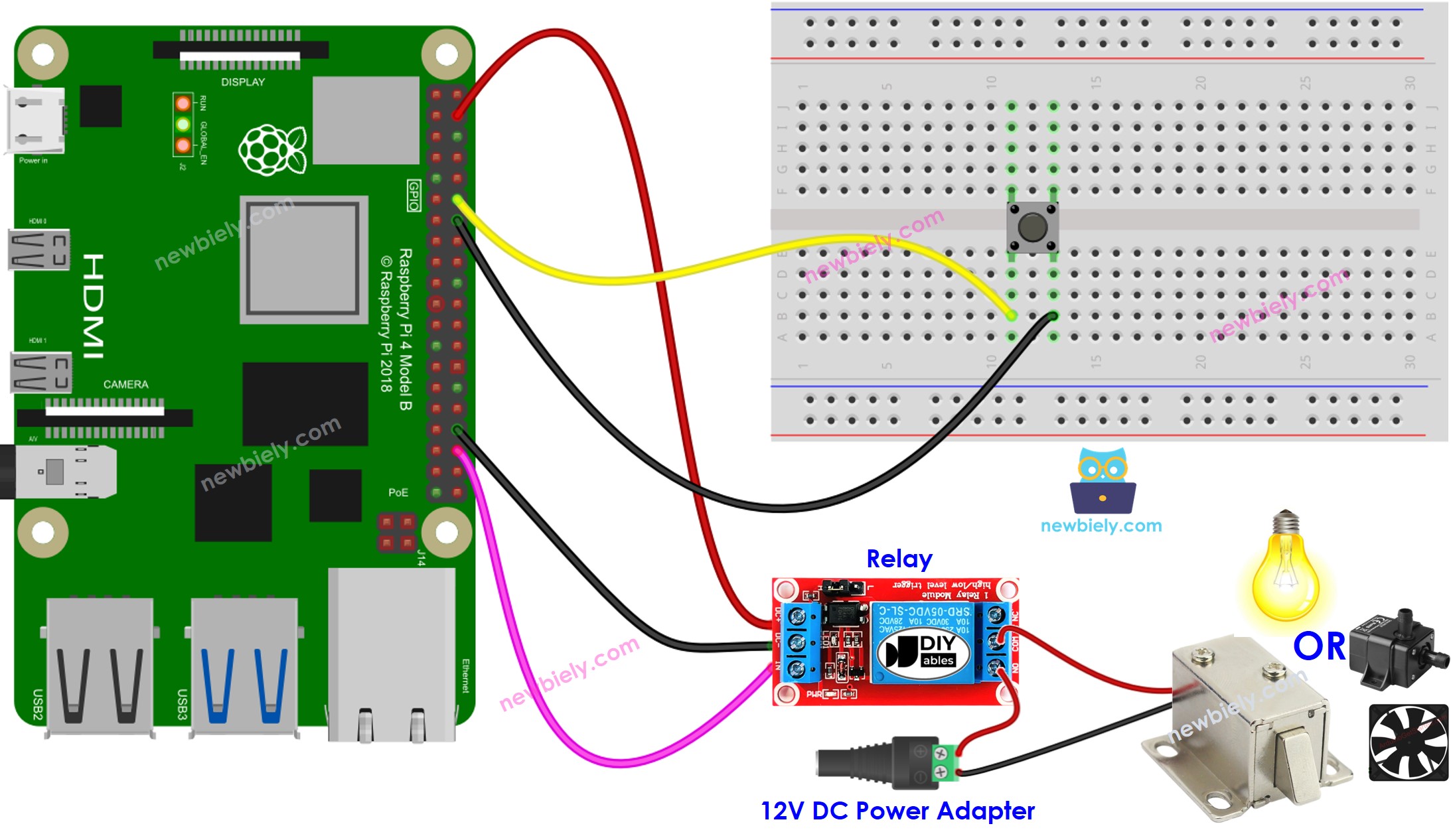
sơ đồ kết nối Raspberry Pi nút nhấn rơ le

This image is created using Fritzing. Click to enlarge image

Ứng Dụng 1 - Trạng thái relay đồng bộ với trạng thái button

Các Bước Nhanh

  • Đảm bảo bạn đã cài đặt Raspbian hoặc hệ điều hành tương thích với Raspberry Pi khác trên Pi của mình.
  • Đảm bảo Raspberry Pi của bạn được kết nối với cùng mạng local với PC.
  • Đảm bảo Raspberry Pi của bạn được kết nối internet nếu cần cài đặt một số thư viện.
  • Nếu đây là lần đầu bạn sử dụng Raspberry Pi, xem Raspberry Pi - Cài Đặt Phần Mềm
  • Kết nối PC của bạn với Raspberry Pi qua SSH bằng SSH client có sẵn trên Linux và macOS hoặc PuTTY trên Windows. Xem cách kết nối PC với Raspberry Pi qua SSH.
  • Đảm bảo bạn đã cài đặt thư viện RPi.GPIO. Nếu chưa, cài đặt bằng lệnh sau:
sudo apt-get update sudo apt-get install python3-rpi.gpio
  • Tạo file script Python button_relay.py và thêm code sau:
# Mã Raspberry Pi này được phát triển bởi newbiely.vn # Mã Raspberry Pi này được cung cấp để sử dụng công khai, không có ràng buộc. # Để xem hướng dẫn chi tiết và sơ đồ kết nối, vui lòng truy cập: # https://newbiely.vn/tutorials/raspberry-pi/raspberry-pi-button-relay import RPi.GPIO as GPIO # Constants won't change. They're used here to set pin numbers: BUTTON_PIN = 18 # The number of the pushbutton pin RELAY_PIN = 16 # The number of the relay pin # Variables will change: button_state = 0 # Variable for reading the pushbutton status # Set up GPIO GPIO.setmode(GPIO.BCM) # Use BCM GPIO numbering GPIO.setup(RELAY_PIN, GPIO.OUT) # Initialize the relay pin as an output GPIO.setup(BUTTON_PIN, GPIO.IN, pull_up_down=GPIO.PUD_UP) # Initialize the pushbutton pin as a pull-up input try: while True: # Read the state of the pushbutton value: button_state = GPIO.input(BUTTON_PIN) # Control relay according to the state of the button if button_state == GPIO.LOW: # If the button is pressed GPIO.output(RELAY_PIN, GPIO.HIGH) # Turn on relay else: # Otherwise, the button is not pressed GPIO.output(RELAY_PIN, GPIO.LOW) # Turn off relay except KeyboardInterrupt: # Clean up GPIO on program exit GPIO.cleanup()
  • Lưu file và chạy script Python bằng cách thực thi lệnh sau trong terminal:
python3 button_relay.py
  • Nhấn button và giữ trong vài giây.
  • Quan sát sự thay đổi trạng thái của relay.

Bạn sẽ thấy rằng trạng thái relay đồng bộ với trạng thái button.

Script chạy trong vòng lặp vô hạn liên tục cho đến khi bạn nhấn Ctrl + C trong terminal.

Giải Thích Code

Hãy xem giải thích từng dòng trong các comment của source code!

Ứng Dụng 2 - Button chuyển đổi Relay

Các Bước Nhanh

  • Tạo file script Python button_toggle_relay.py và thêm code sau:
# Mã Raspberry Pi này được phát triển bởi newbiely.vn # Mã Raspberry Pi này được cung cấp để sử dụng công khai, không có ràng buộc. # Để xem hướng dẫn chi tiết và sơ đồ kết nối, vui lòng truy cập: # https://newbiely.vn/tutorials/raspberry-pi/raspberry-pi-button-relay import RPi.GPIO as GPIO import time # Constants won't change BUTTON_PIN = 18 # The number of the pushbutton pin RELAY_PIN = 16 # The number of the relay pin # Variables will change relay_state = GPIO.LOW # The current state of the relay prev_button_state = GPIO.LOW # The previous state of the button button_state = GPIO.LOW # The current state of the button # Set up GPIO GPIO.setmode(GPIO.BCM) # Use BCM GPIO numbering GPIO.setup(RELAY_PIN, GPIO.OUT) # Initialize the relay pin as an output GPIO.setup(BUTTON_PIN, GPIO.IN, pull_up_down=GPIO.PUD_UP) # Initialize the pushbutton pin as a pull-up input try: while True: # Read the state of the pushbutton value prev_button_state = button_state # Save the last state button_state = GPIO.input(BUTTON_PIN) # Read new state if prev_button_state == GPIO.HIGH and button_state == GPIO.LOW: time.sleep(0.1) # 100 milliseconds debounce time print("The button is pressed") # Toggle the state of the relay if relay_state == GPIO.LOW: relay_state = GPIO.HIGH else: relay_state = GPIO.LOW # Control relay according to the toggled state GPIO.output(RELAY_PIN, relay_state) except KeyboardInterrupt: # Clean up GPIO on program exit GPIO.cleanup()
  • Lưu file và chạy script Python bằng cách thực thi lệnh sau trong terminal:
python3 button_toggle_relay.py
  • Nhấn và thả button nhiều lần.
  • Quan sát sự thay đổi trạng thái của relay. Bạn sẽ thấy trạng thái relay thay đổi mỗi khi nhấn button.

Video Tutorial

Việc sản xuất video tốn rất nhiều thời gian. Nếu video hướng dẫn hữu ích cho việc học của bạn, hãy đăng ký kênh YouTube để ủng hộ. Nếu nhu cầu đủ cao, chúng tôi sẽ cố gắng làm thêm nhiều video.