
Raspberry Pi Potentiometer Điều Khiển Piezo Buzzer
Tutorial này hướng dẫn bạn cách sử dụng Raspberry Pi và potentiometer để điều khiển piezo buzzer. Cụ thể:
- Raspberry Pi xác định xem giá trị analog của potentiometer có trên hay dưới ngưỡng và tạo âm thanh tương ứng
- Raspberry Pi xác định xem điện áp đầu ra của potentiometer có trên hay dưới ngưỡng và tạo âm thanh tương ứng
- Nếu điện áp đầu ra của potentiometer lớn hơn ngưỡng, Raspberry Pi cũng có thể phát giai điệu của một bài hát
Phần Cứng Cần Thiết
| 1 | × | Raspberry Pi 5 | Amazon | |
| 1 | × | Chiết áp | Amazon | |
| 1 | × | Alternatively, 10k Ohm Trimmer Potentiometer | Amazon | |
| 1 | × | Mô-đun chiết áp có núm xoay | Amazon | |
| 1 | × | (Thay thế) Bộ Kit Potentiometer | Amazon | |
| 1 | × | (Thay thế) Module Potentiometer có Núm Xoay | Amazon | |
| 1 | × | Module ADC ADS1115 | Amazon | |
| 1 | × | Piezo Buzzer Active 3-24V | Amazon | |
| 1 | × | Module Piezo Buzzer Active | Amazon | |
| 1 | × | Module Piezo Buzzer Passive | Amazon | |
| 1 | × | breadboard (Bo mạch thí nghiệm) | Amazon | |
| 1 | × | Dây Jumper | Amazon | |
| 1 | × | (Khuyến nghị) Screw Terminal Block Shield for Raspberry Pi | Amazon | |
| 1 | × | (Khuyến nghị) Raspberry Pi Prototyping Base Plate & Breadboard Kit | Amazon | |
| 1 | × | (Khuyến nghị) HDMI Touch Screen Monitor for Raspberry Pi | Amazon |
Or you can buy the following kits:
| 1 | × | DIYables Sensor Kit (18 sensors/displays) | Amazon |
Về Piezo Buzzer và Potentiometer
Nếu bạn chưa quen thuộc với piezo buzzer và potentiometer (bao gồm pinout, cách hoạt động và lập trình), các tutorial sau đây sẽ giúp bạn:
Sơ Đồ Kết Nối
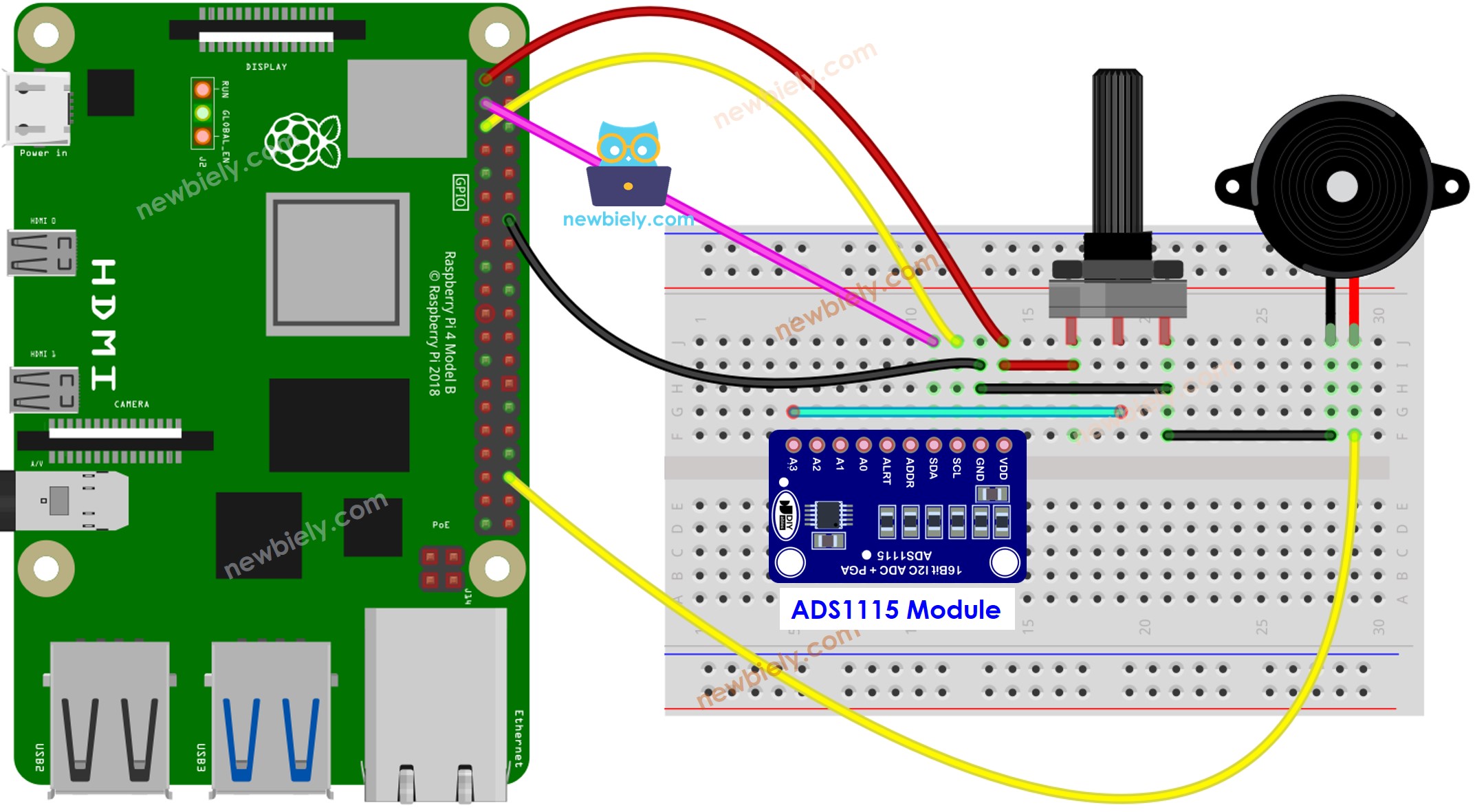
This image is created using Fritzing. Click to enlarge image
Code Raspberry Pi - Âm Thanh Đơn Giản
Các Bước Thực Hiện
- Đảm bảo bạn đã cài đặt Raspbian hoặc bất kỳ hệ điều hành nào khác tương thích với Raspberry Pi trên Pi của bạn.
- Đảm bảo Raspberry Pi của bạn được kết nối với cùng mạng cục bộ với PC của bạn.
- Đảm bảo Raspberry Pi của bạn được kết nối internet nếu bạn cần cài đặt một số thư viện.
- Nếu đây là lần đầu tiên bạn sử dụng Raspberry Pi, hãy xem Raspberry Pi - Cài Đặt Phần Mềm
- Kết nối PC của bạn với Raspberry Pi qua SSH sử dụng SSH client tích hợp trên Linux và macOS hoặc PuTTY trên Windows. Xem cách kết nối PC với Raspberry Pi qua SSH.
- Đảm bảo bạn đã cài đặt thư viện RPi.GPIO. Nếu chưa, hãy cài đặt bằng lệnh sau:
- Cài đặt thư viện Adafruit_ADS1x15 bằng cách chạy các lệnh sau trên terminal Raspberry Pi:
- Tạo file script Python potentiometer_buzzer.py và thêm code sau:
- Lưu file và chạy script Python bằng cách thực thi lệnh sau trong terminal:
- Xoay núm potentiometer.
- Lắng nghe âm thanh phát ra từ piezo buzzer.
Script chạy trong vòng lặp vô hạn liên tục cho đến khi bạn nhấn Ctrl + C trong terminal.
Giải Thích Code
Hãy xem giải thích từng dòng có trong phần comment của source code!
Raspberry Pi phát giai điệu bài hát
Hãy phát giai điệu "Jingle Bells" khi potentiometer được xoay đến một giá trị ngưỡng.
Các Bước Thực Hiện
- Tạo file script Python potentiometer_buzzer_song.py và thêm code sau:
- Lưu file và chạy script Python bằng cách thực thi lệnh sau trong terminal:
- Xoay potentiometer.
- Nghe bài hát từ piezo buzzer.
Giải Thích Code
Hãy xem giải thích từng dòng có trong phần comment của source code!
Video Tutorial
Việc sản xuất video tốn rất nhiều thời gian. Nếu video hướng dẫn hữu ích cho việc học của bạn, hãy đăng ký kênh YouTube để ủng hộ. Nếu nhu cầu đủ cao, chúng tôi sẽ cố gắng làm thêm nhiều video.
Bài hướng dẫn liên quan
📱 Ứng dụng đề xuất
 English for KidsHọc tiếng Anh vui nhộn cho trẻ nhỏ.Tải về trênGoogle PlayTải về trênApp Store
 Bubble NoteGhi chú tự xóa — viết như nhắn tin.Tải về trênGoogle PlayTải về trênApp Store
 Tôi Không MuaĐánh bại mua sắm bốc đồng, tiết kiệm hơn.Tải về trênGoogle PlayTải về trênApp Store
 Con Đường Tri ThứcBài thi thử để học mọi thứ.Tải về trênGoogle PlayTải về trênApp Store