
Raspberry Pi Keypad 1x4
Trong hướng dẫn này, chúng ta sẽ học cách sử dụng keypad 1x4 với Raspberry Pi. Cụ thể, chúng ta sẽ học:
- Cách kết nối keypad 1x4 với Raspberry Pi.
- Cách lập trình Raspberry Pi để đọc các phím được nhấn từ keypad 1x4.
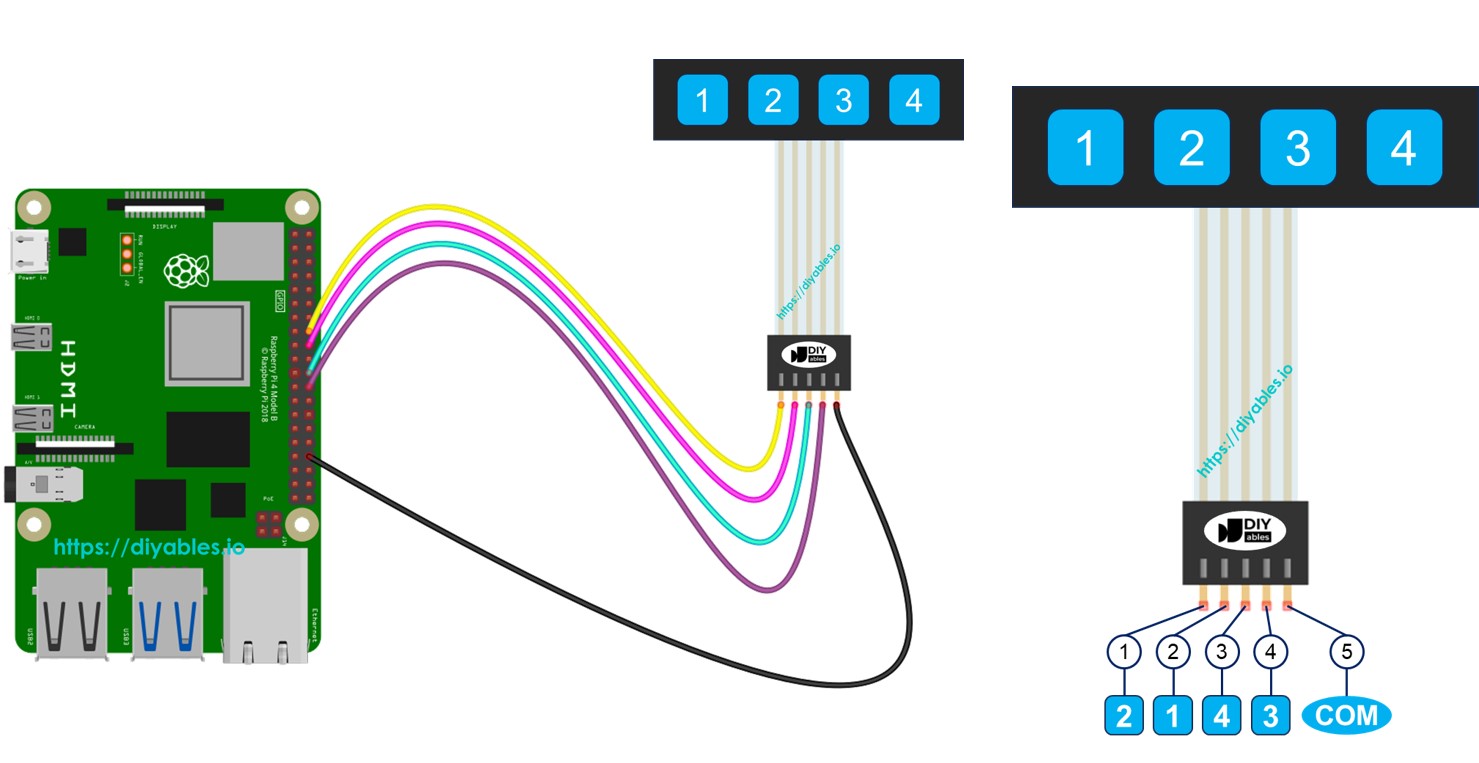
Linh Kiện Cần Thiết
| 1 | × | Raspberry Pi 5 | Amazon | |
| 1 | × | Bàn phím ma trận 1x4 | Amazon | |
| 1 | × | Dây Jumper | Amazon | |
| 1 | × | (Khuyến nghị) Screw Terminal Block Shield for Raspberry Pi | Amazon | |
| 1 | × | (Khuyến nghị) Raspberry Pi Prototyping Base Plate & Breadboard Kit | Amazon | |
| 1 | × | (Khuyến nghị) HDMI Touch Screen Monitor for Raspberry Pi | Amazon |
Or you can buy the following kits:
| 1 | × | DIYables Sensor Kit (18 sensors/displays) | Amazon |
Về Keypad 1x4
Keypad 1x4 được tạo thành từ bốn nút màng được sắp xếp thành một hàng duy nhất. Nó thường được sử dụng để nhập liệu trong các dự án như nhập mã pin, điều hướng menu, hoặc giao diện điều khiển.
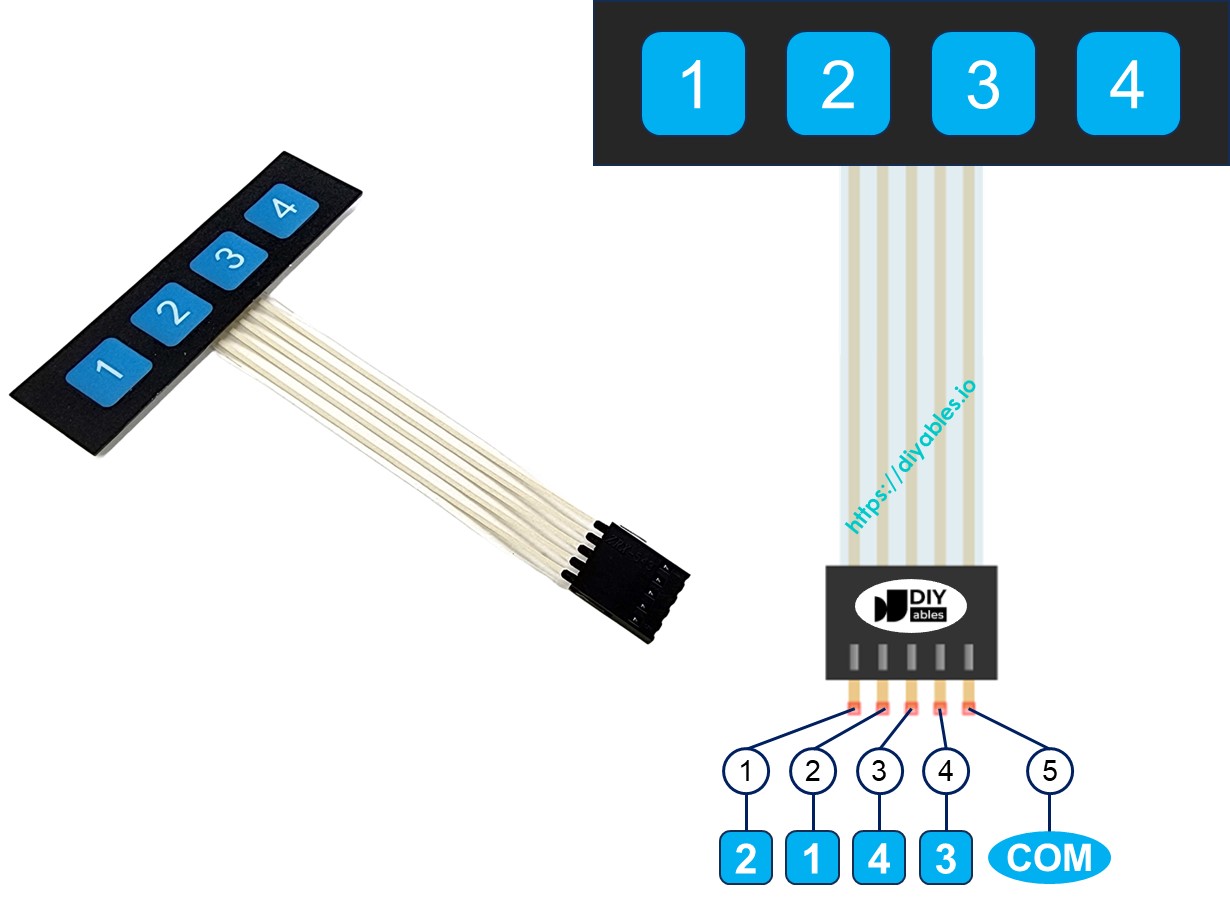
Sơ Đồ Chân
Keypad 1x4 có 5 chân, không tương ứng trực tiếp với thứ tự nhãn phím. Cụ thể:
- Chân 1: kết nối với phím 2
- Chân 2: kết nối với phím 1
- Chân 3: kết nối với phím 4
- Chân 4: kết nối với phím 3
- Chân 5: là chân chung kết nối với tất cả các phím
Sơ Đồ Kết Nối
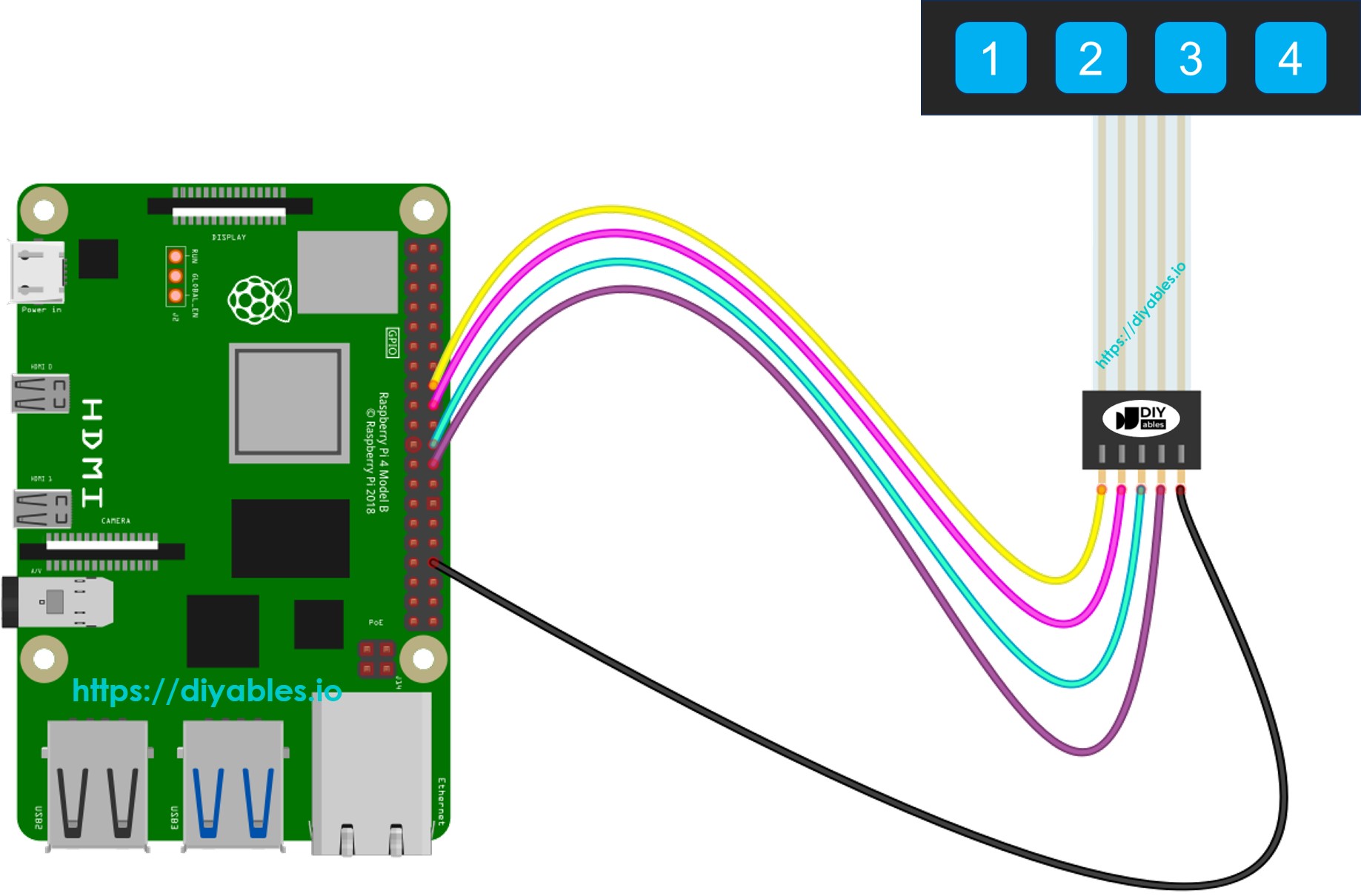
This image is created using Fritzing. Click to enlarge image
Code Raspberry Pi
Mỗi phím trên keypad 1x4 hoạt động như một nút nhấn. Điều này có nghĩa là chúng ta có thể sử dụng hàm digitalRead() để kiểm tra trạng thái của từng phím. Tuy nhiên, trong thực tế, giống như với bất kỳ nút nhấn nào, chúng ta phải xử lý vấn đề về bounce, khi một lần nhấn có thể bị phát hiện nhầm là nhiều lần nhấn. Để tránh điều này, chúng ta cần debounce cho từng phím. Nhiệm vụ này trở nên thách thức khi cố gắng debounce bốn phím mà không chặn các phần khác của code. May mắn thay, thư viện ezButton đơn giản hóa quá trình này.
Các Bước Thực Hiện
- Đảm bảo bạn đã cài đặt Raspbian hoặc hệ điều hành tương thích với Raspberry Pi khác trên Pi của bạn.
- Đảm bảo Raspberry Pi được kết nối với cùng mạng cục bộ với PC của bạn.
- Đảm bảo Raspberry Pi được kết nối internet nếu bạn cần cài đặt thư viện.
- Nếu đây là lần đầu tiên bạn sử dụng Raspberry Pi, hãy xem Raspberry Pi - Cài Đặt Phần Mềm
- Kết nối Arduino Nano với keypad 1x4.
- Kết nối PC của bạn với Raspberry Pi qua SSH sử dụng SSH client tích hợp trên Linux và macOS hoặc PuTTY trên Windows. Xem cách kết nối PC với Raspberry Pi qua SSH.
- Đảm bảo bạn đã cài đặt thư viện RPi.GPIO. Nếu chưa, hãy cài đặt bằng lệnh sau:
- Tạo một file script Python keypad_1x4.py và thêm đoạn code sau:
- Lưu file và chạy script Python bằng cách thực hiện lệnh sau trong terminal:
- Nhấn từng phím trên keypad 1x4 một cách tuần tự
- Kiểm tra kết quả trên Terminal.
Bài hướng dẫn liên quan
📱 Ứng dụng đề xuất
 English for KidsHọc tiếng Anh vui nhộn cho trẻ nhỏ.Tải về trênGoogle PlayTải về trênApp Store
 Bubble NoteGhi chú tự xóa — viết như nhắn tin.Tải về trênGoogle PlayTải về trênApp Store
 Tôi Không MuaĐánh bại mua sắm bốc đồng, tiết kiệm hơn.Tải về trênGoogle PlayTải về trênApp Store
 Con Đường Tri ThứcBài thi thử để học mọi thứ.Tải về trênGoogle PlayTải về trênApp Store