
Raspberry Pi Keypad Relay
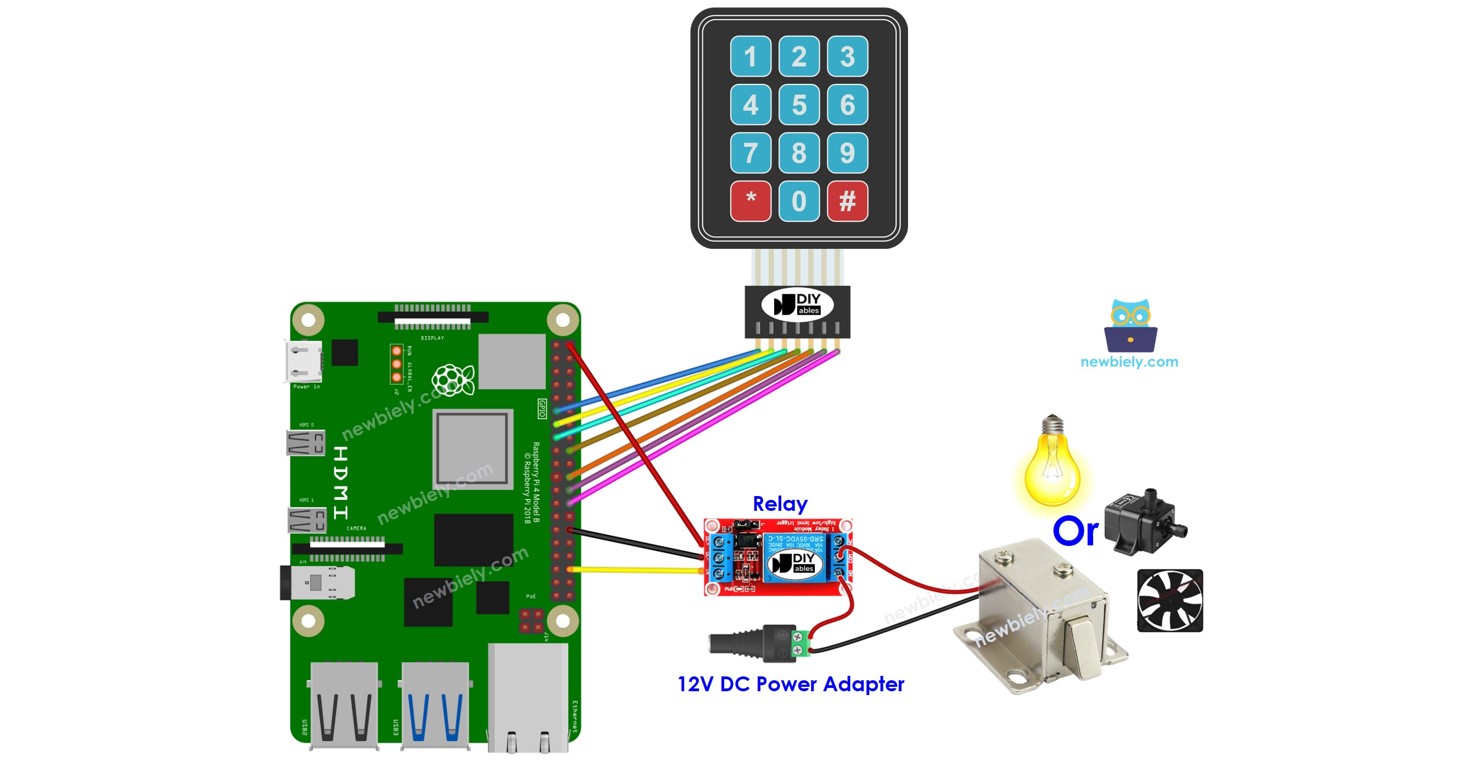
Hướng dẫn này sẽ chỉ bạn cách kết hợp keypad, relay và Raspberry Pi. Nếu người dùng nhập đúng mật khẩu trên keypad, Raspberry Pi sẽ bật relay.
Hướng dẫn cũng cung cấp mã Raspberry Pi để kích hoạt relay trong một khoảng thời gian nhất định và sau đó tắt nó. Hơn nữa, mã Raspberry Pi có khả năng xử lý nhiều mật khẩu.
Bằng cách kết nối relay với Raspberry Pi - Khóa Điện Từ (Electromagnetic Lock), Raspberry Pi - Solenoid Lock (Khóa Điện Từ), Raspberry Pi - Linear Actuator, Raspberry Pi - Điều Khiển Heating Element (Bộ Phận Gia Nhiệt), Raspberry Pi - Máy Bơm, hoặc Raspberry Pi - Quạt... Chúng ta có thể điều khiển chúng bằng keypad.
Phần Cứng Cần Thiết
| 1 | × | Raspberry Pi 5 | Amazon | |
| 1 | × | Bàn phím ma trận | Amazon | |
| 1 | × | Relay | Amazon | |
| 1 | × | dây jumper | Amazon | |
| 1 | × | (Khuyến nghị) Screw Terminal Block Shield for Raspberry Pi | Amazon | |
| 1 | × | (Khuyến nghị) Raspberry Pi Prototyping Base Plate & Breadboard Kit | Amazon | |
| 1 | × | (Khuyến nghị) HDMI Touch Screen Monitor for Raspberry Pi | Amazon |
Or you can buy the following kits:
| 1 | × | DIYables Sensor Kit (18 sensors/displays) | Amazon |
Về Keypad và Relay
Nếu bạn chưa quen với keypad và relay (bao gồm sơ đồ chân, chức năng, lập trình, v.v.), các hướng dẫn sau có thể giúp bạn:
- Hướng dẫn Raspberry Pi - Bàn Phím Ma Trận (Keypad)
- Hướng dẫn Raspberry Pi - Relay
Sơ Đồ Đấu Nối
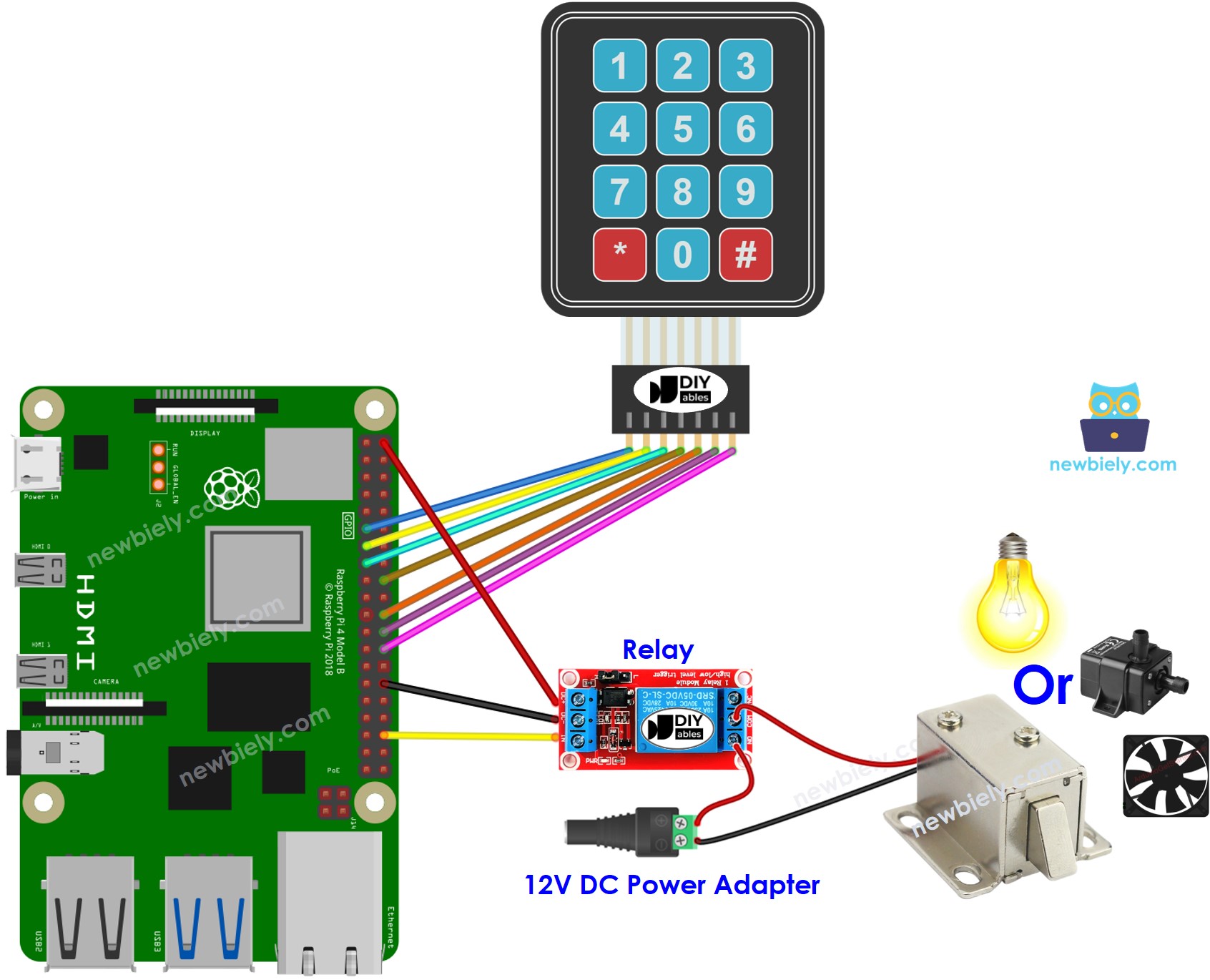
This image is created using Fritzing. Click to enlarge image
Mã Raspberry Pi - bật relay nếu mật khẩu đúng
Các Bước Thực Hiện
- Đảm bảo bạn đã cài đặt Raspbian hoặc hệ điều hành tương thích khác trên Raspberry Pi.
- Đảm bảo Raspberry Pi của bạn được kết nối cùng mạng cục bộ với máy tính.
- Đảm bảo Raspberry Pi của bạn được kết nối internet nếu cần cài đặt thư viện.
- Nếu đây là lần đầu bạn sử dụng Raspberry Pi, hãy xem Raspberry Pi - Cài Đặt Phần Mềm
- Kết nối máy tính với Raspberry Pi qua SSH sử dụng SSH client tích hợp trên Linux và macOS hoặc PuTTY trên Windows. Xem cách kết nối máy tính với Raspberry Pi qua SSH.
- Đảm bảo bạn đã cài đặt thư viện RPi.GPIO. Nếu chưa, hãy cài đặt bằng lệnh sau:
- Tạo file script Python keypad_relay.py và thêm đoạn mã sau:
- Lưu file và chạy script Python bằng cách thực thi lệnh sau trong terminal:
- Nhập 9765 theo sau bởi phím #, sau đó 1234 theo sau bởi phím #.
- Kiểm tra Terminal để xem kết quả và trạng thái của relay.
Script chạy trong vòng lặp vô hạn liên tục cho đến khi bạn nhấn Ctrl + C trong terminal.
Giải Thích Mã
Các mật khẩu được ủy quyền được định nghĩa sẵn trong mã Raspberry Pi. Một chuỗi được sử dụng để lưu trữ mật khẩu mà người dùng nhập vào, gọi là chuỗi đầu vào. Trong keypad, hai phím (* và #) được sử dụng cho mục đích đặc biệt: xóa mật khẩu và kết thúc mật khẩu. Khi một phím trên keypad được nhấn:
- Nếu phím được nhấn không phải là hai phím đặc biệt, nó sẽ được thêm vào chuỗi đầu vào.
- Nếu phím được nhấn là *, chuỗi đầu vào sẽ được xóa. Điều này có thể được sử dụng để bắt đầu hoặc bắt đầu lại việc nhập mật khẩu.
- Nếu phím được nhấn là #:
- Raspberry Pi sẽ kiểm tra xem chuỗi đầu vào có khớp với một trong những mật khẩu đã định nghĩa sẵn không, nếu có thì relay sẽ được bật.
- Bất kể mật khẩu đúng hay sai, chuỗi đầu vào sẽ được xóa để chuẩn bị cho lần nhập tiếp theo.
Mã Raspberry Pi - bật relay trong một khoảng thời gian nếu mật khẩu đúng
Nếu mật khẩu đúng, relay sẽ được bật trong 5 giây. Sau khoảng thời gian đó, nó sẽ được tắt.
Video Tutorial
Việc sản xuất video tốn rất nhiều thời gian. Nếu video hướng dẫn hữu ích cho việc học của bạn, hãy đăng ký kênh YouTube để ủng hộ. Nếu nhu cầu đủ cao, chúng tôi sẽ cố gắng làm thêm nhiều video.
Bài hướng dẫn liên quan
📱 Ứng dụng đề xuất
 English for KidsHọc tiếng Anh vui nhộn cho trẻ nhỏ.Tải về trênGoogle PlayTải về trênApp Store
 Bubble NoteGhi chú tự xóa — viết như nhắn tin.Tải về trênGoogle PlayTải về trênApp Store
 Tôi Không MuaĐánh bại mua sắm bốc đồng, tiết kiệm hơn.Tải về trênGoogle PlayTải về trênApp Store
 Con Đường Tri ThứcBài thi thử để học mọi thứ.Tải về trênGoogle PlayTải về trênApp Store