ESP8266 Máy vẽ đồ thị trên web

Hướng dẫn này chỉ cho bạn cách xây dựng một plotter dựa trên web, tương tự như ESP8266 - Trình vẽ đồ thị nối tiếp có trong Arduino IDE. Cài đặt này cho phép bạn theo dõi dữ liệu thời gian thực từ ESP8266 bằng trình duyệt web trên điện thoại thông minh hoặc máy tính của bạn một cách thuận tiện. Nó sẽ trực quan hóa dữ liệu ở định dạng đồ họa tương tự như những gì bạn quan sát được trong Serial Plotter của Arduino IDE.
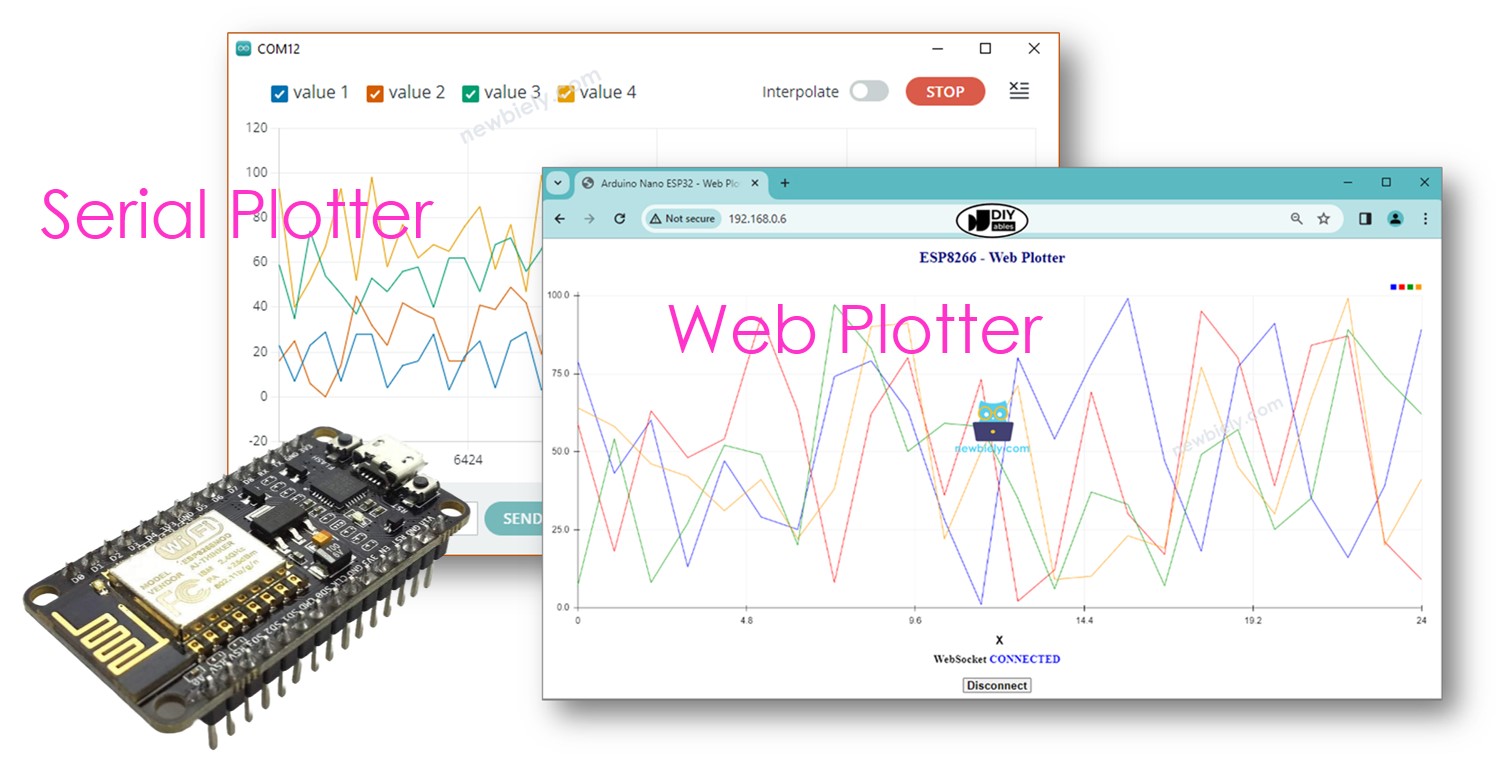
ESP8266 NodeMCU máy vẽ đồ thị trên web

Phần cứng cần chuẩn bị

1×ESP8266 NodeMCU ESP-12E
1×Recommended: ESP8266 NodeMCU ESP-12E (Uno-form)
1×USB Cable Type-A to Type-C (for USB-A PC)
1×USB Cable Type-C to Type-C (for USB-C PC)
1×(Khuyến nghị) Screw Terminal Expansion Board for ESP8266
1×(Khuyến nghị) Power Splitter for ESP8266 Type-C

Or you can buy the following kits:

1×DIYables Sensor Kit (30 sensors/displays)
1×DIYables Sensor Kit (18 sensors/displays)

Cách Web Plotter hoạt động

  • Mã ESP8266 tạo ra cả máy chủ web và máy chủ WebSocket.
  • Khi người dùng truy cập trang web được lưu trữ trên bảng ESP8266 thông qua trình duyệt web, máy chủ web của ESP8266 sẽ trả về nội dung trang web (HTML, CSS, JavaScript) cho trình duyệt.
  • Mã JavaScript chạy trong trình duyệt web vẽ một đồ thị giống Serial Plotter.
  • Khi nhấp nút kết nối trên trang web, mã JavaScript thiết lập kết nối WebSocket tới máy chủ WebSocket đang chạy trên bảng ESP8266.
  • ESP8266 gửi dữ liệu qua kết nối WebSocket tới trình duyệt theo một định dạng tương tự như được Serial Plotter sử dụng (chi tiết được trình bày ở phần tiếp theo).
  • Mã JavaScript trong trình duyệt nhận dữ liệu và vẽ chúng lên đồ thị.

Định dạng dữ liệu mà ESP8266 gửi tới trình vẽ đồ thị trên web

Để vẽ đồ thị nhiều biến, chúng ta cần phân tách các biến với nhau bằng “\t” hoặc ký tự " ". Giá trị cuối cùng phải được kết thúc bằng “\r\n” các ký tự.

Chi tiết:

  • Biến đầu tiên
plotter.broadcastTXT(line_1);
  • Các biến ở giữa
plotter.broadcastTXT("\t"); // a tab '\t' or space ' ' character is printed between the two values. plotter.broadcastTXT(line_2); plotter.broadcastTXT("\t"); // a tab '\t' or space ' ' character is printed between the two values. plotter.broadcastTXT(line_3);
  • Biến cuối cùng
plotter.broadcastTXT("\t"); // a tab '\t' or space ' ' character is printed between the two values. plotter.broadcastTXT(line_4); plotter.broadcastTXT("\r\n"); // the last value is terminated by a carriage return and a newline characters.

Để biết thêm chi tiết, vui lòng tham khảo ESP8266 - Trình vẽ đồ thị nối tiếp hướng dẫn.

Mã ESP8266 - Máy plotter trên web

Nội dung của trang web (HTML, CSS, JavaScript) được lưu riêng trong một tệp index.h. Vì vậy, chúng ta sẽ có hai tệp mã nguồn trong Arduino IDE:

  • Một tệp .ino chứa mã ESP8266, tạo ra một máy chủ web và máy chủ WebSocket
  • Một tệp .h chứa nội dung của trang web

Hướng dẫn từng bước

Để bắt đầu với ESP8266 trên Arduino IDE, hãy làm theo các bước sau:

  • Xem hướng dẫn ESP8266 - Cài đặt phần mềm nếu đây là lần đầu bạn sử dụng ESP8266.
  • Kết nối bảng ESP8266 với máy tính bằng cáp USB.
  • Mở Arduino IDE trên máy tính của bạn.
  • Chọn bảng ESP8266 đúng, ví dụ (NodeMCU 1.0 (ESP-12E Module)), và cổng COM tương ứng của nó.
  • Mở Library Manager bằng cách nhấp vào biểu tượng Library Manager ở thanh điều hướng bên trái của Arduino IDE.
  • Tìm kiếm “WebSockets”, rồi tìm WebSockets được tạo bởi Markus Sattler.
  • Nhấp vào nút Install để cài đặt thư viện WebSockets.
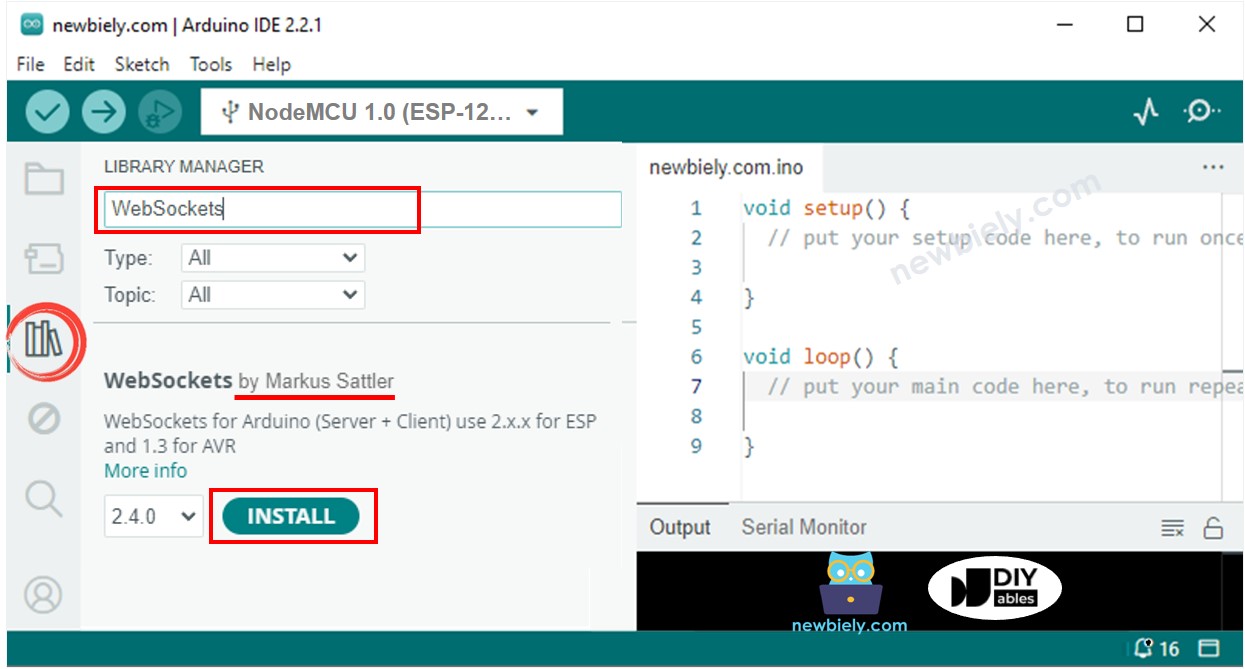
thư viện websockets cho ESP8266 NodeMCU
  • Trên Arduino IDE, tạo một sketch mới, đặt tên cho nó, ví dụ, newbiely.com.ino
  • Sao chép mã dưới đây và mở bằng Arduino IDE
/* * Mã ESP8266 NodeMCU này được phát triển bởi newbiely.vn * Mã ESP8266 NodeMCU này được cung cấp để sử dụng công khai, không có ràng buộc. * Để xem hướng dẫn chi tiết và sơ đồ kết nối, vui lòng truy cập: * https://newbiely.vn/tutorials/esp8266/esp8266-web-plotter */ #include <ESP8266WiFi.h> #include <ESP8266WebServer.h> #include "index.h" // contains HTML, JavaScript and CSS const char* ssid = "YOUR_WIFI_SSID"; // CHANGE IT TO MATCH YOUR OWN NETWORK CREDENTIALS const char* password = "YOUR_WIFI_PASSWORD"; // CHANGE IT TO MATCH YOUR OWN NETWORK CREDENTIALS ESP8266WebServer server(80); // Web server on port 80 WebSocketsServer plotter = WebSocketsServer(81); // WebSocket server on port 81 int last_update = 0; void setup() { Serial.begin(9600); delay(500); // Connect to Wi-Fi WiFi.begin(ssid, password); while (WiFi.status() != WL_CONNECTED) { delay(1000); Serial.println("Connecting to WiFi..."); } Serial.println("Connected to WiFi"); // Initialize WebSocket server plotter.begin(); // Serve a basic HTML page with JavaScript to create the WebSocket connection server.on("/", HTTP_GET, []() { Serial.println("Web Server: received a web page request"); String html = HTML_CONTENT; // Use the HTML content from the index.h file server.send(200, "text/html", html); }); server.begin(); Serial.print("ESP8266 Web Server's IP address: "); Serial.println(WiFi.localIP()); } void loop() { // Handle client requests server.handleClient(); // Handle WebSocket events plotter.loop(); if (millis() - last_update > 500) { last_update = millis(); String line_1 = String(random(0, 100)); String line_2 = String(random(0, 100)); String line_3 = String(random(0, 100)); String line_4 = String(random(0, 100)); // TO SERIAL PLOTTER Serial.print(line_1); Serial.print("\t"); // A tab character ('\t') or a space (' ') is printed between the two values. Serial.print(line_2); Serial.print("\t"); // A tab character ('\t') or a space (' ') is printed between the two values. Serial.print(line_3); Serial.print("\t"); // A tab character ('\t') or a space (' ') is printed between the two values. Serial.println(line_4); // The last value is terminated by a carriage return ('\r') and a newline ('\n') character. // TO WEB PLOTTER plotter.broadcastTXT(line_1); plotter.broadcastTXT("\t"); // A tab character ('\t') or a space (' ') is printed between the two values. plotter.broadcastTXT(line_2); plotter.broadcastTXT("\t"); // A tab character ('\t') or a space (' ') is printed between the two values. plotter.broadcastTXT(line_3); plotter.broadcastTXT("\t"); // A tab character ('\t') or a space (' ') is printed between the two values. plotter.broadcastTXT(line_4); plotter.broadcastTXT("\r\n"); // The last value is terminated by a carriage return ('\r') and a newline ('\n') character. } }
  • Chỉnh sửa thông tin WiFi (SSID và mật khẩu) trong mã để khớp với thông tin xác thực của mạng bạn.
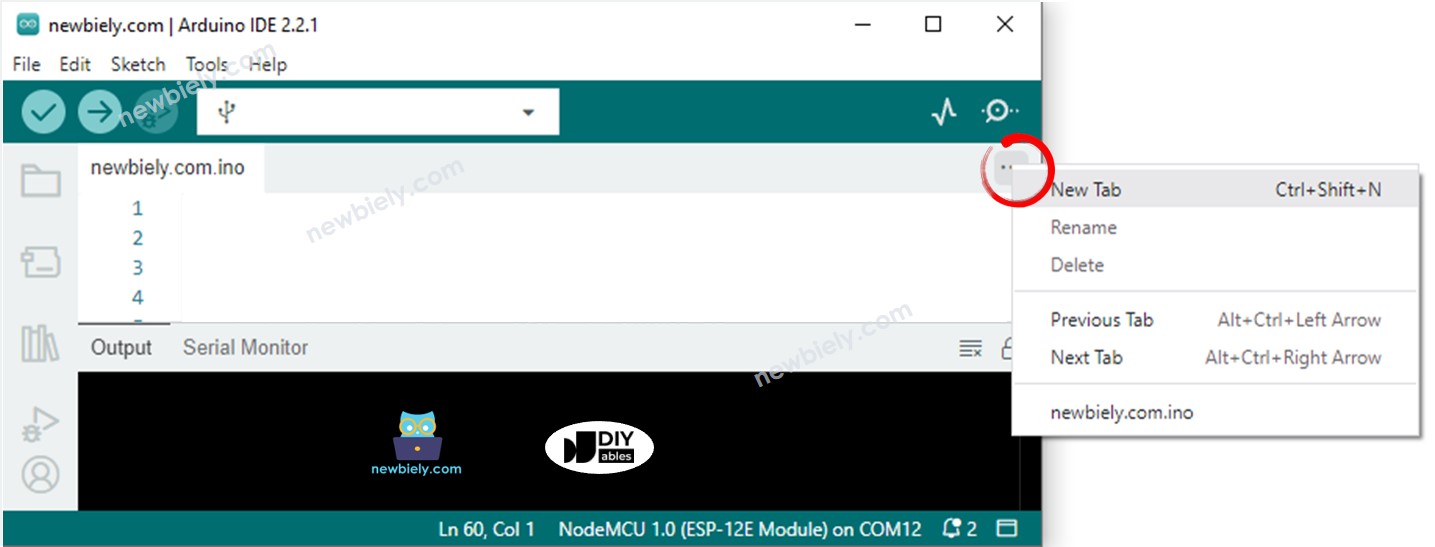
  • Tạo tệp index.h trong Arduino IDE bằng cách:
    • Bạn có thể nhấp vào nút ngay bên dưới biểu tượng Serial Monitor và chọn Tab Mới, hoặc sử dụng phím Ctrl+Shift+N.
    Arduino ide 2 thêm tệp
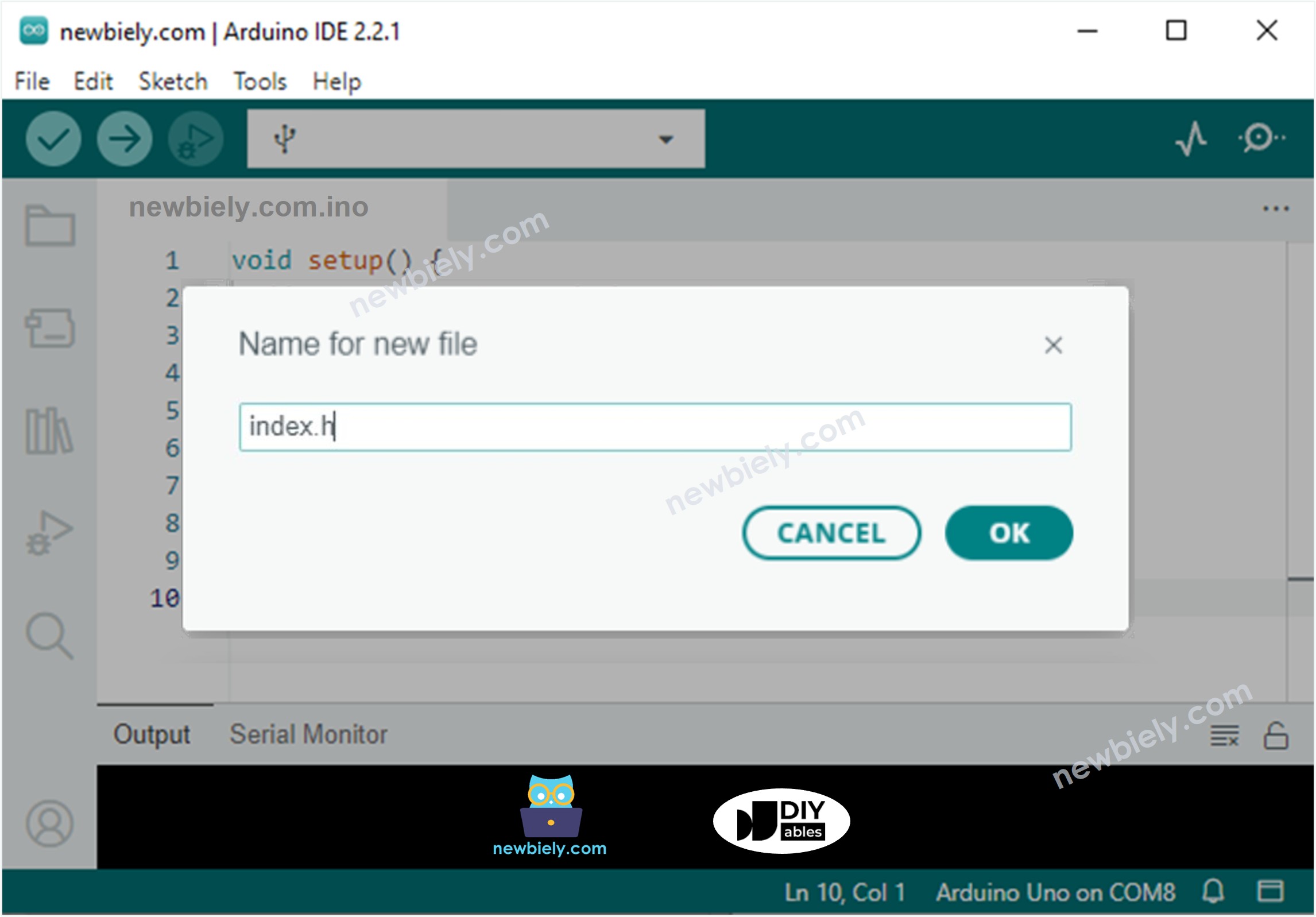
    • Đặt tên cho tệp tin index.h và nhấn nút OK
    Arduino ide 2 thêm tệp index.h.
    • Sao chép đoạn mã dưới đây và dán nó vào index.h.
    /* * Mã ESP8266 NodeMCU này được phát triển bởi newbiely.vn * Mã ESP8266 NodeMCU này được cung cấp để sử dụng công khai, không có ràng buộc. * Để xem hướng dẫn chi tiết và sơ đồ kết nối, vui lòng truy cập: * https://newbiely.vn/tutorials/esp8266/esp8266-web-plotter */ const char *HTML_CONTENT = R"=====( <!DOCTYPE html> <html> <head> <title>ESP8266 - Web Plotter</title> <meta name="viewport" content="width=device-width, initial-scale=0.7"> <style> body {text-align: center; height: 750px; } h1 {font-weight: bold; font-size: 20pt; padding-bottom: 5px; color: navy; } h2 {font-weight: bold; font-size: 15pt; padding-bottom: 5px; } button {font-weight: bold; font-size: 15pt; } #footer {width: 100%; margin: 0px; padding: 0px 0px 10px 0px; bottom: 0px; } .sub-footer {margin: 0 auto; position: relative; width:400px; } .sub-footer a {position: absolute; font-size: 10pt; top: 3px; } </style> <script> var COLOR_BACKGROUND = "#FFFFFF"; var COLOR_TEXT = "#000000"; var COLOR_BOUND = "#000000"; var COLOR_GRIDLINE = "#F0F0F0"; var COLOR_LINE = ["#0000FF", "#FF0000", "#009900", "#FF9900", "#CC00CC", "#666666", "#00CCFF", "#000000"]; var LEGEND_WIDTH = 10; var X_TITLE_HEIGHT = 40; var Y_TITLE_WIDTH = 40; var X_VALUE_HEIGHT = 40; var Y_VALUE_WIDTH = 50; var PLOTTER_PADDING_TOP = 30; var PLOTTER_PADDING_RIGHT = 30; var X_GRIDLINE_NUM = 5; var Y_GRIDLINE_NUM = 4; var WSP_WIDTH = 400; var WSP_HEIGHT = 200; var MAX_SAMPLE = 50; // in sample var X_MIN = 0; var X_MAX = MAX_SAMPLE; var Y_MIN = -5; var Y_MAX = 5; var X_TITLE = "X"; var Y_TITLE = "Y"; var plotter_width; var plotter_height; var plotter_pivot_x; var plotter_pivot_y; var sample_count = 0; var buffer = ""; var data = []; var webSocket; var canvas; var ctx; function plotter_init(){ canvas = document.getElementById("graph"); canvas.style.backgroundColor = COLOR_BACKGROUND; ctx = canvas.getContext("2d"); canvas_resize(); setInterval(update_plotter, 1000 / 60); } function plotter_to_esp8266(){ if(webSocket == null){ webSocket = new WebSocket("ws://" + window.location.host + ":81"); document.getElementById("ws_state").innerHTML = "CONNECTING"; webSocket.onopen = ws_onopen; webSocket.onclose = ws_onclose; webSocket.onmessage = ws_onmessage; webSocket.binaryType = "arraybuffer"; } else webSocket.close(); } function ws_onopen(){ document.getElementById("ws_state").innerHTML = "<span style='color: blue'>CONNECTED</span>"; document.getElementById("btn_connect").innerHTML = "Disconnect"; } function ws_onclose(){ document.getElementById("ws_state").innerHTML = "<span style='color: gray'>CLOSED</span>"; document.getElementById("btn_connect").innerHTML = "Connect"; webSocket.onopen = null; webSocket.onclose = null; webSocket.onmessage = null; webSocket = null; } function ws_onmessage(e_msg){ e_msg = e_msg || window.event; // MessageEvent console.log(e_msg.data); buffer += e_msg.data; buffer = buffer.replace(/\r\n/g, "\n"); buffer = buffer.replace(/\r/g, "\n"); while(buffer.indexOf("\n") == 0) buffer = buffer.substr(1); if(buffer.indexOf("\n") <= 0) return; var pos = buffer.lastIndexOf("\n"); var str = buffer.substr(0, pos); var new_sample_arr = str.split("\n"); buffer = buffer.substr(pos + 1); for(var si = 0; si < new_sample_arr.length; si++) { var str = new_sample_arr[si]; var arr = []; if(str.indexOf("\t") > 0) arr = str.split("\t"); else arr = str.split(" "); for(var i = 0; i < arr.length; i++){ var value = parseFloat(arr[i]); if(isNaN(value)) continue; if(i >= data.length) { var new_line = [value]; data.push(new_line); // new line } else data[i].push(value); } sample_count++; } for(var line = 0; line < data.length; line++){ while(data[line].length > MAX_SAMPLE) data[line].splice(0, 1); } auto_scale(); } function map(x, in_min, in_max, out_min, out_max){ return (x - in_min) * (out_max - out_min) / (in_max - in_min) + out_min; } function get_random_color(){ var letters = '0123456789ABCDEF'; var _color = '#'; for (var i = 0; i < 6; i++) _color += letters[Math.floor(Math.random() * 16)]; return _color; } function update_plotter(){ if(sample_count <= MAX_SAMPLE) X_MAX = sample_count; else X_MAX = 50; ctx.clearRect(0, 0, WSP_WIDTH, WSP_HEIGHT); ctx.save(); ctx.translate(plotter_pivot_x, plotter_pivot_y); ctx.font = "bold 20px Arial"; ctx.textBaseline = "middle"; ctx.textAlign = "center"; ctx.fillStyle = COLOR_TEXT; // draw X axis title if(X_TITLE != "") ctx.fillText(X_TITLE, plotter_width / 2, X_VALUE_HEIGHT + X_TITLE_HEIGHT / 2); // draw Y axis title if(Y_TITLE != ""){ ctx.rotate(-90 * Math.PI / 180); ctx.fillText(Y_TITLE, plotter_height / 2, -Y_VALUE_WIDTH - Y_TITLE_WIDTH / 2); ctx.rotate(90 * Math.PI / 180); } ctx.font = "16px Arial"; ctx.textAlign = "right"; ctx.strokeStyle = COLOR_BOUND; for(var i = 0; i <= Y_GRIDLINE_NUM; i++){ var y_gridline_px = -map(i, 0, Y_GRIDLINE_NUM, 0, plotter_height); y_gridline_px = Math.round(y_gridline_px) + 0.5; ctx.beginPath(); ctx.moveTo(0, y_gridline_px); ctx.lineTo(plotter_width, y_gridline_px); ctx.stroke(); ctx.strokeStyle = COLOR_BOUND; ctx.beginPath(); ctx.moveTo(-7 , y_gridline_px); ctx.lineTo(4, y_gridline_px); ctx.stroke(); var y_gridline_value = map(i, 0, Y_GRIDLINE_NUM, Y_MIN, Y_MAX); y_gridline_value = y_gridline_value.toFixed(1); ctx.fillText(y_gridline_value + "", -15, y_gridline_px); ctx.strokeStyle = COLOR_GRIDLINE; } ctx.strokeStyle = COLOR_BOUND; ctx.textAlign = "center"; ctx.beginPath(); ctx.moveTo(0.5, y_gridline_px - 7); ctx.lineTo(0.5, y_gridline_px + 4); ctx.stroke(); for(var i = 0; i <= X_GRIDLINE_NUM; i++){ var x_gridline_px = map(i, 0, X_GRIDLINE_NUM, 0, plotter_width); x_gridline_px = Math.round(x_gridline_px) + 0.5; ctx.beginPath(); ctx.moveTo(x_gridline_px, 0); ctx.lineTo(x_gridline_px, -plotter_height); ctx.stroke(); ctx.strokeStyle = COLOR_BOUND; ctx.beginPath(); ctx.moveTo(x_gridline_px, 7); ctx.lineTo(x_gridline_px, -4); ctx.stroke(); var x_gridline_value; if(sample_count <= MAX_SAMPLE) x_gridline_value = map(i, 0, X_GRIDLINE_NUM, X_MIN, X_MAX); else x_gridline_value = map(i, 0, X_GRIDLINE_NUM, sample_count - MAX_SAMPLE, sample_count);; ctx.fillText(x_gridline_value.toString(), x_gridline_px, X_VALUE_HEIGHT / 2 + 5); ctx.strokeStyle = COLOR_GRIDLINE; } var line_num = data.length; for(var line = 0; line < line_num; line++){ // draw graph var sample_num = data[line].length; if(sample_num >= 2){ var y_value = data[line][0]; var x_px = 0; var y_px = -map(y_value, Y_MIN, Y_MAX, 0, plotter_height); if(line == COLOR_LINE.length) COLOR_LINE.push(get_random_color()); ctx.strokeStyle = COLOR_LINE[line]; ctx.beginPath(); ctx.moveTo(x_px, y_px); for(var i = 0; i < sample_num; i++){ y_value = data[line][i]; x_px = map(i, X_MIN, X_MAX -1, 0, plotter_width); y_px = -map(y_value, Y_MIN, Y_MAX, 0, plotter_height); ctx.lineTo(x_px, y_px); } ctx.stroke(); } // draw legend var x = plotter_width - (line_num - line) * LEGEND_WIDTH - (line_num - line - 1) * LEGEND_WIDTH / 2; var y = -plotter_height - PLOTTER_PADDING_TOP / 2 - LEGEND_WIDTH / 2; ctx.fillStyle = COLOR_LINE[line]; ctx.beginPath(); ctx.rect(x, y, LEGEND_WIDTH, LEGEND_WIDTH); ctx.fill(); } ctx.restore(); } function canvas_resize(){ canvas.width = 0; // to avoid wrong screen size canvas.height = 0; document.getElementById('footer').style.position = "fixed"; var width = window.innerWidth - 20; var height = window.innerHeight - 20; WSP_WIDTH = width; WSP_HEIGHT = height - document.getElementById('header').offsetHeight - document.getElementById('footer').offsetHeight; canvas.width = WSP_WIDTH; canvas.height = WSP_HEIGHT; ctx.font = "16px Arial"; var y_min_text_size = ctx.measureText(Y_MIN.toFixed(1) + "").width; var y_max_text_size = ctx.measureText(Y_MAX.toFixed(1) + "").width; Y_VALUE_WIDTH = Math.round(Math.max(y_min_text_size, y_max_text_size)) + 15; plotter_width = WSP_WIDTH - Y_VALUE_WIDTH - PLOTTER_PADDING_RIGHT; plotter_height = WSP_HEIGHT - X_VALUE_HEIGHT - PLOTTER_PADDING_TOP; plotter_pivot_x = Y_VALUE_WIDTH; plotter_pivot_y = WSP_HEIGHT - X_VALUE_HEIGHT; if(X_TITLE != "") { plotter_height -= X_TITLE_HEIGHT; plotter_pivot_y -= X_TITLE_HEIGHT; } if(Y_TITLE != "") { plotter_width -= Y_TITLE_WIDTH; plotter_pivot_x += Y_TITLE_WIDTH; } ctx.lineWidth = 1; } function auto_scale(){ if(data.length >= 1){ var max_arr = []; var min_arr = []; for(var i = 0; i < data.length; i++){ if(data[i].length >= 1){ var max = Math.max.apply(null, data[i]); var min = Math.min.apply(null, data[i]); max_arr.push(max); min_arr.push(min); } } var max = Math.max.apply(null, max_arr); var min = Math.min.apply(null, min_arr); var MIN_DELTA = 10.0; if((max - min) < MIN_DELTA){ var mid = (max + min) / 2; max = mid + MIN_DELTA / 2; min = mid - MIN_DELTA / 2; } var range = max - min; var exp; if (range == 0.0) exp = 0; else exp = Math.floor(Math.log10(range / 4)); var scale = Math.pow(10, exp); var raw_step = (range / 4) / scale; var step; potential_steps =[1.0, 1.5, 2.0, 2.5, 3.0, 4.0, 5.0, 6.0, 8.0, 10.0]; for (var i = 0; i < potential_steps.length; i++) { if (potential_steps[i] < raw_step) continue; step = potential_steps[i] * scale; Y_MIN = step * Math.floor(min / step); Y_MAX = Y_MIN + step * (4); if (Y_MAX >= max) break; } var count = 5 - Math.floor((Y_MAX - max) / step); Y_MAX = Y_MIN + step * (count - 1); ctx.font = "16px Arial"; var y_min_text_size = ctx.measureText(Y_MIN.toFixed(1) + "").width; var y_max_text_size = ctx.measureText(Y_MAX.toFixed(1) + "").width; Y_VALUE_WIDTH = Math.round(Math.max(y_min_text_size, y_max_text_size)) + 15; plotter_width = WSP_WIDTH - Y_VALUE_WIDTH - PLOTTER_PADDING_RIGHT; plotter_pivot_x = Y_VALUE_WIDTH; } } window.onload = plotter_init; </script> </head> <body onresize="canvas_resize()"> <h1 id="header">ESP8266 - Web Plotter</h1> <canvas id="graph"></canvas> <br> <div id="footer"> <div class="sub-footer"> <h2>WebSocket <span id="ws_state"><span style="color: gray">CLOSED</span></span></h2> </div> <button id="btn_connect" type="button" onclick="plotter_to_esp8266();">Connect</button> </div> </body> </html> )=====";
    • Bây giờ bạn có mã nguồn ở hai tệp: newbiely.com.inoindex.h
    • Nhấn nút Tải lên trên Arduino IDE để tải mã lên ESP8266.
    • Mở Trình theo dõi Serial
    • Xem kết quả trên Trình theo dõi Serial.
    COM6
    Send
    Connecting to WiFi... Connected to WiFi ESP8266 Web Server's IP address IP address: 192.168.0.2
    Autoscroll Show timestamp
    Clear output
    9600 baud  
    Newline  
    • Hãy ghi chú địa chỉ IP được hiển thị và nhập địa chỉ này vào thanh địa chỉ của trình duyệt trên điện thoại thông minh hoặc máy tính của bạn.
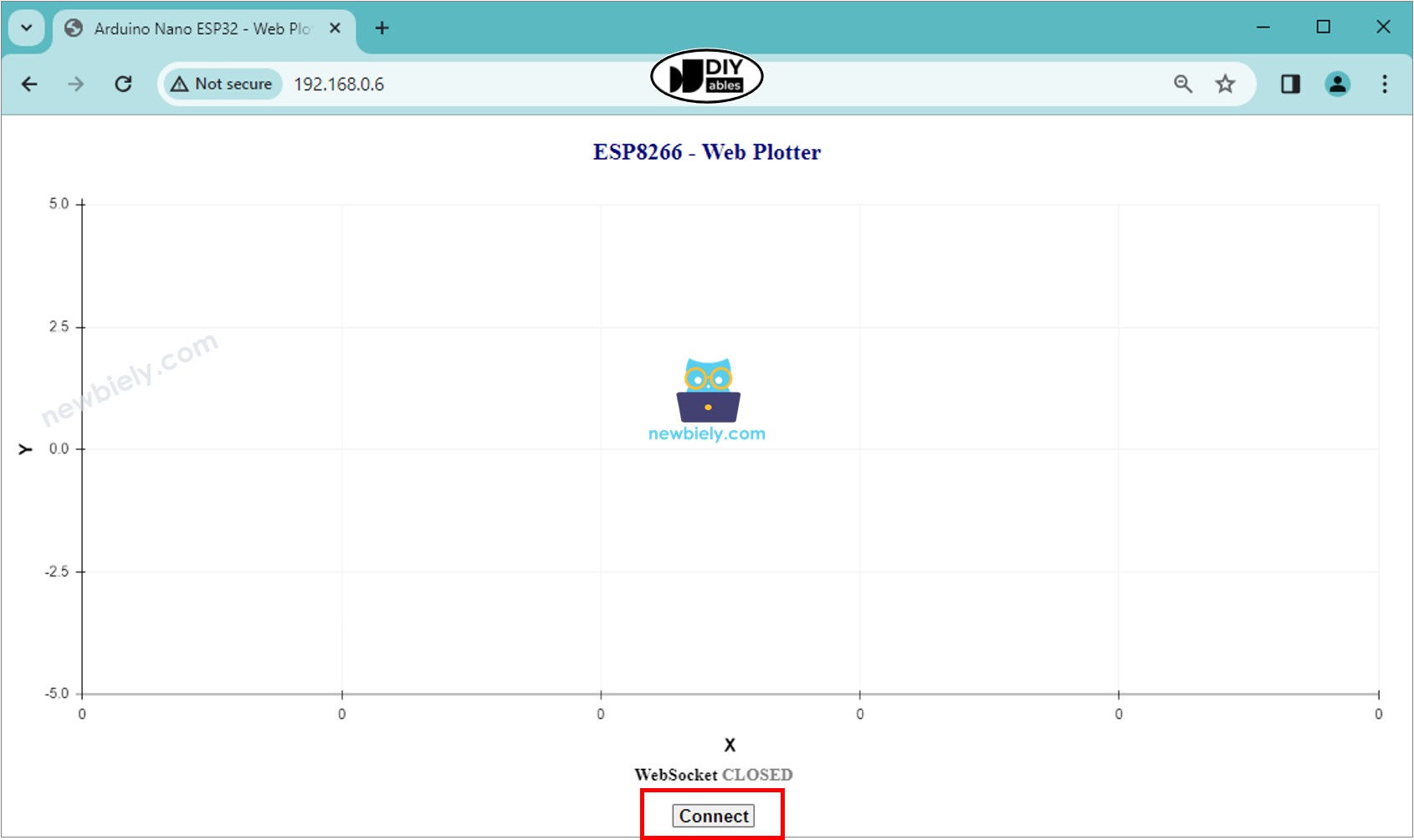
    • Bạn sẽ thấy trang web như dưới đây:
    trình duyệt web cho máy plotter ESP8266 NodeMCU
    • Nhấn nút CONNECT để kết nối trang web với ESP8266 thông qua WebSocket.
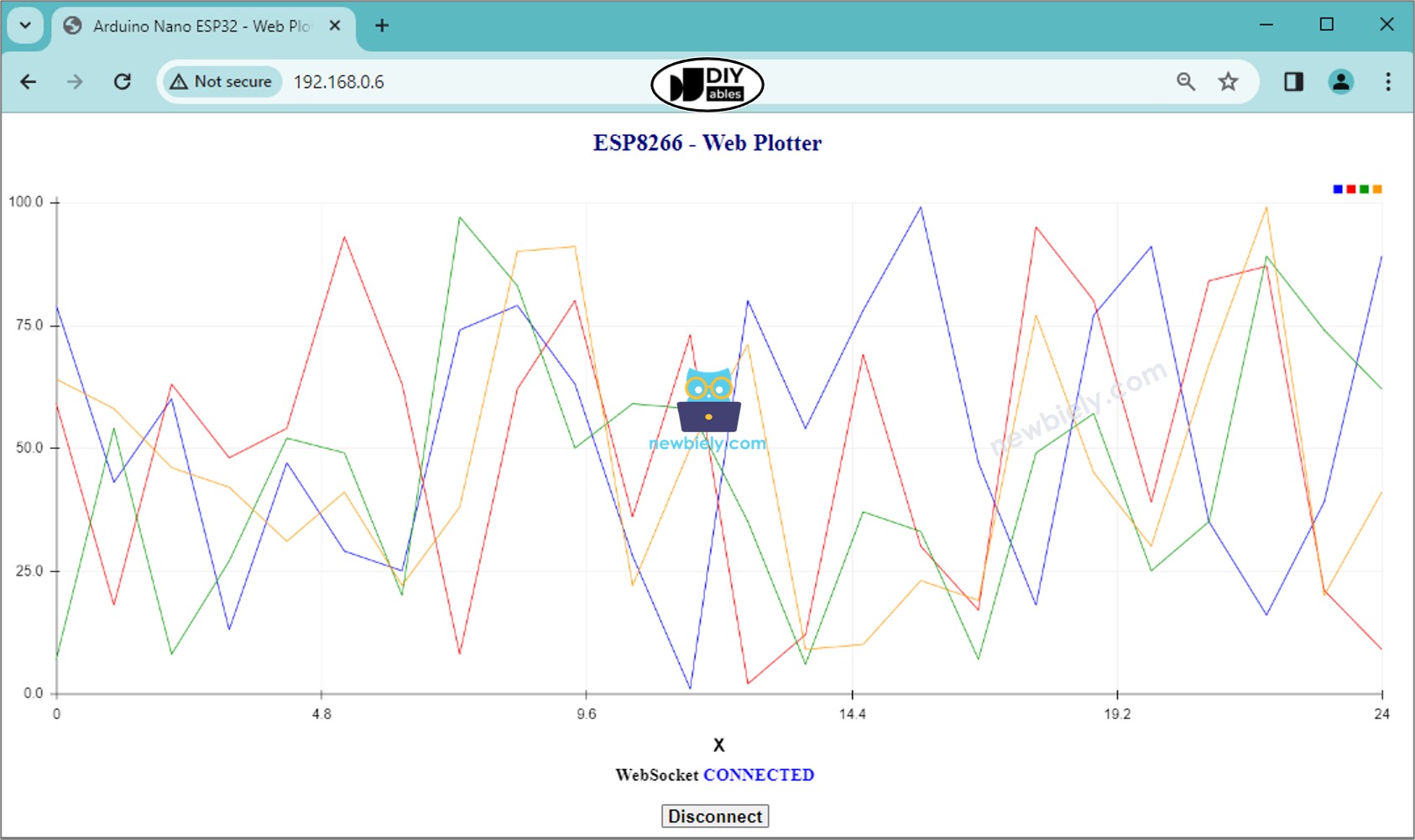
    • Bạn sẽ thấy máy plotter vẽ dữ liệu như hình dưới đây.
    Đồ thị web ESP8266 NodeMCU
    • Bạn có thể mở Serial Plotter trong Arduino IDE để so sánh với Web Plotter trên trình duyệt web.

    ※ Lưu ý:

    • Nếu bạn chỉnh sửa nội dung HTML trong index.h và không chạm vào bất kỳ điều gì trong tệp newbiely.com.ino, khi bạn biên dịch và tải mã lên ESP8266, Arduino IDE sẽ không cập nhật nội dung HTML.
    • Để Arduino IDE cập nhật nội dung HTML trong trường hợp này, hãy thực hiện một thay đổi trong tệp newbiely.com.ino (ví dụ: thêm một dòng trống, thêm một chú thích....)
    Giải thích mã theo từng dòng

    Đoạn mã ESP8266 ở trên chứa lời giải thích theo từng dòng. Vui lòng đọc các bình luận trong mã!