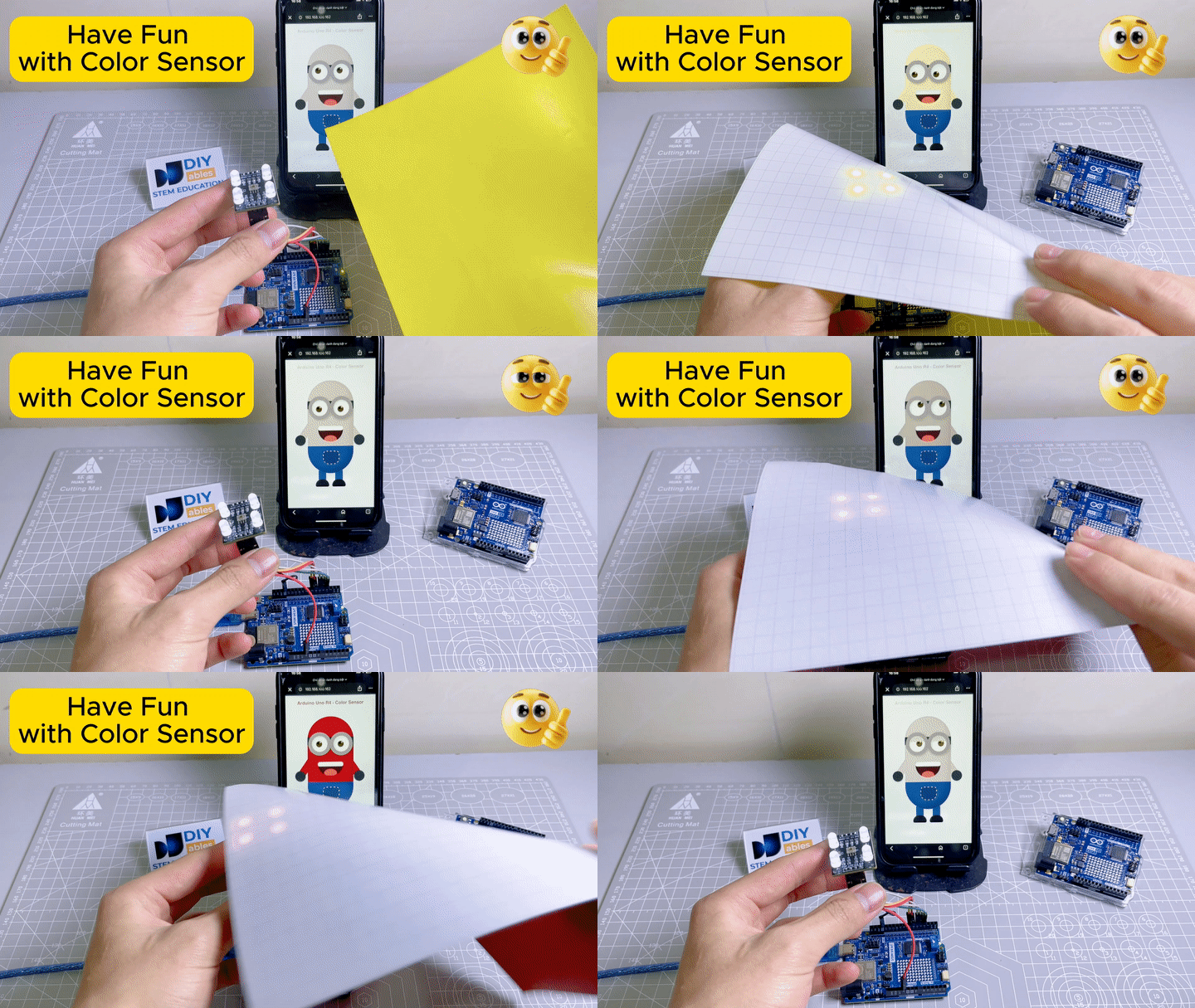
Dự án thú vị này kết hợp cảm biến màu sắc TCS3200D/TCS230 với nhân vật Minion trên nền web. Arduino UNO R4 WiFi đọc màu sắc từ cảm biến và gửi màu đã nhận diện đến trình duyệt web qua WebSocket. Minion trên trang web thay đổi màu da theo thời gian thực để khớp với bất kỳ màu sắc nào bạn đặt trước cảm biến! Để dễ dàng xây dựng giao diện web và xử lý giao tiếp thời gian thực, chúng ta sẽ sử dụng Arduino Custom WebApp Ví Dụ - Hướng Dẫn Giao Diện Web Đơn Giản Cho Người Mới Bắt Đầu.
Arduino UNO R4 đọc giá trị RGB từ cảm biến màu sắc TCS3200D/TCS230
Arduino chuyển đổi giá trị RGB thành mã màu HEX
Mã màu được gửi đến trình duyệt web qua WebSocket theo thời gian thực
Trang web hiển thị nhân vật Minion vui nhộn với cơ thể, cánh tay và mí mắt thay đổi màu sắc
Chúng tôi cũng cung cấp video hướng dẫn từng bước ở cuối tutorial này.
Các giá trị RGB được chuyển đổi thành chuỗi màu HEX (ví dụ: #FF8000).
Chuỗi màu HEX được gửi đến trình duyệt web qua WebSocket sử dụng thư viện DIYables WebApps.
Trang web nhận màu sắc và cập nhật cơ thể, cánh tay và mí mắt của Minion theo màu đó theo thời gian thực.
Mã Arduino UNO R4 - Ứng Dụng Web Minion Cảm Biến Màu Sắc
Mã bao gồm 4 file:
ColorSensor.ino - Sketch Arduino chính: đọc cảm biến màu sắc và gửi màu sắc đến trang web
CustomWebApp.h - File header: định nghĩa lớp trang ứng dụng web tùy chỉnh
CustomWebApp.cpp - File triển khai: xử lý giao tiếp WebSocket với định danh "Color Sensor:"
custom_page_html.h - Trang web: chứa HTML/CSS/JavaScript của Minion hoạt hình nhận màu sắc và cập nhật màu da Minion
ColorSensor.ino
/* * Mã Arduino UNO R4 này được phát triển bởi newbiely.vn * Mã Arduino UNO R4 này được cung cấp để sử dụng công khai, không có ràng buộc. * Để xem hướng dẫn chi tiết và sơ đồ kết nối, vui lòng truy cập: * https://newbiely.vn/tutorials/arduino-uno-r4/arduino-uno-r4-color-sensor-via-web */#include <DIYablesWebApps.h>#include"CustomWebApp.h"// CHANGE THESE TO YOUR WIFI DETAILSconstchar WIFI_SSID[] = "YOUR_WIFI_SSID";constchar WIFI_PASSWORD[] = "YOUR_WIFI_PASSWORD";intstatus = WL_IDLE_STATUS;// TCS3200 Pinsconstint S0 = 4, S1 = 3, S2 = 6, S3 = 5, sensorOut = 7;UnoR4ServerFactory serverFactory;DIYablesWebAppServerwebAppsServer(serverFactory, 80, 81);DIYablesHomePage homePage;CustomWebAppPage customPage;unsignedlong lastColorRead = 0;voidsetup() {Serial.begin(9600);// Initialize TCS3200 pinspinMode(S0, OUTPUT);pinMode(S1, OUTPUT);pinMode(S2, OUTPUT);pinMode(S3, OUTPUT);pinMode(sensorOut, INPUT);digitalWrite(S0, HIGH);digitalWrite(S1, LOW); // 20% frequency scalingwebAppsServer.addApp(&homePage);webAppsServer.addApp(&customPage);// Check for the WiFi moduleif (WiFi.status() == WL_NO_MODULE) {Serial.println("Communication with WiFi module failed!");// Stop program executionwhile (true); }String fv = WiFi.firmwareVersion();if (fv < WIFI_FIRMWARE_LATEST_VERSION) {Serial.println("Please upgrade the firmware"); }// Attempt to connect to WiFi networkwhile (status != WL_CONNECTED) {// Connect to WPA/WPA2 network (change if using open or WEP)status = WiFi.begin(WIFI_SSID, WIFI_PASSWORD);// Wait 10 seconds for connectiondelay(10000); }webAppsServer.begin();Serial.println("Color Web Server Ready!");}voidloop() {webAppsServer.loop();// Read color every 1 secondif (millis() - lastColorRead > 1000) {// Read Red colordigitalWrite(S2, LOW);digitalWrite(S3, LOW);int r = map(pulseIn(sensorOut, LOW), 31, 150, 255, 0);// Read Green colordigitalWrite(S2, HIGH);digitalWrite(S3, HIGH);int g = map(pulseIn(sensorOut, LOW), 35, 180, 255, 0);// Read Blue colordigitalWrite(S2, LOW);digitalWrite(S3, HIGH);int b = map(pulseIn(sensorOut, LOW), 30, 150, 255, 0);// Convert to HEX and send to Webchar hexColor[8]; sprintf(hexColor, "#%02X%02X%02X", constrain(r, 0, 255), constrain(g, 0, 255), constrain(b, 0, 255)); customPage.sendToWeb(String(hexColor));Serial.println("Sent to Minion: " + String(hexColor)); lastColorRead = millis(); }}
CustomWebApp.h
/* * Mã Arduino UNO R4 này được phát triển bởi newbiely.vn * Mã Arduino UNO R4 này được cung cấp để sử dụng công khai, không có ràng buộc. * Để xem hướng dẫn chi tiết và sơ đồ kết nối, vui lòng truy cập: * https://newbiely.vn/tutorials/arduino-uno-r4/arduino-uno-r4-color-sensor-via-web */#ifndef CUSTOM_WEBAPP_H#define CUSTOM_WEBAPP_H#include <DIYablesWebApps.h>/** * Simple Custom WebApp Page * * This is a template for creating your own custom web applications. * It provides basic controls like buttons and sliders that communicate * with your Arduino in real-time. */class CustomWebAppPage : public DIYablesWebAppPageBase {private:// WebSocket message identifier for this custom appstaticconstString APP_IDENTIFIER;public: CustomWebAppPage();// ========================================// REQUIRED METHODS - USED BY LIBRARY - DON'T CHANGE THESE!// ========================================void handleHTTPRequest(IWebClient& client) override;void handleWebSocketMessage(IWebSocket& ws, const char* message, uint16_tlength) override;const char* getPageInfo() constoverride;String getNavigationInfo() constoverride;// ========================================// YOUR METHODS - USE THESE IN YOUR CODE!// ========================================void onCustomMessageReceived(void (*callback)(const String& payload));void sendToWeb(const String& message);};#endif
CustomWebApp.cpp
/* * Mã Arduino UNO R4 này được phát triển bởi newbiely.vn * Mã Arduino UNO R4 này được cung cấp để sử dụng công khai, không có ràng buộc. * Để xem hướng dẫn chi tiết và sơ đồ kết nối, vui lòng truy cập: * https://newbiely.vn/tutorials/arduino-uno-r4/arduino-uno-r4-color-sensor-via-web */#include"CustomWebApp.h"#include"custom_page_html.h"// Define the static member - WebSocket message identifier for this custom appconstString CustomWebAppPage::APP_IDENTIFIER = "Color Sensor:";// Callback function for handling messages from web browservoid (*customMessageCallback)(const String& payload) = nullptr;CustomWebAppPage::CustomWebAppPage() : DIYablesWebAppPageBase("/custom") {}void CustomWebAppPage::handleHTTPRequest(IWebClient& client) {// Send the HTML page to web browser sendHTTPHeader(client); client.print(CUSTOM_PAGE_HTML);}void CustomWebAppPage::handleWebSocketMessage(IWebSocket& ws, const char* message, uint16_tlength) {String messageStr = String(message, length);Serial.print("Color Sensor WebApp received: ");Serial.println(messageStr);// Only handle messages that start with our app identifierif (messageStr.startsWith(APP_IDENTIFIER)) {String payload = messageStr.substring(APP_IDENTIFIER.length()); // Remove identifier// Call your callback function with the payloadif (customMessageCallback) { customMessageCallback(payload); } }}void CustomWebAppPage::onCustomMessageReceived(void (*callback)(const String& payload)) { customMessageCallback = callback;}void CustomWebAppPage::sendToWeb(const String& message) {// Send message to web browser with app identifierString fullMessage = APP_IDENTIFIER + message; broadcastToAllClients(fullMessage.c_str());}const char* CustomWebAppPage::getPageInfo() const {return"🔧 Color Sensor WebApp";}String CustomWebAppPage::getNavigationInfo() const {String result = "<a href=\""; result += getPagePath(); result += "\" class=\"app-card custom\" style=\"background: linear-gradient(135deg, #007bff 0%, #0056b3 100%);\">"; result += "<h3>🔧 Color Sensor WebApp</h3>"; result += "<p>Simple template for your own apps</p>"; result += "</a>";return result;}
Hiệu chuẩn cảm biến màu sắc trước bằng cách làm theo Arduino UNO R4 - Cảm Biến Màu Sắc TCS3200D/TCS230. Ghi lại các giá trị hiệu chuẩn của bạn (redMin, redMax, greenMin, greenMax, blueMin, blueMax).
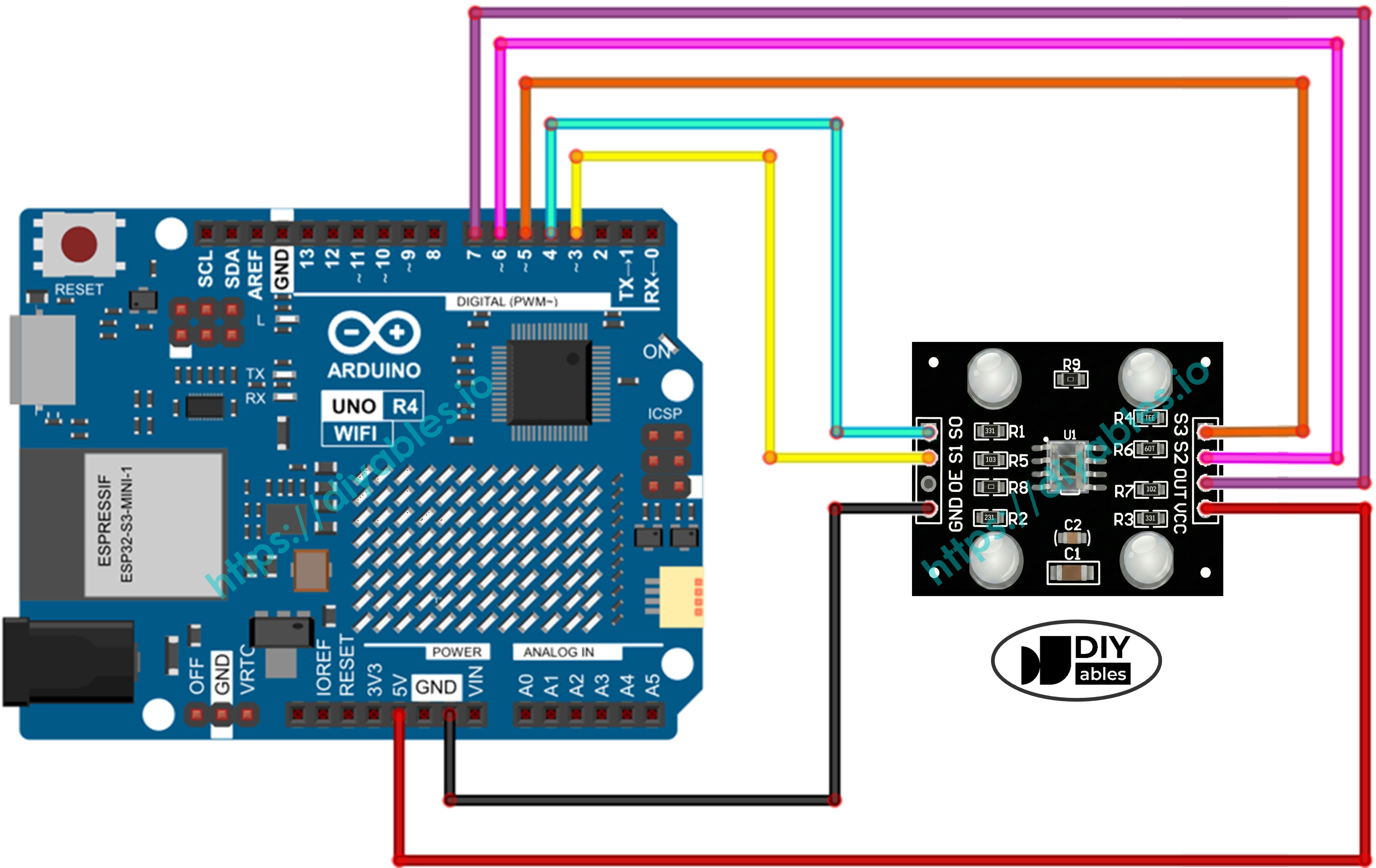
Kết nối các linh kiện theo sơ đồ kết nối ở trên.
Kết nối bo mạch Arduino Uno R4 WiFi với máy tính bằng cáp USB.
Khởi động Arduino IDE trên máy tính.
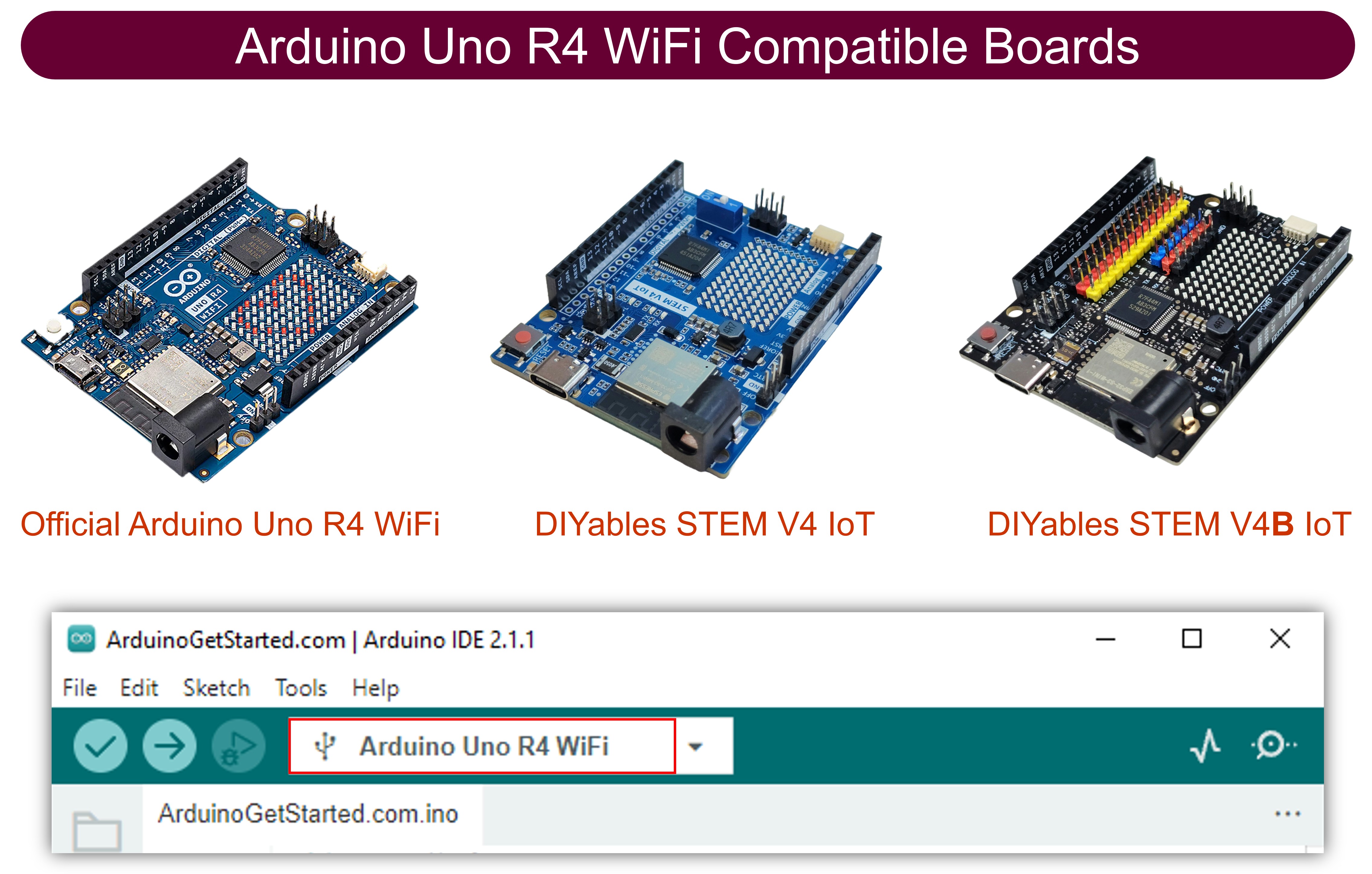
Chọn bo mạch Arduino Uno R4 phù hợp (ví dụ: Arduino Uno R4 WiFi) và cổng COM.
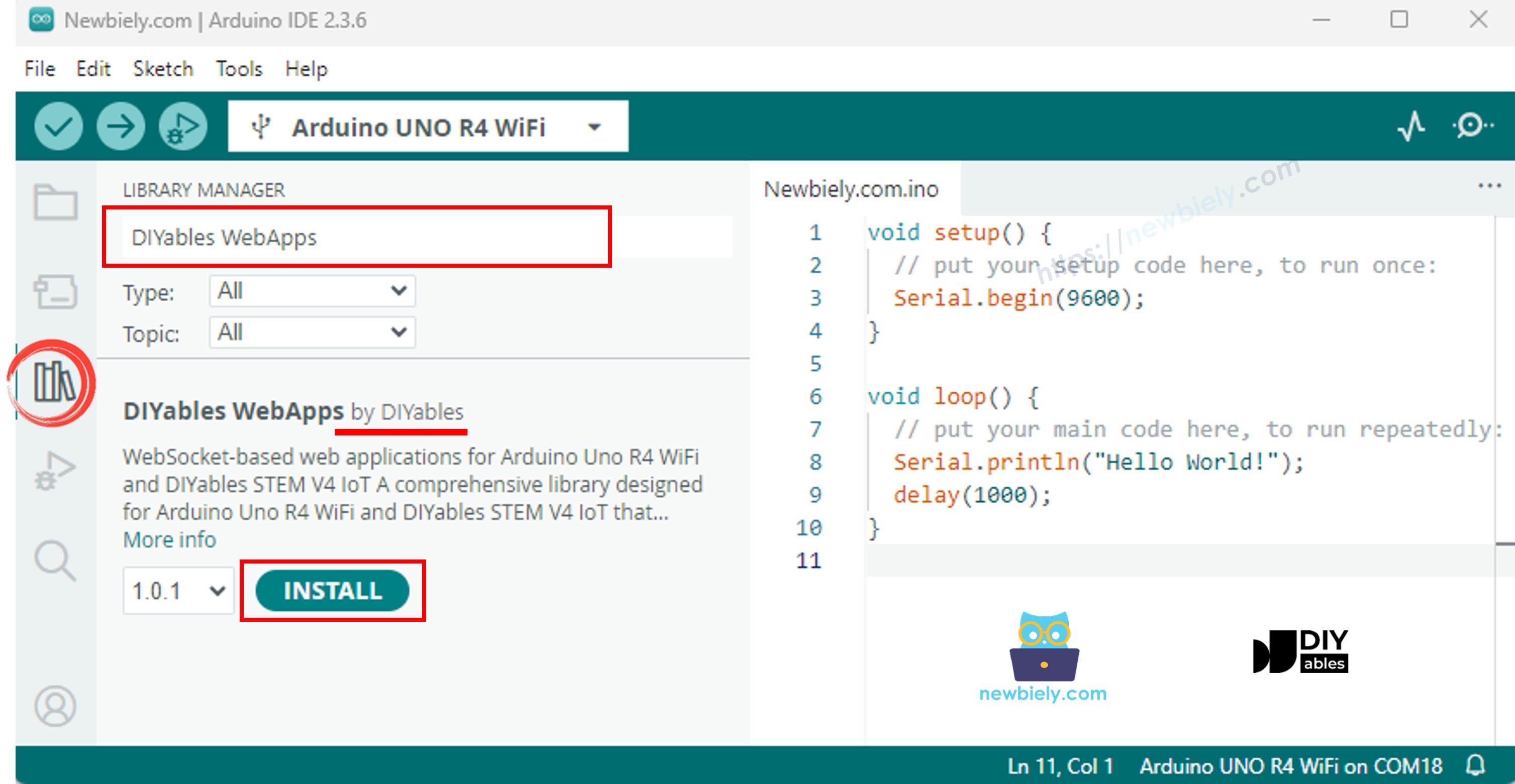
Điều hướng đến biểu tượng Libraries ở thanh bên trái của Arduino IDE.
Tìm kiếm "DIYables WebApps", sau đó tìm thư viện DIYables WebApps của DIYables.
Nhấp nút Install để cài đặt thư viện.
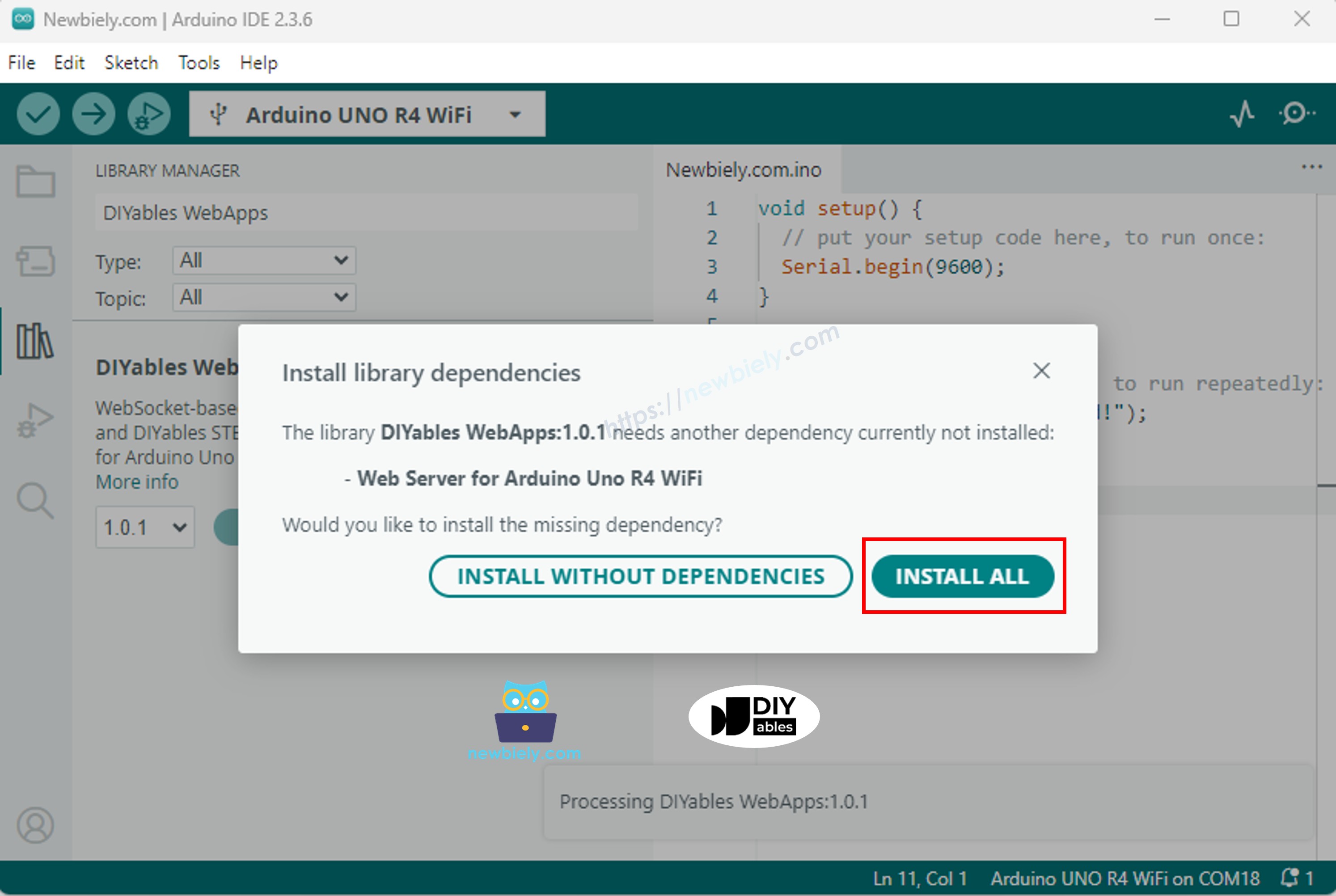
Bạn sẽ được yêu cầu cài đặt một số thư viện phụ thuộc khác.
Nhấp nút Install All để cài đặt tất cả thư viện phụ thuộc.
Tạo sketch mới trong Arduino IDE và đặt tên là ColorSensor.
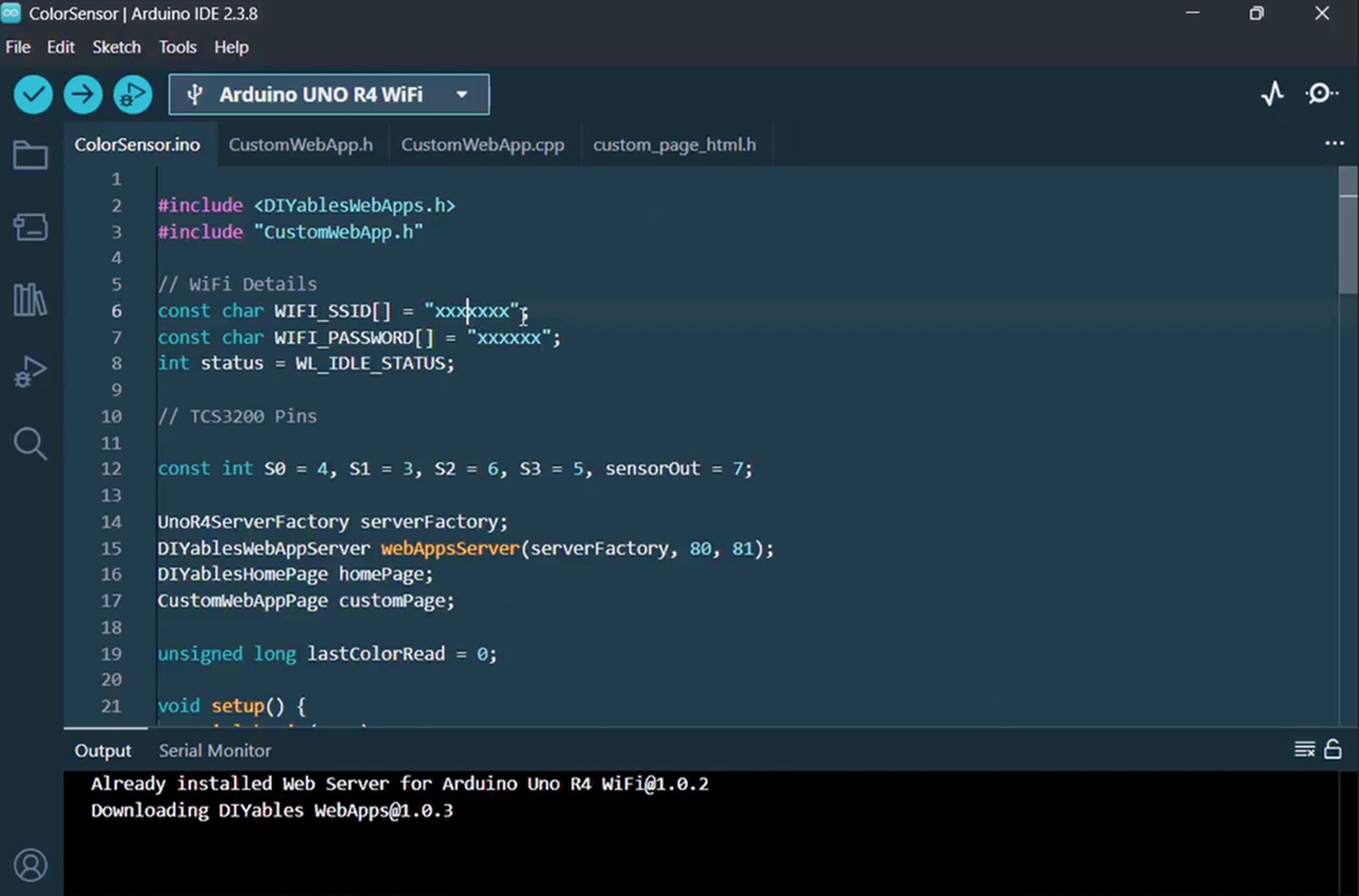
Sao chép và dán tất cả 4 file ở trên vào dự án Arduino IDE. Dự án Arduino IDE sẽ có 4 file như hình dưới đây:
Trong file ColorSensor.ino, cập nhật thông tin Wi-Fi (SSID và password) với thông tin của bạn:
Cập nhật các giá trị hiệu chuẩn trong các hàm map() bên trong loop() với giá trị hiệu chuẩn của riêng bạn từ bước hiệu chuẩn. Ví dụ, nếu hiệu chuẩn của bạn cho redMin = 42, redMax = 210, greenMin = 55, greenMax = 185, blueMin = 60, blueMax = 172, thay đổi các dòng thành:
int r = map(pulseIn(sensorOut, LOW), 42, 210, 255, 0);int g = map(pulseIn(sensorOut, LOW), 55, 185, 255, 0);int b = map(pulseIn(sensorOut, LOW), 60, 172, 255, 0);
Nhấp nút Upload trong Arduino IDE để tải mã lên Arduino UNO R4.
Mở Serial Monitor. Bạn sẽ thấy kết quả như thế này:
Newbiely | Arduino IDE 2.3.8
──
☐
✕
File
Edit
Sketch
Tools
Help
Arduino Uno R4 WiFi
Newbiely.ino
···
8Serial.println("Hello World!");
Output
Serial Monitor
Message (Enter to send message to 'Arduino Uno R4 WiFi' on 'COM15')
New Line
9600 baud
Color Web Server Ready!
INFO: Added app /
INFO: Added app /custom
DIYables WebApp Library
Platform: Arduino Uno R4 WiFi
Network connected!
IP address: 192.168.0.2
HTTP server started on port 80
WebSocket server started on port 81
==========================================
DIYables WebApp Ready!
==========================================
📱 Web Interface: http://192.168.0.2
🔗 WebSocket: ws://192.168.0.2:81
📋 Available Applications:
🏠 Home Page: http://192.168.0.2/
🔧 Color Sensor WebApp: http://192.168.0.2/custom
==========================================
Sent to Minion: #FFD200
Sent to Minion: #00C832
Sent to Minion: #0028FF
Ln 11, Col 1
Arduino Uno R4 WiFi on COM15
2
Nếu bạn không thấy gì, hãy khởi động lại bo mạch Arduino.
Ghi lại địa chỉ IP được hiển thị và nhập địa chỉ này vào thanh địa chỉ của trình duyệt web trên điện thoại thông minh hoặc PC.
Ví dụ: http://192.168.0.2
Bạn sẽ thấy trang chủ. Nhấp vào liên kết Color Sensor WebApp.
Hoặc bạn có thể truy cập trực tiếp trang Minion bằng địa chỉ IP theo sau là /custom. Ví dụ: http://192.168.0.2/custom
Bạn sẽ thấy nhân vật Minion hoạt hình trên trang web.
Đặt một vật có màu trước cảm biến TCS3200 — màu da của Minion sẽ thay đổi theo thời gian thực để khớp với màu sắc được phát hiện!
Bạn có thể xem hướng dẫn từng bước trong video dưới đây.
Cách Mã Hoạt Động
Phía Arduino (ColorSensor.ino)
Sketch chính thực hiện những việc sau:
Khởi tạo các chân cảm biến TCS3200: S0, S1 được đặt cho tần số scale 20%. S2, S3 được sử dụng để chọn bộ lọc màu.
Đọc màu sắc mỗi 1 giây: Trong loop(), Arduino chọn bộ lọc đỏ, xanh lá cây và xanh dương lần lượt, đọc độ rộng xung bằng pulseIn(), và ánh xạ các giá trị thô thành giá trị RGB 0-255 sử dụng số hiệu chuẩn của bạn.
Chuyển đổi sang HEX: Các giá trị RGB được định dạng thành chuỗi màu HEX như #FF8000 sử dụng sprintf().
Gửi đến trình duyệt web: Chuỗi HEX được gửi đến tất cả các client web đã kết nối qua customPage.sendToWeb().
Phía Trang Web (custom_page_html.h)
Trang HTML chứa:
Nhân vật Minion hoạt hình được xây dựng hoàn toàn bằng CSS — bao gồm mắt chớp mắt, miệng cười và con ngươi di chuyển ngẫu nhiên.
Kết nối WebSocket: JavaScript kết nối với WebSocket server của Arduino (cổng 81) và lắng nghe các thông điệp màu sắc đến.
Cập nhật màu sắc: Khi nhận được thông điệp như #FF8000, cơ thể, cánh tay và mí mắt của Minion chuyển đổi mượt mà sang màu mới sử dụng CSS transition.
Tự động kết nối lại: Nếu kết nối WebSocket bị ngắt, trang tự động thử kết nối lại mỗi 2 giây.
Thiết kế responsive: Minion tự động scale để phù hợp với các kích thước màn hình khác nhau (điện thoại, máy tính bảng, desktop).
Giao Thức Giao Tiếp
Dự án này sử dụng framework ứng dụng web tùy chỉnh DIYables WebApps với định danh "Color Sensor:":
Arduino gửi: Color Sensor:#FF8000 (định danh + màu HEX)
Trang web nhận: Loại bỏ định danh và áp dụng màu HEX còn lại #FF8000 cho Minion

 English for KidsHọc tiếng Anh vui nhộn cho trẻ nhỏ.Tải về trênGoogle PlayTải về trênApp Store
 Bubble NoteGhi chú tự xóa — viết như nhắn tin.Tải về trênGoogle PlayTải về trênApp Store
 Tôi Không MuaĐánh bại mua sắm bốc đồng, tiết kiệm hơn.Tải về trênGoogle PlayTải về trênApp Store
 Con Đường Tri ThứcBài thi thử để học mọi thứ.Tải về trênGoogle PlayTải về trênApp Store