Arduino UNO R4 Cảm Biến Siêu Âm Còi Piezo

Chúng ta sẽ học cách điều khiển còi piezo bằng Arduino UNO R4 và cảm biến siêu âm.

Phần Cứng Cần Thiết

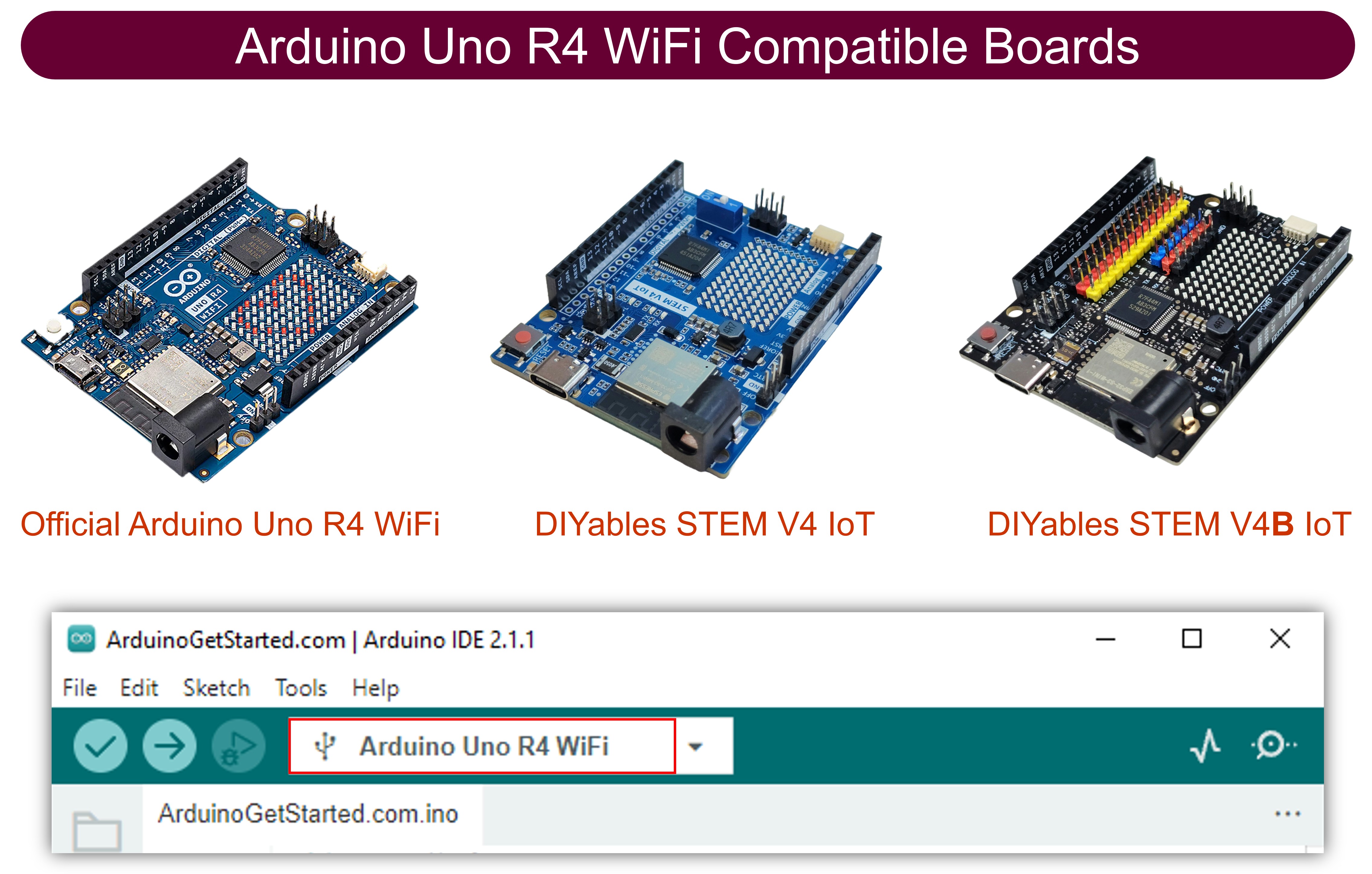
1×Arduino UNO R4 WiFi hoặc Arduino UNO R4 Minima
1×(Tùy chọn) DIYables STEM V4 IoT, tương thích với Arduino Uno R4 WiFi
1×Arduino UNO R4 Minima (Thay thế)
1×Cáp USB Type-C
1×Cảm Biến Siêu Âm
1×Còi Piezo Tích Cực 3-24V
1×Module Còi Piezo Tích Cực
1×Module Còi Piezo Thụ Động
1×breadboard
1×Dây Jumper
1×(Khuyến nghị) Screw Terminal Block Shield for Arduino UNO R4
1×(Khuyến nghị) Breadboard Shield for Arduino UNO R4
1×(Khuyến nghị) Enclosure for Arduino UNO R4
1×(Khuyến nghị) Power Splitter for Arduino UNO R4
1×(Khuyến nghị) Prototyping Base Plate & Breadboard Kit for Arduino UNO

Or you can buy the following kits:

1×DIYables STEM V4 IoT Starter Kit (Arduino included)
1×DIYables Sensor Kit (30 sensors/displays)
1×DIYables Sensor Kit (18 sensors/displays)

Về Còi Piezo và Cảm Biến Siêu Âm

Tìm hiểu về còi piezo và cảm biến siêu âm, bao gồm sơ đồ chân, chức năng và lập trình trong các hướng dẫn được cung cấp.

Hướng dẫn này sử dụng còi cần 3-5V, nhưng bạn cũng có thể điều chỉnh cho còi 12V. Tìm hiểu thêm về điều này trong Arduino UNO R4 - Buzzer.

Sơ Đồ Đấu Dây

  • Sơ đồ đấu dây giữa Arduino UNO R4, cảm biến siêu âm và còi piezo
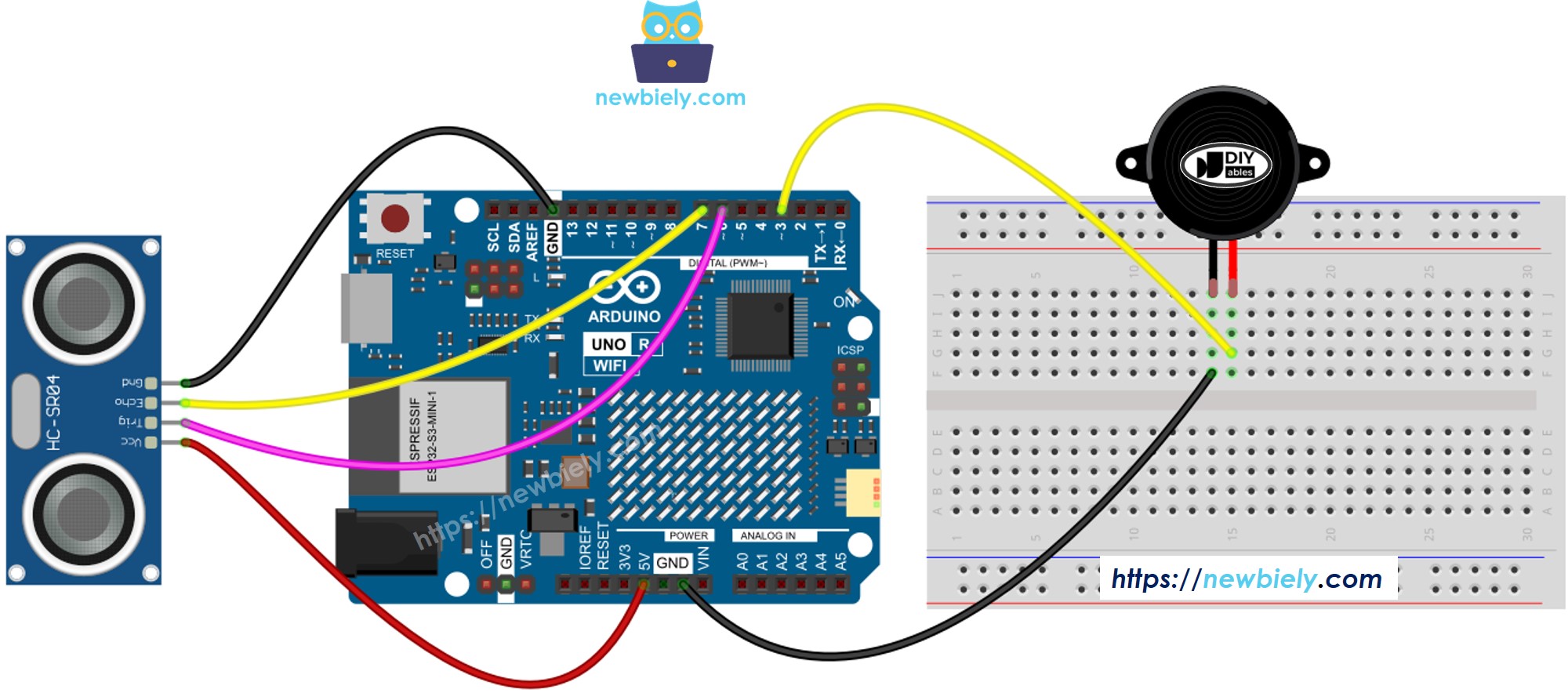
Arduino UNO R4 cảm biến siêu âm còi piezo sơ đồ đấu dây

This image is created using Fritzing. Click to enlarge image

  • Sơ đồ đấu dây giữa Arduino UNO R4, cảm biến siêu âm và module còi piezo
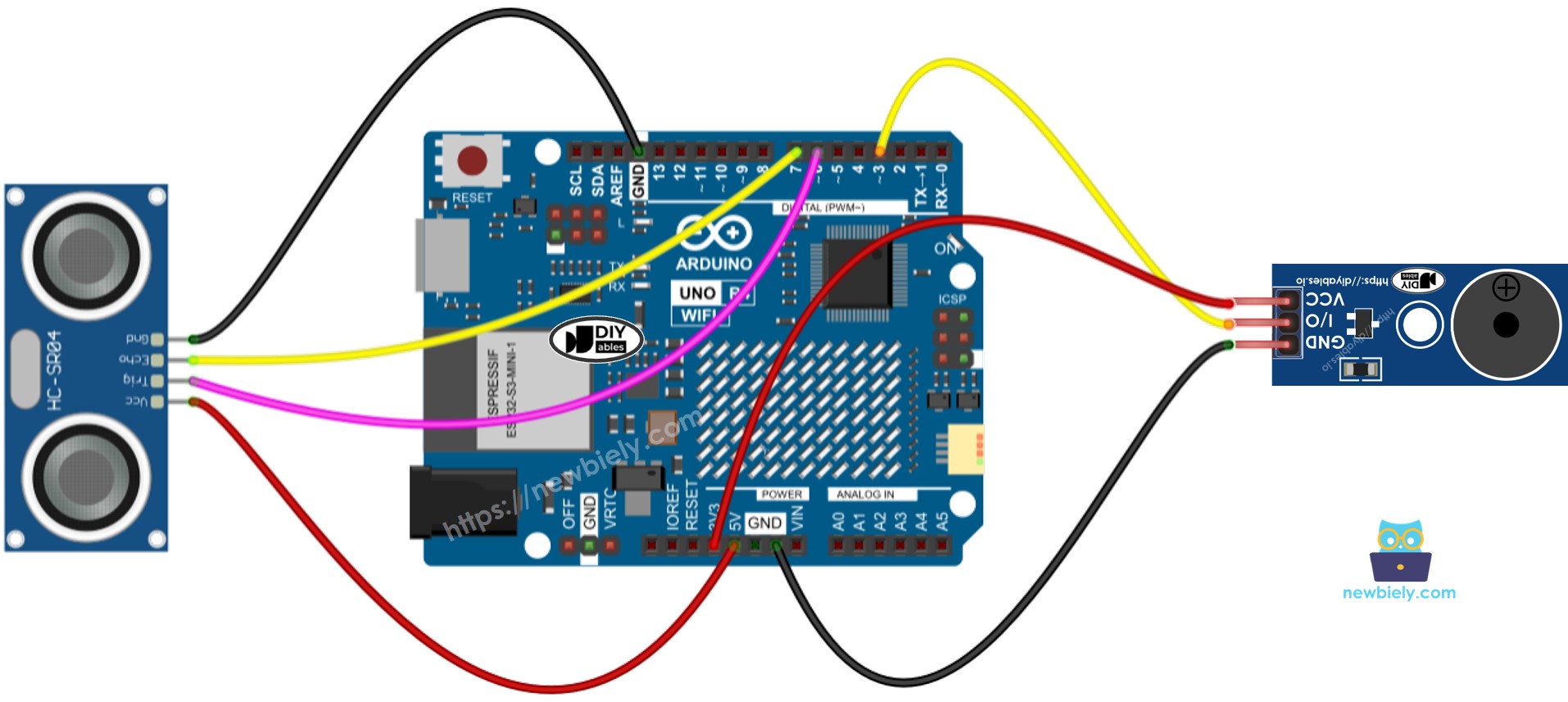
Arduino UNO R4 cảm biến siêu âm còi piezo module sơ đồ đấu dây

This image is created using Fritzing. Click to enlarge image

Code Arduino UNO R4 - Âm Thanh Đơn Giản

/* * Mã Arduino UNO R4 này được phát triển bởi newbiely.vn * Mã Arduino UNO R4 này được cung cấp để sử dụng công khai, không có ràng buộc. * Để xem hướng dẫn chi tiết và sơ đồ kết nối, vui lòng truy cập: * https://newbiely.vn/tutorials/arduino-uno-r4/arduino-uno-r4-ultrasonic-sensor-piezo-buzzer */ #define TRIG_PIN 6 // The Arduino UNO R4 pin connected to the ultrasonic sensor's TRIG pin #define ECHO_PIN 7 // The Arduino UNO R4 pin connected to the ultrasonic sensor's ECHO pin #define BUZZER_PIN 3 // The Arduino UNO R4 pin connected to Piezo Buzzer's pin #define DISTANCE_THRESHOLD 50 // centimeters float duration_us, distance_cm; void setup() { Serial.begin (9600); // initialize serial port pinMode(TRIG_PIN, OUTPUT); // set arduino pin to output mode pinMode(ECHO_PIN, INPUT); // set arduino pin to input mode pinMode(BUZZER_PIN, OUTPUT); // set arduino pin to output mode } void loop() { // generate 10-microsecond pulse to TRIG pin digitalWrite(TRIG_PIN, HIGH); delayMicroseconds(10); digitalWrite(TRIG_PIN, LOW); // measure duration of pulse from ECHO pin duration_us = pulseIn(ECHO_PIN, HIGH); // calculate the distance distance_cm = 0.017 * duration_us; if(distance_cm < DISTANCE_THRESHOLD) digitalWrite(BUZZER_PIN, HIGH); // turn on Piezo Buzzer else digitalWrite(BUZZER_PIN, LOW); // turn off Piezo Buzzer // print the value to Serial Monitor Serial.print("distance: "); Serial.print(distance_cm); Serial.println(" cm"); delay(500); }

Các Bước Thực Hiện Nhanh

Thực hiện theo các hướng dẫn từng bước sau:

  • Nếu đây là lần đầu tiên bạn sử dụng Arduino Uno R4 WiFi/Minima, hãy tham khảo hướng dẫn về Arduino UNO R4 - Cài Đặt Phần Mềm.
  • Đấu dây các linh kiện theo sơ đồ được cung cấp.
  • Kết nối board Arduino Uno R4 với máy tính của bạn bằng cáp USB.
  • Khởi động Arduino IDE trên máy tính của bạn.
  • Chọn board Arduino Uno R4 phù hợp (ví dụ: Arduino Uno R4 WiFi) và cổng COM.
  • Copy và paste code trên vào Arduino IDE
  • Nhấn nút Upload trong Arduino IDE để chuyển code lên Arduino UNO R4
  • Vẫy tay gần cảm biến
  • Nghe âm thanh từ còi piezo

Giải Thích Code

Xem các dòng comment trong mã nguồn để được giải thích từng bước!

Code Arduino UNO R4 - Giai Điệu

/* * Mã Arduino UNO R4 này được phát triển bởi newbiely.vn * Mã Arduino UNO R4 này được cung cấp để sử dụng công khai, không có ràng buộc. * Để xem hướng dẫn chi tiết và sơ đồ kết nối, vui lòng truy cập: * https://newbiely.vn/tutorials/arduino-uno-r4/arduino-uno-r4-ultrasonic-sensor-piezo-buzzer */ #include "pitches.h" #define TRIG_PIN 6 // The Arduino UNO R4 pin connected to the ultrasonic sensor's TRIG pin #define ECHO_PIN 7 // The Arduino UNO R4 pin connected to the ultrasonic sensor's ECHO pin #define BUZZER_PIN 3 // The Arduino UNO R4 pin connected to Piezo Buzzer's pin #define DISTANCE_THRESHOLD 50 // centimeters float duration_us, distance_cm; // notes in the melody: int melody[] = { NOTE_E5, NOTE_E5, NOTE_E5, NOTE_E5, NOTE_E5, NOTE_E5, NOTE_E5, NOTE_G5, NOTE_C5, NOTE_D5, NOTE_E5, NOTE_F5, NOTE_F5, NOTE_F5, NOTE_F5, NOTE_F5, NOTE_E5, NOTE_E5, NOTE_E5, NOTE_E5, NOTE_E5, NOTE_D5, NOTE_D5, NOTE_E5, NOTE_D5, NOTE_G5 }; // note durations: 4 = quarter note, 8 = eighth note, etc, also called tempo: int noteDurations[] = { 8, 8, 4, 8, 8, 4, 8, 8, 8, 8, 2, 8, 8, 8, 8, 8, 8, 8, 16, 16, 8, 8, 8, 8, 4, 4 }; void setup() { pinMode(TRIG_PIN, OUTPUT); // set arduino pin to output mode pinMode(ECHO_PIN, INPUT); // set arduino pin to input mode } void loop() { // generate 10-microsecond pulse to TRIG pin digitalWrite(TRIG_PIN, HIGH); delayMicroseconds(10); digitalWrite(TRIG_PIN, LOW); // measure duration of pulse from ECHO pin duration_us = pulseIn(ECHO_PIN, HIGH); // calculate the distance distance_cm = 0.017 * duration_us; if(distance_cm < DISTANCE_THRESHOLD) buzzer(); // play a song delay(500); } void buzzer() { // iterate over the notes of the melody: int size = sizeof(noteDurations) / sizeof(int); for (int thisNote = 0; thisNote < size; thisNote++) { // to calculate the note duration, take one second divided by the note type. //e.g. quarter note = 1000 / 4, eighth note = 1000/8, etc. int noteDuration = 1000 / noteDurations[thisNote]; tone(BUZZER_PIN, melody[thisNote], noteDuration); // to distinguish the notes, set a minimum time between them. // the note's duration + 30% seems to work well: int pauseBetweenNotes = noteDuration * 1.30; delay(pauseBetweenNotes); // stop the tone playing: noTone(BUZZER_PIN); } }

Các Bước Thực Hiện Nhanh

  • Copy code và mở bằng Arduino IDE.
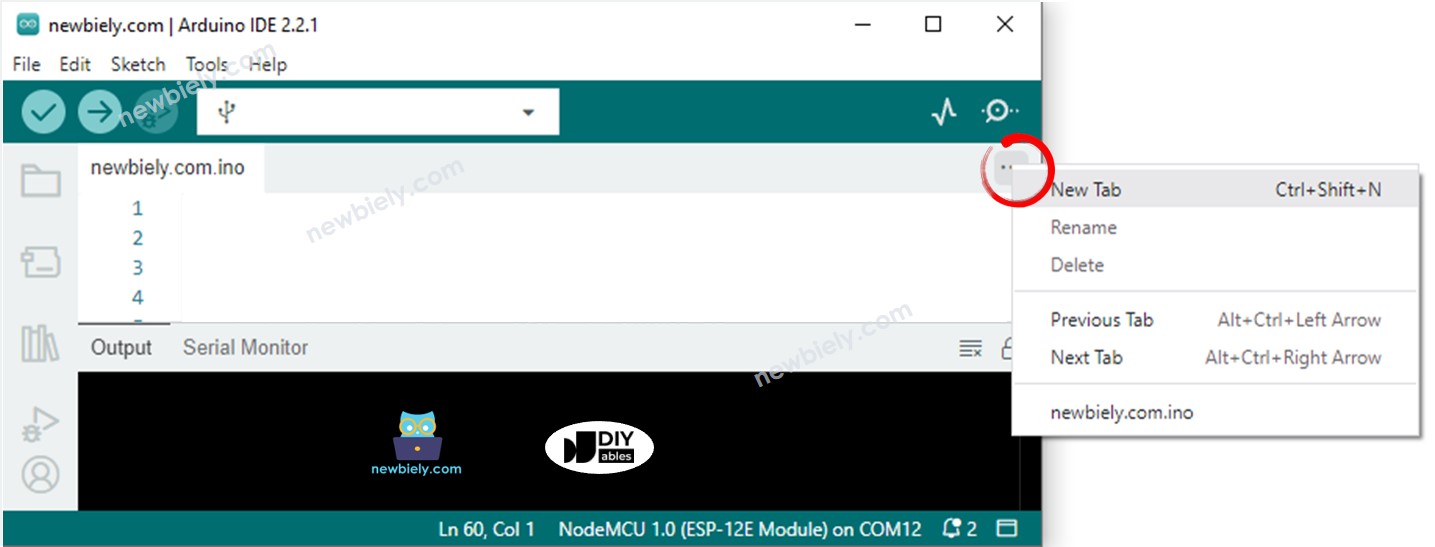
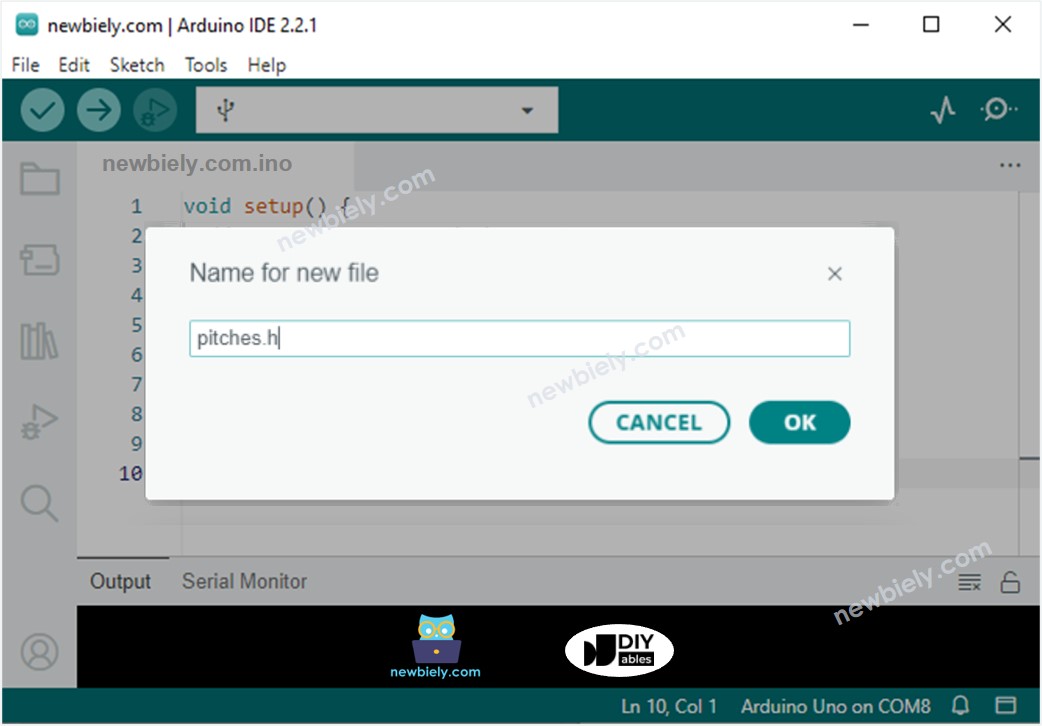
  • Tạo một file tên pitches.h trong Arduino IDE bằng cách:
    • Nhấp vào nút bên dưới biểu tượng serial monitor và chọn New Tab, hoặc sử dụng phím Ctrl+Shift+N.
    Arduino ide 2 adds file
    • Nhập tên file pitches.h và nhấn nút OK.
    Arduino ide 2 adds file pitches.h
    • Copy code bên dưới và paste vào file tên pitches.h mà bạn đã tạo.
    /************************************************* * Public Constants *************************************************/ #define NOTE_B0 31 #define NOTE_C1 33 #define NOTE_CS1 35 #define NOTE_D1 37 #define NOTE_DS1 39 #define NOTE_E1 41 #define NOTE_F1 44 #define NOTE_FS1 46 #define NOTE_G1 49 #define NOTE_GS1 52 #define NOTE_A1 55 #define NOTE_AS1 58 #define NOTE_B1 62 #define NOTE_C2 65 #define NOTE_CS2 69 #define NOTE_D2 73 #define NOTE_DS2 78 #define NOTE_E2 82 #define NOTE_F2 87 #define NOTE_FS2 93 #define NOTE_G2 98 #define NOTE_GS2 104 #define NOTE_A2 110 #define NOTE_AS2 117 #define NOTE_B2 123 #define NOTE_C3 131 #define NOTE_CS3 139 #define NOTE_D3 147 #define NOTE_DS3 156 #define NOTE_E3 165 #define NOTE_F3 175 #define NOTE_FS3 185 #define NOTE_G3 196 #define NOTE_GS3 208 #define NOTE_A3 220 #define NOTE_AS3 233 #define NOTE_B3 247 #define NOTE_C4 262 #define NOTE_CS4 277 #define NOTE_D4 294 #define NOTE_DS4 311 #define NOTE_E4 330 #define NOTE_F4 349 #define NOTE_FS4 370 #define NOTE_G4 392 #define NOTE_GS4 415 #define NOTE_A4 440 #define NOTE_AS4 466 #define NOTE_B4 494 #define NOTE_C5 523 #define NOTE_CS5 554 #define NOTE_D5 587 #define NOTE_DS5 622 #define NOTE_E5 659 #define NOTE_F5 698 #define NOTE_FS5 740 #define NOTE_G5 784 #define NOTE_GS5 831 #define NOTE_A5 880 #define NOTE_AS5 932 #define NOTE_B5 988 #define NOTE_C6 1047 #define NOTE_CS6 1109 #define NOTE_D6 1175 #define NOTE_DS6 1245 #define NOTE_E6 1319 #define NOTE_F6 1397 #define NOTE_FS6 1480 #define NOTE_G6 1568 #define NOTE_GS6 1661 #define NOTE_A6 1760 #define NOTE_AS6 1865 #define NOTE_B6 1976 #define NOTE_C7 2093 #define NOTE_CS7 2217 #define NOTE_D7 2349 #define NOTE_DS7 2489 #define NOTE_E7 2637 #define NOTE_F7 2794 #define NOTE_FS7 2960 #define NOTE_G7 3136 #define NOTE_GS7 3322 #define NOTE_A7 3520 #define NOTE_AS7 3729 #define NOTE_B7 3951 #define NOTE_C8 4186 #define NOTE_CS8 4435 #define NOTE_D8 4699 #define NOTE_DS8 4978
    • Nhấn nút Upload trong Arduino IDE để gửi code lên Arduino UNO R4.
    • Vẫy tay gần cảm biến.
    • Nghe giai điệu từ còi piezo.

    Giải Thích Code

    Xem từng giải thích được viết trong các comment bên trong mã nguồn!

    ※ Lưu ý:

    • Code được đề cập sử dụng hàm delay() sẽ dừng code khác khỏi chạy khi đang phát giai điệu. Để ngăn chặn điều này, sử dụng thư viện ezBuzzer. Thư viện này cho phép còi kêu hoặc phát giai điệu mà không làm gián đoạn code khác.
    • Code được cung cấp chỉ mang tính chất giáo dục. Cảm biến siêu âm rất nhạy cảm với nhiễu. Đối với việc sử dụng thực tế của cảm biến siêu âm, bạn nên áp dụng lọc nhiễu. Tìm hiểu về cách lọc nhiễu cho cảm biến siêu âm.
Video Tutorial

Việc sản xuất video tốn rất nhiều thời gian. Nếu video hướng dẫn hữu ích cho việc học của bạn, hãy đăng ký kênh YouTube để ủng hộ. Nếu nhu cầu đủ cao, chúng tôi sẽ cố gắng làm thêm nhiều video.