Arduino UNO R4 Đèn Giao Thông

Trong hướng dẫn này, chúng ta sẽ học cách điều khiển module đèn giao thông bằng Arduino UNO R4. Chúng ta sẽ tìm hiểu:

Arduino UNO R4 traffic light

Linh Kiện Cần Thiết

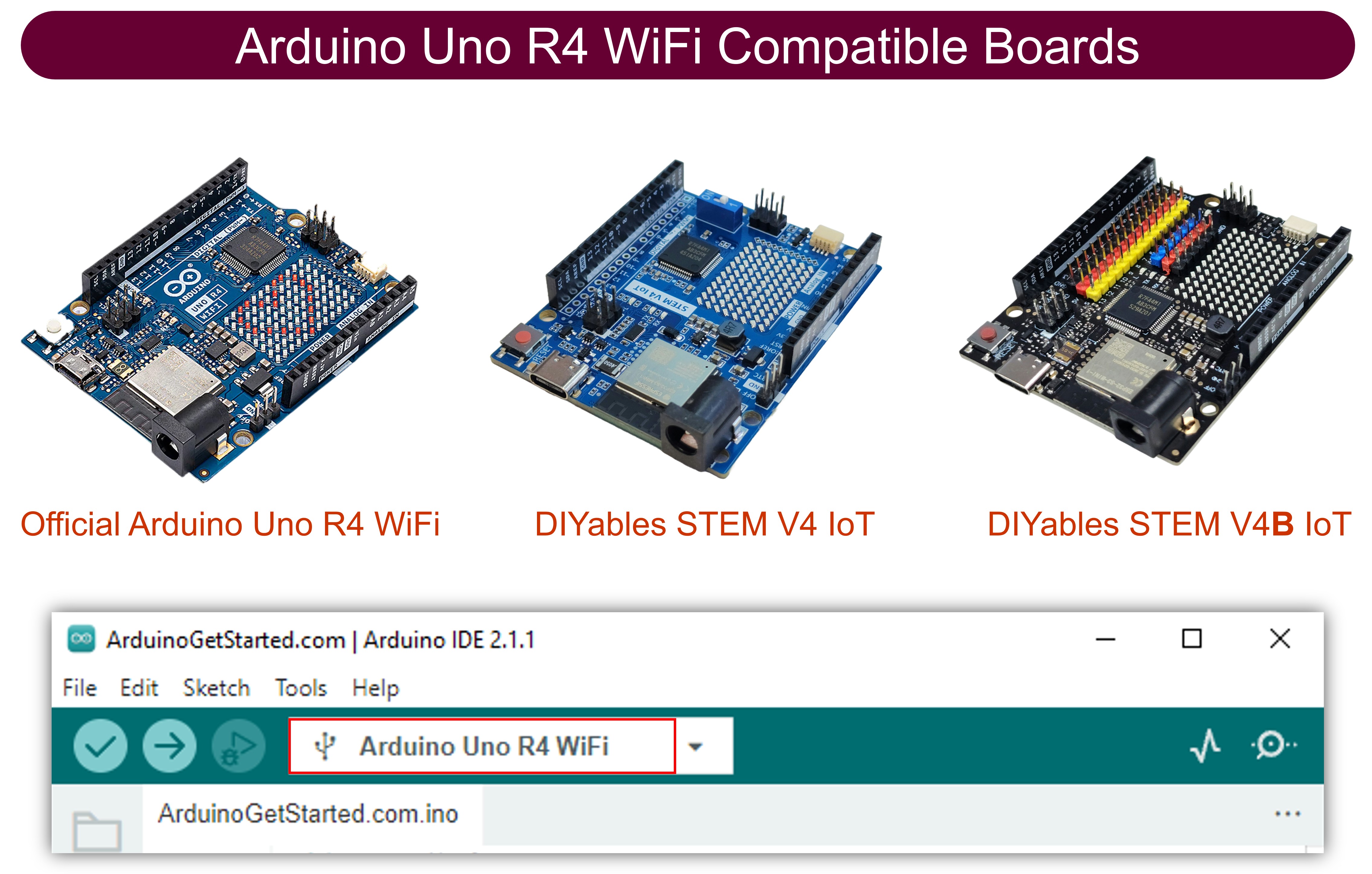
1×Arduino UNO R4 WiFi hoặc Arduino UNO R4 Minima
1×(Tùy chọn) DIYables STEM V4 IoT, tương thích với Arduino Uno R4 WiFi
1×Arduino UNO R4 Minima (Thay thế)
1×Cáp USB Type-C
1×Module Đèn Giao Thông
1×Dây Jumper
1×(Khuyến nghị) Screw Terminal Block Shield for Arduino UNO R4
1×(Khuyến nghị) Breadboard Shield for Arduino UNO R4
1×(Khuyến nghị) Enclosure for Arduino UNO R4
1×(Khuyến nghị) Power Splitter for Arduino UNO R4
1×(Khuyến nghị) Prototyping Base Plate & Breadboard Kit for Arduino UNO

Or you can buy the following kits:

1×DIYables STEM V4 IoT Starter Kit (Arduino included)
1×DIYables Sensor Kit (30 sensors/displays)
1×DIYables Sensor Kit (18 sensors/displays)

Về Module Đèn Giao Thông

Sơ Đồ Chân

Module đèn giao thông có 4 chân:

  • Chân GND: Đây là chân mass. Kết nối nó với GND trên Arduino UNO R4.
  • Chân R: Chân này điều khiển đèn đỏ. Kết nối nó với một chân digital output trên Arduino UNO R4.
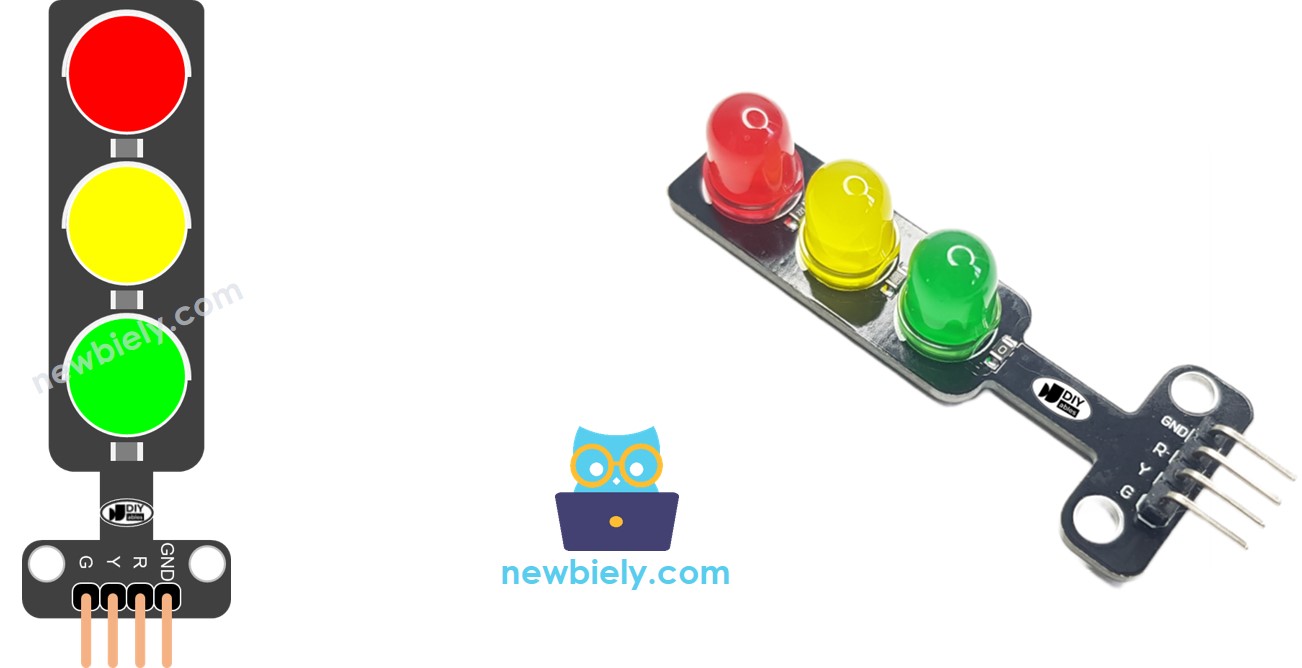
  • Chân Y: Chân này điều khiển đèn vàng. Kết nối nó với một chân digital output trên Arduino UNO R4.
  • Chân G: Chân này điều khiển đèn xanh. Kết nối nó với một chân digital output trên Arduino UNO R4.
traffic light sơ đồ chân

Cách Hoạt Động

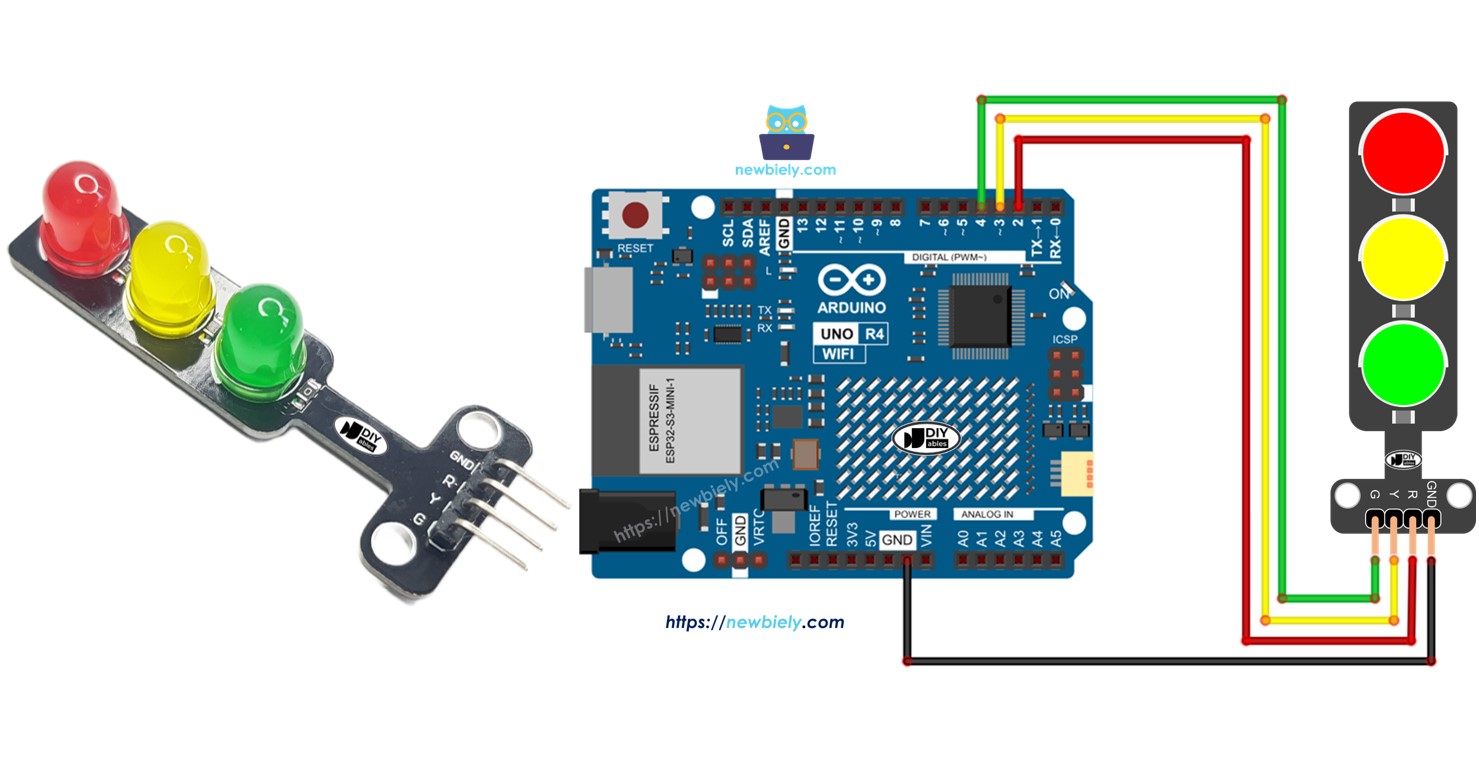
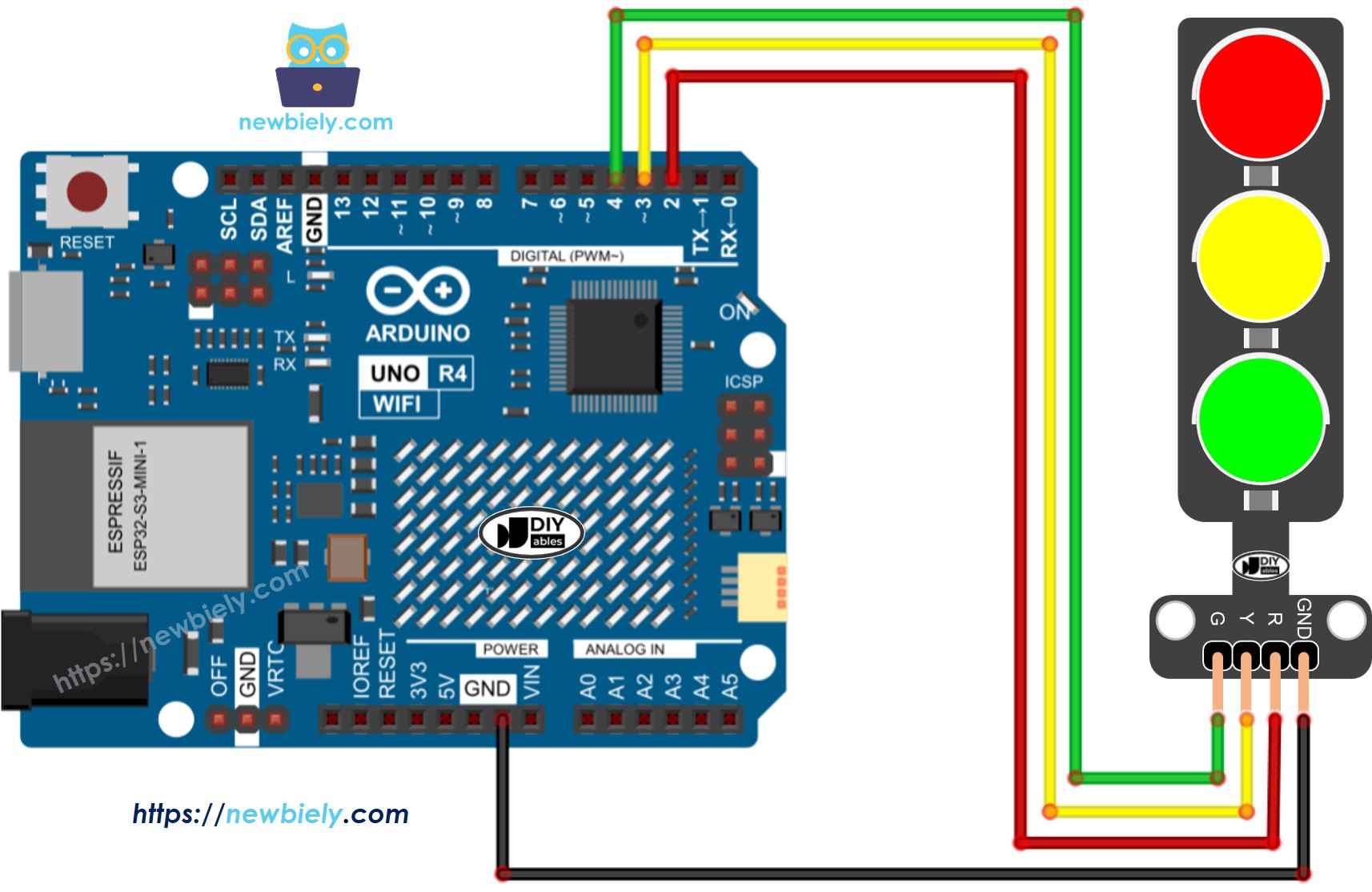
Sơ Đồ Kết Nối

Arduino UNO R4 traffic light sơ đồ đấu dây

This image is created using Fritzing. Click to enlarge image

Cách Lập Trình Cho Module Đèn Giao Thông

  • Đặt các chân của Arduino UNO R4 làm digital output bằng cách sử dụng hàm pinMode().
pinMode(PIN_RED, OUTPUT); pinMode(PIN_YELLOW, OUTPUT); pinMode(PIN_GREEN, OUTPUT);
  • Lập trình để kích hoạt đèn đỏ bằng hàm digitalWrite():
digital-Write(PIN_RED, HIGH); // Set the RED LED to on digitalWrite(PIN_YELLOW, LOW); // Set the YELLOW LED to off digitalWrite(PIN_GREEN, LOW); // Set the GREEN LED to off delay(RED_TIME); // Maintain RED LED on state for the duration defined by RED_TIME

Code Arduino UNO R4

/* * Mã Arduino UNO R4 này được phát triển bởi newbiely.vn * Mã Arduino UNO R4 này được cung cấp để sử dụng công khai, không có ràng buộc. * Để xem hướng dẫn chi tiết và sơ đồ kết nối, vui lòng truy cập: * https://newbiely.vn/tutorials/arduino-uno-r4/arduino-uno-r4-traffic-light */ #define PIN_RED 2 // The Arduino UNO R4 pin connected to R pin of traffic light module #define PIN_YELLOW 3 // The Arduino UNO R4 pin connected to Y pin of traffic light module #define PIN_GREEN 4 // The Arduino UNO R4 pin connected to G pin of traffic light module #define RED_TIME 4000 // RED time in millisecond #define YELLOW_TIME 4000 // YELLOW time in millisecond #define GREEN_TIME 4000 // GREEN time in millisecond void setup() { pinMode(PIN_RED, OUTPUT); pinMode(PIN_YELLOW, OUTPUT); pinMode(PIN_GREEN, OUTPUT); } // the loop function runs over and over again forever void loop() { // red light on digitalWrite(PIN_RED, HIGH); // turn on digitalWrite(PIN_YELLOW, LOW); // turn off digitalWrite(PIN_GREEN, LOW); // turn off delay(RED_TIME); // keep red light on during a period of time // yellow light on digitalWrite(PIN_RED, LOW); // turn off digitalWrite(PIN_YELLOW, HIGH); // turn on digitalWrite(PIN_GREEN, LOW); // turn off delay(YELLOW_TIME); // keep yellow light on during a period of time // green light on digitalWrite(PIN_RED, LOW); // turn off digitalWrite(PIN_YELLOW, LOW); // turn off digitalWrite(PIN_GREEN, HIGH); // turn on delay(GREEN_TIME); // keep green light on during a period of time }

Các Bước Thực Hiện

Làm theo hướng dẫn từng bước sau:

  • Nếu đây là lần đầu tiên bạn sử dụng Arduino Uno R4 WiFi/Minima, hãy tham khảo hướng dẫn về Arduino UNO R4 - Cài Đặt Phần Mềm.
  • Kết nối module đèn giao thông với Arduino Uno R4 theo sơ đồ được cung cấp.
  • Kết nối board Arduino Uno R4 với máy tính của bạn bằng cáp USB.
  • Khởi động Arduino IDE trên máy tính của bạn.
  • Chọn board Arduino Uno R4 phù hợp (ví dụ: Arduino Uno R4 WiFi) và cổng COM.
  • Sao chép code và mở nó trong Arduino IDE.
  • Nhấn nút Upload trong Arduino IDE để tải code lên Arduino UNO R4.
  • Kiểm tra module đèn giao thông.

Đèn giao thông hoạt động khác nhau tùy thuộc vào thiết kế được sử dụng ở mỗi khu vực. Thông tin đưa ra ở đây cung cấp ý tưởng cơ bản về cách đèn giao thông giúp điều khiển giao thông.

Code được hiển thị ở trên cho phép bạn điều khiển từng đèn một cách riêng biệt. Bây giờ, chúng ta sẽ cải thiện code để làm cho nó hoạt động tốt hơn.

Tối Ưu Hóa Code Arduino UNO R4

  • Hãy cải thiện code bằng cách thêm một hàm để điều khiển đèn.
/* * Mã Arduino UNO R4 này được phát triển bởi newbiely.vn * Mã Arduino UNO R4 này được cung cấp để sử dụng công khai, không có ràng buộc. * Để xem hướng dẫn chi tiết và sơ đồ kết nối, vui lòng truy cập: * https://newbiely.vn/tutorials/arduino-uno-r4/arduino-uno-r4-traffic-light */ #define PIN_RED 2 // The Arduino UNO R4 pin connected to R pin of traffic light module #define PIN_YELLOW 3 // The Arduino UNO R4 pin connected to Y pin of traffic light module #define PIN_GREEN 4 // The Arduino UNO R4 pin connected to G pin of traffic light module #define RED_TIME 2000 // RED time in millisecond #define YELLOW_TIME 1000 // YELLOW time in millisecond #define GREEN_TIME 2000 // GREEN time in millisecond #define RED 0 // Index in array #define YELLOW 1 // Index in array #define GREEN 2 // Index in array const int pins[] = { PIN_RED, PIN_YELLOW, PIN_GREEN }; const int times[] = { RED_TIME, YELLOW_TIME, GREEN_TIME }; void setup() { pinMode(PIN_RED, OUTPUT); pinMode(PIN_YELLOW, OUTPUT); pinMode(PIN_GREEN, OUTPUT); } // the loop function runs over and over again forever void loop() { // red light on trafic_light_on(RED); delay(times[RED]); // keep red light on during a period of time // yellow light on trafic_light_on(YELLOW); delay(times[YELLOW]); // keep yellow light on during a period of time // green light on trafic_light_on(GREEN); delay(times[GREEN]); // keep green light on during a period of time } void trafic_light_on(int light) { for (int i = RED; i <= GREEN; i++) { if (i == light) digitalWrite(pins[i], HIGH); // turn on else digitalWrite(pins[i], LOW); // turn off } }
  • Chúng ta có thể cải thiện code bằng cách sử dụng vòng lặp for.
/* * Mã Arduino UNO R4 này được phát triển bởi newbiely.vn * Mã Arduino UNO R4 này được cung cấp để sử dụng công khai, không có ràng buộc. * Để xem hướng dẫn chi tiết và sơ đồ kết nối, vui lòng truy cập: * https://newbiely.vn/tutorials/arduino-uno-r4/arduino-uno-r4-traffic-light */ #define PIN_RED 2 // The Arduino UNO R4 pin connected to R pin of traffic light module #define PIN_YELLOW 3 // The Arduino UNO R4 pin connected to Y pin of traffic light module #define PIN_GREEN 4 // The Arduino UNO R4 pin connected to G pin of traffic light module #define RED_TIME 2000 // RED time in millisecond #define YELLOW_TIME 1000 // YELLOW time in millisecond #define GREEN_TIME 2000 // GREEN time in millisecond #define RED 0 // Index in array #define YELLOW 1 // Index in array #define GREEN 2 // Index in array const int pins[] = {PIN_RED, PIN_YELLOW, PIN_GREEN}; const int times[] = {RED_TIME, YELLOW_TIME, GREEN_TIME}; void setup() { pinMode(PIN_RED, OUTPUT); pinMode(PIN_YELLOW, OUTPUT); pinMode(PIN_GREEN, OUTPUT); } // the loop function runs over and over again forever void loop() { for (int light = RED; light <= GREEN; light ++) { trafic_light_on(light); delay(times[light]); // keep light on during a period of time } } void trafic_light_on(int light) { for (int i = RED; i <= GREEN; i ++) { if (i == light) digitalWrite(pins[i], HIGH); // turn on else digitalWrite(pins[i], LOW); // turn off } }
  • Hãy cải thiện code bằng cách sử dụng hàm millis() thay vì delay().
/* * Mã Arduino UNO R4 này được phát triển bởi newbiely.vn * Mã Arduino UNO R4 này được cung cấp để sử dụng công khai, không có ràng buộc. * Để xem hướng dẫn chi tiết và sơ đồ kết nối, vui lòng truy cập: * https://newbiely.vn/tutorials/arduino-uno-r4/arduino-uno-r4-traffic-light */ #define PIN_RED 2 // The Arduino UNO R4 pin connected to R pin of traffic light module #define PIN_YELLOW 3 // The Arduino UNO R4 pin connected to Y pin of traffic light module #define PIN_GREEN 4 // The Arduino UNO R4 pin connected to G pin of traffic light module #define RED_TIME 2000 // RED time in millisecond #define YELLOW_TIME 1000 // YELLOW time in millisecond #define GREEN_TIME 2000 // GREEN time in millisecond #define RED 0 // Index in array #define YELLOW 1 // Index in array #define GREEN 2 // Index in array const int pins[] = { PIN_RED, PIN_YELLOW, PIN_GREEN }; const int times[] = { RED_TIME, YELLOW_TIME, GREEN_TIME }; unsigned long last_time = 0; int light = RED; // start with RED light void setup() { pinMode(PIN_RED, OUTPUT); pinMode(PIN_YELLOW, OUTPUT); pinMode(PIN_GREEN, OUTPUT); trafic_light_on(light); last_time = millis(); } // the loop function runs over and over again forever void loop() { if ((millis() - last_time) > times[light]) { light++; if (light >= 3) light = RED; // new circle trafic_light_on(light); last_time = millis(); } // TO DO: your other code } void trafic_light_on(int light) { for (int i = RED; i <= GREEN; i++) { if (i == light) digitalWrite(pins[i], HIGH); // turn on else digitalWrite(pins[i], LOW); // turn off } }

Video Tutorial

Việc sản xuất video tốn rất nhiều thời gian. Nếu video hướng dẫn hữu ích cho việc học của bạn, hãy đăng ký kênh YouTube để ủng hộ. Nếu nhu cầu đủ cao, chúng tôi sẽ cố gắng làm thêm nhiều video.

Bình Luận