
Arduino UNO R4 Web Server
Trong hướng dẫn này, chúng tôi sẽ chỉ bạn cách làm cho Arduino UNO R4 R4 WiFi hoạt động như một web server. Bạn có thể truy cập các trang web trên Arduino UNO R4 Web Server bằng trình duyệt web trên máy tính hoặc điện thoại thông minh. Điều này sẽ cho phép bạn xem và thay đổi giá trị trên Arduino UNO R4. Chúng ta sẽ học các bước sau để lập trình Arduino UNO R4 WiFi cho mục đích này:
- Arduino UNO R4 Web Server - Trang Đơn: Điều này giúp chúng ta kiểm tra các chỉ số cảm biến trên Arduino UNO R4 thông qua trang web.
- Arduino UNO R4 Web Server - Trang Đơn: Chúng ta sẽ làm cho việc quản lý Arduino UNO R4 với trình duyệt web trở nên khả thi.
- Arduino UNO R4 Web Server - Trang Đơn: Chúng ta sẽ học cách chuyển các thành phần HTML (như HTML, CSS và JavaScript) sang một file khác trong Arduino IDE.
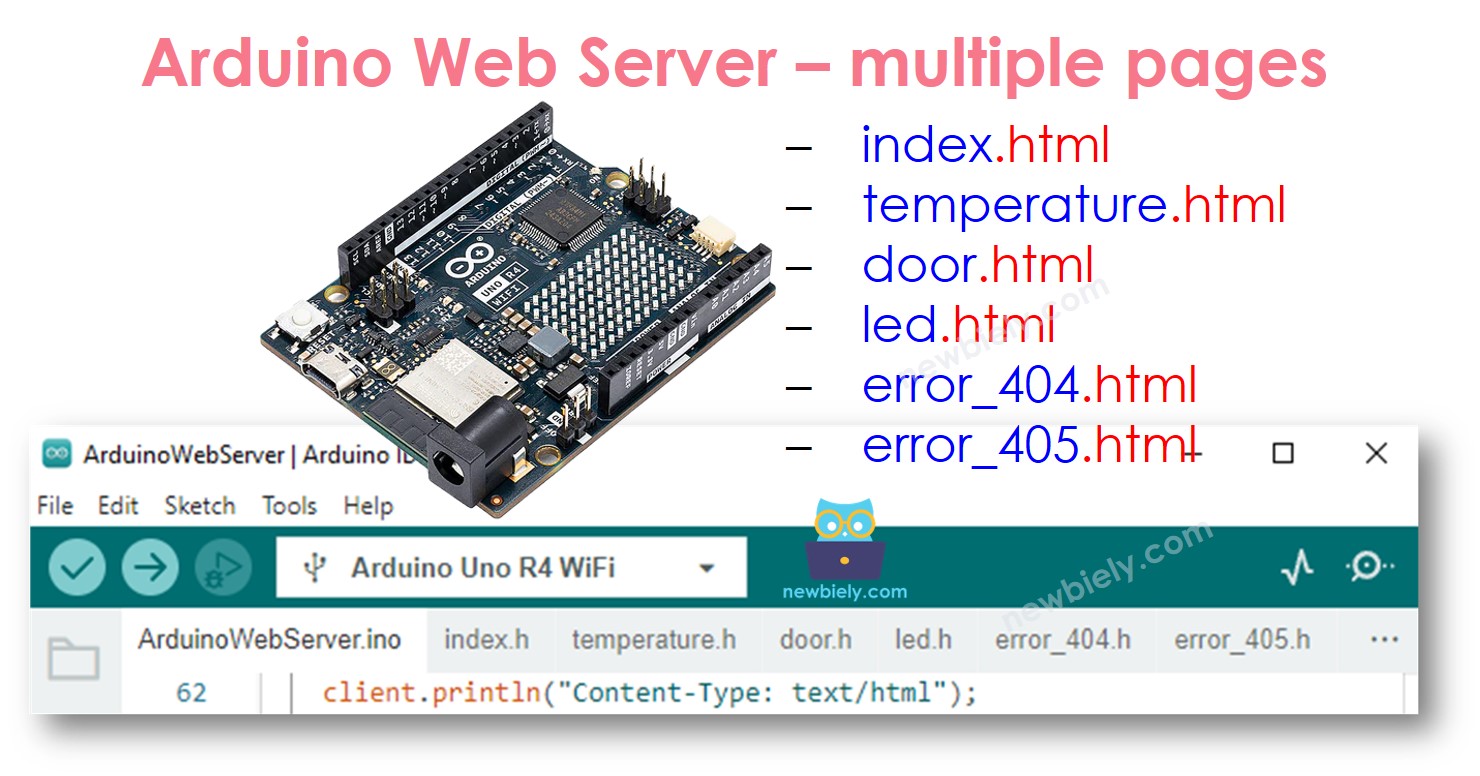
- Arduino UNO R4 Web Server - Nhiều trang: Chúng ta sẽ tạo các trang web khác nhau như index.html, temperature.html, led.html, error_404.html và error_405.html, cùng những trang khác.
Phần Cứng Cần Thiết
| 1 | × | Arduino UNO R4 WiFi | Amazon | |
| 1 | × | Alternatively, DIYables STEM V4 IoT | Amazon | |
| 1 | × | Alternatively, DIYables STEM V4B IoT | Amazon | |
| 1 | × | (Tùy chọn) DIYables STEM V4 IoT | Amazon | |
| 1 | × | Cáp USB Type-C | Amazon | |
| 1 | × | (Khuyến nghị) Screw Terminal Block Shield for Arduino UNO R4 | Amazon | |
| 1 | × | (Khuyến nghị) Sensors/Servo Expansion Shield for Arduino UNO R4 | Amazon | |
| 1 | × | (Khuyến nghị) Breadboard Shield for Arduino UNO R4 | Amazon | |
| 1 | × | (Khuyến nghị) Enclosure for Arduino UNO R4 | Amazon | |
| 1 | × | (Khuyến nghị) Power Splitter for Arduino UNO R4 | Amazon | |
| 1 | × | (Khuyến nghị) Prototyping Base Plate & Breadboard Kit for Arduino UNO | Amazon |
Or you can buy the following kits:
| 1 | × | DIYables STEM V4 IoT Starter Kit (Arduino included) | Amazon | |
| 1 | × | DIYables Sensor Kit (18 sensors/displays) | Amazon |
Đọc giá trị cảm biến từ Arduino UNO R4 qua Web
Code Arduino UNO R4 thực hiện các nhiệm vụ sau:
- Xây dựng web server nhận các yêu cầu HTTP từ trình duyệt web.
- Khi trình duyệt web gửi yêu cầu, Arduino UNO R4 phản hồi với:
- HTTP header
- HTTP body: Chứa nội dung HTML và dữ liệu cảm biến.
- Nếu đây là lần đầu tiên bạn sử dụng Arduino Uno R4 WiFi/Minima, hãy tham khảo hướng dẫn về Arduino UNO R4 - Cài Đặt Phần Mềm.
- Kết nối bo mạch Arduino Uno R4 với máy tính của bạn bằng cáp USB.
- Khởi động Arduino IDE trên máy tính của bạn.
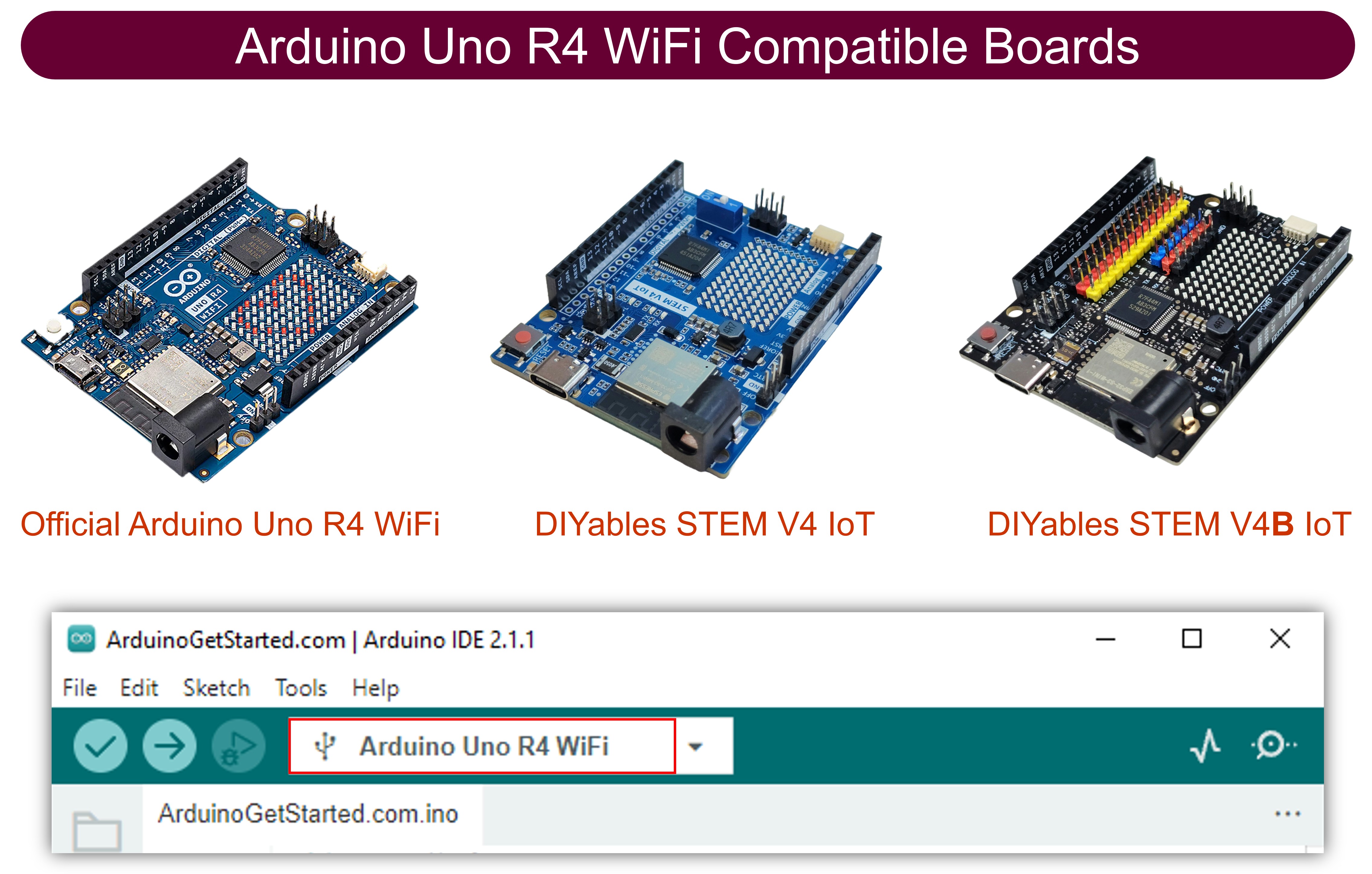
- Chọn bo mạch Arduino Uno R4 phù hợp (ví dụ: Arduino Uno R4 WiFi) và cổng COM.
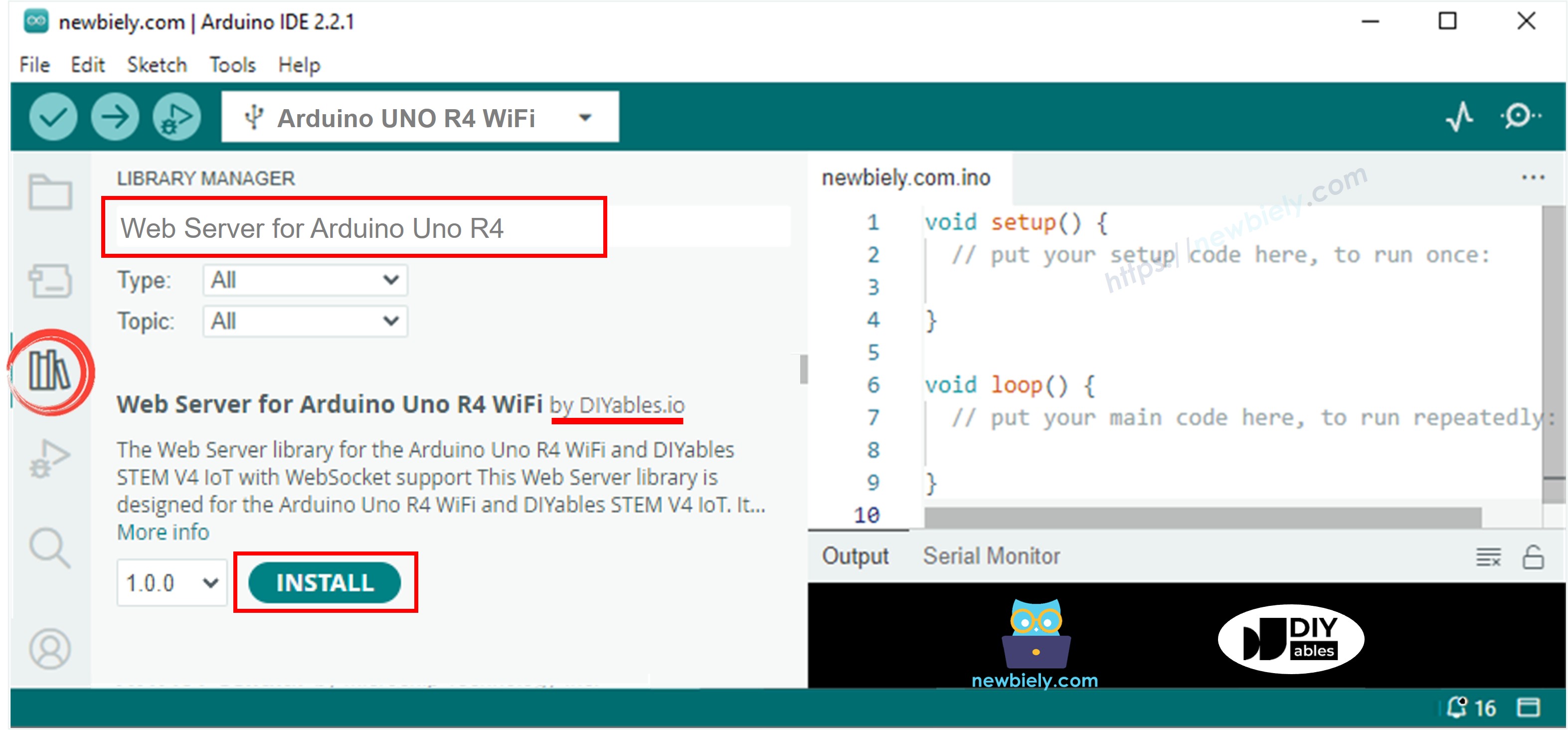
- Mở Library Manager bằng cách nhấp vào biểu tượng Library Manager ở phía bên trái của Arduino IDE.
- Tìm kiếm Web Server for Arduino Uno R4 WiFi và tìm thư viện Web Server được tạo bởi DIYables.
- Nhấp vào nút Install để thêm thư viện Web Server.
- Sao chép code và mở nó trong Arduino IDE.
- Thay thế thông tin wifi (SSID và password) trong code bằng thông tin của bạn.
- Nhấp vào nút Upload trong Arduino IDE để tải code lên Arduino UNO R4.
- Mở Serial Monitor.
- Xem kết quả trên Serial Monitor.
- Xem địa chỉ IP được hiển thị và nhập nó vào thanh địa chỉ của trình duyệt web trên điện thoại thông minh hoặc máy tính của bạn.
- Sau đó, bạn sẽ thấy thông tin này trên Serial Monitor.
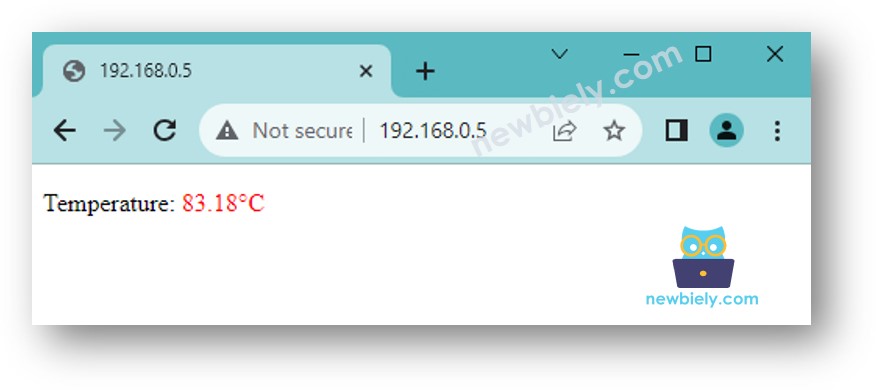
- Khi bạn nhập địa chỉ IP vào trình duyệt web, bạn sẽ thấy một trang web đơn giản hiển thị thông tin về bo mạch Arduino UNO R4. Trang sẽ hiển thị như sau:
Đây là code Arduino UNO R4 thực hiện các nhiệm vụ đã đề cập ở trên:
Các Bước Thực Hiện
Thực hiện theo các hướng dẫn từng bước sau:
Để tạo trang web có giao diện đồ họa (UI) đẹp mắt, hãy xem phần cuối của hướng dẫn này.
Điều khiển Arduino UNO R4 qua Web
Quản lý thiết bị kết nối với Arduino UNO R4 phức tạp hơn một chút so với việc chỉ kiểm tra giá trị. Sự phức tạp này phát sinh bởi vì Arduino UNO R4 phải diễn giải lệnh nhận được từ trình duyệt web để xác định phản hồi thích hợp. Đây là cách code Arduino UNO R4 xử lý tình huống này:
- Xây dựng web server nhận các yêu cầu HTTP từ trình duyệt web.
- Xử lý yêu cầu từ trình duyệt bằng cách:
- Đọc HTTP request header.
- Kiểm tra HTTP request header để hiểu rõ lệnh điều khiển cần thiết.
- Điều khiển thiết bị hoặc vật phẩm kết nối sử dụng Arduino UNO R4 theo lệnh điều khiển.
- Gửi phản hồi HTTP.
- Tùy chọn, nó cũng có thể gửi HTTP response body chứa nội dung HTML để hiển thị chi tiết về trạng thái điều khiển (nếu cần).
Để có ví dụ tốt hơn và chi tiết hơn, tôi đề xuất xem các hướng dẫn dưới đây:
Tách nội dung HTML vào file khác trong Arduino IDE
Để tạo trang web cơ bản với chỉ vài nội dung, bạn có thể bao gồm HTML trong code Arduino UNO R4 như đã đề cập trước đó.
Nếu bạn muốn tạo trang web phức tạp và ấn tượng hơn với nhiều nội dung, việc đặt tất cả HTML, CSS và JavaScript trực tiếp vào code Arduino UNO R4 là không dễ dàng. Trong trường hợp này, bạn có thể sử dụng phương pháp khác để xử lý code.
- Code Arduino UNO R4 nên được lưu trong file có tên .ino.
- Code HTML, bao gồm HTML, CSS và Javascript, nên được lưu trong file khác có tên .h. Điều này giúp tách biệt nội dung trang web khỏi code Arduino UNO R4, làm cho việc xử lý và thay đổi trở nên đơn giản hơn.
Chúng ta cần thực hiện hai bước chính:
- Tạo Nội Dung HTML
- Lập Trình Arduino UNO R4
Chuẩn bị nội dung HTML
- Tạo file HTML trên máy tính của bạn. File này nên bao gồm thiết kế giao diện người dùng của bạn sử dụng HTML, CSS và JavaScript.
- Trong file HTML, đặt một placeholder tại nơi bạn muốn dữ liệu từ Arduino UNO R4 xuất hiện. Hiện tại, hãy sử dụng bất kỳ giá trị mẫu nào.
- Kiểm tra và điều chỉnh thiết kế của file cho đến khi bạn hài lòng với nó.
- Thay thế giá trị placeholder trong file HTML của bạn bằng nhãn duy nhất, chẳng hạn như TEMPERATURE_MARKER. Sau này, bạn sẽ sử dụng lệnh String.replace("TEMPERATURE_MARKER", real_value); trong script Arduino UNO R4 để hiển thị dữ liệu thực tế từ Arduino.
- Tiếp theo, chúng ta sẽ chuyển nội dung HTML này vào file .h trong Arduino IDE.
Lập trình Arduino UNO R4
- Khởi động Arduino IDE và tạo file mới. Đặt tên như thế này: newbiely.com.ino.
- Lấy code được cung cấp dưới đây và đặt nó vào file mới bạn đã tạo.
- Cập nhật code với thông tin WiFi của bạn (SSID và password)
- Trong Arduino IDE, tạo file có tên index.h
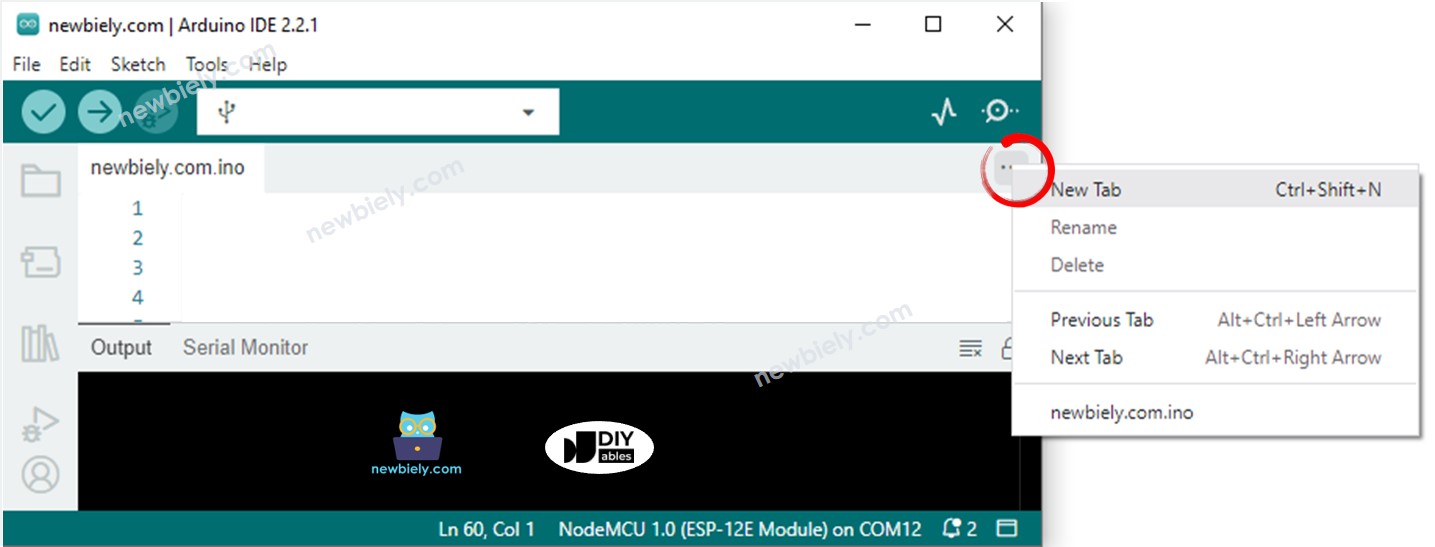
- Nhấp vào nút bên dưới biểu tượng serial monitor và chọn New Tab, hoặc nhấn Ctrl+Shift+N.
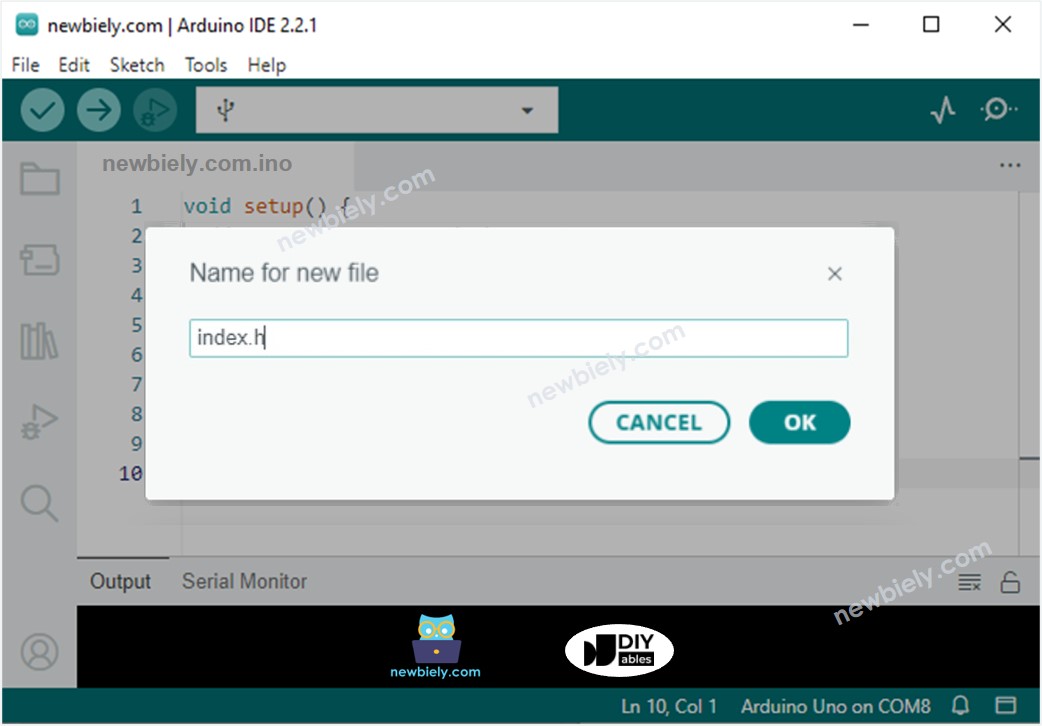
- Đặt tên file là index.h và nhấn nút OK.
- Sao chép code dưới đây và dán nó vào file có tên index.h.
- Chèn nội dung HTML đã chuẩn bị của bạn tại REPLACE_YOUR_HTML_CONTENT_HERE. Không sao nếu sử dụng ký tự xuống dòng. Đây là ví dụ về file index.h:
- Bây giờ bạn có code trong hai file: newbiely.com.ino và index.h
- Nhấp vào nút Upload trong Arduino IDE để chuyển code lên Arduino UNO R4
- Mở trang web của bo mạch Arduino UNO R4 trong trình duyệt web, tương tự như những lần trước. Nó sẽ hiển thị như sau:
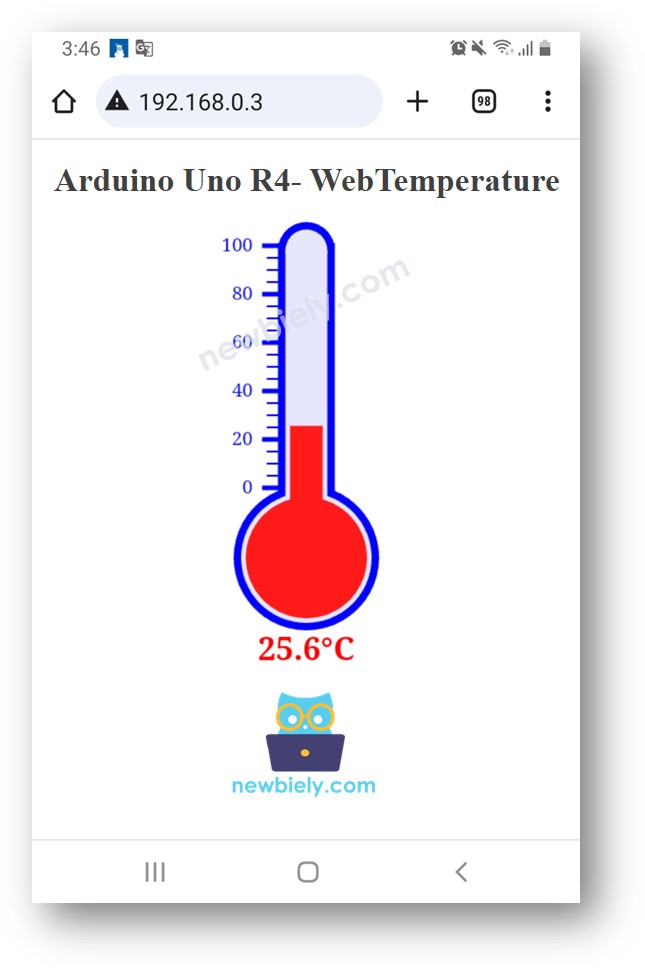
Để có hướng dẫn chi tiết, vui lòng kiểm tra hướng dẫn Arduino UNO R4 - DS18B20 Temperature Sensor qua Web.
※ Lưu ý:
Nếu bạn thay đổi HTML trong file có tên "index.h" nhưng không thực hiện thay đổi trong file "newbiely.com.ino", Arduino IDE sẽ không cập nhật HTML khi bạn biên dịch và tải code lên ESP32.
Để làm cho Arduino IDE cập nhật HTML, bạn phải thay đổi thứ gì đó trong file "newbiely.com.ino". Bạn có thể thêm dòng trống hoặc một comment. Điều này cho IDE biết rằng dự án đã thay đổi, do đó nó bao gồm HTML mới của bạn khi tải lên.
Arduino UNO R4 Web Server - Nhiều Trang
Hãy xem hướng dẫn này về Arduino UNO R4 - Web Server Multiple Pages.
Bài hướng dẫn liên quan
📱 Ứng dụng đề xuất
 English for KidsHọc tiếng Anh vui nhộn cho trẻ nhỏ.Tải về trênGoogle PlayTải về trênApp Store
 Bubble NoteGhi chú tự xóa — viết như nhắn tin.Tải về trênGoogle PlayTải về trênApp Store
 Tôi Không MuaĐánh bại mua sắm bốc đồng, tiết kiệm hơn.Tải về trênGoogle PlayTải về trênApp Store
 Con Đường Tri ThứcBài thi thử để học mọi thứ.Tải về trênGoogle PlayTải về trênApp Store