
Arduino UNO R4 WiFi Bluetooth Joystick Điều Khiển 2D qua BLE Tutorial
Tổng Quan
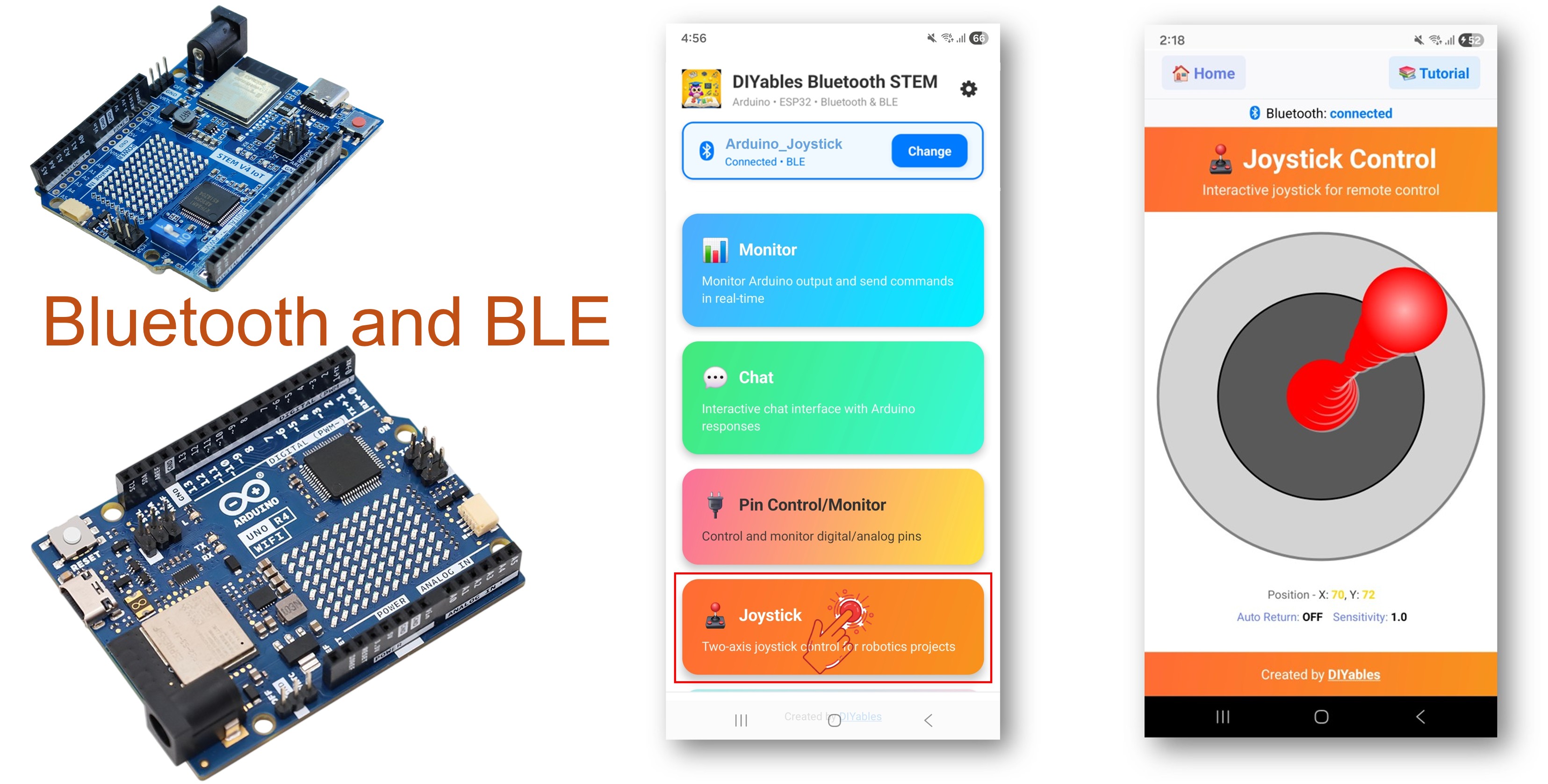
Ví dụ Bluetooth Joystick cung cấp điều khiển joystick 2D tương tác thông qua ứng dụng DIYables Bluetooth STEM. Được thiết kế cho Arduino UNO R4 WiFi sử dụng BLE (Bluetooth Low Energy) để nhận tọa độ X/Y thời gian thực (-100 đến +100) cho việc điều khiển hướng. Hoàn hảo cho điều hướng robot, servo pan-tilt, điều khiển động cơ và bộ điều khiển game.
Lưu ý: Arduino UNO R4 WiFi chỉ hỗ trợ BLE (Bluetooth Low Energy). Nó không hỗ trợ Classic Bluetooth. Ứng dụng DIYables Bluetooth hỗ trợ cả BLE và Classic Bluetooth trên Android, và BLE trên iOS. Do bo mạch này sử dụng BLE, ứng dụng hoạt động trên cả Android và iOS.
Tính Năng
- Điều Khiển 2D: Trục X và Y với phạm vi -100 đến +100
- Độ Nhạy Có Thể Cấu Hình: Ngưỡng chuyển động tối thiểu để kích hoạt cập nhật
- Tùy Chọn Tự Động Quay Về: Joystick có thể tự về giữa khi được thả ra
- Giá Trị Thời Gian Thực: Cập nhật vị trí liên tục trong khi kéo
- Hoạt Động trên Android & iOS: BLE được hỗ trợ trên cả hai nền tảng
- Không Cần Ghép Nối: BLE tự động kết nối mà không cần ghép nối thủ công
- Tiết Kiệm Năng Lượng: BLE tiêu thụ ít năng lượng hơn Classic Bluetooth
Phần Cứng Cần Thiết
| 1 | × | Arduino UNO R4 WiFi | Amazon | |
| 1 | × | Alternatively, DIYables STEM V4 IoT | Amazon | |
| 1 | × | Alternatively, DIYables STEM V4B IoT | Amazon | |
| 1 | × | (Tùy chọn) DIYables STEM V4 IoT | Amazon | |
| 1 | × | Cáp USB Type-C | Amazon | |
| 1 | × | breadboard | Amazon | |
| 1 | × | Dây Jumper | Amazon | |
| 1 | × | (Khuyến nghị) Screw Terminal Block Shield for Arduino UNO R4 | Amazon | |
| 1 | × | (Khuyến nghị) Sensors/Servo Expansion Shield for Arduino UNO R4 | Amazon | |
| 1 | × | (Khuyến nghị) Breadboard Shield for Arduino UNO R4 | Amazon | |
| 1 | × | (Khuyến nghị) Enclosure for Arduino UNO R4 | Amazon | |
| 1 | × | (Khuyến nghị) Power Splitter for Arduino UNO R4 | Amazon | |
| 1 | × | (Khuyến nghị) Prototyping Base Plate & Breadboard Kit for Arduino UNO | Amazon |
Or you can buy the following kits:
| 1 | × | DIYables STEM V4 IoT Starter Kit (Arduino included) | Amazon | |
| 1 | × | DIYables Sensor Kit (18 sensors/displays) | Amazon |
Code Arduino UNO R4 WiFi
Các Bước Nhanh
Thực hiện theo các hướng dẫn này từng bước:
- Nếu đây là lần đầu bạn sử dụng Arduino UNO R4 WiFi, hãy tham khảo Arduino UNO R4 - Cài Đặt Phần Mềm.
- Kết nối bo mạch Arduino UNO R4 WiFi với máy tính của bạn bằng cáp USB.
- Khởi động Arduino IDE trên máy tính của bạn.
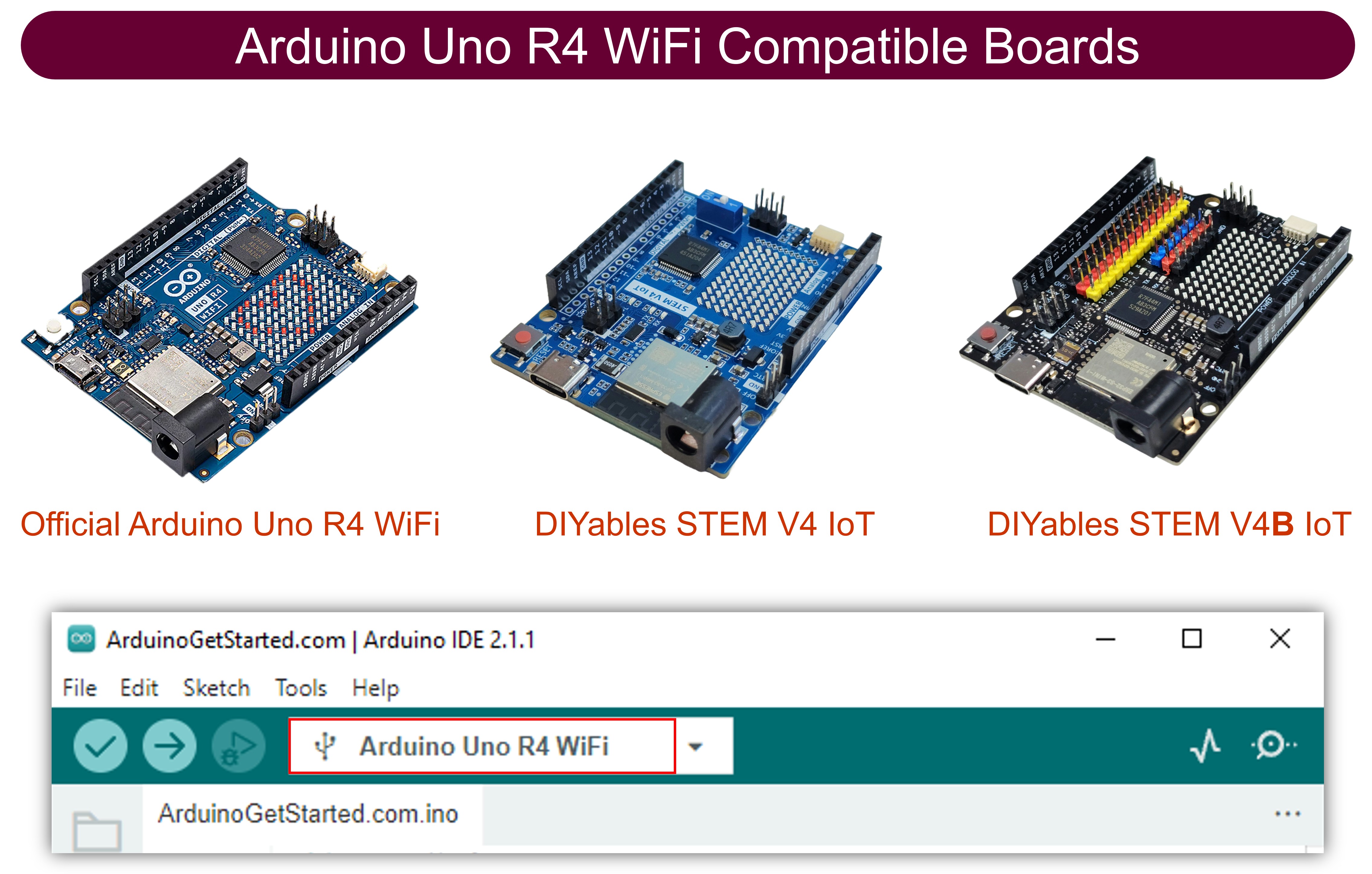
- Chọn bo mạch Arduino UNO R4 WiFi và cổng COM phù hợp.
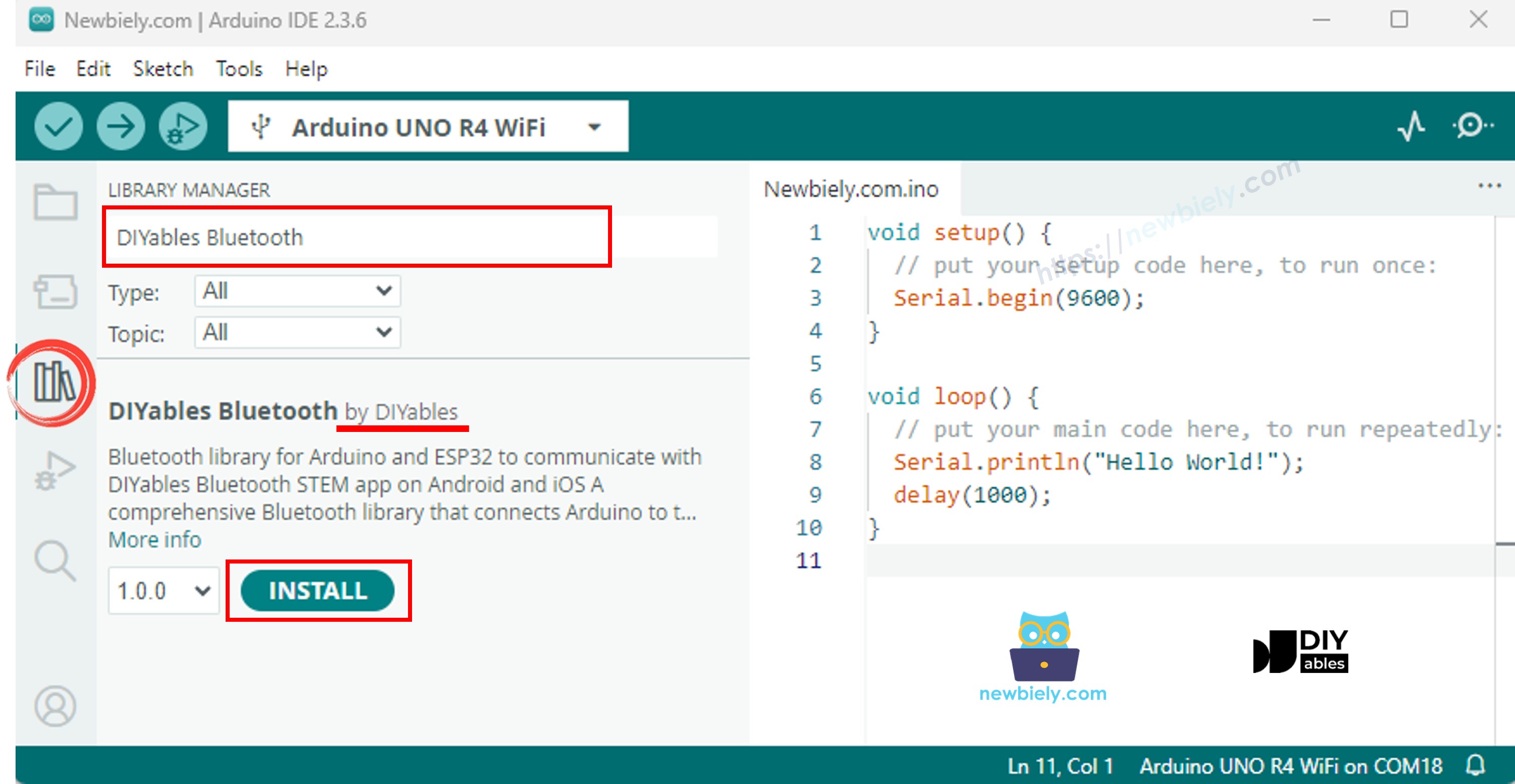
- Điều hướng đến biểu tượng Libraries ở thanh bên trái của Arduino IDE.
- Tìm kiếm "DIYables Bluetooth", sau đó tìm thư viện DIYables Bluetooth của DIYables
- Nhấn nút Install để cài đặt thư viện.
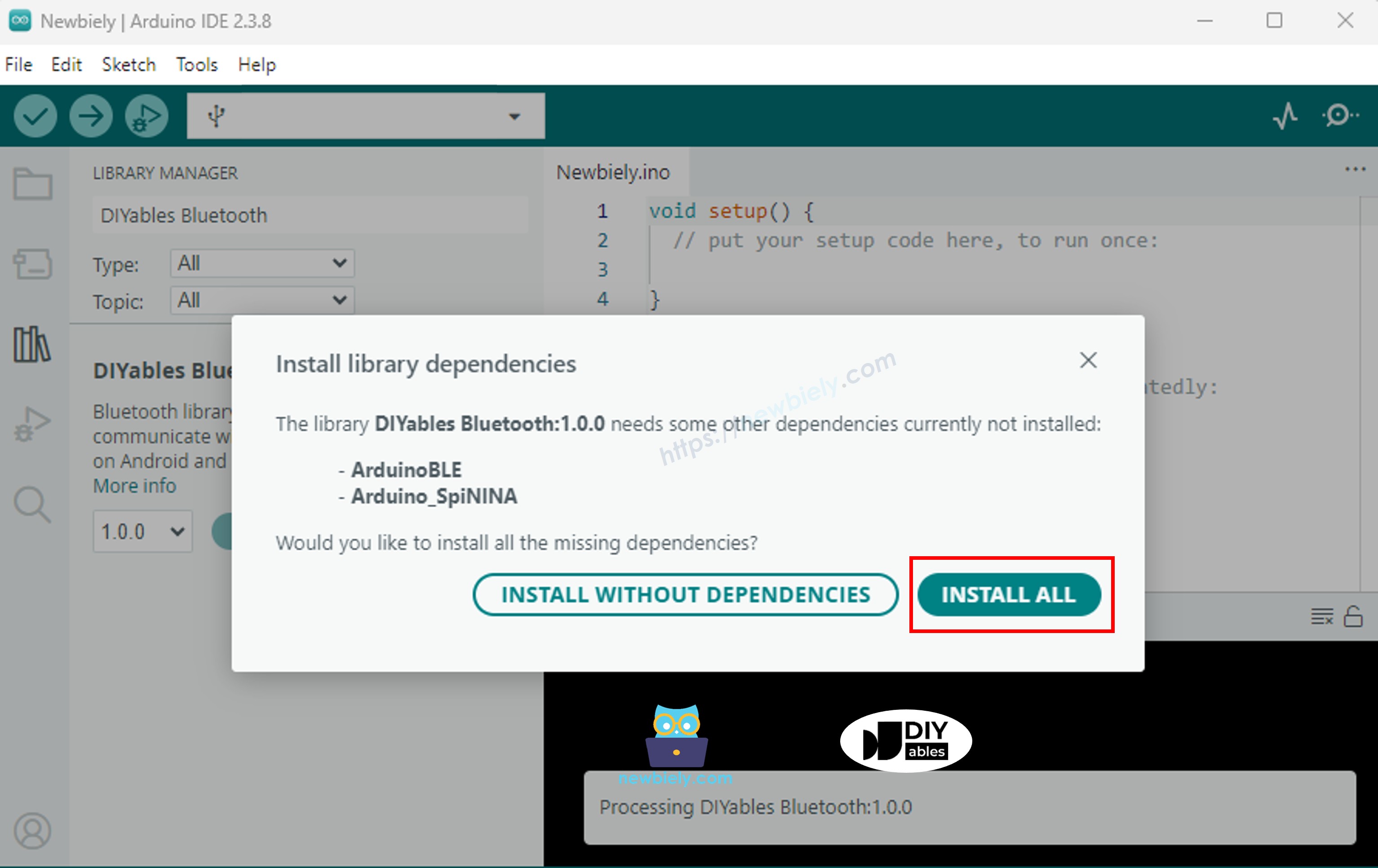
- Bạn sẽ được yêu cầu cài đặt một số thư viện phụ thuộc khác
- Nhấn nút Install All để cài đặt tất cả thư viện phụ thuộc.
Code BLE
- Trên Arduino IDE, Đi đến File Examples DIYables Bluetooth ArduinoBLE_Joystick, hoặc copy code trên và paste vào editor của Arduino IDE
- Nhấn nút Upload trên Arduino IDE để upload code lên Arduino UNO R4 WiFi
- Mở Serial Monitor
- Kiểm tra kết quả trên Serial Monitor. Nó sẽ trông như sau:
Ứng Dụng Di Động
Lưu ý: Ứng dụng DIYables Bluetooth hỗ trợ cả BLE và Classic Bluetooth trên Android, và BLE trên iOS. Do Arduino UNO R4 WiFi sử dụng BLE, ứng dụng hoạt động trên cả Android và iOS. Không cần ghép nối thủ công cho BLE — chỉ cần quét và kết nối.
- Mở ứng dụng DIYables Bluetooth
- Khi mở ứng dụng lần đầu tiên, nó sẽ yêu cầu quyền. Vui lòng cấp các quyền sau:
- Quyền Nearby Devices (Android 12+) / quyền Bluetooth (iOS) - cần thiết để quét và kết nối với các thiết bị Bluetooth
- Quyền Location (chỉ Android 11 trở xuống) - được yêu cầu bởi các phiên bản Android cũ để quét thiết bị BLE
- Đảm bảo Bluetooth được bật trên điện thoại của bạn
- Ở màn hình chính, nhấn nút Connect. Ứng dụng sẽ quét các thiết bị BLE.
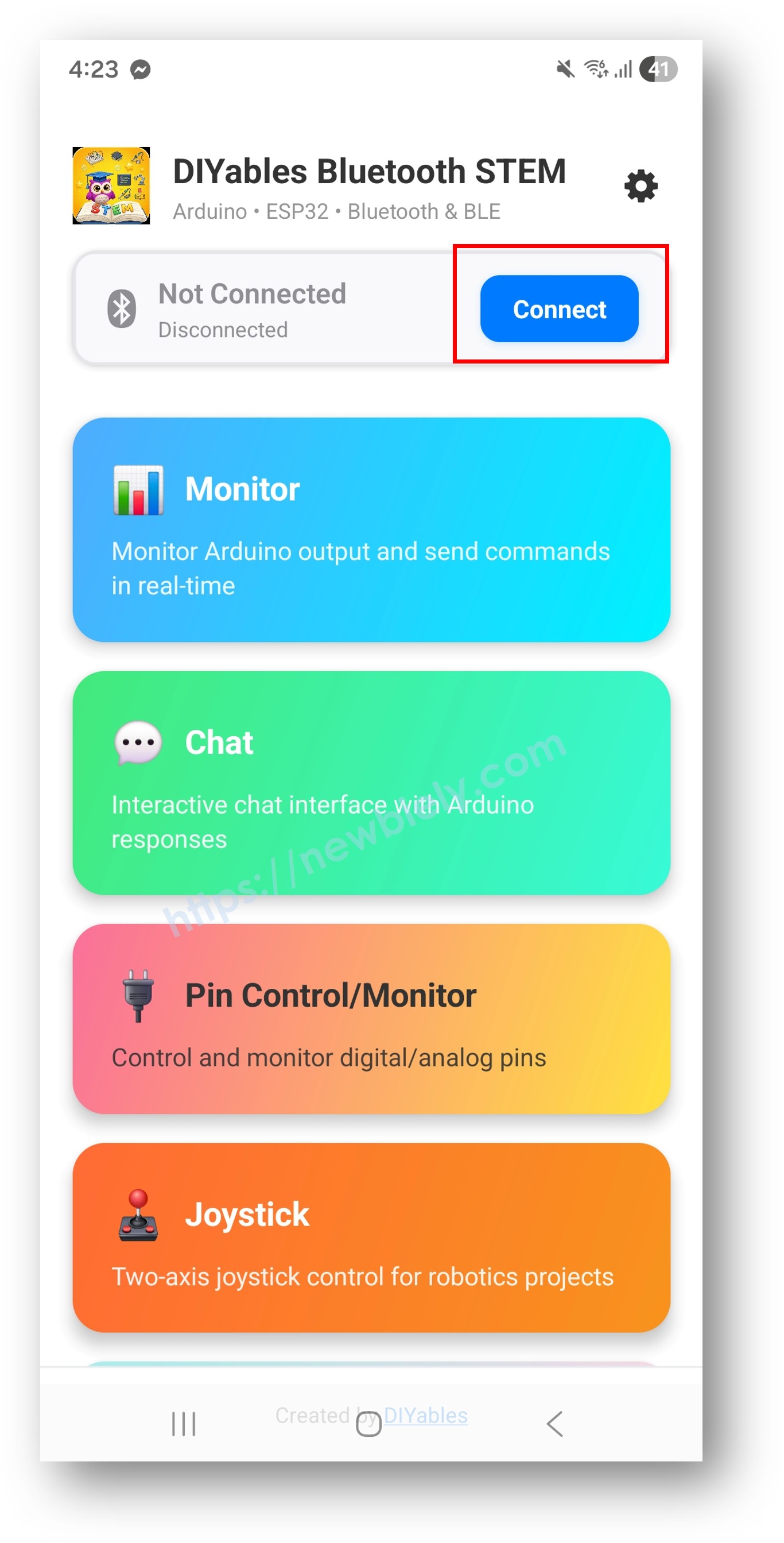
- Tìm và nhấn "Arduino_Joystick" trong kết quả quét để kết nối.
- Một khi kết nối, ứng dụng tự động quay về màn hình chính. Chọn ứng dụng Joystick từ menu ứng dụng.
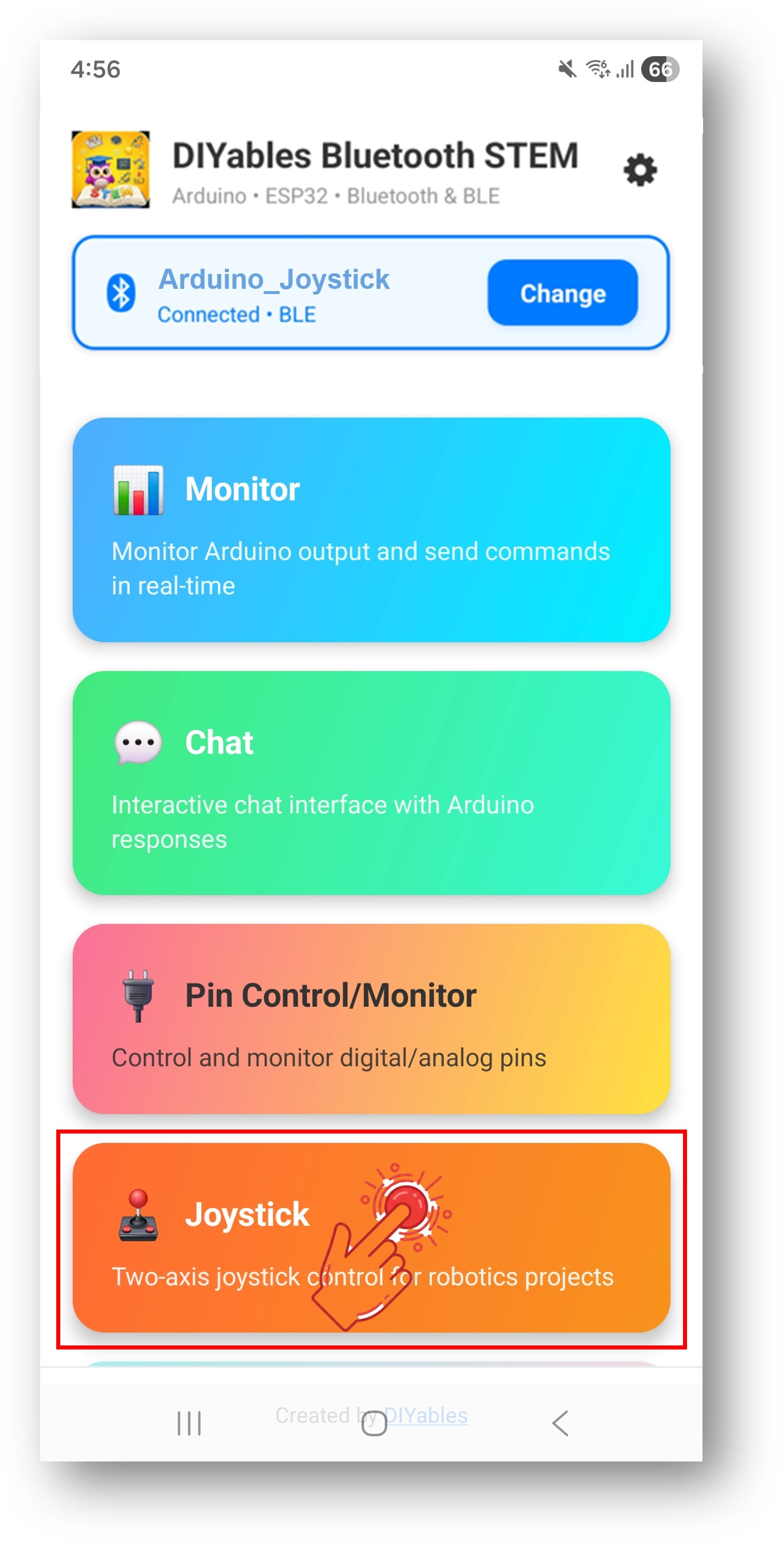
Lưu ý: Bạn có thể nhấn biểu tượng cài đặt trên màn hình chính để ẩn/hiện các ứng dụng trên màn hình chính. Để biết thêm chi tiết, xem Hướng Dẫn Sử Dụng DIYables Bluetooth App.
- Kéo joystick theo bất kỳ hướng nào
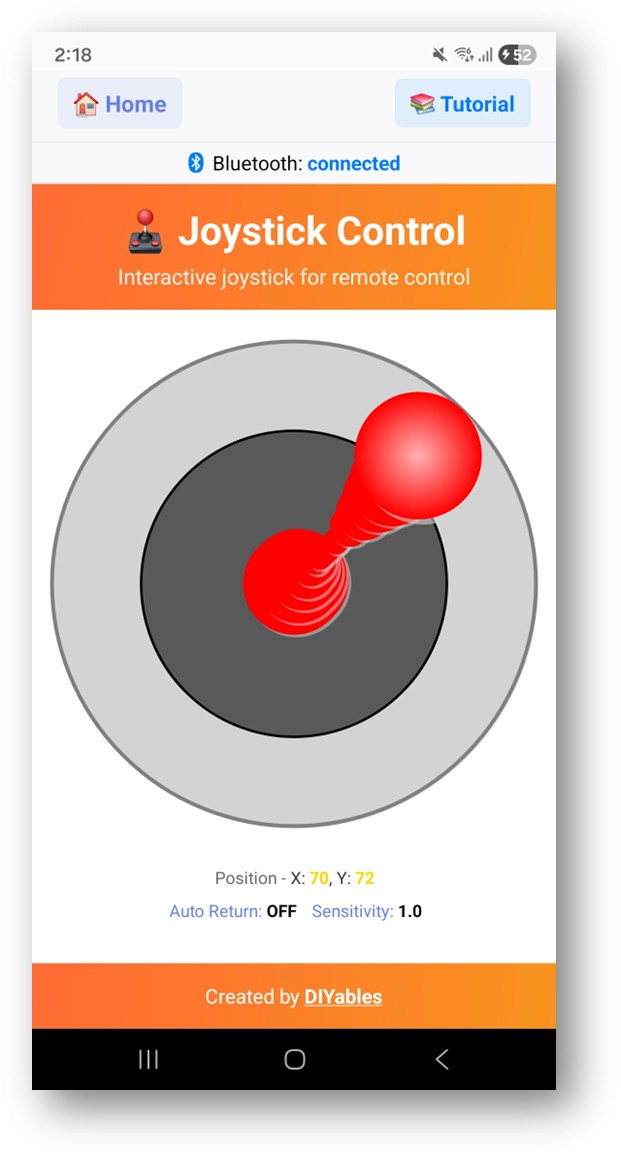
Bây giờ hãy nhìn lại Serial Monitor trên Arduino IDE. Bạn sẽ thấy:
Tùy Chỉnh Sáng Tạo - Điều Chỉnh Code Cho Dự Án Của Bạn
Xử Lý Giá Trị Joystick
Cấu Hình Cài Đặt Joystick
Xử Lý Yêu Cầu Cấu Hình
Ví Dụ Lập Trình
Robot Differential Drive
Servo Pan-Tilt
Hướng với Vùng Chết
Khắc Phục Sự Cố
Các Vấn Đề Thường Gặp
1. Không thể tìm thấy thiết bị trong ứng dụng
- Đảm bảo Arduino UNO R4 WiFi được cấp nguồn và sketch đã được upload
- Đảm bảo Bluetooth của điện thoại được bật
- Trên Android 11 trở xuống, cũng bật dịch vụ Vị trí
2. Joystick không phản hồi
- Kiểm tra trạng thái kết nối Bluetooth trong ứng dụng
- Xác minh callback onJoystickValue được thiết lập đúng cách
- Kiểm tra Serial Monitor để xem thông báo kết nối
3. Chuyển động cảm thấy chậm
- Giảm giá trị sensitivity để có cập nhật thường xuyên hơn
- Đảm bảo bluetoothServer.loop() được gọi mà không có delay dài
4. Giá trị nhảy hoặc không nhất quán
- Thêm bộ lọc vùng chết cho các chuyển động nhỏ
- Kiểm tra cài đặt sensitivity
5. Kết nối bị ngắt thường xuyên
- Di chuyển gần Arduino hơn (giảm khoảng cách)
- Đảm bảo nguồn cấp USB ổn định
6. Upload thất bại hoặc bo mạch không được nhận dạng
- Cài đặt gói bo mạch Arduino UNO R4 mới nhất qua Board Manager
- Thử cáp USB hoặc cổng khác
Ý Tưởng Dự Án
- Bộ điều khiển robot không dây
- Giá đỡ pan-tilt camera
- Điều khiển 2 trục cho tay robot
- Bộ điều khiển vị trí ma trận LED
- Bộ điều khiển game cho các game Arduino
Bước Tiếp Theo
Sau khi thành thạo ví dụ Bluetooth Joystick, hãy thử:
- Bluetooth Slider - Để điều khiển giá trị tuyến tính
- Bluetooth Rotator - Để điều khiển góc
- Bluetooth Monitor - Để phản hồi trạng thái
- Nhiều Ứng Dụng Bluetooth - Kết hợp joystick với các điều khiển khác
Hỗ Trợ
Để được trợ giúp thêm:
- Kiểm tra tài liệu API Reference
- Truy cập Hướng dẫn DIYables
- Diễn đàn cộng đồng Arduino
Bài hướng dẫn liên quan
📱 Ứng dụng đề xuất
 English for KidsHọc tiếng Anh vui nhộn cho trẻ nhỏ.Tải về trênGoogle PlayTải về trênApp Store
 Bubble NoteGhi chú tự xóa — viết như nhắn tin.Tải về trênGoogle PlayTải về trênApp Store
 Tôi Không MuaĐánh bại mua sắm bốc đồng, tiết kiệm hơn.Tải về trênGoogle PlayTải về trênApp Store
 Con Đường Tri ThứcBài thi thử để học mọi thứ.Tải về trênGoogle PlayTải về trênApp Store