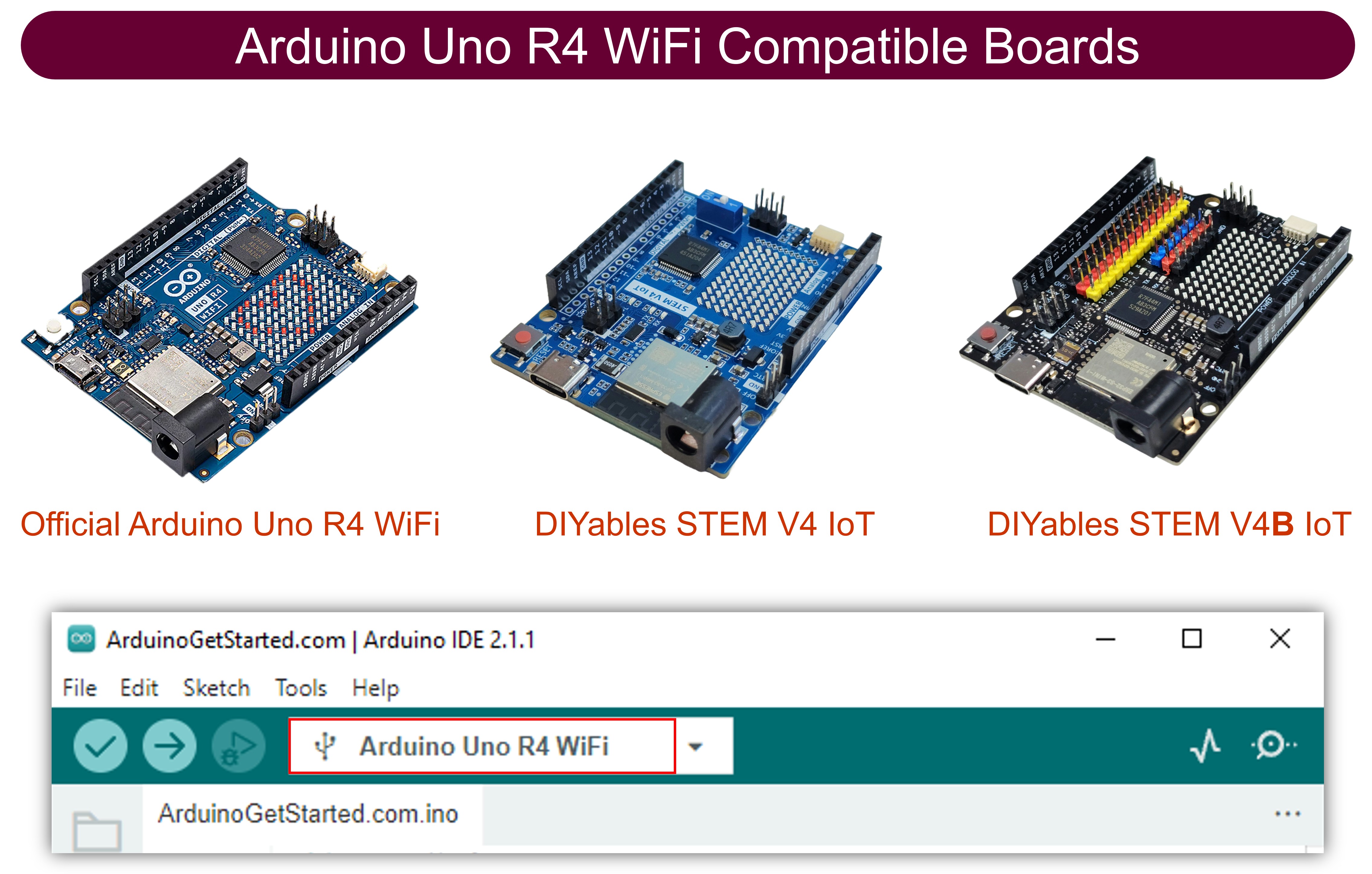
Arduino UNO R4 WiFi Bluetooth Digital Pins Example Hướng dẫn Điều khiển GPIO qua BLE

Tổng Quan

Ví dụ Bluetooth Digital Pins cung cấp khả năng điều khiển và giám sát chân GPIO từ xa thông qua ứng dụng DIYables Bluetooth STEM. Được thiết kế cho Arduino UNO R4 WiFi sử dụng BLE (Bluetooth Low Energy) để điều khiển chân output và giám sát chân input không dây từ điện thoại thông minh của bạn. Hoàn hảo cho việc điều khiển relay, giám sát nút nhấn, chuyển đổi LED và bất kỳ ứng dụng nào cần truy cập chân từ xa.

Lưu ý: Arduino UNO R4 WiFi chỉ hỗ trợ BLE (Bluetooth Low Energy). Nó không hỗ trợ Classic Bluetooth. Ứng dụng DIYables Bluetooth hỗ trợ cả BLE và Classic Bluetooth trên Android, và BLE trên iOS. Vì bo mạch này sử dụng BLE, ứng dụng hoạt động trên cả Android và iOS.
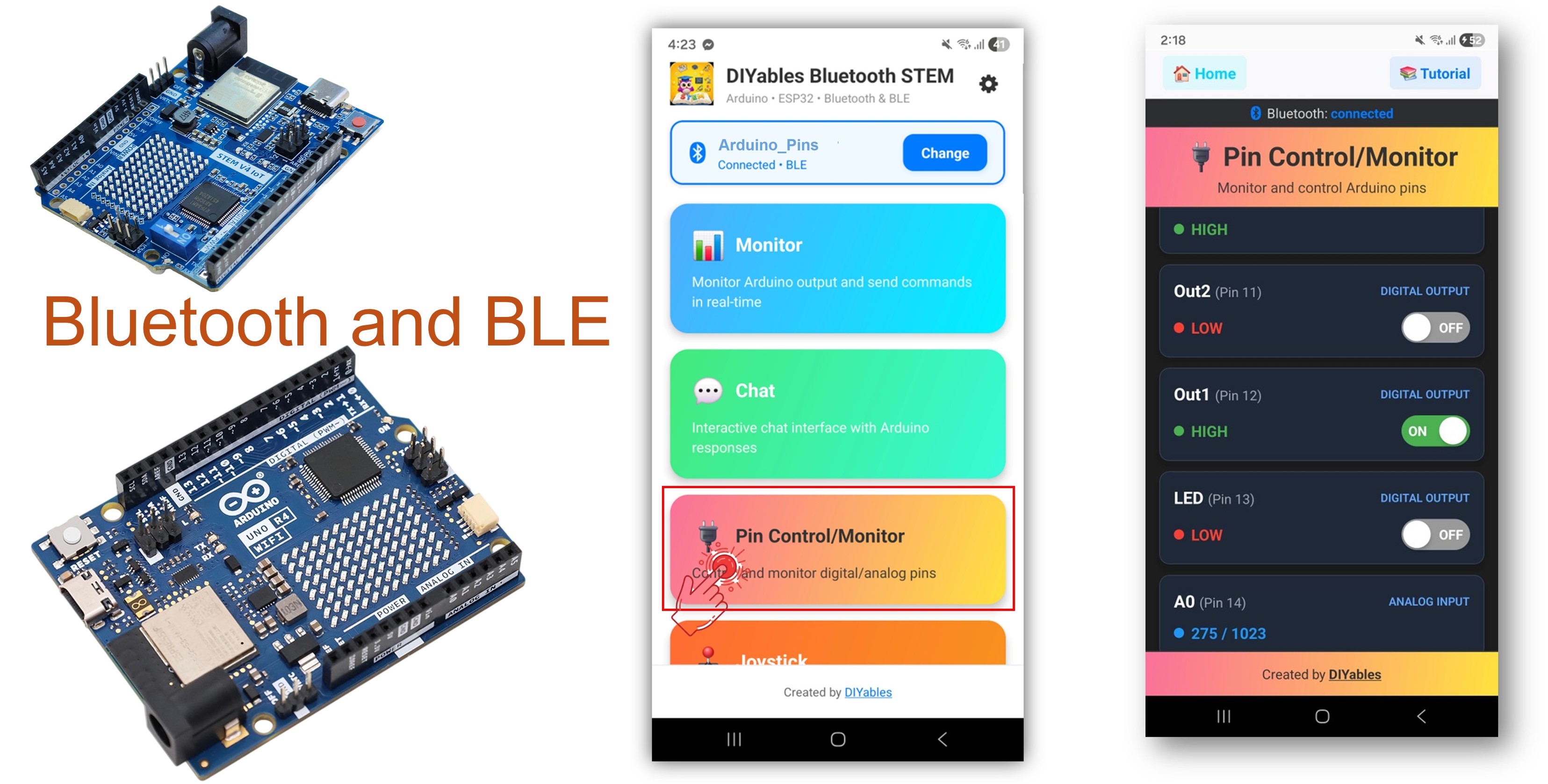
Arduino UNO R4 WiFi Bluetooth digital pins example - hướng dẫn Điều khiển gpio qua ble

Tính Năng

  • Điều khiển Output: Đặt chân digital HIGH/LOW từ xa
  • Giám sát Input: Đọc trạng thái chân digital và analog
  • Đặt Tên Chân: Gán tên thân thiện cho mỗi chân (ví dụ: "LED", "Relay")
  • Cập Nhật Thời Gian Thực: Đẩy thay đổi trạng thái chân đến ứng dụng
  • Lên đến 16 Chân: Điều khiển nhiều chân cùng lúc
  • Hoạt động trên Android & iOS: BLE được hỗ trợ trên cả hai nền tảng
  • Không Cần Ghép Nối: BLE tự động kết nối không cần ghép nối thủ công

Phần Cứng Cần Thiết

1×Arduino UNO R4 WiFi
1×Alternatively, DIYables STEM V4 IoT
1×(Tùy chọn) DIYables STEM V4 IoT
1×Cáp USB Type-C
1×breadboard
1×Dây Jumper
1×(Khuyến nghị) Screw Terminal Block Shield for Arduino UNO R4
1×(Khuyến nghị) Breadboard Shield for Arduino UNO R4
1×(Khuyến nghị) Enclosure for Arduino UNO R4
1×(Khuyến nghị) Power Splitter for Arduino UNO R4
1×(Khuyến nghị) Prototyping Base Plate & Breadboard Kit for Arduino UNO

Or you can buy the following kits:

1×DIYables STEM V4 IoT Starter Kit (Arduino included)
1×DIYables Sensor Kit (30 sensors/displays)
1×DIYables Sensor Kit (18 sensors/displays)

Code Arduino UNO R4 WiFi

Các Bước Nhanh

Thực hiện theo hướng dẫn từng bước:

  • Nếu đây là lần đầu bạn sử dụng Arduino UNO R4 WiFi, hãy tham khảo Arduino UNO R4 - Cài Đặt Phần Mềm.
  • Kết nối bo mạch Arduino UNO R4 WiFi với máy tính bằng cáp USB.
  • Khởi động Arduino IDE trên máy tính.
  • Chọn bo mạch Arduino UNO R4 WiFi và cổng COM phù hợp.
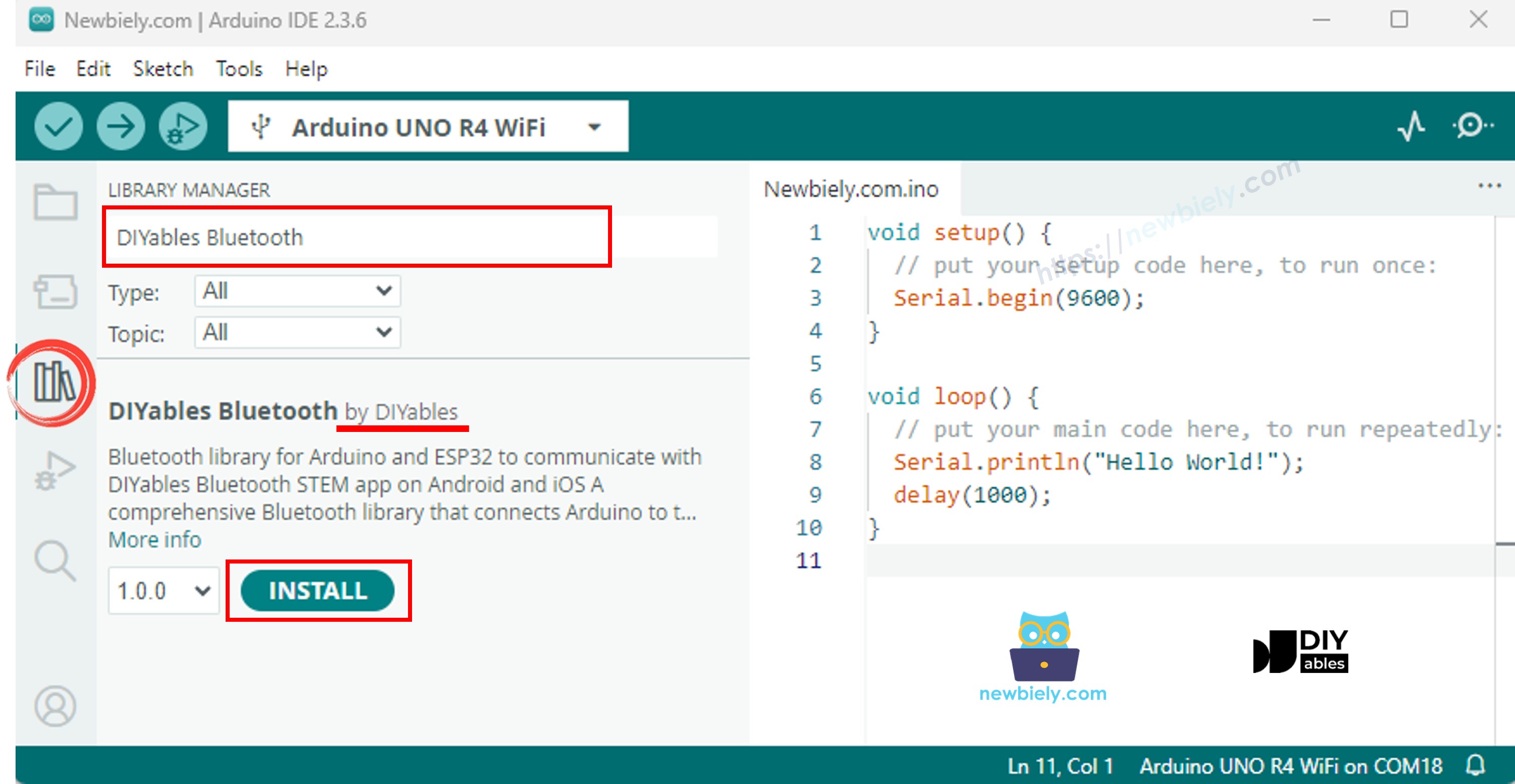
  • Điều hướng đến biểu tượng Libraries trên thanh bên trái của Arduino IDE.
  • Tìm kiếm "DIYables Bluetooth", sau đó tìm thư viện DIYables Bluetooth của DIYables
  • Nhấn nút Install để cài đặt thư viện.
Arduino UNO R4 diyables Bluetooth thư viện
  • Bạn sẽ được hỏi về việc cài đặt một số thư viện phụ thuộc khác
  • Nhấn nút Install All để cài đặt tất cả thư viện phụ thuộc.
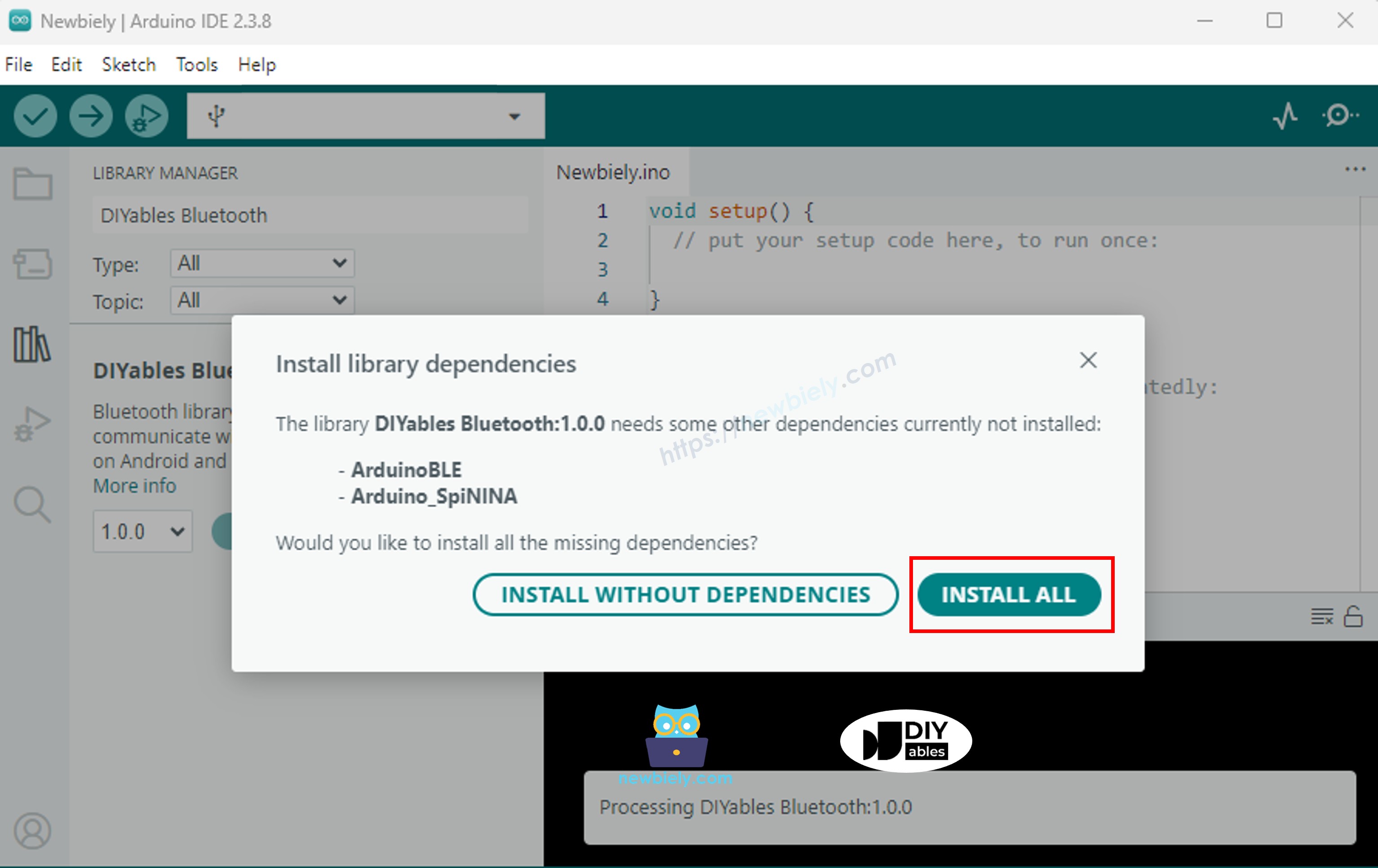
Arduino UNO R4 diyables Bluetooth dependency

Code BLE

  • Trên Arduino IDE, đi tới File Examples DIYables Bluetooth ArduinoBLE_PinControl example, hoặc copy code trên và dán vào editor của Arduino IDE
/* * DIYables Bluetooth Library - Bluetooth Pin Control/Monitor Example * Works with DIYables Bluetooth STEM app on Android and iOS * * This example demonstrates the Bluetooth Pin Control/Monitor feature: * - Control digital output pins via Bluetooth * - Monitor digital input pins * - Monitor analog input pins * - Configure pin modes (INPUT/OUTPUT) * * Compatible Boards: * - Arduino UNO R4 WiFi * - Arduino Nano 33 BLE / BLE Sense * - Arduino Nano 33 IoT * - Arduino MKR WiFi 1010 * - Arduino Nano RP2040 Connect * - Any board supporting the ArduinoBLE library * * Setup: * 1. Upload the sketch to your Arduino * 2. Open Serial Monitor to see connection status * 3. Use DIYables Bluetooth App to connect and control pins * * Tutorial: https://diyables.io/bluetooth-app * Author: DIYables */ #include <DIYables_BluetoothServer.h> #include <DIYables_BluetoothPinControl.h> #include <platforms/DIYables_ArduinoBLE.h> // BLE Configuration const char* DEVICE_NAME = "Arduino_Pins"; const char* SERVICE_UUID = "19B10000-E8F2-537E-4F6C-D104768A1214"; const char* TX_UUID = "19B10001-E8F2-537E-4F6C-D104768A1214"; const char* RX_UUID = "19B10002-E8F2-537E-4F6C-D104768A1214"; // Create Bluetooth instances DIYables_ArduinoBLE bluetooth(DEVICE_NAME, SERVICE_UUID, TX_UUID, RX_UUID); DIYables_BluetoothServer bluetoothServer(bluetooth); // Create Pin Control/Monitor app instance DIYables_BluetoothPinControl bluetoothPins; // Pin configuration const int LED_PIN = 13; const int OUTPUT_PIN_1 = 12; const int OUTPUT_PIN_2 = 11; const int INPUT_PIN_1 = 7; const int INPUT_PIN_2 = 6; const int ANALOG_PIN_1 = A0; const int ANALOG_PIN_2 = A1; void setup() { Serial.begin(9600); while (!Serial); Serial.println("DIYables Bluetooth - Pin Control/Monitor Example"); // Initialize pins pinMode(LED_PIN, OUTPUT); pinMode(OUTPUT_PIN_1, OUTPUT); pinMode(OUTPUT_PIN_2, OUTPUT); pinMode(INPUT_PIN_1, INPUT_PULLUP); pinMode(INPUT_PIN_2, INPUT_PULLUP); // Initialize Bluetooth server with platform-specific implementation bluetoothServer.begin(); // Add digital pins app to server bluetoothServer.addApp(&bluetoothPins); // Configure which pins are accessible via Bluetooth with custom names bluetoothPins.enablePin(LED_PIN, BT_PIN_OUTPUT, "LED"); bluetoothPins.enablePin(OUTPUT_PIN_1, BT_PIN_OUTPUT, "Out1"); bluetoothPins.enablePin(OUTPUT_PIN_2, BT_PIN_OUTPUT, "Out2"); bluetoothPins.enablePin(INPUT_PIN_1, BT_PIN_INPUT, "Btn1"); bluetoothPins.enablePin(INPUT_PIN_2, BT_PIN_INPUT, "Btn2"); bluetoothPins.enablePin(ANALOG_PIN_1, BT_PIN_INPUT, "A0"); bluetoothPins.enablePin(ANALOG_PIN_2, BT_PIN_INPUT, "A1"); // Set up connection event callbacks bluetoothServer.setOnConnected([]() { Serial.println("Bluetooth connected!"); }); bluetoothServer.setOnDisconnected([]() { Serial.println("Bluetooth disconnected!"); }); // Set up callback for pin write commands bluetoothPins.onPinWrite([](int pin, int state) { digitalWrite(pin, state); Serial.print("Pin "); Serial.print(pin); Serial.print(" set to "); Serial.println(state ? "HIGH" : "LOW"); }); // Set up callback for pin read commands bluetoothPins.onPinRead([](int pin) -> int { // Read analog pins with analogRead, digital pins with digitalRead int state; if (pin == ANALOG_PIN_1 || pin == ANALOG_PIN_2) { state = analogRead(pin); Serial.print("Analog pin "); Serial.print(pin); Serial.print(" read: "); Serial.println(state); } else { state = digitalRead(pin); Serial.print("Digital pin "); Serial.print(pin); Serial.print(" read: "); Serial.println(state ? "HIGH" : "LOW"); } return state; }); // Set up callback for pin mode changes bluetoothPins.onPinModeChange([](int pin, int mode) { pinMode(pin, mode == BT_PIN_OUTPUT ? OUTPUT : INPUT_PULLUP); Serial.print("Pin "); Serial.print(pin); Serial.print(" mode changed to "); Serial.println(mode == BT_PIN_OUTPUT ? "OUTPUT" : "INPUT"); }); Serial.println("Waiting for Bluetooth connection..."); Serial.print("Enabled pins: "); Serial.println(bluetoothPins.getEnabledPinCount()); } void loop() { // Handle Bluetooth server communications bluetoothServer.loop(); // Optional: Monitor input pins and send updates static unsigned long lastInputCheck = 0; static int lastInputState1 = HIGH; static int lastInputState2 = HIGH; static int lastAnalogState1 = 0; static int lastAnalogState2 = 0; if (millis() - lastInputCheck >= 100) { lastInputCheck = millis(); // Check digital input pin 1 int currentState1 = digitalRead(INPUT_PIN_1); if (currentState1 != lastInputState1) { lastInputState1 = currentState1; bluetoothPins.updatePinState(INPUT_PIN_1, currentState1); Serial.print("Input pin "); Serial.print(INPUT_PIN_1); Serial.print(" changed to "); Serial.println(currentState1 ? "HIGH" : "LOW"); } // Check digital input pin 2 int currentState2 = digitalRead(INPUT_PIN_2); if (currentState2 != lastInputState2) { lastInputState2 = currentState2; bluetoothPins.updatePinState(INPUT_PIN_2, currentState2); Serial.print("Input pin "); Serial.print(INPUT_PIN_2); Serial.print(" changed to "); Serial.println(currentState2 ? "HIGH" : "LOW"); } // Check analog input 1 (send update if changed by more than 10) int currentAnalog1 = analogRead(ANALOG_PIN_1); if (abs(currentAnalog1 - lastAnalogState1) > 10) { lastAnalogState1 = currentAnalog1; bluetoothPins.updatePinState(ANALOG_PIN_1, currentAnalog1); Serial.print("Analog pin "); Serial.print(ANALOG_PIN_1); Serial.print(" changed to "); Serial.println(currentAnalog1); } // Check analog input 2 (send update if changed by more than 10) int currentAnalog2 = analogRead(ANALOG_PIN_2); if (abs(currentAnalog2 - lastAnalogState2) > 10) { lastAnalogState2 = currentAnalog2; bluetoothPins.updatePinState(ANALOG_PIN_2, currentAnalog2); Serial.print("Analog pin "); Serial.print(ANALOG_PIN_2); Serial.print(" changed to "); Serial.println(currentAnalog2); } } delay(10); }
  • Nhấn nút Upload trên Arduino IDE để upload code lên Arduino UNO R4 WiFi
  • Mở Serial Monitor
  • Kiểm tra kết quả trên Serial Monitor. Nó sẽ trông như sau:
COM6
Send
DIYables Bluetooth - Pin Control/Monitor Example Waiting for Bluetooth connection... Enabled pins: 7
Autoscroll Show timestamp
Clear output
9600 baud  
Newline  

Ứng Dụng Di Động

  • Cài đặt ứng dụng DIYables Bluetooth trên điện thoại thông minh: Android | iOS

Lưu ý: Ứng dụng DIYables Bluetooth hỗ trợ cả BLE và Classic Bluetooth trên Android, và BLE trên iOS. Vì Arduino UNO R4 WiFi sử dụng BLE, ứng dụng hoạt động trên cả Android và iOS. Không cần ghép nối thủ công cho BLE — chỉ cần quét và kết nối.

  • Mở ứng dụng DIYables Bluetooth
  • Khi mở ứng dụng lần đầu, nó sẽ yêu cầu quyền. Vui lòng cấp các quyền sau:
    • Quyền Nearby Devices (Android 12+) / Quyền Bluetooth (iOS) - cần thiết để quét và kết nối với thiết bị Bluetooth
    • Quyền Location (chỉ Android 11 trở xuống) - được yêu cầu bởi các phiên bản Android cũ để quét thiết bị BLE
  • Đảm bảo Bluetooth đã được bật trên điện thoại
  • Trên màn hình chính, chạm vào nút Connect. Ứng dụng sẽ quét thiết bị BLE.
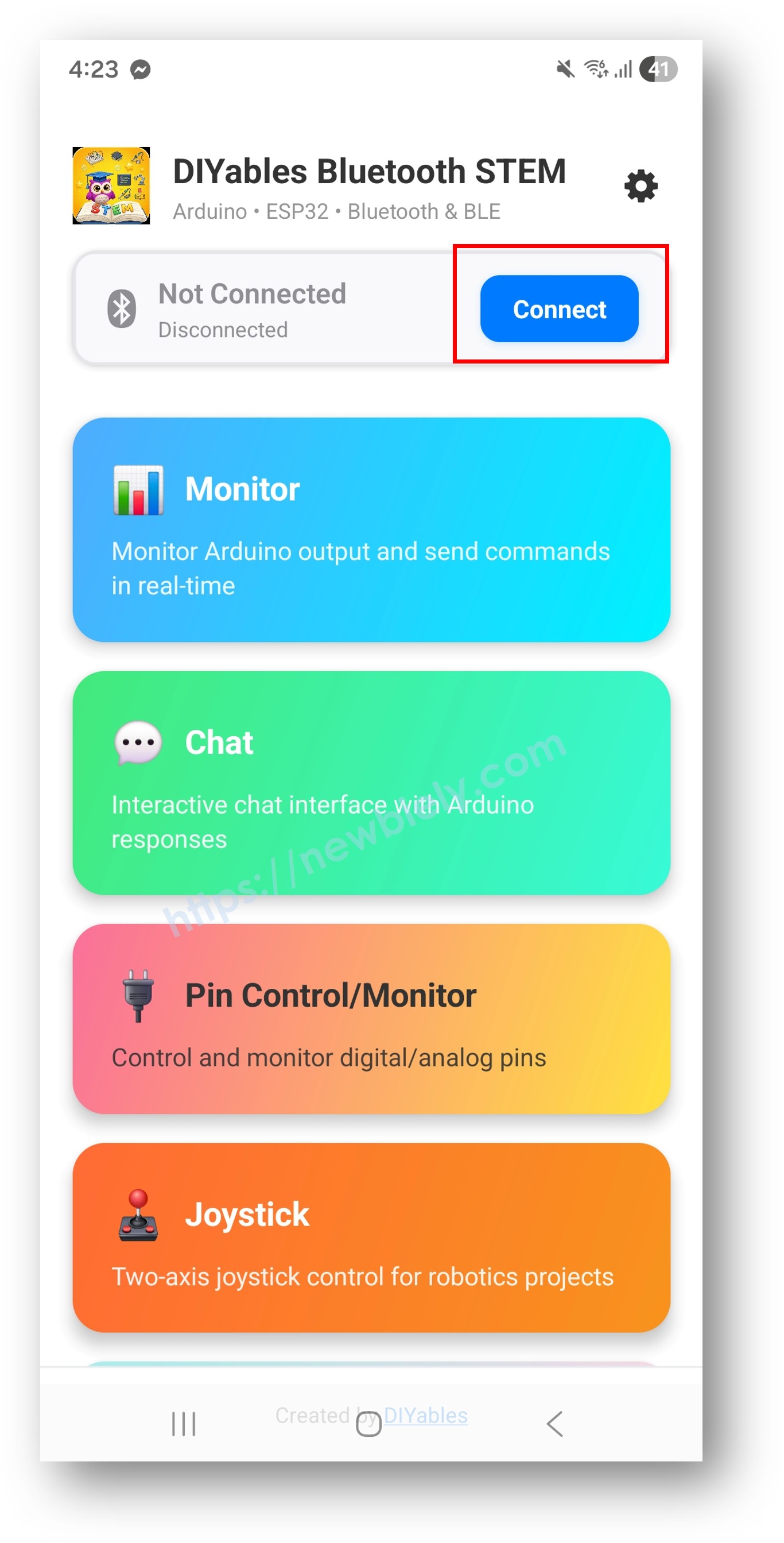
diyables Bluetooth app - home screen with scan nút nhấn
  • Tìm và chạm vào "Arduino_Pins" trong kết quả quét để kết nối.
  • Sau khi kết nối, ứng dụng tự động quay về màn hình chính. Chọn ứng dụng Digital Pins từ menu ứng dụng.
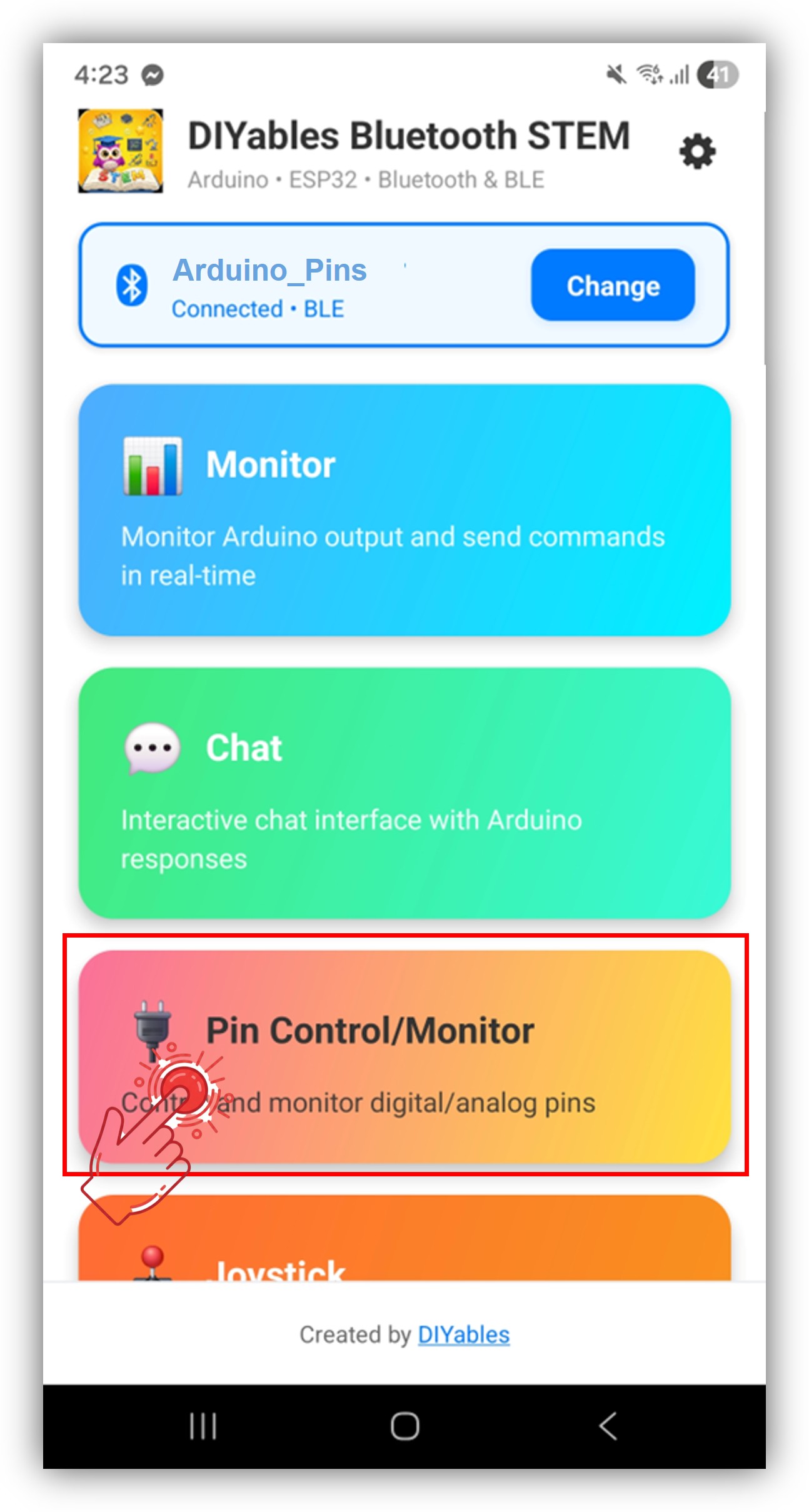
diyables Bluetooth app - home screen with digital pins app

Lưu ý: Bạn có thể chạm vào biểu tượng settings trên màn hình chính để ẩn/hiện các ứng dụng trên màn hình chính. Để biết thêm chi tiết, xem Hướng dẫn Sử dụng Ứng dụng DIYables Bluetooth.

  • Bạn sẽ thấy danh sách các chân đã kích hoạt với tên và trạng thái hiện tại của chúng
  • Chạm vào chân output để chuyển đổi HIGH/LOW, và xem giá trị chân input được cập nhật
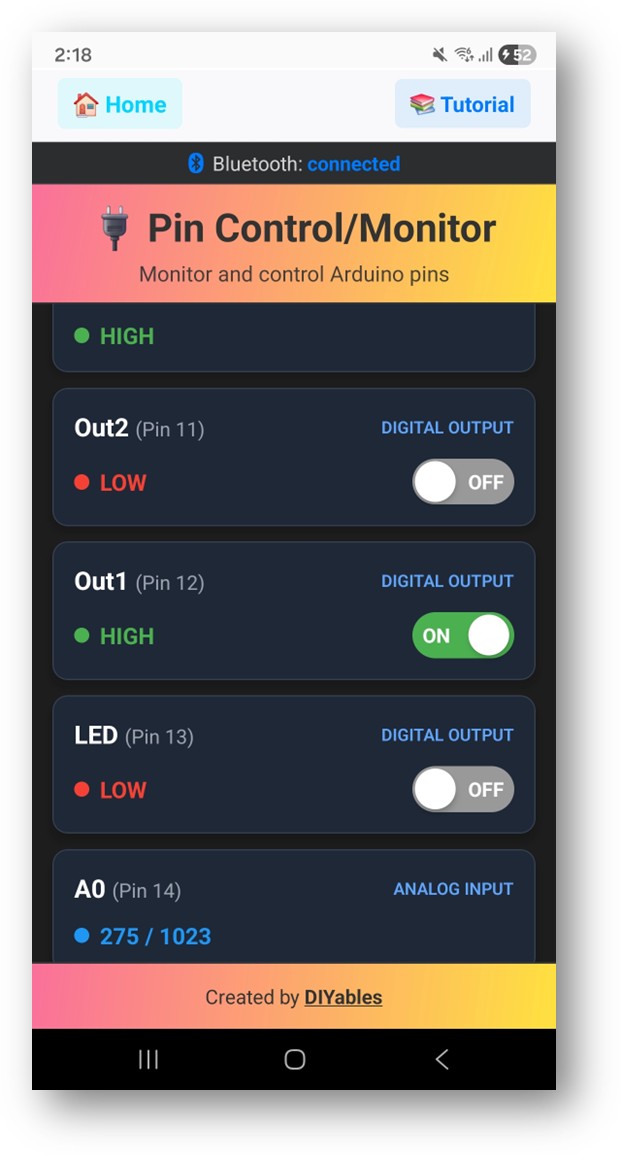
diyables Bluetooth app - digital pins screen

Bây giờ hãy nhìn lại Serial Monitor trên Arduino IDE. Bạn sẽ thấy:

COM6
Send
Bluetooth connected! Pin 13 set to HIGH Pin 13 set to LOW Digital pin 7 read: HIGH
Autoscroll Show timestamp
Clear output
9600 baud  
Newline  

Tùy Chỉnh Sáng Tạo - Điều chỉnh Code theo Dự án của Bạn

Kích Hoạt Chân

// Enable pins with mode and friendly name bluetoothPins.enablePin(13, BT_PIN_OUTPUT, "LED"); bluetoothPins.enablePin(12, BT_PIN_OUTPUT, "Relay"); bluetoothPins.enablePin(7, BT_PIN_INPUT, "Button"); bluetoothPins.enablePin(A0, BT_PIN_INPUT, "Sensor"); // Check enabled pin count int count = bluetoothPins.getEnabledPinCount();

Xử lý Pin Write/Read/Mode

bluetoothPins.onPinWrite([](int pin, int state) { digitalWrite(pin, state); Serial.print("Pin "); Serial.print(pin); Serial.println(state ? " ? HIGH" : " ? LOW"); }); bluetoothPins.onPinRead([](int pin) -> int { if (pin >= A0) { return analogRead(pin); } return digitalRead(pin); }); bluetoothPins.onPinModeChange([](int pin, int mode) { pinMode(pin, mode == BT_PIN_OUTPUT ? OUTPUT : INPUT_PULLUP); });

Đẩy Thay Đổi Trạng Thái

// Notify the app when a pin state changes bluetoothPins.updatePinState(7, digitalRead(7)); bluetoothPins.updatePinState(A0, analogRead(A0));

Ví Dụ Lập Trình

Điều khiển Relay với Giám sát Nút nhấn

const int RELAY_PIN = 12; const int BUTTON_PIN = 7; void setup() { pinMode(RELAY_PIN, OUTPUT); pinMode(BUTTON_PIN, INPUT_PULLUP); bluetoothPins.enablePin(RELAY_PIN, BT_PIN_OUTPUT, "Relay"); bluetoothPins.enablePin(BUTTON_PIN, BT_PIN_INPUT, "Button"); bluetoothPins.onPinWrite([](int pin, int state) { digitalWrite(pin, state); }); } void loop() { bluetoothServer.loop(); // Monitor button and push changes static int lastState = HIGH; int state = digitalRead(BUTTON_PIN); if (state != lastState) { lastState = state; bluetoothPins.updatePinState(BUTTON_PIN, state); } delay(10); }

Bộ Điều khiển Đa LED

const int LED_PINS[] = {8, 9, 10, 11, 12, 13}; const char* LED_NAMES[] = {"Red", "Green", "Blue", "Yellow", "White", "Built-in"}; const int NUM_LEDS = 6; void setup() { for (int i = 0; i < NUM_LEDS; i++) { pinMode(LED_PINS[i], OUTPUT); bluetoothPins.enablePin(LED_PINS[i], BT_PIN_OUTPUT, LED_NAMES[i]); } bluetoothPins.onPinWrite([](int pin, int state) { digitalWrite(pin, state); }); }

Khắc Phục Sự Cố

Các Vấn Đề Thường Gặp

1. Không thể tìm thấy thiết bị trong ứng dụng

  • Đảm bảo Arduino UNO R4 WiFi đã được bật nguồn và sketch đã được upload
  • Đảm bảo Bluetooth trên điện thoại đã được bật
  • Trên Android 11 trở xuống, cũng cần bật dịch vụ Location

2. Chuyển đổi chân không hoạt động

  • Xác minh chân đã được kích hoạt với chế độ BT_PIN_OUTPUT
  • Kiểm tra callback onPinWrite đã được thiết lập
  • Xác minh kết nối dây

3. Chân input không cập nhật

  • Đảm bảo updatePinState() được gọi khi trạng thái chân thay đổi
  • Kiểm tra tần số polling trong vòng lặp

4. Giá trị analog không hiển thị

  • Sử dụng analogRead() trong callback onPinRead cho chân analog
  • Chân analog trả về giá trị 0-1023

5. Kết nối thường xuyên bị ngắt

  • Di chuyển gần Arduino hơn (giảm khoảng cách)
  • Đảm bảo nguồn USB ổn định

6. Upload thất bại hoặc bo mạch không được nhận dạng

  • Cài đặt gói bo mạch Arduino UNO R4 mới nhất qua Board Manager
  • Thử cáp USB hoặc cổng khác

Ý Tưởng Dự Án

  • Bảng điều khiển đa relay
  • Màn hình giám sát nút nhấn và switch
  • Bộ điều khiển đèn LED
  • Bảng switch tự động hóa gia đình
  • Bảng điều khiển đầu vào cảm biến

Các Bước Tiếp Theo

Sau khi thành thạo ví dụ Bluetooth Digital Pins, hãy thử:

  1. Bluetooth Slider - Để điều khiển giá trị analog
  2. Bluetooth Monitor - Để phản hồi trạng thái dựa trên văn bản
  3. Bluetooth Table - Để hiển thị trạng thái chân có cấu trúc
  4. Multiple Bluetooth Apps - Kết hợp điều khiển chân với các ứng dụng khác

Hỗ Trợ

Để được trợ giúp thêm:

  • Kiểm tra tài liệu API Reference
  • Diễn đàn cộng đồng Arduino