
Arduino Cảm biến cảm ứng Chuông Piezo
Chúng ta sẽ học cách làm thế nào:
- Phát ra âm thanh khi cảm biến chạm.
- Dừng phát ra âm thanh khi cảm biến chưa chạm.
- Phát giai điệu khi cảm biến chạm.
Phần cứng cần chuẩn bị
| 1 | × | Arduino Uno R3 | Amazon | |
| 1 | × | USB 2.0 cable type A/B (for USB-A PC) | Amazon | |
| 1 | × | USB 2.0 cable type C/B (for USB-C PC) | Amazon | |
| 1 | × | cảm biến chạm | Amazon | |
| 1 | × | 3-24V Active Piezo Buzzer | Amazon | |
| 1 | × | Active Piezo Buzzer Module | Amazon | |
| 1 | × | Passive Piezo Buzzer Module | Amazon | |
| 1 | × | breadboard | Amazon | |
| 1 | × | dây jumper | Amazon | |
| 1 | × | (Khuyến nghị) Screw Terminal Block Shield for Arduino Uno | Amazon | |
| 1 | × | (Khuyến nghị) Sensors/Servo Expansion Shield for Arduino Uno | Amazon | |
| 1 | × | (Khuyến nghị) Breadboard Shield for Arduino Uno | Amazon | |
| 1 | × | (Khuyến nghị) Enclosure for Arduino Uno | Amazon | |
| 1 | × | (Khuyến nghị) Prototyping Base Plate & Breadboard Kit for Arduino UNO | Amazon |
Or you can buy the following kits:
| 1 | × | DIYables STEM V3 Starter Kit (Arduino included) | Amazon | |
| 1 | × | DIYables Sensor Kit (18 sensors/displays) | Amazon |
Về Chuông Piezo và Cảm biến Chạm
Nếu bạn chưa biết về buzzer Piezo và cảm biến chạm (bản đồ chân, cách hoạt động, cách lập trình ...), hãy tìm hiểu về chúng trong các bài hướng dẫn sau:
Xin lưu ý rằng bài hướng dẫn này sử dụng buzzer 3-5V, nhưng bạn có thể điều chỉnh nó cho buzzer 12V. Bạn có thể tìm hiểu về Arduino - Chuông điện.
Sơ đồ đấu dây
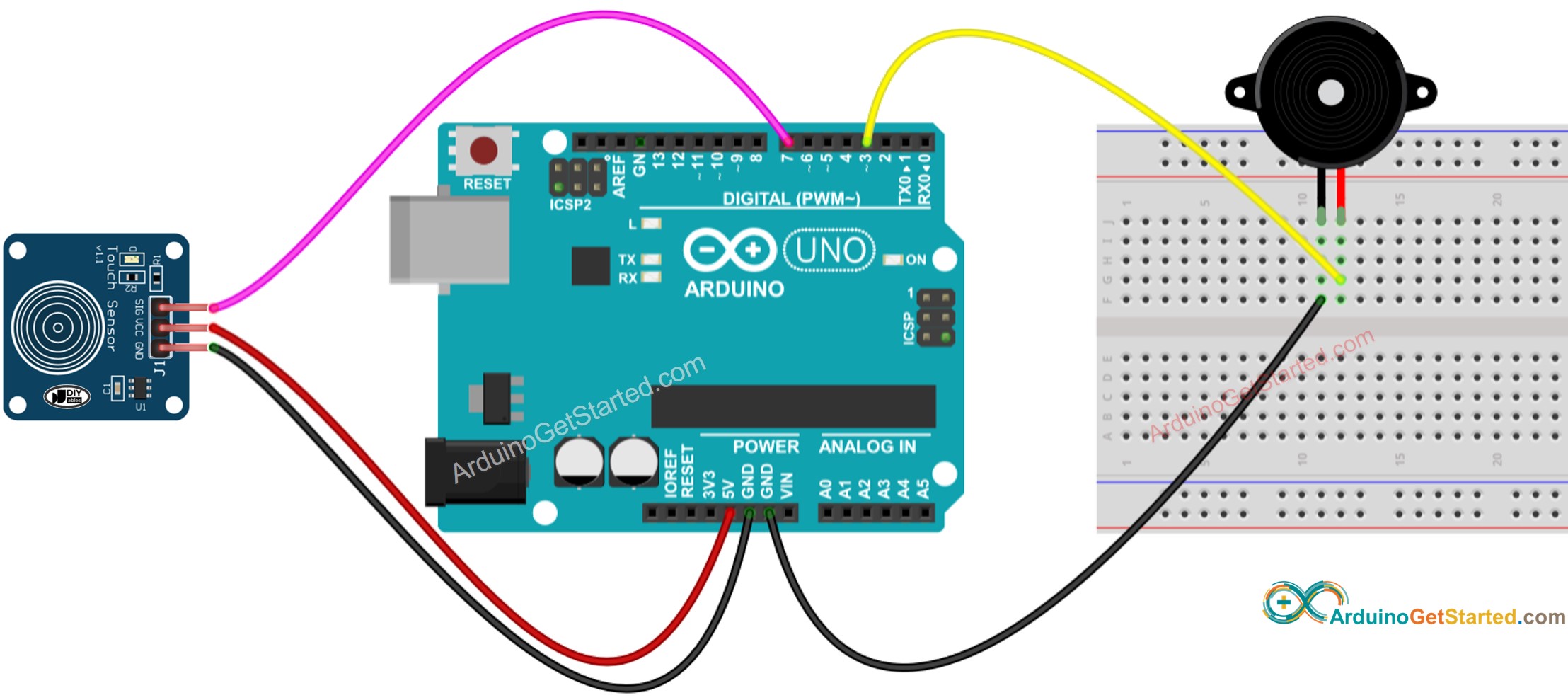
This image is created using Fritzing. Click to enlarge image
Mã Arduino - Âm thanh đơn giản
Hướng dẫn từng bước
- Kết nối Arduino với máy tính bằng cáp USB
- Mở Arduino IDE, chọn bo mạch và cổng đúng
- Sao chép mã ở trên và mở bằng Arduino IDE
- Nhấn nút Tải lên trên Arduino IDE để tải mã lên Arduino
- Chạm và giữ cảm biến cảm ứng trong vài giây
- Nghe âm thanh của buzzer Piezo
Giải thích mã nguồn
Đọc lời giải thích theo từng dòng trong các dòng chú thích của mã nguồn!
Mã Arduino - Giai điệu
Hướng dẫn từng bước
- Sao chép mã ở trên và mở bằng Arduino IDE
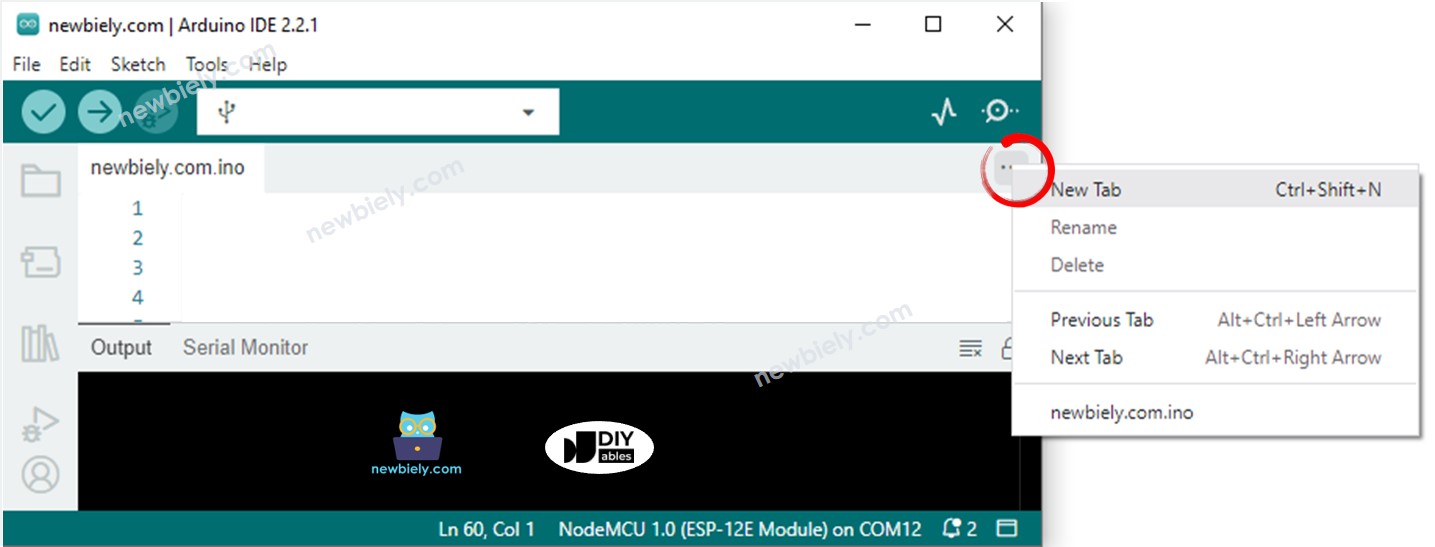
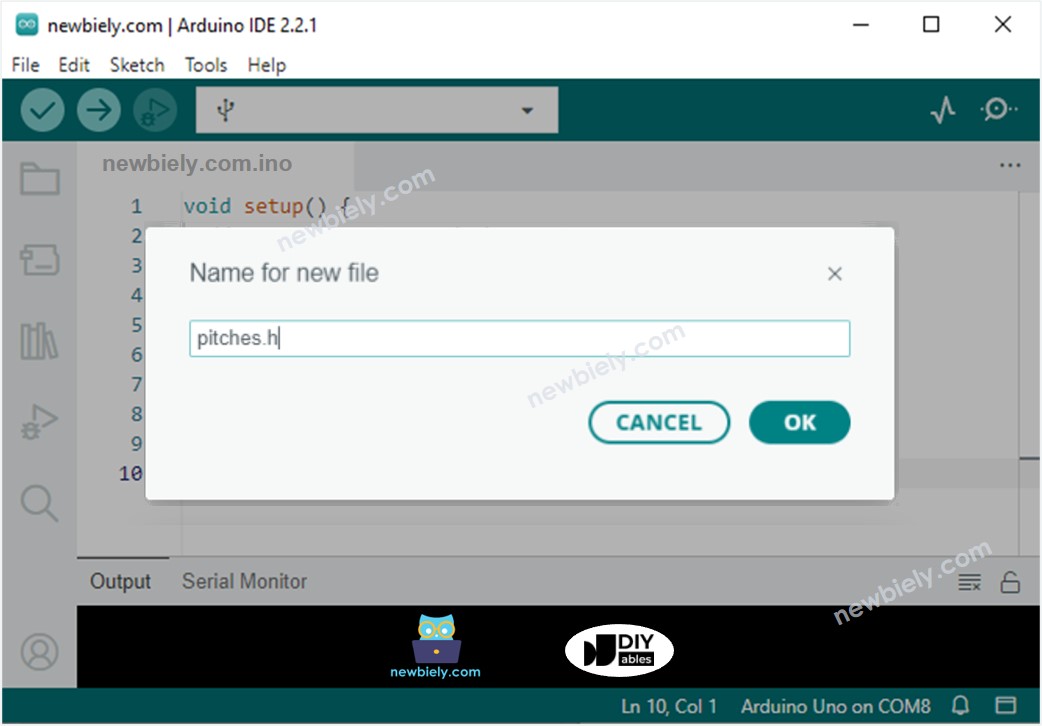
- Tạo tập tin pitches.h trên Arduino IDE bằng cách:
- Hoặc nhấp vào nút ngay bên dưới biểu tượng Serial Monitor và chọn New Tab, hoặc sử dụng các phím Ctrl+Shift+N.
- Hãy đặt tên cho tệp là pitches.h và nhấp nút OK
- Sao chép mã dưới đây và dán nó vào tệp được tạo pitches.h.
- Nhấp vào Tải lên nút trên Arduino IDE để tải mã lên Arduino
- Chạm vào cảm biến cảm ứng
- Nghe giai điệu của buzzer Piezo
Giải thích mã nguồn
Đọc giải thích theo từng dòng trong các dòng chú thích của mã nguồn!
※ Lưu ý:
Đoạn mã ở trên đang sử dụng hàm delay(). Điều này khiến các phần mã khác bị chặn trong khi phát giai điệu. Để tránh chặn các phần mã khác, hãy sử dụng thư viện ezBuzzer thay thế. Thư viện này được thiết kế cho buzzer để phát tín hiệu bíp hoặc phát giai điệu mà không làm gián đoạn các phần mã khác.
Video Tutorial
Việc sản xuất video tốn rất nhiều thời gian. Nếu video hướng dẫn hữu ích cho việc học của bạn, hãy đăng ký kênh YouTube để ủng hộ. Nếu nhu cầu đủ cao, chúng tôi sẽ cố gắng làm thêm nhiều video.
Bài hướng dẫn liên quan
📱 Ứng dụng đề xuất
 English for KidsHọc tiếng Anh vui nhộn cho trẻ nhỏ.Tải về trênGoogle PlayTải về trênApp Store
 Bubble NoteGhi chú tự xóa — viết như nhắn tin.Tải về trênGoogle PlayTải về trênApp Store
 Tôi Không MuaĐánh bại mua sắm bốc đồng, tiết kiệm hơn.Tải về trênGoogle PlayTải về trênApp Store
 Con Đường Tri ThứcBài thi thử để học mọi thứ.Tải về trênGoogle PlayTải về trênApp Store