
Arduino Cảm biến chạm Khóa solenoid
Chúng ta sẽ học cách sử dụng Arduino để điều khiển khóa solenoid trong hai trường hợp sử dụng:
- Arduino bật khóa solenoid khi cảm biến chạm và tắt khóa solenoid khi cảm biến không chạm.
- Arduino đảo trạng thái khóa solenoid mỗi lần cảm biến chạm.
Phần cứng cần chuẩn bị
| 1 | × | Arduino Uno R3 | Amazon | |
| 1 | × | USB 2.0 cable type A/B (for USB-A PC) | Amazon | |
| 1 | × | USB 2.0 cable type C/B (for USB-C PC) | Amazon | |
| 1 | × | cảm biến chạm | Amazon | |
| 1 | × | Solenoid Lock | Amazon | |
| 1 | × | Relay | Amazon | |
| 1 | × | 12V Power Adapter | Amazon | |
| 1 | × | DC Power Jack | Amazon | |
| 1 | × | dây jumper | Amazon | |
| 1 | × | (Khuyến nghị) Screw Terminal Block Shield for Arduino Uno | Amazon | |
| 1 | × | (Khuyến nghị) Sensors/Servo Expansion Shield for Arduino Uno | Amazon | |
| 1 | × | (Khuyến nghị) Breadboard Shield for Arduino Uno | Amazon | |
| 1 | × | (Khuyến nghị) Enclosure for Arduino Uno | Amazon | |
| 1 | × | (Khuyến nghị) Prototyping Base Plate & Breadboard Kit for Arduino UNO | Amazon |
Or you can buy the following kits:
| 1 | × | DIYables STEM V3 Starter Kit (Arduino included) | Amazon | |
| 1 | × | DIYables Sensor Kit (18 sensors/displays) | Amazon |
Về cảm biến chạm và khóa solenoid
Nếu bạn chưa biết về khóa solenoid và cảm biến chạm (bố trí các chân, cách hoạt động, cách lập trình ...), hãy tìm hiểu về chúng trong các bài hướng dẫn sau đây:
Sơ đồ đấu dây
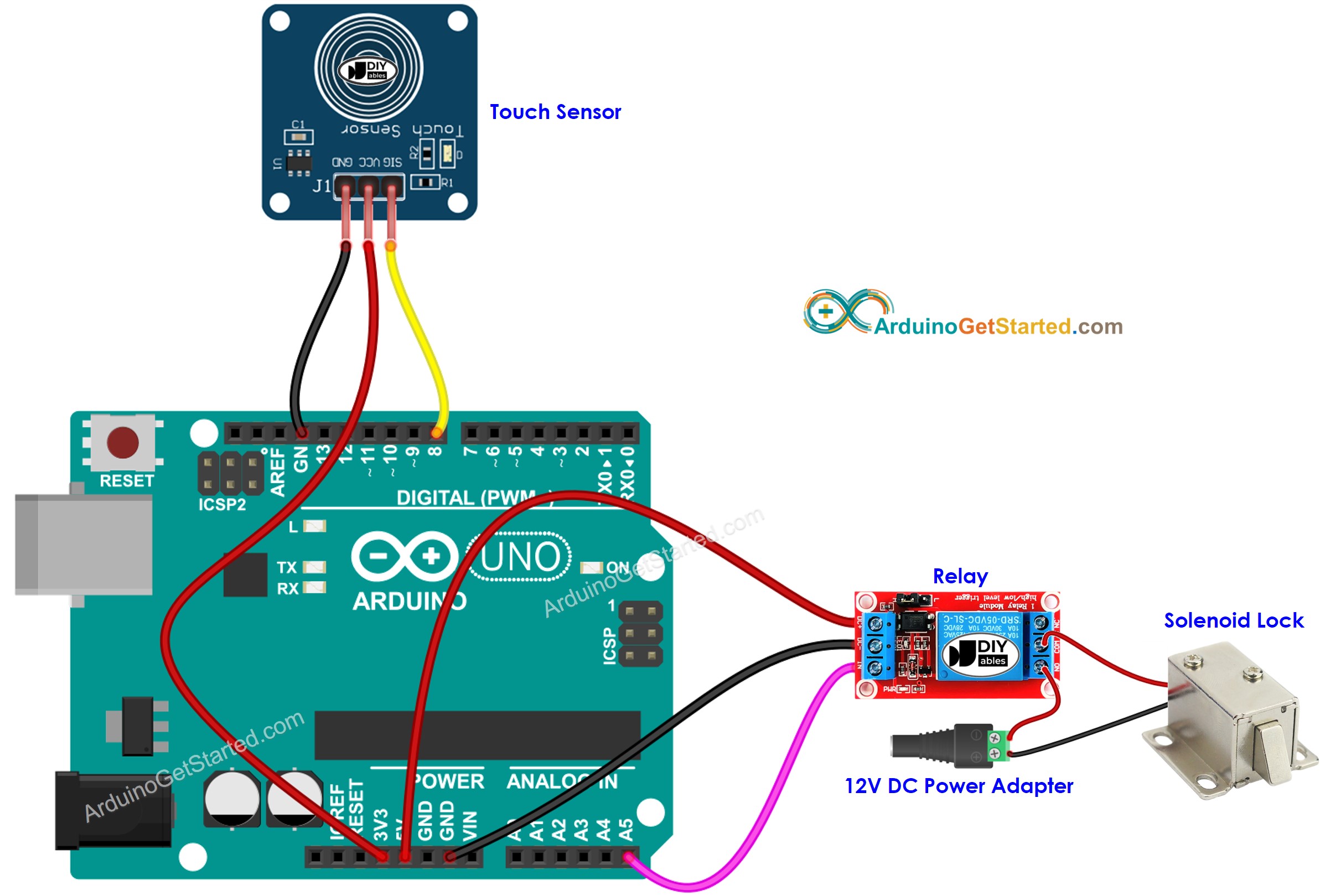
This image is created using Fritzing. Click to enlarge image
Mã Arduino - Cảm biến cảm ứng điều khiển khóa solenoid
Hướng dẫn từng bước
- Kết nối Arduino với PC bằng cáp USB
- Mở Arduino IDE, chọn board và cổng phù hợp
- Sao chép mã ở trên và mở bằng Arduino IDE
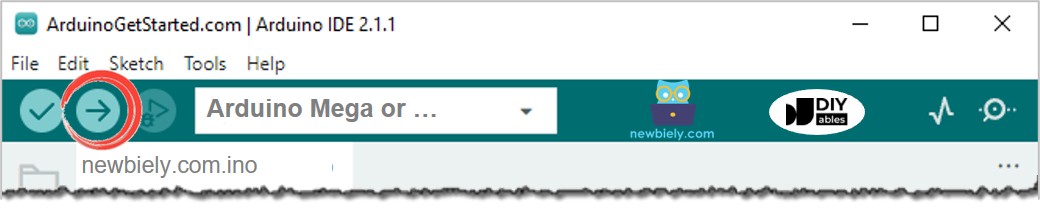
- Nhấn nút Tải lên trên Arduino IDE để nạp mã lên Arduino
- Chạm và giữ tay lên cảm biến cảm ứng trong một vài giây
- Quan sát sự thay đổi trạng thái của khóa điện từ
Giải thích mã nguồn
Đọc lời giải thích theo từng dòng trong các chú thích của mã nguồn!
Mã Arduino - Cảm biến chạm bật/tắt khóa solenoid
Hướng dẫn từng bước
- Kết nối Arduino với PC bằng cáp USB
- Mở Arduino IDE, chọn bảng mạch và cổng đúng
- Sao chép mã ở trên và mở bằng Arduino IDE
- Nhấn nút Upload trên Arduino IDE để tải mã lên Arduino
- Giữ cảm biến chạm trong vài giây, rồi thả ra
- Xem sự thay đổi trạng thái của khóa solenoid
Giải thích mã nguồn
Bạn có thể tìm lời giải thích trong dòng chú thích của mã Arduino ở trên.
Trong mã nguồn, solenoidLockState = !solenoidLockState tương đương với đoạn mã sau:
Video Tutorial
Việc sản xuất video tốn rất nhiều thời gian. Nếu video hướng dẫn hữu ích cho việc học của bạn, hãy đăng ký kênh YouTube để ủng hộ. Nếu nhu cầu đủ cao, chúng tôi sẽ cố gắng làm thêm nhiều video.
Bài hướng dẫn liên quan
📱 Ứng dụng đề xuất
 English for KidsHọc tiếng Anh vui nhộn cho trẻ nhỏ.Tải về trênGoogle PlayTải về trênApp Store
 Bubble NoteGhi chú tự xóa — viết như nhắn tin.Tải về trênGoogle PlayTải về trênApp Store
 Tôi Không MuaĐánh bại mua sắm bốc đồng, tiết kiệm hơn.Tải về trênGoogle PlayTải về trênApp Store
 Con Đường Tri ThứcBài thi thử để học mọi thứ.Tải về trênGoogle PlayTải về trênApp Store