
Ví dụ ESP32 WebMonitor Hướng dẫn Serial Monitor dựa trên Web
Tổng quan
Ví dụ WebMonitor thay thế Serial Monitor truyền thống bằng một giao diện dựa trên web có thể truy cập từ mọi thiết bị trên mạng của bạn. Được thiết kế cho nền tảng giáo dục ESP32 với khả năng IoT được nâng cao, giám sát cảm biến tích hợp sẵn và tích hợp liền mạch với hệ sinh thái giáo dục.
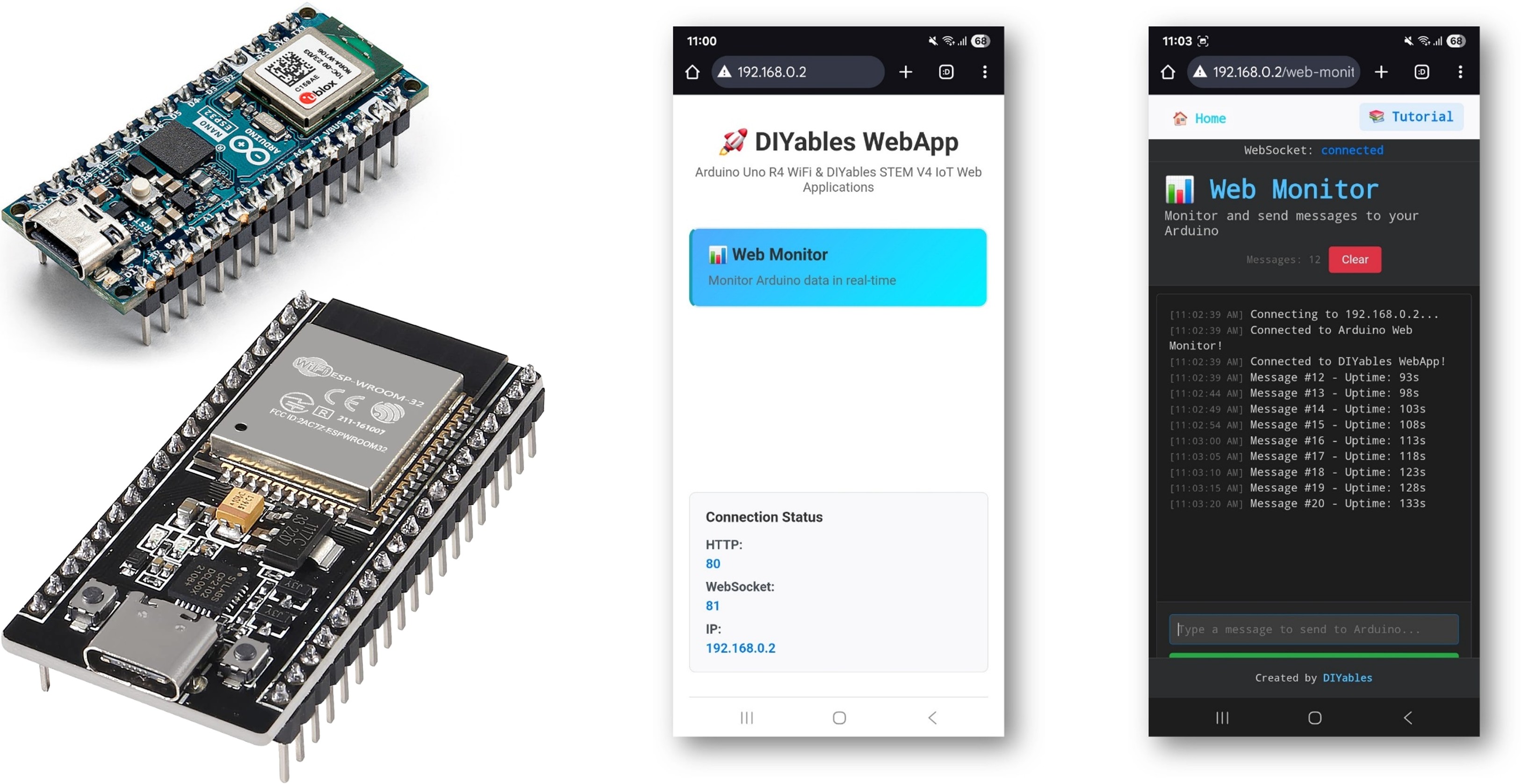
Các tính năng
- Đầu ra nối tiếp thời gian thực: Xem các thông điệp ESP32 ngay lập tức trong trình duyệt
- Đầu vào lệnh: Gửi lệnh từ giao diện web đến Arduino
- Giao diện tối: Giao diện kiểu Terminal dễ mắt
- Tự cuộn: Tự động cuộn đến các tin nhắn mới nhất
- Dấu thời gian: Tất cả các tin nhắn đều có dấu thời gian
- Lịch sử lệnh: Điều hướng các lệnh trước bằng phím mũi tên
- Chức năng Xóa: Xóa màn hình hiển thị
- Sao chép/Dán: Hỗ trợ chọn và sao chép toàn bộ văn bản
Phần cứng cần chuẩn bị
| 1 | × | 38-pin ESP32 ESP-WROOM-32 Dev Module - Narrow | Amazon | |
| 1 | × | Alternatively, 38-pin ESP32 ESP-WROOM-32 Dev Module - Wide | Amazon | |
| 1 | × | Alternatively, 30-pin ESP32 ESP-WROOM-32 Dev Module - Wide | Amazon | |
| 1 | × | Alternatively, ESP32 Uno-form board | Amazon | |
| 1 | × | Alternatively, ESP32 S3 Uno-form board | Amazon | |
| 1 | × | USB Cable Type-A to Type-C (for USB-A PC) | Amazon | |
| 1 | × | USB Cable Type-C to Type-C (for USB-C PC) | Amazon | |
| 1 | × | (Khuyến nghị) Screw Terminal Expansion Board for ESP32 | Amazon | |
| 1 | × | (Khuyến nghị) Breakout Expansion Board for ESP32 | Amazon | |
| 1 | × | (Khuyến nghị) Power Splitter for ESP32 | Amazon |
Or you can buy the following kits:
| 1 | × | DIYables ESP32 Starter Kit (ESP32 included) | Amazon | |
| 1 | × | DIYables Sensor Kit (18 sensors/displays) | Amazon |
Hướng dẫn cài đặt
Các bước nhanh
Hãy làm theo các hướng dẫn này theo từng bước.
- Nếu đây là lần đầu tiên bạn sử dụng ESP32, hãy tham khảo hướng dẫn về ESP32 - Cài Đặt Phần Mềm.
- Kết nối bo mạch ESP32 với máy tính của bạn bằng cáp USB.
- Mở Arduino IDE trên máy tính của bạn.
- Chọn bo mạch ESP32 phù hợp (ví dụ ESP32 Dev Module) và cổng COM.
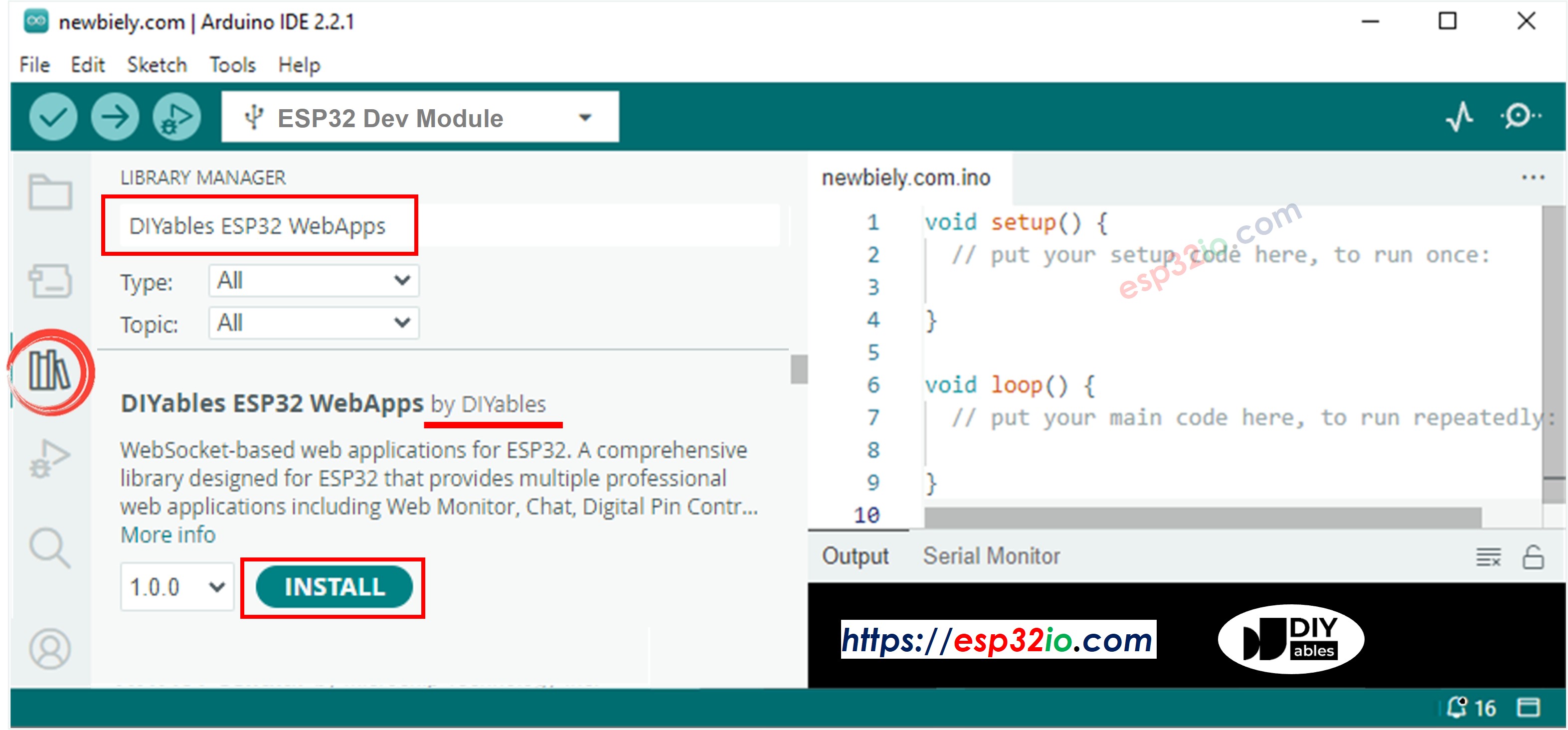
- Đi tới biểu tượng Thư viện ở thanh bên trái của Arduino IDE.
- Tìm kiếm "DIYables ESP32 WebApps", sau đó tìm Thư viện DIYables ESP32 WebApps do DIYables phát hành.
- Nhấn nút Cài đặt để cài đặt thư viện.
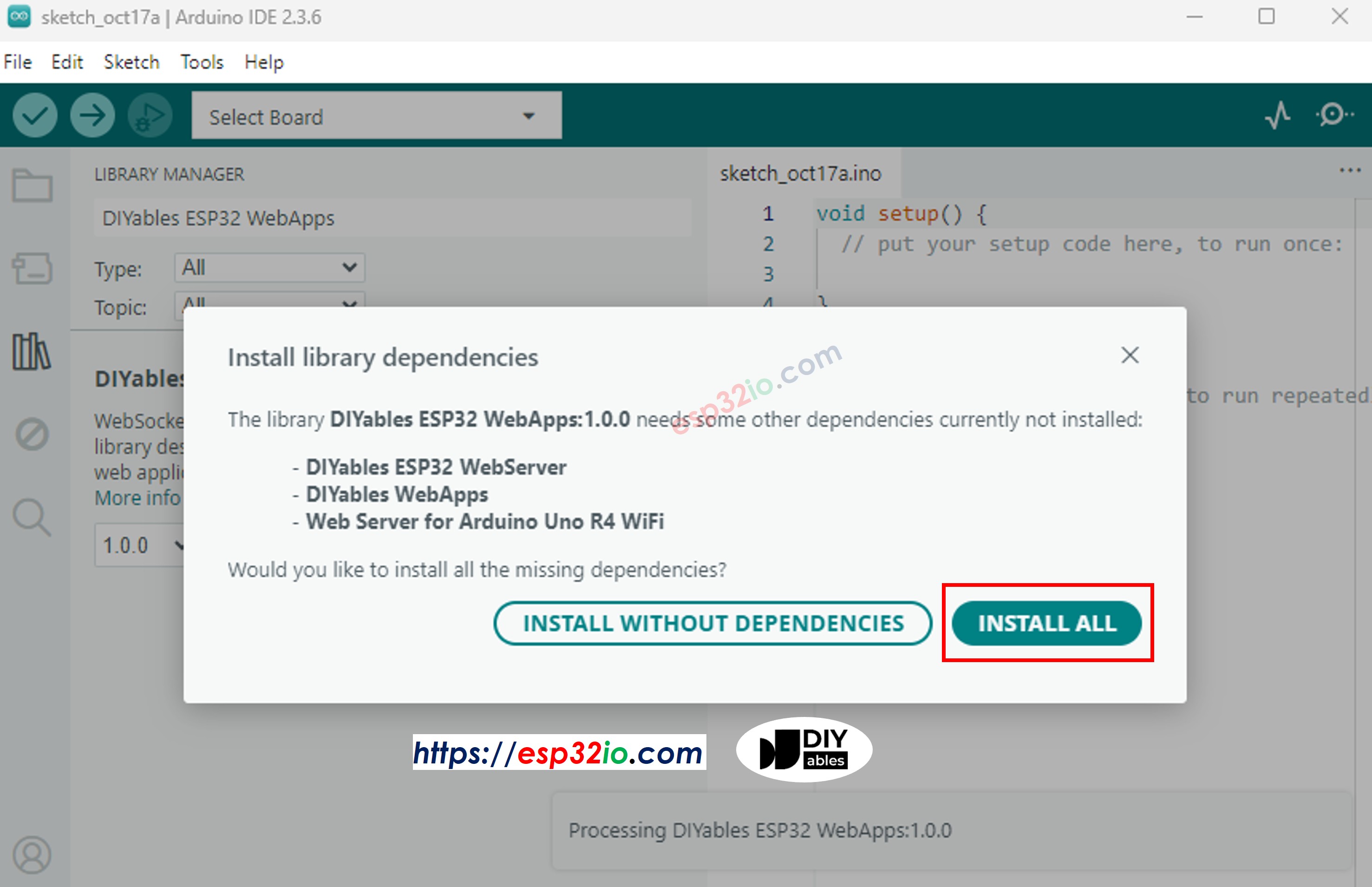
- Bạn sẽ được yêu cầu cài đặt một số phụ thuộc thư viện khác
- Nhấp nút Cài đặt Tất cả để cài đặt tất cả các phụ thuộc thư viện.
- Trên Arduino IDE, vào Tệp Ví dụ DIYables ESP32 WebApps WebMonitor ví dụ, hoặc sao chép mã ở trên và dán vào trình soạn thảo của Arduino IDE
- Cấu hình thông tin đăng nhập WiFi trong mã bằng cách cập nhật các dòng sau:
- Nhấp vào nút Tải lên trên Arduino IDE để tải mã nguồn lên ESP32
- Mở Serial Monitor
- Xem kết quả trên Serial Monitor. Nó trông như dưới đây
- Nếu bạn không nhìn thấy gì, hãy khởi động lại bo mạch ESP32.
- Ghi nhận địa chỉ IP được hiển thị, và nhập địa chỉ này vào thanh địa chỉ của trình duyệt trên điện thoại thông minh hoặc máy tính của bạn.
- Ví dụ: http://192.168.0.2
- Bạn sẽ thấy trang chủ như hình dưới đây:
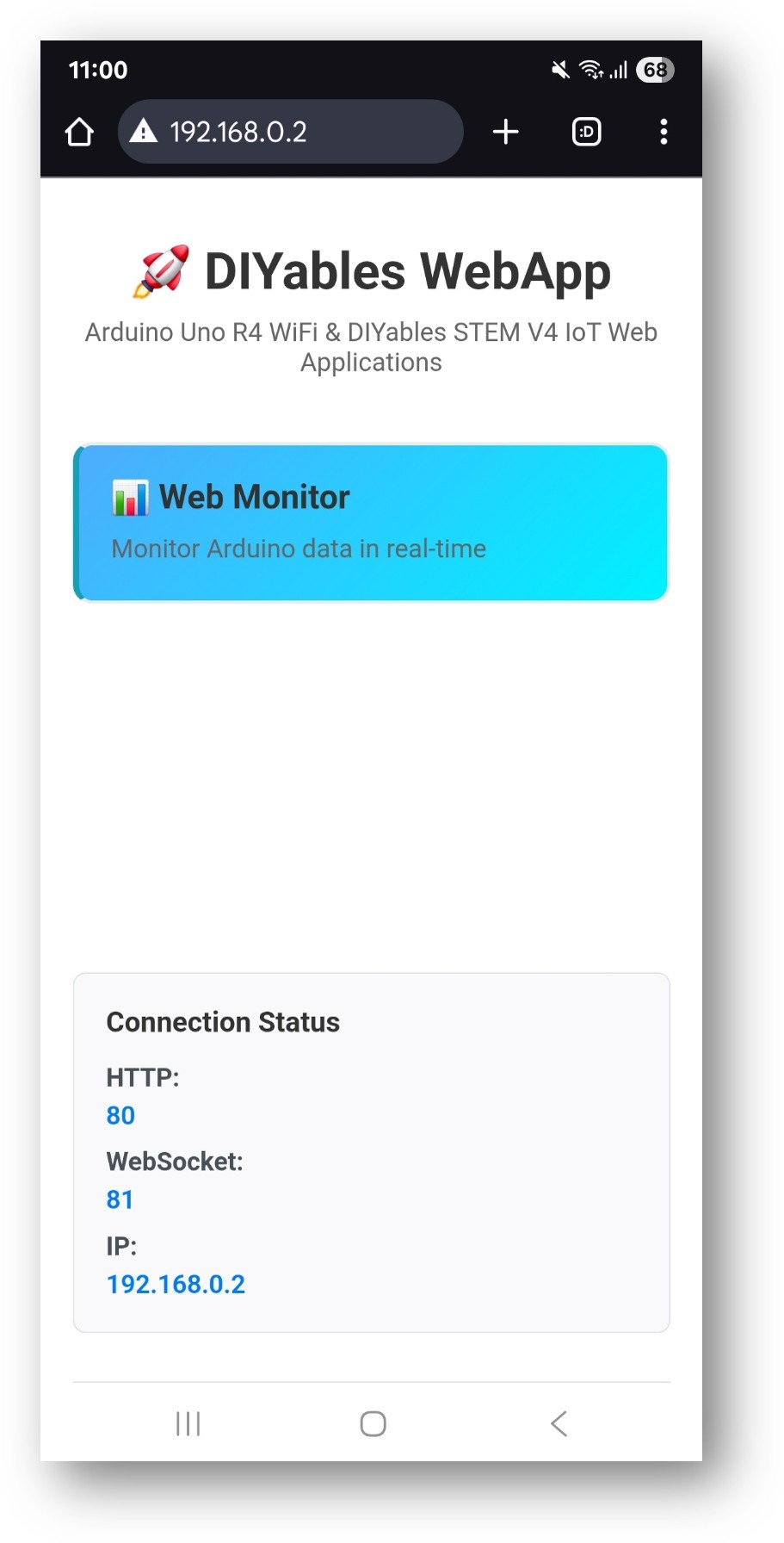
- Nhấp vào liên kết Web Monitor, bạn sẽ thấy giao diện người dùng của ứng dụng Web Monitor như dưới đây:
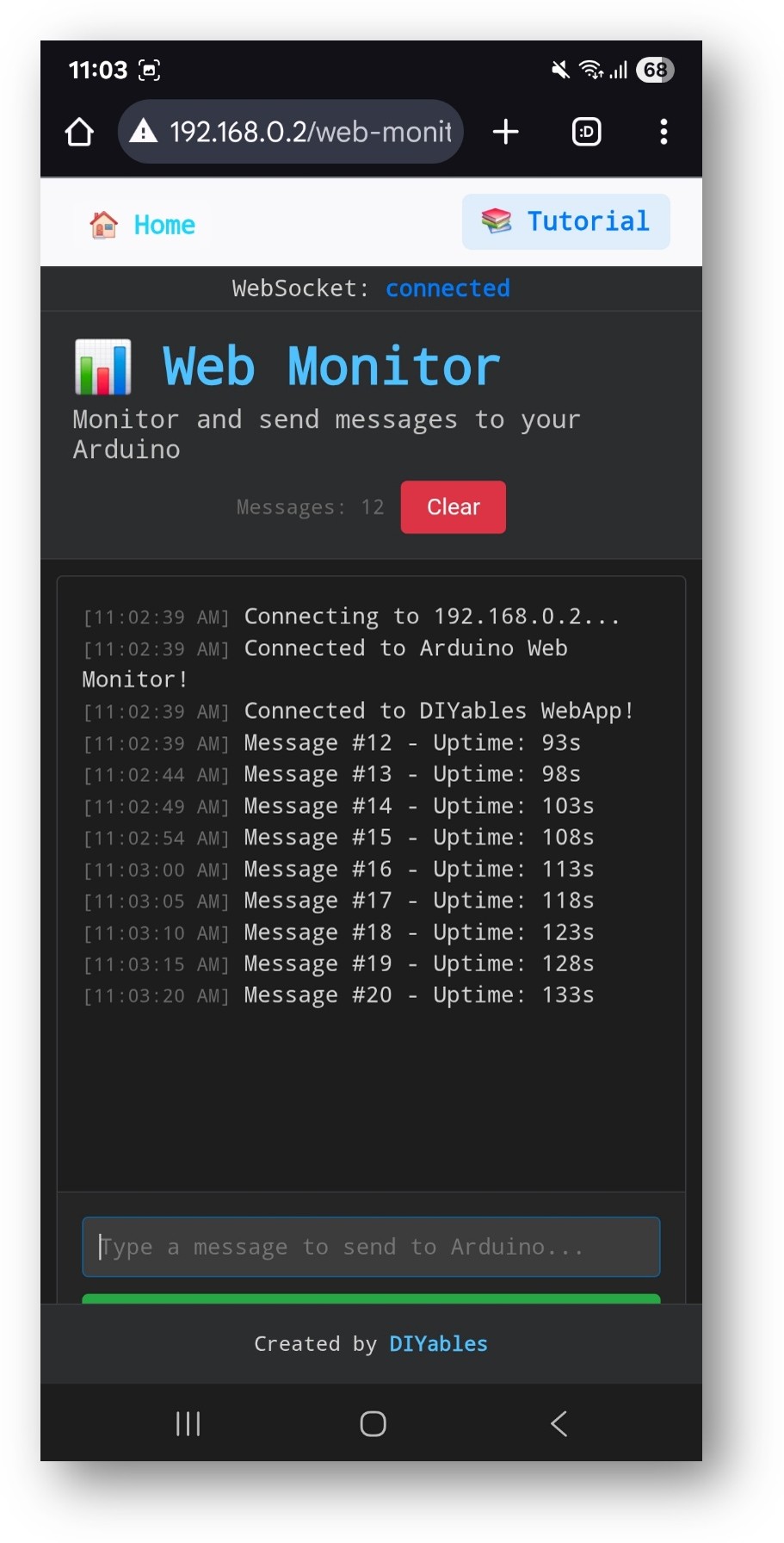
- Hoặc bạn cũng có thể truy cập trang này trực tiếp bằng địa chỉ IP kèm theo /web-monitor. Ví dụ: http://192.168.0.2/web-monitor
- Hãy thử gửi các lệnh tới ESP32 của bạn thông qua giao diện web monitor và xem đầu ra nối tiếp theo thời gian thực từ Arduino của bạn.
Cách Sử Dụng
Xem đầu ra của cổng nối tiếp
- Mở giao diện giám sát trên web
- ESP32 tự động gửi thông điệp trạng thái mỗi 5 giây
- Tất cả đầu ra từ Serial.println() xuất hiện trên màn hình giám sát
- Các thông điệp được gắn dấu thời gian tự động
Gửi Các Lệnh
- Gõ lệnh vào ô nhập ở dưới cùng
- Nhấn phím Enter hoặc bấm nút Gửi
- ESP32 xử lý lệnh và phản hồi
Các lệnh tích hợp sẵn
Ví dụ này bao gồm các lệnh trình diễn sau đây:
Điều khiển LED
- "led on" → Bật đèn LED tích hợp
- "led off" → Tắt đèn LED tích hợp
- "led toggle" → Chuyển đổi trạng thái đèn LED
- "blink" → Nháy đèn LED 3 lần
Các lệnh hệ thống
- "status" → Hiển thị trạng thái ESP32 và thời gian hoạt động
- "help" → Liệt kê các lệnh có sẵn
- "reset counter" → Đặt lại bộ đếm tin nhắn
- "memory" → Hiển thị thông tin bộ nhớ khả dụng
Các lệnh gỡ lỗi
- "test" → Gửi tin nhắn kiểm tra
- "echo [message]" → In lại tin nhắn của bạn
- "repeat [n] [message]" → Lặp lại tin nhắn n lần
Các tính năng của giao diện
Phím tắt
- Phím Enter → Gửi lệnh
- ↑/↓ Phím mũi tên → Điều hướng lịch sử lệnh
- Ctrl+L → Xóa màn hình (nếu được triển khai)
- Ctrl+A → Chọn toàn bộ văn bản
Điều khiển màn hình
- Auto-scroll → Tự động cuộn đến tin nhắn mới
- Clear → Xóa màn hình
- Copy → Sao chép văn bản được chọn vào khay nhớ tạm
Tùy biến sáng tạo - Xây dựng công cụ gỡ lỗi nâng cao của bạn
Mở rộng ví dụ về trình giám sát web này để tạo giao diện gỡ lỗi và điều khiển mạnh mẽ cho các dự án của bạn! Thêm các lệnh tùy chỉnh, giám sát cảm biến và trực quan hóa dữ liệu theo thời gian thực để phù hợp với nhu cầu sáng tạo của bạn.
Cấu trúc mã nguồn
Các Thành Phần Chính
- Máy chủ WebApp: Xử lý các kết nối HTTP và WebSocket
- Trang giám sát: Cung cấp giao diện web kiểu terminal
- Bộ xử lý tin nhắn: Xử lý các lệnh đến
- Cầu nối Serial: Chuyển tiếp đầu ra Serial tới giao diện web
Các chức năng chính
Thêm các lệnh tùy chỉnh
Để thêm các lệnh mới, hãy chỉnh sửa hàm handleWebCommand:
Ứng dụng thực tế
Phát triển và gỡ lỗi
Giám sát hệ thống từ xa
Quản lý cấu hình
Các tính năng nâng cao
Lọc tin nhắn
Thêm các loại thông điệp và lọc:
Phân tích Lệnh
Triển khai phân tích cú pháp lệnh phức tạp:
Ghi nhật ký dữ liệu
Ghi dữ liệu giám sát vào thẻ SD hoặc EEPROM:
Khắc phục sự cố
Các sự cố phổ biến
1. Không có đầu ra trong trình giám sát web
- Kiểm tra Serial.begin() được gọi trong setup()
- Kiểm tra kết nối WebSocket (biểu tượng trạng thái xanh)
- Kiểm tra bảng điều khiển trình duyệt để xem lỗi
2. Các lệnh không hoạt động
- Đảm bảo các lệnh chính xác như đã chỉ định
- Kiểm tra phân biệt chữ hoa chữ thường của lệnh
- Tìm các thông điệp phản hồi trên màn hình
3. Giao diện tải chậm
- Kiểm tra cường độ tín hiệu WiFi
- Giảm tần suất tin nhắn
- Xóa bộ nhớ cache của trình duyệt
4. Ngắt kết nối WebSocket
- Kiểm tra độ ổn định của mạng
- Giảm kích thước tin nhắn
- Triển khai logic tái kết nối
Mẹo gỡ lỗi
Bật gỡ lỗi chi tiết:
Theo dõi trạng thái WebSocket:
Các yếu tố bảo mật
Xác thực lệnh
Luôn kiểm tra các lệnh đến:
Kiểm soát truy cập
Triển khai xác thực cơ bản:
Các ví dụ tích hợp
Hệ thống Giám sát Cảm biến
Giám sát Tự động hóa Gia đình
Các bước tiếp theo
Sau khi thành thạo ví dụ WebMonitor, hãy thử:
- Chat - Để giao tiếp tương tác
- DigitalPins - Để điều khiển đầu ra
- Slider - Để điều khiển giá trị analog
- MultipleWebApps - Kết hợp giám sát với điều khiển
Hỗ trợ
Để được hỗ trợ thêm:
- Kiểm tra tài liệu tham khảo API
- Truy cập các hướng dẫn DIYables: https://esp32io.com/tutorials/diyables-esp32-webapps
- Diễn đàn cộng đồng ESP32
Bài hướng dẫn liên quan
📱 Ứng dụng đề xuất
 English for KidsHọc tiếng Anh vui nhộn cho trẻ nhỏ.Tải về trênGoogle PlayTải về trênApp Store
 Bubble NoteGhi chú tự xóa — viết như nhắn tin.Tải về trênGoogle PlayTải về trênApp Store
 Tôi Không MuaĐánh bại mua sắm bốc đồng, tiết kiệm hơn.Tải về trênGoogle PlayTải về trênApp Store
 Con Đường Tri ThứcBài thi thử để học mọi thứ.Tải về trênGoogle PlayTải về trênApp Store