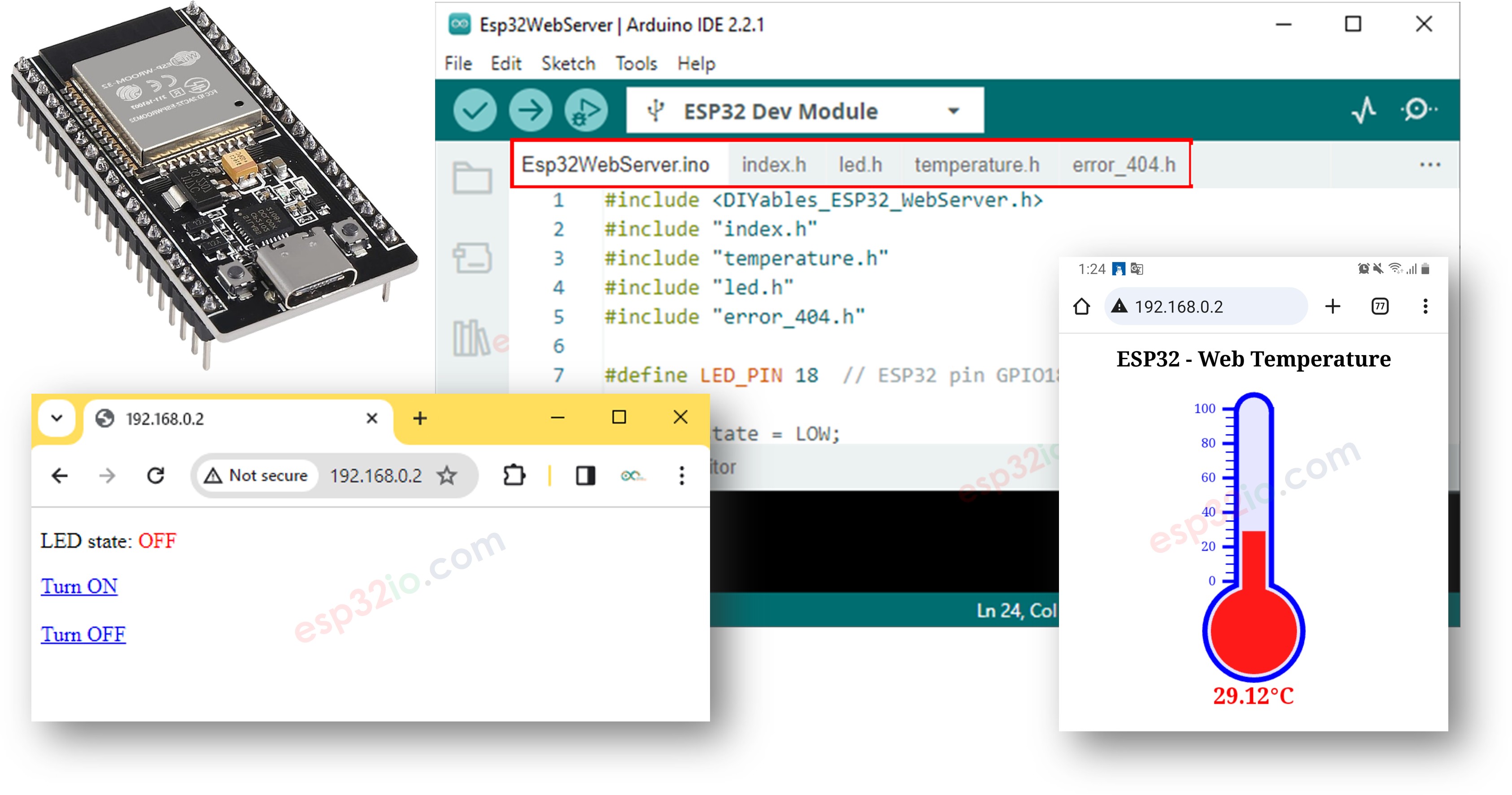
Trong hướng dẫn này, chúng ta sẽ tìm hiểu cách biến ESP32 thành một web server có thể xử lý nhiều trang cùng lúc, như index.html, temperature.html, led.html, error_404.html...
Bằng cách làm theo hướng dẫn này, bạn sẽ có thể biến ESP32 của mình thành một web server với những tính năng tuyệt vời:
Nhiều trang web hoạt động cùng lúc.
Nội dung HTML (bao gồm HTML, CSS, và Javascript) cho mỗi trang được lưu riêng biệt trong file riêng trên Arduino IDE.
Nội dung HTML có thể được cập nhật động với giá trị thời gian thực từ các cảm biến, làm cho trang web trở nên động và phản hồi nhanh.
Web server cho phép điều khiển những thứ kết nối với ESP32 thông qua web.
Web server xử lý các mã lỗi HTTP như 404 Not Found
Có thể nghe có vẻ phức tạp, nhưng đừng lo lắng! Hướng dẫn này cung cấp chỉ dẫn từng bước, và mã code được thiết kế thân thiện với người mới bắt đầu, đảm bảo bạn có thể dễ dàng hiểu và tạo ra web server ESP32 của riêng mình.
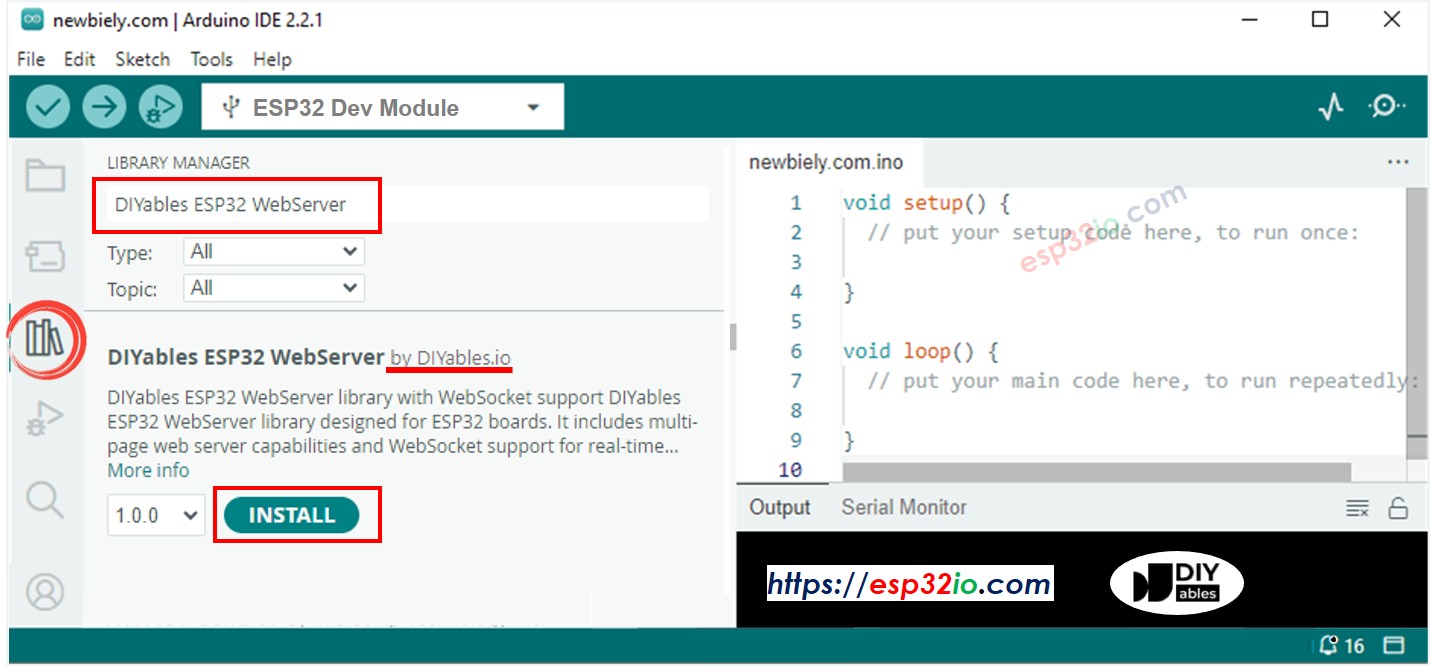
Dưới đây là code ESP32 hoàn chỉnh tạo một web server với nhiều trang. Để đơn giản, nội dung HTML cho mỗi trang rất đơn giản và được nhúng trực tiếp vào code ESP32. Trong phần khác, chúng ta sẽ học cách tách nội dung HTML cho mỗi trang thành các file riêng biệt, làm cho code có tổ chức và dễ quản lý hơn.
/* * Mã ESP32 này được phát triển bởi newbiely.vn * Mã ESP32 này được cung cấp để sử dụng công khai, không có ràng buộc. * Để xem hướng dẫn chi tiết và sơ đồ kết nối, vui lòng truy cập: * https://newbiely.vn/tutorials/esp32/esp32-web-server-multiple-pages */#include <DIYables_ESP32_WebServer.h>#define LED_PIN 18 // ESP32 pin GPIO18 connected to LEDint LED_state = LOW;floatgetTemperature() {// YOUR SENSOR IMPLEMENTATION HERE// simulate the temperature valuefloat temp_x100 = random(0, 10000); // a ramdom value from 0 to 10000return temp_x100 / 100; // return the simulated temperature value from 0 to 100 in float}// WiFi credentialsconstchar WIFI_SSID[] = "YOUR_WIFI_SSID";constchar WIFI_PASSWORD[] = "YOUR_WIFI_PASSWORD";// Create web server instanceDIYables_ESP32_WebServer server;// Page handlersvoid handleHome(WiFiClient& client, const String& method, const String& request, const QueryParams& params, const String& jsonData) {Serial.println("Web Server: home page"); server.sendResponse(client, "This is the ESP32 home page");}void handleTemperature(WiFiClient& client, const String& method, const String& request, const QueryParams& params, const String& jsonData) {Serial.println("Web Server: temperature page");float temperature = getTemperature();String reponse = "Temperature: " + String(temperature); server.sendResponse(client, reponse.c_str());}void handleLed(WiFiClient& client, constString& method, constString& request, const QueryParams& params, constString& jsonData) {Serial.println("Web Server: LED page");// Check for the 'state' parameter in the query stringString state = "";for (int i = 0; i < params.count; i++) {if (String(params.params[i].key) == "state") { state = params.params[i].value;if (state == "on") { LED_state = HIGH; } elseif (state == "off") { LED_state = LOW; }// control LED heredigitalWrite(LED_PIN, LED_state);Serial.print(" => turning LED to ");Serial.print(state);Serial.println();break; } }String reponse = "LED state: " + String(LED_state); server.sendResponse(client, reponse.c_str());}void handleNotFound(WiFiClient& client, constString& method, constString& request, const QueryParams& params, constString& jsonData) {String response = "<!DOCTYPE html><html><head><meta charset=\"UTF-8\"><title>404 Not Found</title></head><body>"; response += "<h1>404 - Page Not Found</h1>"; response += "<p>Sorry, we couldn't find that page!</p>"; response += "<a href=\"/\">Return to Home</a></body></html>"; server.sendResponse(client, response.c_str());}voidsetup() {Serial.begin(9600);delay(1000);pinMode(LED_PIN, OUTPUT);Serial.println("ESP32 Web Server");// Configure routes server.addRoute("/", handleHome); server.addRoute("/temperature.html", handleTemperature); server.addRoute("/led.html", handleLed);// Set custom 404 handler server.setNotFoundHandler(handleNotFound);// Start web server with WiFi connection server.begin(WIFI_SSID, WIFI_PASSWORD);}voidloop() { server.handleClient();}
Lưu ý bạn cần thay đổi 192.168.0.2 thành địa chỉ IP bạn nhận được trên Serial Monitor.
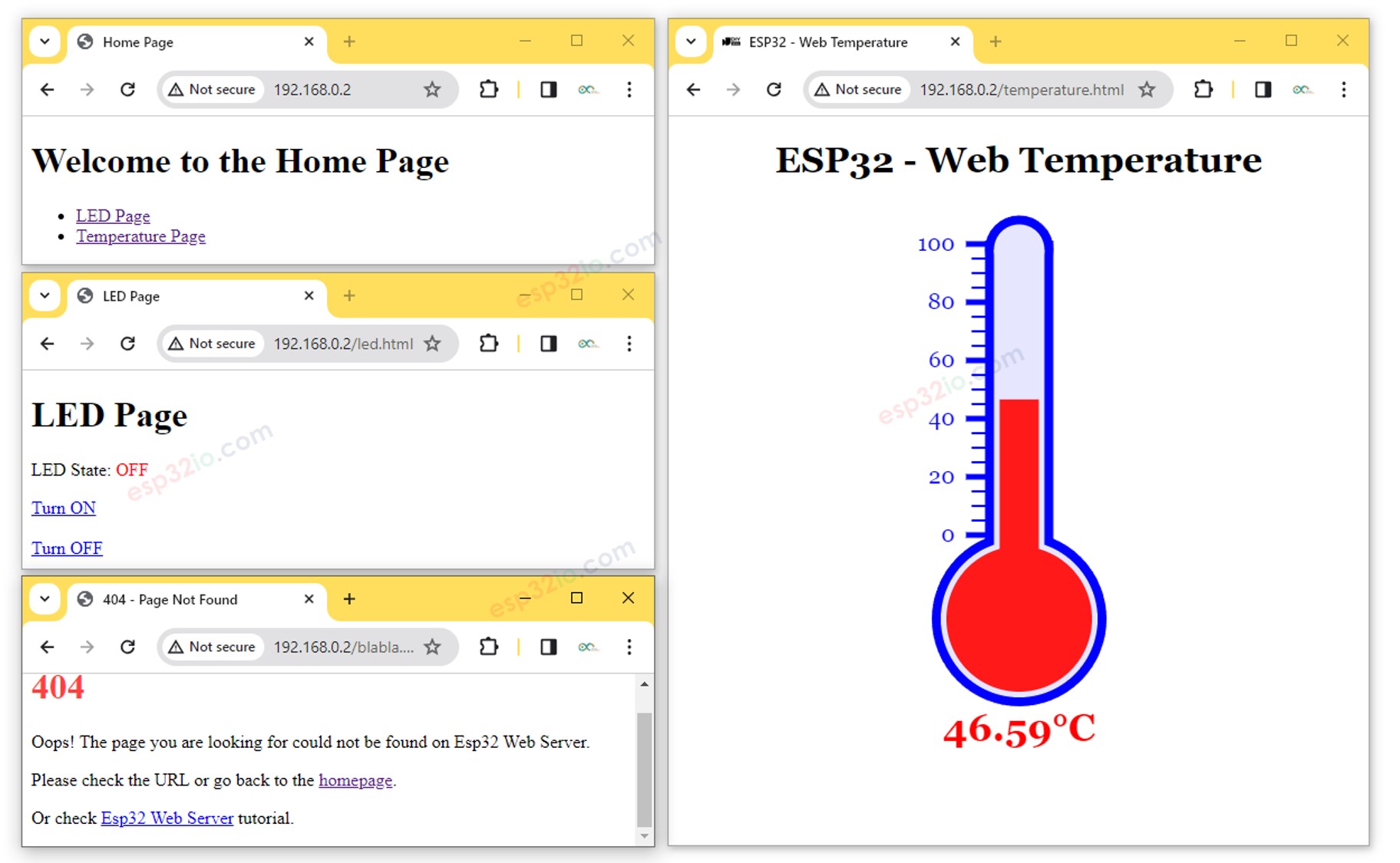
Bạn sẽ thấy các trang sau: trang chủ, trang led, trang nhiệt độ, và trang Not Found
Bạn cũng có thể kiểm tra output trên Serial Monitor
Newbiely | Arduino IDE 2.3.8
──
☐
✕
File
Edit
Sketch
Tools
Help
ESP32 Dev Module
Newbiely.ino
···
8Serial.println("Hello World!");
Output
Serial Monitor
Message (Enter to send message to 'ESP32 Dev Module' on 'COM15')
New Line
9600 baud
Connecting to WiFi...
Connected to WiFi
ESP32 Web Server's IP address: 192.168.0.2
ESP32 Web server started
Web Server: home page
Web Server: LED page
Web Server: LED page => turning LED to on
Web Server: LED page => turning LED to off
Web Server: temperature page
Web Server: Not Found
Ln 11, Col 1
ESP32 Dev Module on COM15
2
Code trước có nội dung HTML rất đơn giản cho mỗi trang. Nhưng nếu chúng ta muốn tạo giao diện đẹp với nhiều HTML, code có thể trở nên lớn và lộn xộn. Để đơn giản hóa, chúng ta sẽ học cách tách HTML khỏi code ESP32. Điều này cho phép chúng ta giữ HTML trong các file riêng biệt, làm cho việc quản lý và làm việc trở nên dễ dàng hơn.
Code ESP32 - Web server Nhiều Trang Hoàn Chỉnh
Mở Arduino IDE.
Tạo một sketch mới và đặt tên, ví dụ: ESP32WebServer.ino.
Sao chép code được cung cấp và dán vào file đó.
/* * Mã ESP32 này được phát triển bởi newbiely.vn * Mã ESP32 này được cung cấp để sử dụng công khai, không có ràng buộc. * Để xem hướng dẫn chi tiết và sơ đồ kết nối, vui lòng truy cập: * https://newbiely.vn/tutorials/esp32/esp32-web-server-multiple-pages */#include <DIYables_ESP32_WebServer.h>#include"index.h"#include"temperature.h"#include"led.h"#include"error_404.h"#define LED_PIN 18 // ESP32 pin GPIO18 connected to LEDint LED_state = LOW;floatgetTemperature() {// YOUR SENSOR IMPLEMENTATION HERE// simulate the temperature valuefloat temp_x100 = random(0, 10000); // a ramdom value from 0 to 10000return temp_x100 / 100; // return the simulated temperature value from 0 to 100 in float}// WiFi credentialsconstchar WIFI_SSID[] = "YOUR_WIFI_SSID";constchar WIFI_PASSWORD[] = "YOUR_WIFI_PASSWORD";// Create web server instanceDIYables_ESP32_WebServer server;// Page handlersvoid handleHome(WiFiClient& client, const String& method, const String& request, const QueryParams& params, const String& jsonData) {Serial.println("Web Server: home page"); server.sendResponse(client, HTML_CONTENT_HOME);}void handleTemperature(WiFiClient& client, const String& method, const String& request, const QueryParams& params, const String& jsonData) {Serial.println("Web Server: temperature page");float temperature = getTemperature();String html = HTML_CONTENT_TEMPERATURE; // Use the HTML content from the temperature.h file html.replace("%TEMPERATURE_VALUE%", String(temperature)); // update the temperature value server.sendResponse(client, html.c_str());}void handleLed(WiFiClient& client, const String& method, const String& request, const QueryParams& params, const String& jsonData) {Serial.println("Web Server: LED page");// Check for the 'state' parameter in the query stringString state = "";for (int i = 0; i < params.count; i++) {if (String(params.params[i].key) == "state") { state = params.params[i].value;if (state == "on") { LED_state = HIGH; } elseif (state == "off") { LED_state = LOW; }// control LED heredigitalWrite(LED_PIN, LED_state);Serial.print(" => turning LED to ");Serial.print(state);Serial.println();break; } }String html = HTML_CONTENT_LED; // Use the HTML content from the led.h file html.replace("%LED_STATE%", LED_state ? "ON" : "OFF"); // update the LED state server.sendResponse(client, html.c_str());}void handleNotFound(WiFiClient& client, const String& method, const String& request, const QueryParams& params, const String& jsonData) {// Handle 404 Not Found errorSerial.println("Web Server: Not Found");// Use the HTML content from the error_404.h file server.sendResponse(client, HTML_CONTENT_404);}voidsetup() {Serial.begin(9600);delay(1000);pinMode(LED_PIN, OUTPUT);Serial.println("ESP32 Web Server");// Configure routes server.addRoute("/", handleHome); server.addRoute("/temperature.html", handleTemperature); server.addRoute("/led.html", handleLed);// Set custom 404 handler server.setNotFoundHandler(handleNotFound);// Start web server with WiFi connection server.begin(WIFI_SSID, WIFI_PASSWORD);}voidloop() { server.handleClient();}
Thay đổi thông tin WiFi (SSID và password) trong code thành thông tin của bạn
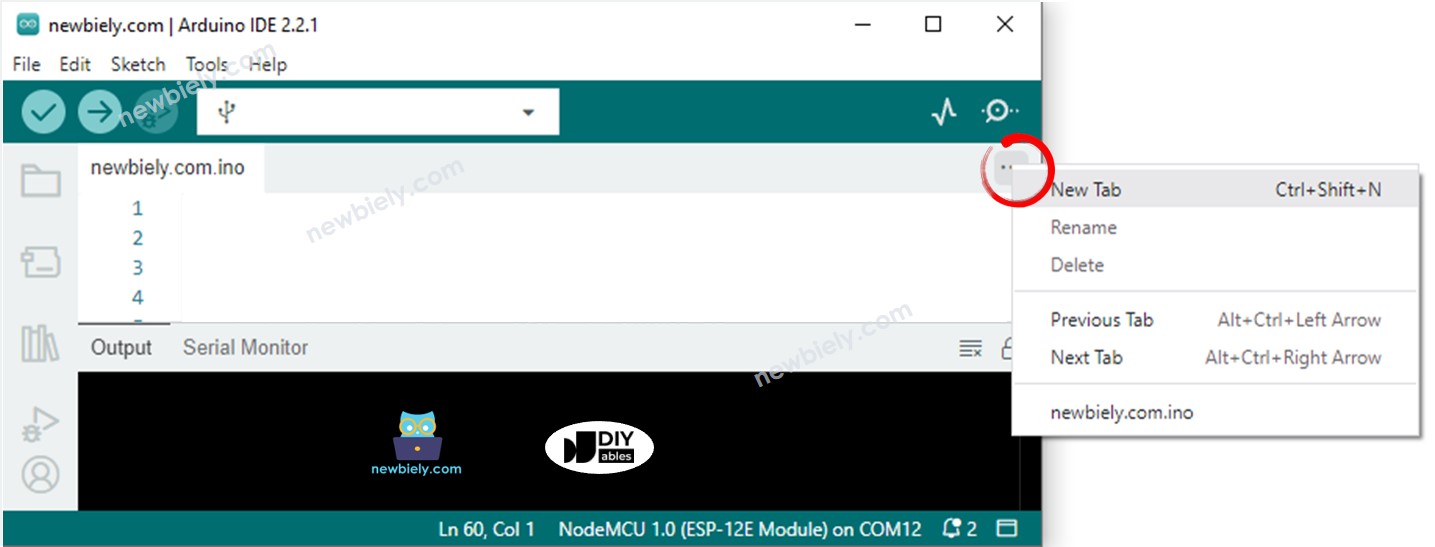
Tạo file index.h trên Arduino IDE bằng cách:
Nhấp vào nút ngay bên dưới biểu tượng serial monitor và chọn New Tab, hoặc sử dụng phím Ctrl+Shift+N.
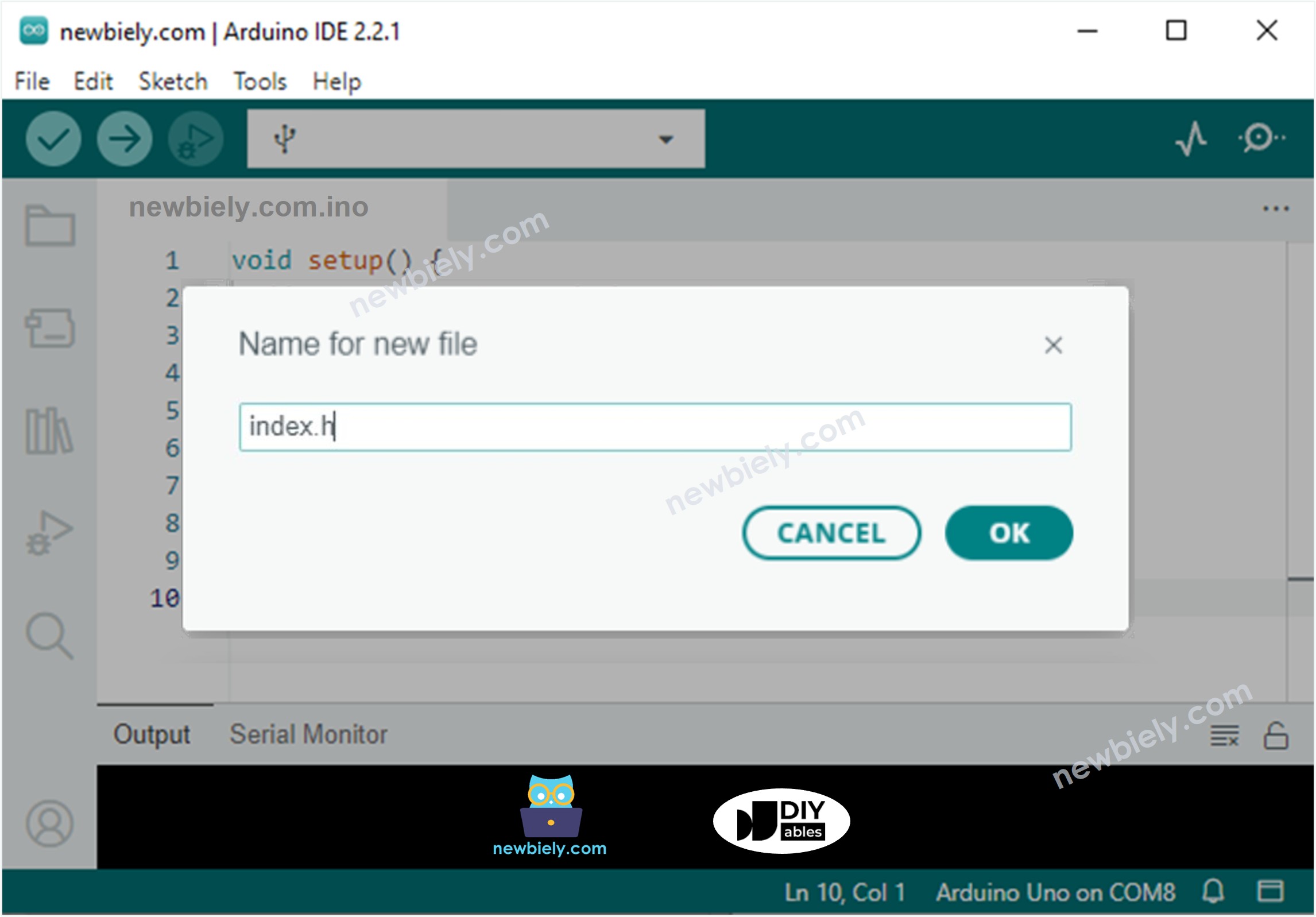
Đặt tên file là index.h và nhấp nút OK
Sao chép code dưới đây và dán vào file index.h.
/* * Mã ESP32 này được phát triển bởi newbiely.vn * Mã ESP32 này được cung cấp để sử dụng công khai, không có ràng buộc. * Để xem hướng dẫn chi tiết và sơ đồ kết nối, vui lòng truy cập: * https://newbiely.vn/tutorials/esp32/esp32-web-server-multiple-pages */constchar *HTML_CONTENT_HOME = R"=====(<!DOCTYPE html><html lang="en"><head> <meta charset="UTF-8"> <meta name="viewport" content="width=device-width, initial-scale=1.0"> <link rel="icon" href="data:,"> <title>Home Page</title></head><body> <h1>Welcome to the Home Page</h1> <ul> <li><a href="/led.html">LED Page</a></li> <li><a href="/temperature.html">Temperature Page</a></li> </ul></body></html>)=====";
Tương tự, tạo file led.h trên Arduino IDE với nội dung sau.
/* * Mã ESP32 này được phát triển bởi newbiely.vn * Mã ESP32 này được cung cấp để sử dụng công khai, không có ràng buộc. * Để xem hướng dẫn chi tiết và sơ đồ kết nối, vui lòng truy cập: * https://newbiely.vn/tutorials/esp32/esp32-web-server-multiple-pages */constchar *HTML_CONTENT_LED = R"=====(<!DOCTYPE html><html lang="en"><head> <meta charset="UTF-8"> <meta name="viewport" content="width=device-width, initial-scale=1.0"> <link rel="icon" href="data:,"> <title>LED Page</title></head><body> <h1>LED Page</h1> <p>LED State: <span style="color: red;">%LED_STATE%</span></p> <a href='/led.html?state=on'>Turn ON</a> <br><br> <a href='/led.html?state=off'>Turn OFF</a></body></html>)=====";
Tương tự, tạo file temperature.h trên Arduino IDE với nội dung sau.
/* * Mã ESP32 này được phát triển bởi newbiely.vn * Mã ESP32 này được cung cấp để sử dụng công khai, không có ràng buộc. * Để xem hướng dẫn chi tiết và sơ đồ kết nối, vui lòng truy cập: * https://newbiely.vn/tutorials/esp32/esp32-web-server-multiple-pages */constchar *HTML_CONTENT_TEMPERATURE = R"=====(<!DOCTYPE html><html><head><title>ESP32 - Web Temperature</title><meta name="viewport" content="width=device-width, initial-scale=0.7, maximum-scale=0.7"><meta charset="utf-8"><link rel="icon" href="https://diyables.io/images/page/diyables.svg"><style>body { font-family: "Georgia"; text-align: center; font-size: width/2pt;}h1 { font-weight: bold; font-size: width/2pt;}h2 { font-weight: bold; font-size: width/2pt;}button { font-weight: bold; font-size: width/2pt;}</style><script>var cvs_width = 200, cvs_height = 450;function init() { var canvas = document.getElementById("cvs"); canvas.width = cvs_width; canvas.height = cvs_height + 50; var ctx = canvas.getContext("2d"); ctx.translate(cvs_width/2, cvs_height - 80); update_view(%TEMPERATURE_VALUE%);}function update_view(temp) { var canvas = document.getElementById("cvs"); var ctx = canvas.getContext("2d"); var radius = 70; var offset = 5; var width = 45; var height = 330; ctx.clearRect(-cvs_width/2, -350, cvs_width, cvs_height); ctx.strokeStyle="blue"; ctx.fillStyle="blue";//5-step Degree var x = -width/2; ctx.lineWidth=2;for (var i = 0; i <= 100; i+=5) { var y = -(height - radius)*i/100 - radius - 5; ctx.beginPath(); ctx.lineTo(x, y); ctx.lineTo(x - 20, y); ctx.stroke(); }//20-step Degree ctx.lineWidth=5;for (var i = 0; i <= 100; i+=20) { var y = -(height - radius)*i/100 - radius - 5; ctx.beginPath(); ctx.lineTo(x, y); ctx.lineTo(x - 25, y); ctx.stroke(); ctx.font="20px Georgia"; ctx.textBaseline="middle"; ctx.textAlign="right"; ctx.fillText(i.toString(), x - 35, y); }// shape ctx.lineWidth=16; ctx.beginPath(); ctx.arc(0, 0, radius, 0, 2 * Math.PI); ctx.stroke(); ctx.beginPath(); ctx.rect(-width/2, -height, width, height); ctx.stroke(); ctx.beginPath(); ctx.arc(0, -height, width/2, 0, 2 * Math.PI); ctx.stroke(); ctx.fillStyle="#e6e6ff"; ctx.beginPath(); ctx.arc(0, 0, radius, 0, 2 * Math.PI); ctx.fill(); ctx.beginPath(); ctx.rect(-width/2, -height, width, height); ctx.fill(); ctx.beginPath(); ctx.arc(0, -height, width/2, 0, 2 * Math.PI); ctx.fill(); ctx.fillStyle="#ff1a1a"; ctx.beginPath(); ctx.arc(0, 0, radius - offset, 0, 2 * Math.PI); ctx.fill(); temp = Math.round(temp * 100) / 100; var y = (height - radius)*temp/100.0 + radius + 5; ctx.beginPath(); ctx.rect(-width/2 + offset, -y, width - 2*offset, y); ctx.fill(); ctx.fillStyle="red"; ctx.font="bold 34px Georgia"; ctx.textBaseline="middle"; ctx.textAlign="center"; ctx.fillText(temp.toString() + "°C", 0, 100);}window.onload = init;</script></head><body><h1>ESP32 - Web Temperature</h1><canvas id="cvs"></canvas></body></html>)=====";
Tương tự, tạo file error_404.h trên Arduino IDE với nội dung sau.
/* * Mã ESP32 này được phát triển bởi newbiely.vn * Mã ESP32 này được cung cấp để sử dụng công khai, không có ràng buộc. * Để xem hướng dẫn chi tiết và sơ đồ kết nối, vui lòng truy cập: * https://newbiely.vn/tutorials/esp32/esp32-web-server-multiple-pages */constchar *HTML_CONTENT_404 = R"=====(<!DOCTYPE html><html lang="en"><head> <meta charset="UTF-8"> <meta name="viewport" content="width=device-width, initial-scale=1.0"> <link rel="icon" href="data:,"> <title>404 - Page Not Found</title> <style> h1 {color: #ff4040;} </style></head><body> <h1>404</h1> <p>Oops! The page you are looking for could not be found on Esp32 Web Server.</p> <p>Please check the URL or go back to the <a href="/">homepage</a>.</p> <p>Or check <a href="https://esp32io.com/tutorials/esp32-web-server-multiple-pages"> Esp32 Web Server</a> tutorial.</p></body></html>)=====";
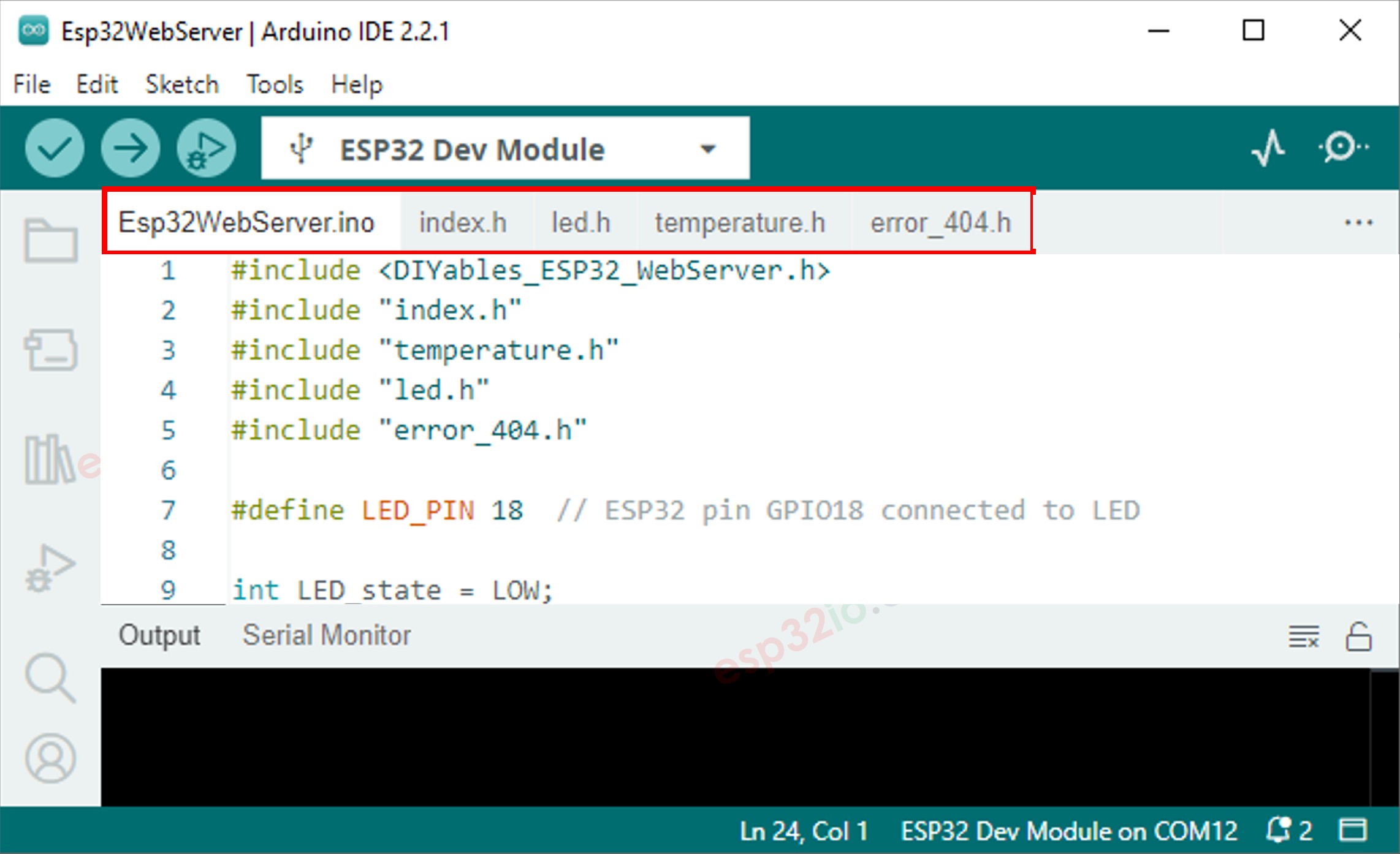
Bây giờ bạn có nhiều file trên Arduino IDE như dưới đây:
Nhấp nút Upload trên Arduino IDE để tải code lên ESP32
Truy cập các trang web của board ESP32 qua trình duyệt web từng trang một như trước. Bạn sẽ thấy tất cả trang web như dưới đây:

 English for KidsHọc tiếng Anh vui nhộn cho trẻ nhỏ.Tải về trênGoogle PlayTải về trênApp Store
 Bubble NoteGhi chú tự xóa — viết như nhắn tin.Tải về trênGoogle PlayTải về trênApp Store
 Tôi Không MuaĐánh bại mua sắm bốc đồng, tiết kiệm hơn.Tải về trênGoogle PlayTải về trênApp Store
 Con Đường Tri ThứcBài thi thử để học mọi thứ.Tải về trênGoogle PlayTải về trênApp Store