ESP32 Bluetooth Plotter Example Hướng Dẫn Tạo Giao Diện Vẽ Đồ Thị Dữ Liệu Thời Gian Thực

Tổng Quan

Ví dụ Bluetooth Plotter cung cấp khả năng vẽ đồ thị dữ liệu thời gian thực trên smartphone thông qua ứng dụng DIYables Bluetooth STEM. Được thiết kế cho các bo mạch ESP32 với hỗ trợ cả kết nối BLE (Bluetooth Low Energy)Classic Bluetooth. Vẽ đồ thị tối đa 10 chuỗi dữ liệu đồng thời với trục tọa độ có thể cấu hình, tự động điều chỉnh tỷ lệ, nhãn chú giải và hiển thị cuộn — hoàn hảo cho việc trực quan hóa cảm biến, phân tích tín hiệu và giám sát dữ liệu.

Ví dụ này hỗ trợ hai chế độ Bluetooth:

  • ESP32 BLE (Bluetooth Low Energy): Hoạt động trên cả Android và iOS
  • ESP32 Classic Bluetooth: Chỉ hoạt động trên Android. iOS không hỗ trợ Classic Bluetooth. Sử dụng BLE nếu bạn cần hỗ trợ iOS.
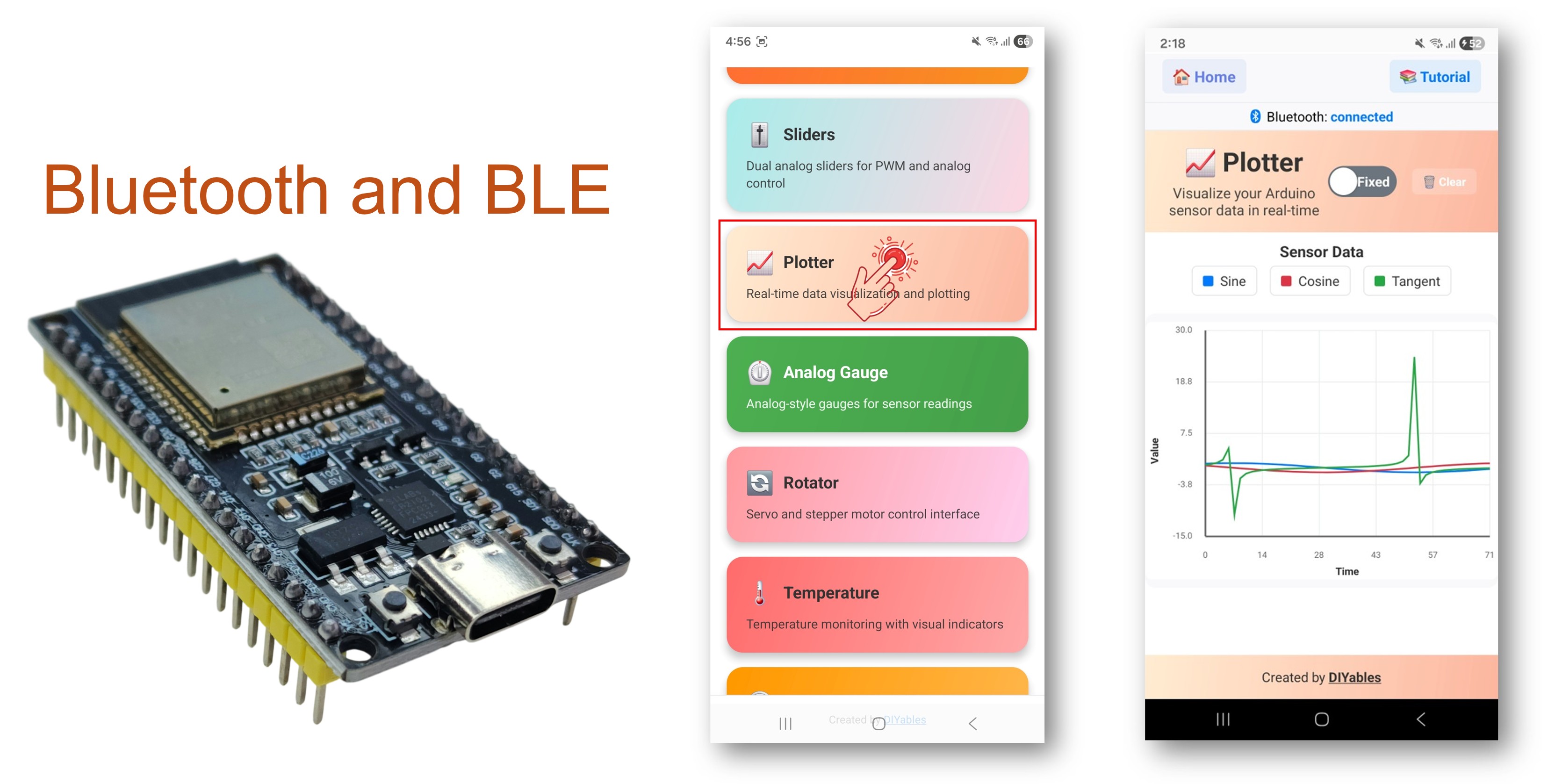
ESP32 Bluetooth plotter example - hướng dẫn tạo giao diện vẽ Đồ thị dữ liệu thời gian thực

Tính Năng

  • Vẽ Đồ Thị Đa Chuỗi: Vẽ tối đa 10 chuỗi dữ liệu đồng thời
  • Hiển Thị Thời Gian Thực: Đồ thị cuộn liên tục với cập nhật trực tiếp
  • Trục Tọa Độ Có Thể Cấu Hình: Đặt phạm vi trục Y tùy chỉnh, nhãn trục và tiêu đề đồ thị
  • Tự Động Điều Chỉnh Tỷ Lệ: Tự động điều chỉnh phạm vi trục Y để phù hợp với dữ liệu
  • Chú Giải Tùy Chỉnh: Gắn nhãn cho từng chuỗi dữ liệu để dễ nhận diện
  • Điều Chỉnh Số Mẫu: Cấu hình số điểm dữ liệu hiển thị
  • BLE & Classic Bluetooth: Chọn chế độ Bluetooth phù hợp với dự án của bạn
  • Đa Nền Tảng: Chế độ BLE hoạt động trên cả Android và iOS; Classic Bluetooth hoạt động trên Android

Linh Kiện Cần Thiết

1×mô-đun phát triển ESP-WROOM-32
1×Alternatively, ESP32 Uno-form board
1×Alternatively, ESP32 S3 Uno-form board
1×Cáp USB Type-C
1×breadboard
1×Dây Jumper
1×(Khuyến nghị) Screw Terminal Expansion Board for ESP32
1×(Khuyến nghị) Breakout Expansion Board for ESP32
1×(Khuyến nghị) Power Splitter for ESP32

Or you can buy the following kits:

1×DIYables ESP32 Starter Kit (ESP32 included)
1×DIYables Sensor Kit (30 sensors/displays)
1×DIYables Sensor Kit (18 sensors/displays)

Code ESP32

Hướng Dẫn Nhanh

Làm theo các hướng dẫn từng bước sau:

  • Nếu đây là lần đầu tiên bạn sử dụng ESP32, hãy tham khảo hướng dẫn về ESP32 - Cài Đặt Phần Mềm.
  • Kết nối bo mạch ESP32 với máy tính bằng cáp USB.
  • Khởi động Arduino IDE trên máy tính.
  • Chọn bo mạch ESP32 và cổng COM phù hợp.
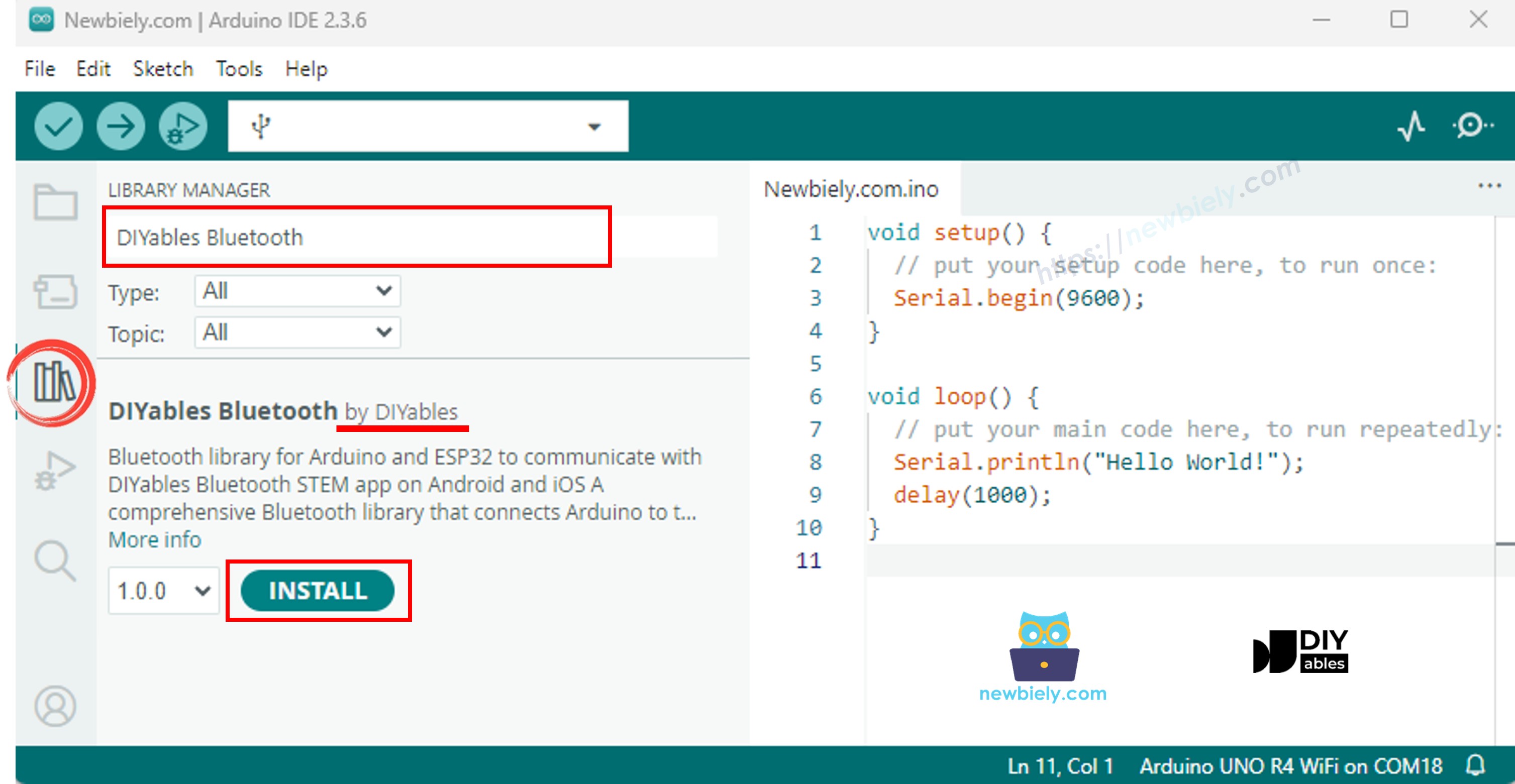
  • Điều hướng tới biểu tượng Libraries trên thanh bên trái của Arduino IDE.
  • Tìm kiếm "DIYables Bluetooth", sau đó tìm thư viện DIYables Bluetooth của DIYables
  • Nhấp nút Install để cài đặt thư viện.
ESP32 diyables Bluetooth thư viện
  • Bạn sẽ được yêu cầu cài đặt một số thư viện phụ thuộc khác
  • Nhấp nút Install All để cài đặt tất cả các thư viện phụ thuộc.
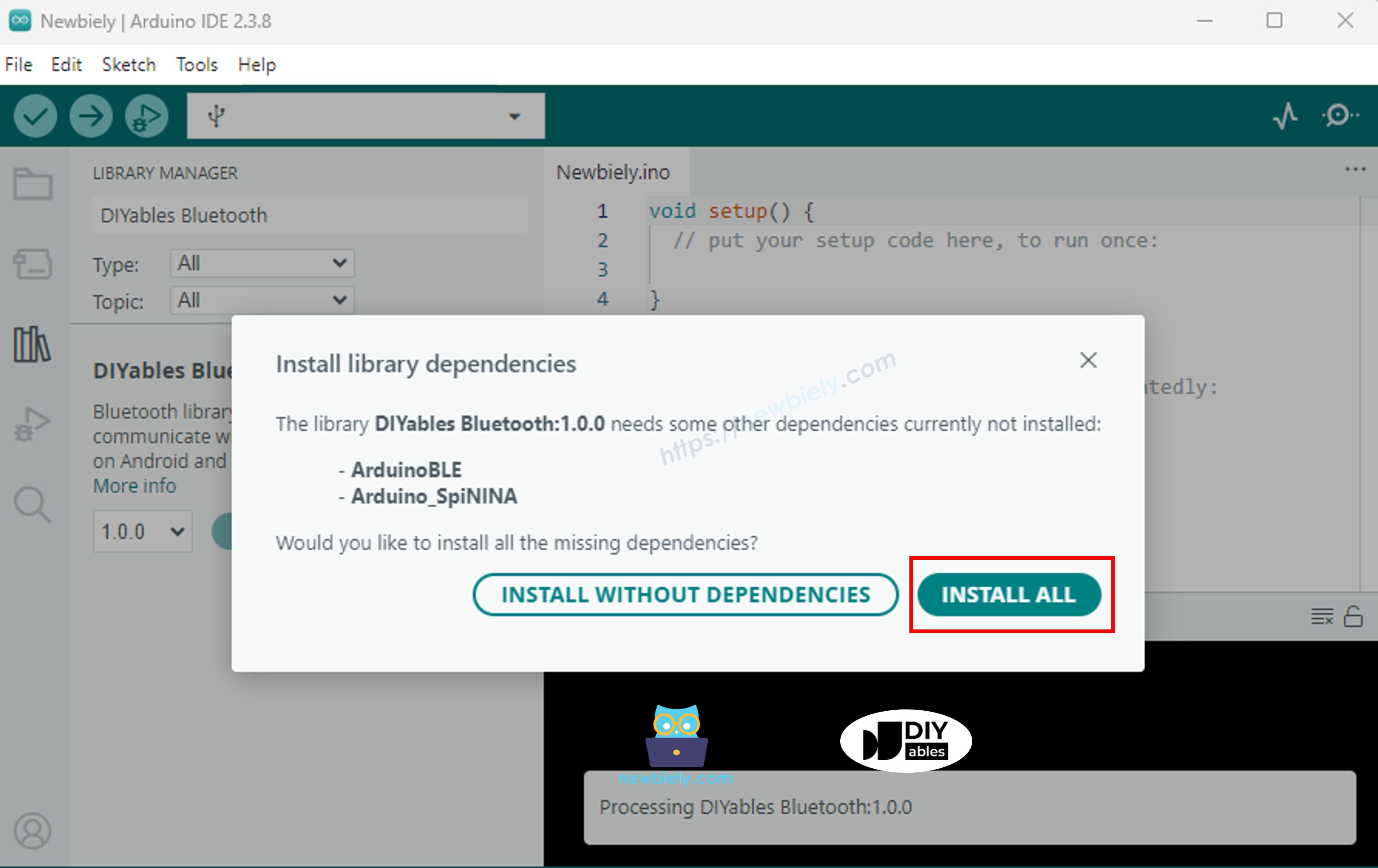
ESP32 diyables Bluetooth dependency

Chọn một trong hai chế độ Bluetooth dưới đây tùy thuộc vào nhu cầu của bạn:

Code ESP32 Classic Bluetooth (chỉ hoạt động với app trên Android)

Lưu ý: Classic Bluetooth KHÔNG được hỗ trợ trên iOS. Nếu bạn cần hỗ trợ iOS, hãy sử dụng code BLE bên dưới.

  • Trong Arduino IDE, đi tới File Examples DIYables Bluetooth Esp32Bluetooth_Plotter example, hoặc sao chép code trên và dán vào editor của Arduino IDE
/* * DIYables Bluetooth Library - ESP32 Classic Bluetooth Plotter Example * Works with DIYables Bluetooth STEM app on Android * Note: Classic Bluetooth is NOT supported on iOS. Use BLE examples for iOS support. * * This example demonstrates the Bluetooth Plotter feature: * - Real-time data plotting via Bluetooth * - Plot multiple data series simultaneously * - Configurable plot settings * * Compatible Boards: * - ESP32 (all variants with Classic Bluetooth) * - ESP32-WROOM-32 * - ESP32-DevKitC * - ESP32-WROVER * * Note: Select "Huge APP (3MB No OTA/1MB SPIFFS)" partition scheme * in Arduino IDE: Tools > Partition Scheme * * Setup: * 1. Upload the sketch to your ESP32 * 2. Open Serial Monitor (115200 baud) to see connection status * 3. Use DIYables Bluetooth App to connect and view the plot * * Tutorial: https://diyables.io/bluetooth-app * Author: DIYables */ #include <DIYables_BluetoothServer.h> #include <DIYables_BluetoothPlotter.h> #include <platforms/DIYables_Esp32Bluetooth.h> // Create Bluetooth instances DIYables_Esp32Bluetooth bluetooth("ESP32_Plotter"); DIYables_BluetoothServer bluetoothServer(bluetooth); // Create Plotter app instance DIYables_BluetoothPlotter bluetoothPlotter; // Variables for generating sample data unsigned long lastPlotTime = 0; const unsigned long PLOT_INTERVAL = 100; // Plot every 100ms float phase = 0; void setup() { Serial.begin(115200); delay(1000); Serial.println("DIYables Bluetooth - ESP32 Plotter Example"); // Initialize Bluetooth server with platform-specific implementation bluetoothServer.begin(); // Add plotter app to server bluetoothServer.addApp(&bluetoothPlotter); // Configure plotter settings bluetoothPlotter.setPlotTitle("Sensor Data"); bluetoothPlotter.setAxisLabels("Time", "Value"); bluetoothPlotter.setYAxisRange(-15, 30); // Fixed range bluetoothPlotter.setMaxSamples(100); // Show last 100 samples bluetoothPlotter.setLegendLabels("Sine", "Cosine", "Tangent"); // Custom legend labels // Uncomment to enable auto-scaling instead of fixed range: // bluetoothPlotter.enableAutoScale(true); // Set up connection event callbacks bluetoothServer.setOnConnected([]() { Serial.println("Bluetooth connected!"); }); bluetoothServer.setOnDisconnected([]() { Serial.println("Bluetooth disconnected!"); }); // Optional: Handle requests for current plot data (when app loads) bluetoothPlotter.onDataRequest([]() { Serial.println("App requested plot data"); }); Serial.println("Waiting for Bluetooth connection..."); } void loop() { // Handle Bluetooth server communications bluetoothServer.loop(); // Send plot data at regular intervals if (millis() - lastPlotTime >= PLOT_INTERVAL) { lastPlotTime = millis(); // Generate sample data (sine and cosine waves) float sine = sin(phase); float cosine = cos(phase); float tangent = tan(phase) * 0.3; // Scaled down // Send data to Bluetooth plotter (multiple series) bluetoothPlotter.send(sine, cosine, tangent); // Also print to Serial for Arduino IDE Serial Plotter comparison Serial.print(sine, 2); Serial.print(" "); Serial.print(cosine, 2); Serial.print(" "); Serial.println(tangent, 2); phase += 0.1; if (phase > 2 * PI) { phase = 0; } // TODO: Replace sample data with your actual sensor readings // Examples: // - Temperature sensor: bluetoothPlotter.send(temperature); // - Accelerometer: bluetoothPlotter.send(accelX, accelY, accelZ); // - Multiple sensors: bluetoothPlotter.send(sensor1, sensor2, sensor3); } delay(10); }
  • Nhấp nút Upload trên Arduino IDE để tải code lên ESP32
  • Mở Serial Monitor
  • Kiểm tra kết quả trên Serial Monitor. Nó sẽ như sau:
COM6
Send
DIYables Bluetooth - ESP32 Plotter Example Waiting for Bluetooth connection...
Autoscroll Show timestamp
Clear output
9600 baud  
Newline  

Code ESP32 BLE (hoạt động với app trên cả Android và iOS)

  • Trong Arduino IDE, đi tới File Examples DIYables Bluetooth Esp32BLE_Plotter example, hoặc sao chép code trên và dán vào editor của Arduino IDE
/* * DIYables Bluetooth Library - ESP32 BLE Plotter Example * Works with DIYables Bluetooth STEM app on Android and iOS * * This example demonstrates the Bluetooth Plotter feature: * - Real-time data plotting via Bluetooth * - Plot multiple data series simultaneously * - Configurable plot settings * * Compatible Boards: * - ESP32-WROOM-32 * - ESP32-DevKitC * - ESP32-WROVER * - ESP32-S3 * - ESP32-C3 * - Any ESP32 board supporting BLE * * Note: Select "Huge APP (3MB No OTA/1MB SPIFFS)" partition scheme * in Arduino IDE: Tools > Partition Scheme * * Setup: * 1. Upload the sketch to your ESP32 * 2. Open Serial Monitor (115200 baud) to see connection status * 3. Use DIYables Bluetooth App to connect and view the plot * * Tutorial: https://diyables.io/bluetooth-app * Author: DIYables */ #include <DIYables_BluetoothServer.h> #include <DIYables_BluetoothPlotter.h> #include <platforms/DIYables_Esp32BLE.h> // BLE Configuration const char* DEVICE_NAME = "ESP32BLE_Plotter"; const char* SERVICE_UUID = "19B10000-E8F2-537E-4F6C-D104768A1214"; const char* TX_UUID = "19B10001-E8F2-537E-4F6C-D104768A1214"; const char* RX_UUID = "19B10002-E8F2-537E-4F6C-D104768A1214"; // Create Bluetooth instances DIYables_Esp32BLE bluetooth(DEVICE_NAME, SERVICE_UUID, TX_UUID, RX_UUID); DIYables_BluetoothServer bluetoothServer(bluetooth); // Create Plotter app instance DIYables_BluetoothPlotter bluetoothPlotter; // Variables for generating sample data unsigned long lastPlotTime = 0; const unsigned long PLOT_INTERVAL = 100; float phase = 0; void setup() { Serial.begin(115200); delay(1000); Serial.println("DIYables Bluetooth - ESP32 BLE Plotter Example"); // Initialize Bluetooth server with platform-specific implementation bluetoothServer.begin(); // Add plotter app to server bluetoothServer.addApp(&bluetoothPlotter); // Configure plotter settings bluetoothPlotter.setPlotTitle("Sensor Data"); bluetoothPlotter.setAxisLabels("Time", "Value"); bluetoothPlotter.setYAxisRange(-15, 30); bluetoothPlotter.setMaxSamples(100); bluetoothPlotter.setLegendLabels("Sine", "Cosine", "Tangent"); // Set up connection event callbacks bluetoothServer.setOnConnected([]() { Serial.println("Bluetooth connected!"); }); bluetoothServer.setOnDisconnected([]() { Serial.println("Bluetooth disconnected!"); }); bluetoothPlotter.onDataRequest([]() { Serial.println("App requested plot data"); }); Serial.println("Waiting for Bluetooth connection..."); } void loop() { bluetoothServer.loop(); if (millis() - lastPlotTime >= PLOT_INTERVAL) { lastPlotTime = millis(); float sine = sin(phase); float cosine = cos(phase); float tangent = tan(phase) * 0.3; bluetoothPlotter.send(sine, cosine, tangent); Serial.print(sine, 2); Serial.print(" "); Serial.print(cosine, 2); Serial.print(" "); Serial.println(tangent, 2); phase += 0.1; if (phase > 2 * PI) { phase = 0; } } delay(10); }
  • Nhấp nút Upload trên Arduino IDE để tải code lên ESP32
  • Mở Serial Monitor
  • Kiểm tra kết quả trên Serial Monitor. Nó sẽ như sau:
COM6
Send
DIYables Bluetooth - ESP32 BLE Plotter Example Waiting for Bluetooth connection...
Autoscroll Show timestamp
Clear output
9600 baud  
Newline  

Ứng Dụng Di Động

  • Cài đặt ứng dụng DIYables Bluetooth trên smartphone của bạn: Android | iOS
  • Nếu bạn đang sử dụng ESP32 Classic Bluetooth code, bạn cần ghép đôi ESP32 với điện thoại Android trước khi mở ứng dụng:
    • Vào Cài đặt > Bluetooth của điện thoại
    • Đảm bảo Bluetooth đã được bật
    • Điện thoại sẽ quét các thiết bị có sẵn
    • Tìm và nhấn "ESP32_Plotter" trong danh sách các thiết bị có sẵn
    • Xác nhận yêu cầu ghép đôi (không cần PIN)
    • Đợi cho đến khi hiển thị "Paired" dưới tên thiết bị
  • Nếu bạn đang sử dụng ESP32 BLE code, không cần ghép đôi. Chỉ cần chuyển sang bước tiếp theo.
  • Mở ứng dụng DIYables Bluetooth
  • Khi mở ứng dụng lần đầu tiên, nó sẽ yêu cầu quyền. Vui lòng cấp những quyền sau:
    • Quyền Nearby Devices (Android 12+) / quyền Bluetooth (iOS) - cần thiết để quét và kết nối với các thiết bị Bluetooth
    • Quyền Location (chỉ Android 11 trở xuống) - cần thiết cho các phiên bản Android cũ để quét thiết bị BLE
  • Đảm bảo Bluetooth đã được bật trên điện thoại
  • Trên màn hình chính, nhấn nút Connect. Ứng dụng sẽ quét cả thiết bị BLE và Classic Bluetooth.
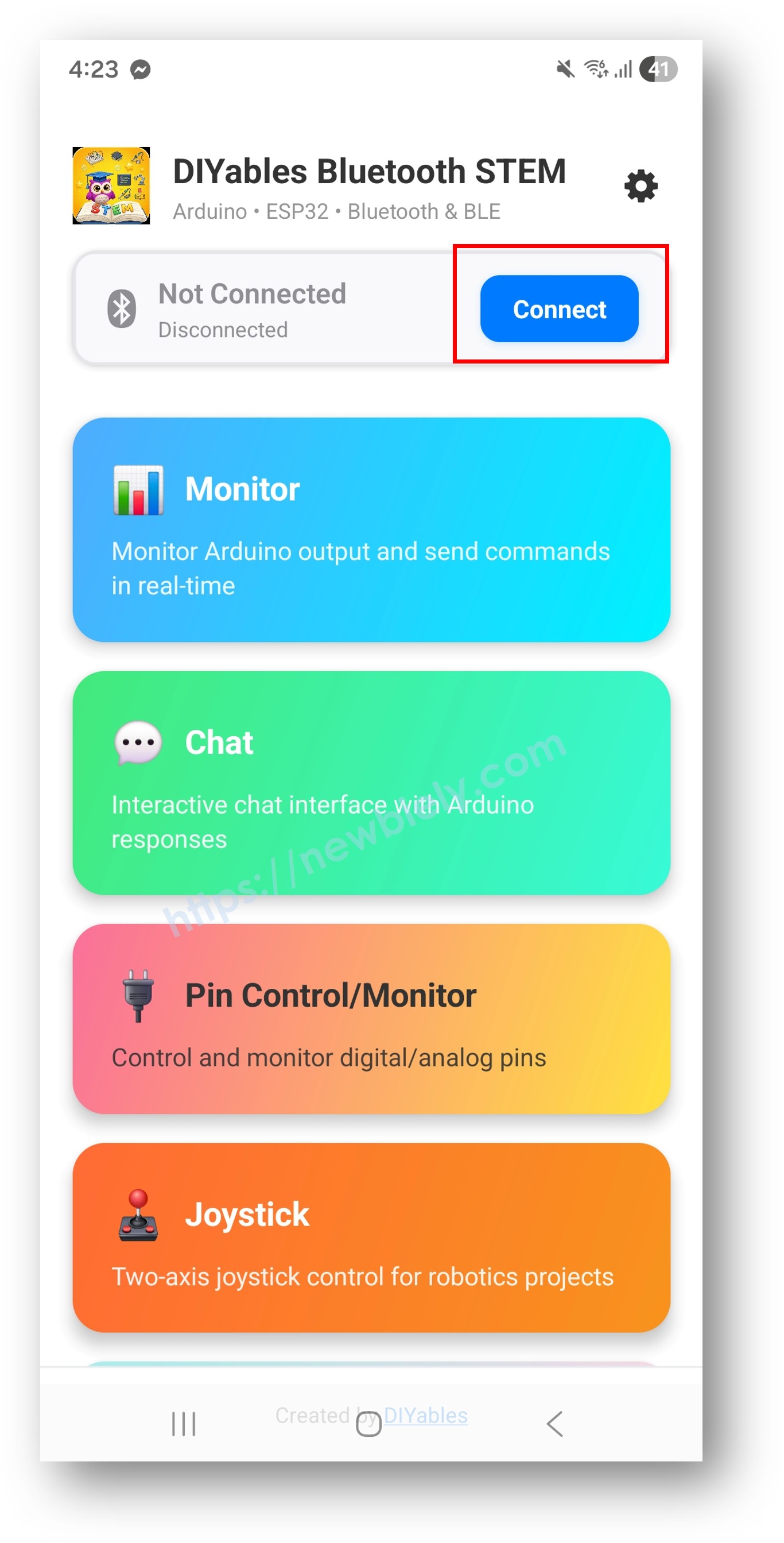
diyables Bluetooth app - home screen with scan nút nhấn
  • Tìm và nhấn thiết bị của bạn trong kết quả quét để kết nối:
    • Đối với Classic Bluetooth: nhấn "ESP32_Plotter"
    • Đối với BLE: nhấn "ESP32BLE_Plotter"
  • Sau khi kết nối, ứng dụng tự động quay về màn hình chính. Chọn ứng dụng Plotter từ menu ứng dụng.
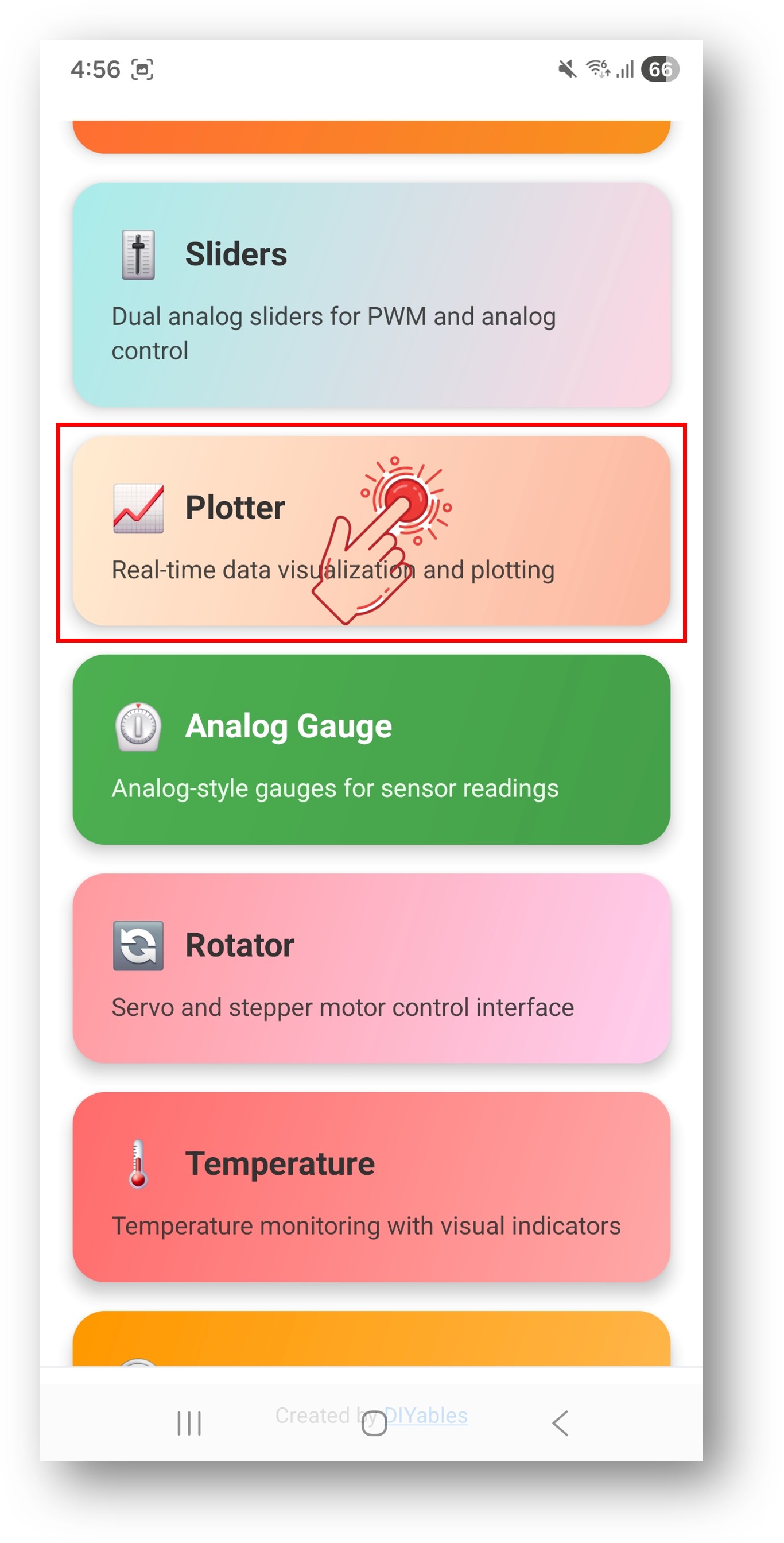
diyables Bluetooth app - home screen with plotter app

Lưu ý: Bạn có thể nhấn biểu tượng cài đặt trên màn hình chính để ẩn/hiện các ứng dụng. Để biết thêm chi tiết, xem Hướng dẫn sử dụng DIYables Bluetooth App.

  • Xem đồ thị dữ liệu thời gian thực cuộn trên màn hình
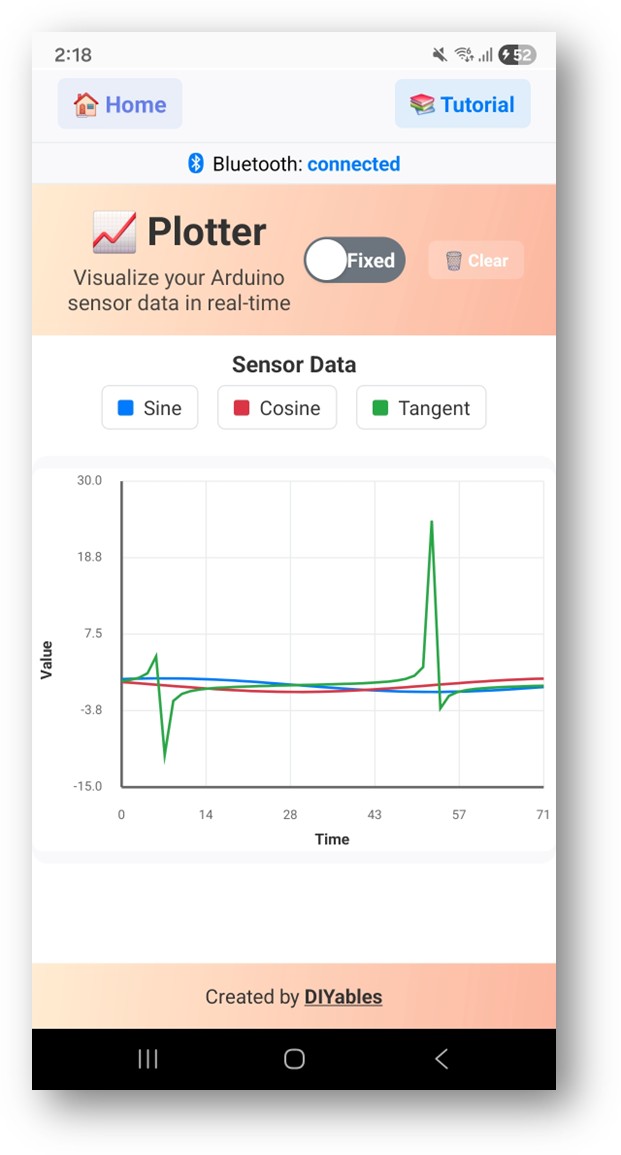
diyables Bluetooth app - plotter screen

Bây giờ nhìn lại Serial Monitor trên Arduino IDE. Bạn sẽ thấy:

COM6
Send
Bluetooth connected! 0.00 1.00 0.00 0.10 1.00 -0.15 0.20 0.98 0.08 0.29 0.96 -0.22
Autoscroll Show timestamp
Clear output
9600 baud  
Newline  
  • Đồ thị hiển thị các dạng sóng sine, cosine và nhiễu ngẫu nhiên theo thời gian thực

Tùy Chỉnh Sáng Tạo - Điều Chỉnh Code Cho Dự Án Của Bạn

Cấu Hình Cài Đặt Đồ Thị

Thiết lập giao diện đồ thị trước khi kết nối:

// Đặt tiêu đề đồ thị bluetoothPlotter.setPlotTitle("Sensor Data"); // Đặt nhãn trục bluetoothPlotter.setAxisLabels("Time", "Value"); // Đặt phạm vi trục Y cố định bluetoothPlotter.setYAxisRange(-15, 30); // Hoặc bật tự động điều chỉnh tỷ lệ thay vào đó bluetoothPlotter.enableAutoScale(true); // Đặt số điểm dữ liệu hiển thị bluetoothPlotter.setMaxSamples(100); // Đặt nhãn chú giải cho mỗi chuỗi dữ liệu bluetoothPlotter.setLegendLabels("Sine", "Cosine", "Tangent"); // Cũng hỗ trợ 1, 2, hoặc 4 nhãn: // bluetoothPlotter.setLegendLabels("Temperature"); // bluetoothPlotter.setLegendLabels("Temp", "Humidity"); // bluetoothPlotter.setLegendLabels("Ch1", "Ch2", "Ch3", "Ch4");

Gửi Dữ Liệu Tới Đồ Thị

Nhiều phương thức cho việc gửi từ 1 đến 4+ chuỗi dữ liệu:

// Gửi một giá trị bluetoothPlotter.send(25.3); // Gửi hai giá trị (hai chuỗi) bluetoothPlotter.send(temperature, humidity); // Gửi ba giá trị (ba chuỗi) bluetoothPlotter.send(sine, cosine, tangent); // Gửi bốn giá trị (bốn chuỗi) bluetoothPlotter.send(ch1, ch2, ch3, ch4); // Gửi mảng giá trị (bất kỳ số chuỗi nào) float values[] = {1.0, 2.0, 3.0, 4.0, 5.0}; bluetoothPlotter.send(values, 5); // Gửi dưới dạng chuỗi định dạng bluetoothPlotter.send("1.23,4.56,7.89");

Xử Lý Yêu Cầu Dữ Liệu Từ Ứng Dụng

Khi ứng dụng kết nối và mở màn hình Plotter, nó có thể yêu cầu dữ liệu:

bluetoothPlotter.onDataRequest([]() { Serial.println("App requested plot data"); // Tùy chọn gửi điểm dữ liệu ban đầu });

Xử Lý Sự Kiện Kết Nối

bluetoothServer.setOnConnected([]() { Serial.println("Bluetooth connected!"); }); bluetoothServer.setOnDisconnected([]() { Serial.println("Bluetooth disconnected!"); });

Cách Sử Dụng Đồ Thị

Điều Khiển Giao Diện Ứng Dụng

Giao diện đồ thị trong ứng dụng DIYables Bluetooth cung cấp:

  • Đồ Thị Thời Gian Thực: Biểu đồ đường cuộn với nhiều chuỗi
  • Chú Giải: Nhãn mã màu cho mỗi chuỗi dữ liệu
  • Cuộn Tự Động: Liên tục cuộn để hiển thị dữ liệu mới nhất

Định Dạng Dữ Liệu

Dữ liệu được gửi dưới dạng các giá trị float cách nhau bằng dấu phẩy:

  • Chuỗi đơn: bluetoothPlotter.send(value)
  • Nhiều chuỗi: bluetoothPlotter.send(val1, val2, val3)
  • Tốc độ dữ liệu: Khuyến nghị khoảng thời gian 10-100ms để vẽ đồ thị mượt mà

Ví Dụ Lập Trình

Đồ Thị Cảm Biến Đơn

unsigned long lastPlotTime = 0; const unsigned long PLOT_INTERVAL = 100; // 10 Hz void setup() { bluetoothPlotter.setPlotTitle("Temperature"); bluetoothPlotter.setAxisLabels("Time", "°C"); bluetoothPlotter.setYAxisRange(0, 50); bluetoothPlotter.setLegendLabels("Temperature"); } void loop() { bluetoothServer.loop(); if (millis() - lastPlotTime >= PLOT_INTERVAL) { lastPlotTime = millis(); float temperature = readTemperatureSensor(); bluetoothPlotter.send(temperature); } delay(10); }

Đồ Thị Accelerometer Đa Cảm Biến

#include <Wire.h> #include <MPU6050.h> MPU6050 mpu; unsigned long lastPlotTime = 0; void setup() { Wire.begin(); mpu.initialize(); bluetoothPlotter.setPlotTitle("Accelerometer"); bluetoothPlotter.setAxisLabels("Time", "g"); bluetoothPlotter.setYAxisRange(-2.0, 2.0); bluetoothPlotter.setLegendLabels("X", "Y", "Z"); } void loop() { bluetoothServer.loop(); if (millis() - lastPlotTime >= 50) { // 20 Hz lastPlotTime = millis(); int16_t ax, ay, az; mpu.getAcceleration(&ax, &ay, &az); float gx = ax / 16384.0; float gy = ay / 16384.0; float gz = az / 16384.0; bluetoothPlotter.send(gx, gy, gz); } delay(10); }

Đồ Thị Chân Analog

const int ANALOG_PINS[] = {34, 35, 36, 39}; const int NUM_CHANNELS = 4; void setup() { bluetoothPlotter.setPlotTitle("Analog Inputs"); bluetoothPlotter.setAxisLabels("Time", "ADC Value"); bluetoothPlotter.setYAxisRange(0, 4095); bluetoothPlotter.setMaxSamples(200); bluetoothPlotter.setLegendLabels("A34", "A35", "A36", "A39"); } void loop() { bluetoothServer.loop(); if (millis() - lastPlotTime >= 100) { lastPlotTime = millis(); float values[NUM_CHANNELS]; for (int i = 0; i < NUM_CHANNELS; i++) { values[i] = analogRead(ANALOG_PINS[i]); } bluetoothPlotter.send(values, NUM_CHANNELS); } delay(10); }

Máy Tạo Tín Hiệu

float phase = 0; void setup() { bluetoothPlotter.setPlotTitle("Signal Generator"); bluetoothPlotter.setAxisLabels("Time", "Amplitude"); bluetoothPlotter.setYAxisRange(-1.5, 1.5); bluetoothPlotter.setLegendLabels("Sine", "Square", "Triangle"); } void loop() { bluetoothServer.loop(); if (millis() - lastPlotTime >= 50) { lastPlotTime = millis(); float sine = sin(phase); float square = (sin(phase) > 0) ? 1.0 : -1.0; float triangle = 2.0 * abs(fmod(phase / PI, 2.0) - 1.0) - 1.0; bluetoothPlotter.send(sine, square, triangle); phase += 0.1; if (phase > 2 * PI) phase -= 2 * PI; } delay(10); }

Kỹ Thuật Lập Trình Nâng Cao

Bộ Lọc Trung Bình Trượt

class MovingAverage { float buffer[10]; int index = 0; int count = 0; public: float add(float value) { buffer[index] = value; index = (index + 1) % 10; if (count < 10) count++; float sum = 0; for (int i = 0; i < count; i++) sum += buffer[i]; return sum / count; } }; MovingAverage filter1, filter2; void loop() { bluetoothServer.loop(); if (millis() - lastPlotTime >= 100) { lastPlotTime = millis(); float raw = analogRead(34) * 3.3 / 4095.0; float filtered = filter1.add(raw); // Vẽ đồ thị cả giá trị thô và đã lọc bluetoothPlotter.send(raw, filtered); } delay(10); }

Cấu Hình Đồ Thị Động

// Thay đổi cài đặt đồ thị trong thời gian chạy void switchToTemperatureMode() { bluetoothPlotter.setPlotTitle("Temperature Monitor"); bluetoothPlotter.setAxisLabels("Time", "°C"); bluetoothPlotter.setYAxisRange(-10, 50); bluetoothPlotter.setLegendLabels("Internal", "External"); } void switchToVoltageMode() { bluetoothPlotter.setPlotTitle("Voltage Monitor"); bluetoothPlotter.setAxisLabels("Time", "V"); bluetoothPlotter.setYAxisRange(0, 3.3); bluetoothPlotter.setLegendLabels("Ch1", "Ch2", "Ch3"); }

BLE vs Classic Bluetooth - Nên Chọn Loại Nào?

Tính NăngBLE (Esp32BLE_Plotter)Classic Bluetooth (Esp32Bluetooth_Plotter)
Hỗ Trợ iOS? Có? Không
Hỗ Trợ Android? Có? Có
Tiêu Thụ Điện NăngThấpCao hơn
Phạm Vi~30-100m~10-100m
Tốc Độ Dữ LiệuThấp hơnCao hơn
Cần Ghép ĐôiKhông (tự động kết nối)Có (ghép đôi thủ công)
Tốt Nhất ChoTiết kiệm pin, đa nền tảngThông lượng cao, chỉ Android

Khắc Phục Sự Cố

Các Vấn Đề Thường Gặp

1. Không thể tìm thấy thiết bị trong ứng dụng

  • Đảm bảo ESP32 đã được cấp nguồn và sketch đã được tải lên
  • Đối với BLE: Đảm bảo Bluetooth và Vị trí của điện thoại đã được bật
  • Đối với Classic Bluetooth: Ghép đôi thiết bị trước trong cài đặt Bluetooth của điện thoại
  • Kiểm tra rằng đã chọn đúng partition scheme (Huge APP)

2. Đồ thị không cập nhật

  • Kiểm tra trạng thái kết nối Bluetooth trong ứng dụng
  • Xác minh bluetoothPlotter.send() đang được gọi trong loop
  • Kiểm tra rằng bluetooth.isConnected() trả về true
  • Thử ngắt kết nối và kết nối lại

3. Dữ liệu đồ thị trông gián đoạn

  • Giảm khoảng thời gian vẽ đồ thị (ví dụ 50ms thay vì 500ms)
  • Đảm bảo kết nối Bluetooth ổn định
  • Giảm số chuỗi dữ liệu nếu băng thông bị hạn chế

4. Phạm vi trục Y không phù hợp với dữ liệu

  • Sử dụng enableAutoScale(true) để tự động điều chỉnh
  • Hoặc đặt phạm vi rộng hơn với setYAxisRange()

5. Nhãn chú giải không hiển thị

  • Gọi setLegendLabels() trước khi kết nối được thiết lập
  • Khớp số nhãn với số chuỗi dữ liệu

6. Sketch quá lớn / không đủ dung lượng

  • Trong Arduino IDE, đi tới Tools > Partition Scheme và chọn "Huge APP (3MB No OTA/1MB SPIFFS)" hoặc "No OTA (Large APP)"
  • Partition scheme mặc định chỉ cung cấp ~1.2MB cho code ứng dụng, không đủ cho thư viện Bluetooth
  • Cài đặt này cung cấp ~3MB bằng cách hy sinh phân vùng OTA (over-the-air update)

Mẹo Debug

Thêm debug toàn diện:

void debugPlotterData(float v1, float v2, float v3) { Serial.println("=== Plotter Debug ==="); Serial.println("Value 1: " + String(v1, 2)); Serial.println("Value 2: " + String(v2, 2)); Serial.println("Value 3: " + String(v3, 2)); Serial.println("Free Heap: " + String(ESP.getFreeHeap())); Serial.println("====================="); }

Ý Tưởng Dự Án

Giám Sát Cảm Biến

  • Hiển thị xu hướng nhiệt độ và độ ẩm
  • Giám sát mức ánh sáng suốt cả ngày
  • Theo dõi chuyển động bằng accelerometer
  • Trực quan hóa dữ liệu cảm biến áp suất

Phân Tích Tín Hiệu

  • Trực quan hóa tần số âm thanh
  • Giám sát rung động
  • Hiển thị nhịp tim
  • Cường độ điện từ trường

Giáo Dục

  • So sánh sóng sine, cosine và tangent
  • Đường cong nạp/xả mạch RC
  • Trực quan hóa phản hồi bộ điều khiển PID
  • Ghi dữ liệu thí nghiệm vật lý

Công Nghiệp

  • Giám sát rung động máy móc
  • Theo dõi xu hướng biến số quy trình
  • Theo dõi tiêu thụ điện năng
  • Biểu đồ kiểm soát chất lượng

Tích Hợp Với Các Ứng Dụng Bluetooth Khác

Kết Hợp Với Bluetooth Slider

Sử dụng slider để điều khiển tham số tín hiệu được vẽ:

float frequency = 1.0; float amplitude = 1.0; bluetoothSlider.onSliderValue([](int slider1, int slider2) { frequency = map(slider1, 0, 100, 1, 20) / 10.0; amplitude = slider2 / 100.0; }); // Trong loop: float value = amplitude * sin(phase * frequency); bluetoothPlotter.send(value);

Kết Hợp Với Bluetooth Table

Hiển thị giá trị hiện tại trong bảng cùng với đồ thị:

...