
ESP32 Nút Nhấn Debounce
⇒ Không, điều đó không đúng. Đó là vì trong thế giới vật lý, khi bạn thực hiện một lần nhấn duy nhất trên nút nhấn, trạng thái của nút nhấn sẽ nhanh chóng chuyển đổi giữa LOW và HIGH nhiều lần thay vì chỉ một lần. Đây là đặc tính cơ học và vật lý. Hiện tượng này được biết đến với tên gọi: chattering. Hiện tượng chattering khiến cho MCU (ví dụ: ESP32) đọc được nhiều lần nhấn nút để phản hồi lại một lần nhấn thực tế duy nhất. Điều này dẫn đến trục trặc. Quá trình để loại bỏ hiện tượng này được gọi là debounce. Hướng dẫn này sẽ chỉ bạn cách thực hiện.
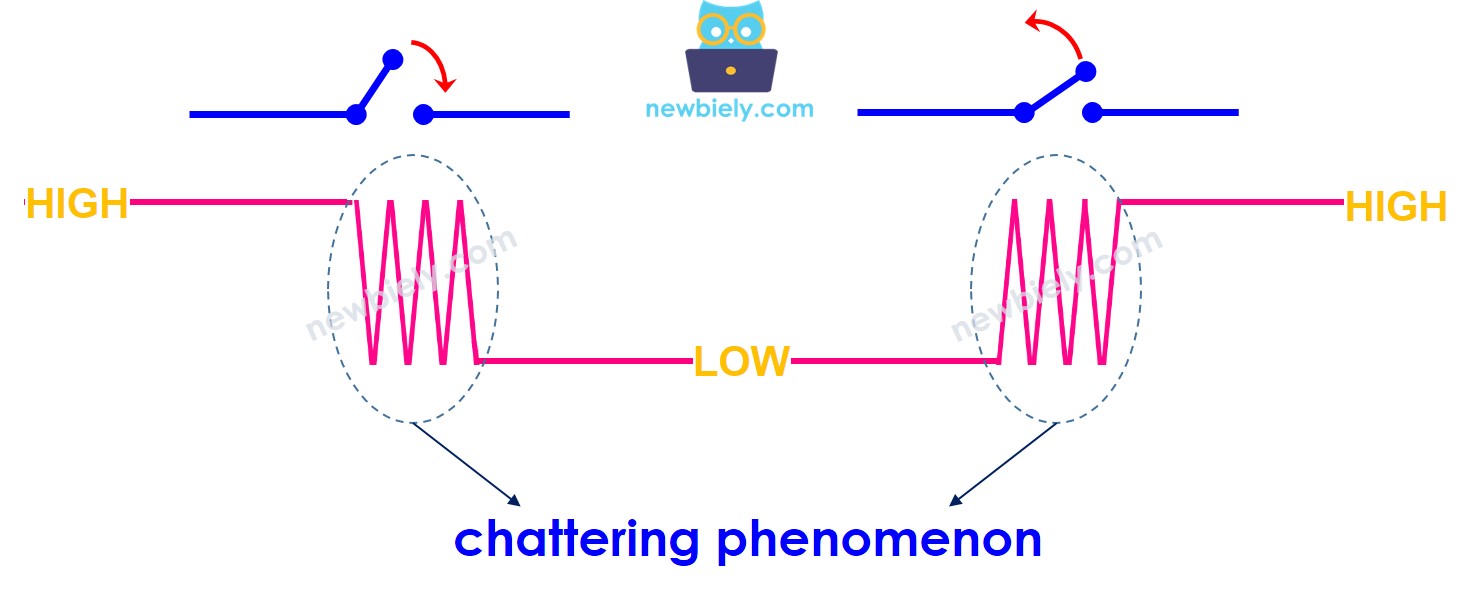
Hướng dẫn này cung cấp:
- Cách thực hiện debounce cho nút nhấn trong code ESP32
- Cách thực hiện debounce cho nút nhấn trong code ESP32 sử dụng thư viện
- Cách thực hiện debounce cho nhiều nút nhấn trong code ESP32 sử dụng thư viện
Phần Cứng Cần Thiết
| 1 | × | 38-pin ESP32 ESP-WROOM-32 Dev Module - Narrow | Amazon | |
| 1 | × | Alternatively, 38-pin ESP32 ESP-WROOM-32 Dev Module - Wide | Amazon | |
| 1 | × | Alternatively, 30-pin ESP32 ESP-WROOM-32 Dev Module - Wide | Amazon | |
| 1 | × | Alternatively, ESP32 Uno-form board | Amazon | |
| 1 | × | Alternatively, ESP32 S3 Uno-form board | Amazon | |
| 1 | × | Cáp USB Type-C | Amazon | |
| 1 | × | Nút Nhấn Gắn Breadboard với Nắp | Amazon | |
| 1 | × | Bộ Kit Nút Nhấn Gắn Breadboard | Amazon | |
| 1 | × | Nút Nhấn Gắn Panel | Amazon | |
| 1 | × | mô-đun nút nhấn | Amazon | |
| 1 | × | breadboard | Amazon | |
| 1 | × | Dây Jumper | Amazon | |
| 1 | × | (Tùy chọn) DC Power Jack | Amazon | |
| 1 | × | (Khuyến nghị) Screw Terminal Expansion Board for ESP32 | Amazon | |
| 1 | × | (Khuyến nghị) Breakout Expansion Board for ESP32 | Amazon | |
| 1 | × | (Khuyến nghị) Power Splitter for ESP32 | Amazon |
Or you can buy the following kits:
| 1 | × | DIYables ESP32 Starter Kit (ESP32 included) | Amazon | |
| 1 | × | DIYables Sensor Kit (18 sensors/displays) | Amazon |
Về Nút Nhấn
Chúng tôi có các hướng dẫn cụ thể về nút nhấn. Hướng dẫn chứa thông tin chi tiết và hướng dẫn từng bước về pinout phần cứng, nguyên lý hoạt động, kết nối đấu dây với ESP32, code ESP32... Tìm hiểu thêm về chúng tại các liên kết sau:
Sơ Đồ Đấu Nối
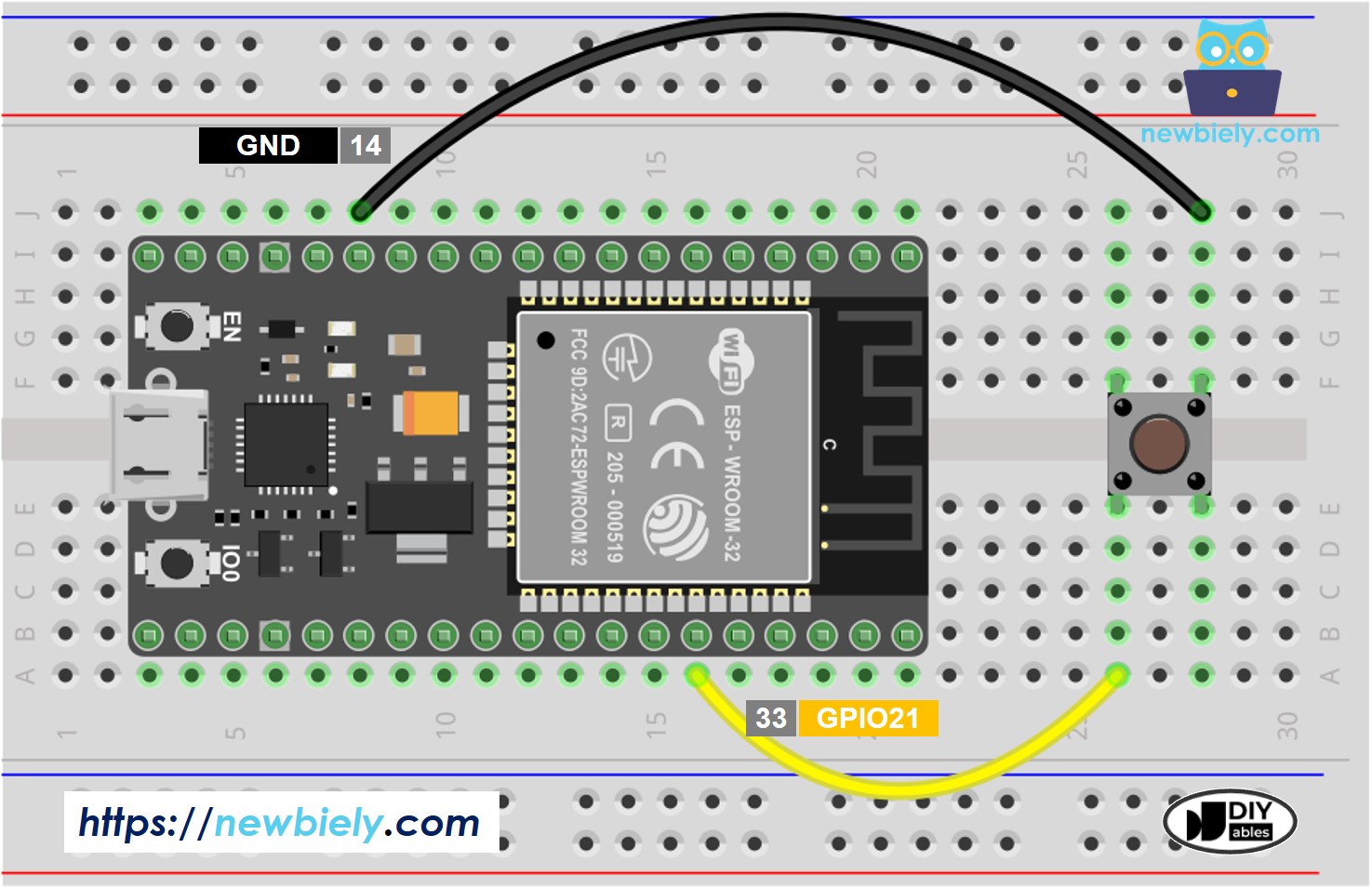
This image is created using Fritzing. Click to enlarge image
Nếu bạn chưa rõ cách cấp nguồn cho ESP32 và các linh kiện khác, xem: Cách Cung Cấp Nguồn Điện Cho ESP32.
Để làm rõ hơn, hãy cùng chạy code ESP32 KHÔNG có và CÓ debounce, và so sánh kết quả của chúng
Đọc Nút Nhấn không có Debounce
Các Bước Nhanh
- Nếu đây là lần đầu tiên bạn sử dụng ESP32, hãy xem ESP32 - Cài Đặt Phần Mềm.
- Thực hiện đấu nối như hình ảnh trên.
- Kết nối board ESP32 với PC của bạn qua cáp micro USB
- Mở Arduino IDE trên PC.
- Chọn đúng board ESP32 (ví dụ: ESP32 Dev Module) và cổng COM.
- Sao chép code dưới đây và dán vào Arduino IDE.
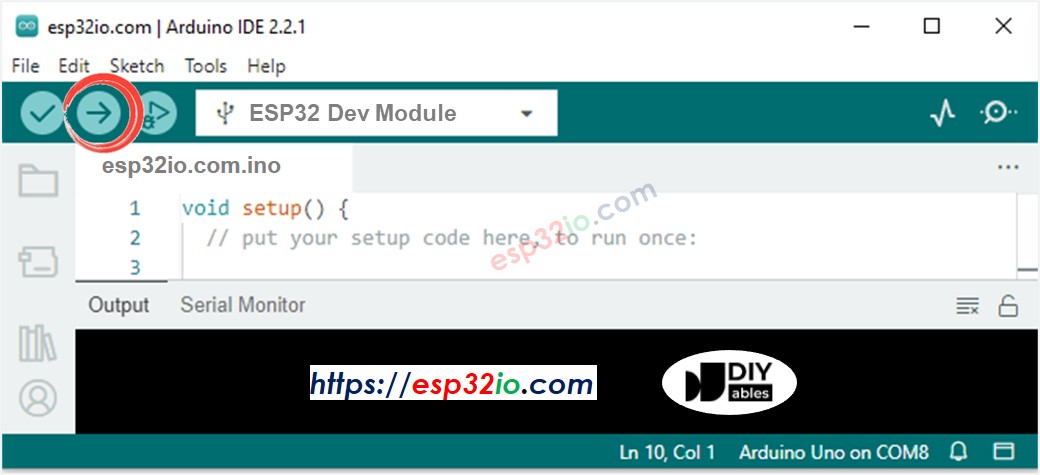
- Biên dịch và upload code lên board ESP32 bằng cách click nút Upload trên Arduino IDE
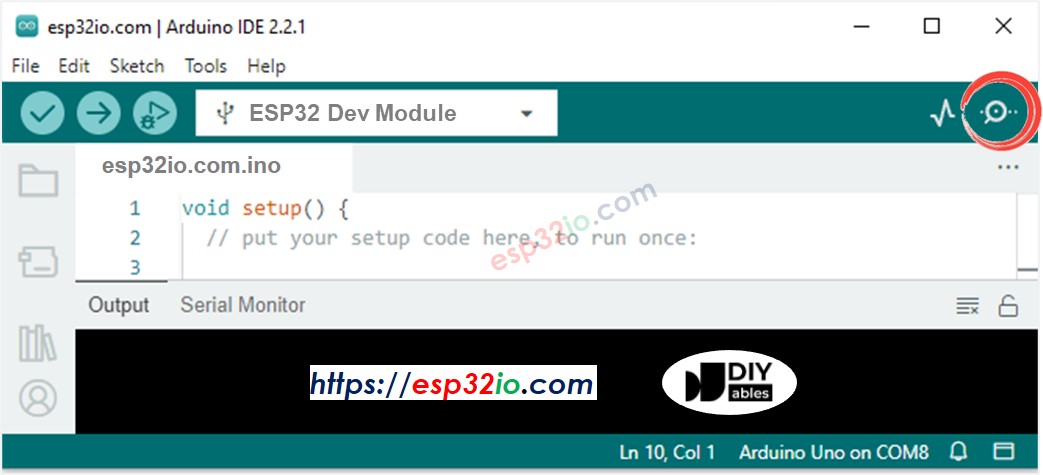
- Mở Serial Monitor trên Arduino IDE
- Nhấn nút một lần nhưng giữ trong vài giây, sau đó thả ra.
- Xem kết quả trên Serial Monitor. Nó sẽ trông như sau:
⇒ Như bạn có thể thấy, bạn chỉ thực hiện một lần nhấn và thả, nhưng ESP32 đã đọc được nhiều lần nhấn và thả.
※ Lưu ý:
Hiện tượng chattering không phải lúc nào cũng xảy ra. Nếu nó không xảy ra, vui lòng thử nghiệm trên nhiều lần.
Đọc Nút Nhấn có Debounce
Các Bước Nhanh
- Nếu đây là lần đầu tiên bạn sử dụng ESP32, hãy xem ESP32 - Cài Đặt Phần Mềm.
- Sao chép code dưới đây và dán vào Arduino IDE.
- Biên dịch và upload code lên board ESP32 bằng cách click nút Upload trên Arduino IDE
- Mở Serial Monitor trên Arduino IDE
- Giữ nhấn nút trong vài giây sau đó thả ra.
- Xem kết quả trên Serial Monitor. Nó sẽ trông như sau:
⇒ Như bạn có thể thấy, bạn thực hiện một lần nhấn và thả, và ESP32 đọc được một lần nhấn và thả. Hiện tượng chattering đã được loại bỏ.
Chúng Tôi Đã Làm Nó Đơn Giản - Code Debounce Nút Nhấn ESP32 với Thư Viện
Để làm cho việc này dễ dàng hơn cho người mới bắt đầu, đặc biệt là khi thực hiện debounce cho nhiều nút nhấn, chúng tôi đã tạo ra một thư viện nút nhấn, gọi là ezButton. Bạn có thể tìm hiểu về thư viện ezButton tại đây.
Code Debounce Nút Nhấn ESP32 cho Một Nút Đơn
Code Debounce Nút Nhấn ESP32 cho Nhiều Nút
Hãy cùng viết code debounce cho ba nút nhấn.
Sơ đồ đấu nối
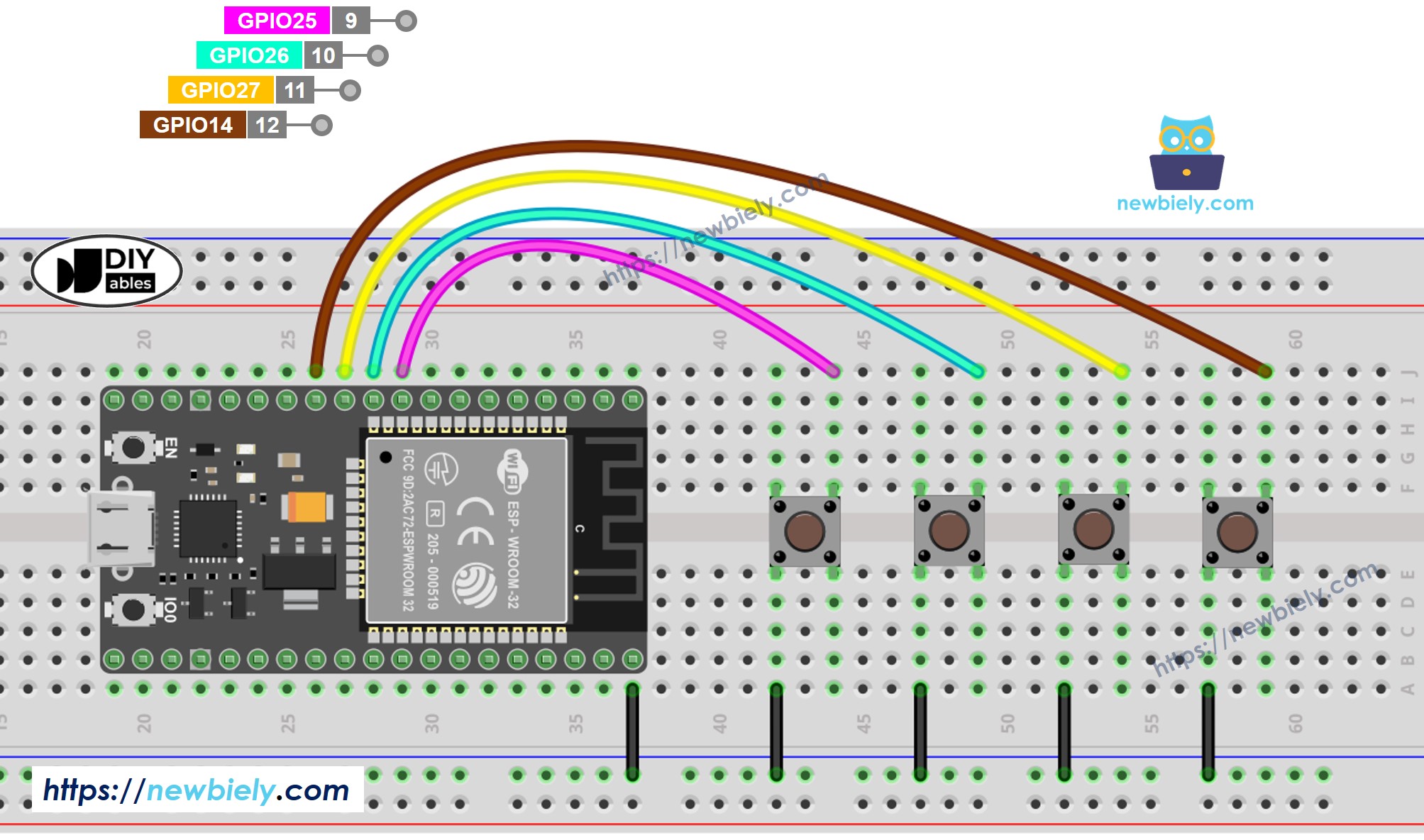
This image is created using Fritzing. Click to enlarge image
Video Tutorial
Việc sản xuất video tốn rất nhiều thời gian. Nếu video hướng dẫn hữu ích cho việc học của bạn, hãy đăng ký kênh YouTube để ủng hộ. Nếu nhu cầu đủ cao, chúng tôi sẽ cố gắng làm thêm nhiều video.
Kiến Thức Bổ Sung
- Giá trị DEBOUNCE_TIME phụ thuộc vào phần cứng. Các phần cứng khác nhau có thể sử dụng các giá trị khác nhau.
- Debounce cũng nên được áp dụng cho công tắc on/off, limit switch, reed switch, cảm biến cảm ứng...
Bình Luận
Bài hướng dẫn liên quan
📱 Ứng dụng đề xuất
 English for KidsHọc tiếng Anh vui nhộn cho trẻ nhỏ.Tải về trênGoogle PlayTải về trênApp Store
 Bubble NoteGhi chú tự xóa — viết như nhắn tin.Tải về trênGoogle PlayTải về trênApp Store
 Tôi Không MuaĐánh bại mua sắm bốc đồng, tiết kiệm hơn.Tải về trênGoogle PlayTải về trênApp Store
 Con Đường Tri ThứcBài thi thử để học mọi thứ.Tải về trênGoogle PlayTải về trênApp Store