ESP32 Bluetooth Chat Example Hướng Dẫn Giao Diện Nhắn Tin Hai Chiều
Tổng Quan
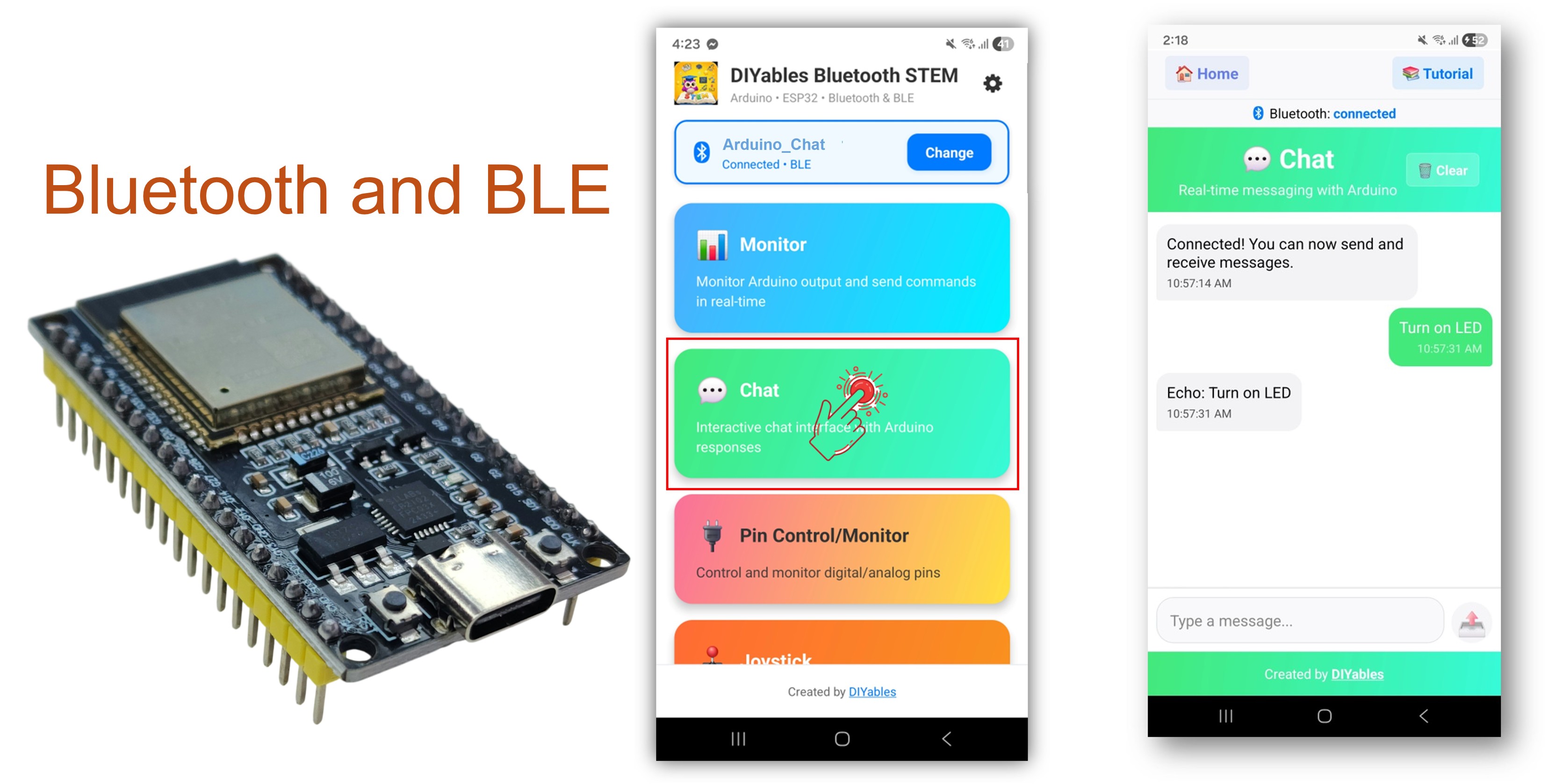
Ví dụ Bluetooth Chat cho phép nhắn tin văn bản hai chiều giữa ESP32 và smartphone thông qua ứng dụng DIYables Bluetooth STEM. Được thiết kế cho các board ESP32 với hỗ trợ cả BLE (Bluetooth Low Energy) và Classic Bluetooth. Gửi và nhận tin nhắn văn bản thời gian thực, triển khai xử lý lệnh tùy chỉnh, và tạo cầu nối Serial Monitor với Bluetooth — hoàn hảo cho việc debug, điều khiển từ xa và các dự án tương tác.
Ví dụ này hỗ trợ hai chế độ Bluetooth:
ESP32 BLE (Bluetooth Low Energy): Hoạt động trên cả Android và iOS
ESP32 Classic Bluetooth: Chỉ hoạt động trên Android. iOS không hỗ trợ Classic Bluetooth. Sử dụng BLE nếu bạn cần hỗ trợ iOS.
Tính Năng
Nhắn Tin Hai Chiều: Gửi và nhận tin nhắn văn bản thời gian thực
Chế Độ Echo: Tự động phản hồi lại tin nhắn nhận được từ app
Xử Lý Lệnh: Xử lý các lệnh văn bản tùy chỉnh (ping, status, time, heap)
Tin Nhắn Định Kỳ: Gửi cập nhật trạng thái tự động theo khoảng thời gian có thể cấu hình
Cầu Nối Serial-to-Bluetooth: Nhập tin nhắn trong Serial Monitor và gửi đến app
BLE & Classic Bluetooth: Chọn chế độ Bluetooth phù hợp với dự án của bạn
Đa Nền Tảng: Chế độ BLE hoạt động trên cả Android và iOS; Classic Bluetooth hoạt động trên Android
Tùy Chọn Tiết Kiệm Pin: Chế độ BLE tiêu thụ ít pin hơn Classic Bluetooth
Kết nối board ESP32 với máy tính của bạn bằng cáble USB.
Khởi chạy Arduino IDE trên máy tính của bạn.
Chọn board ESP32 và COM port phù hợp.
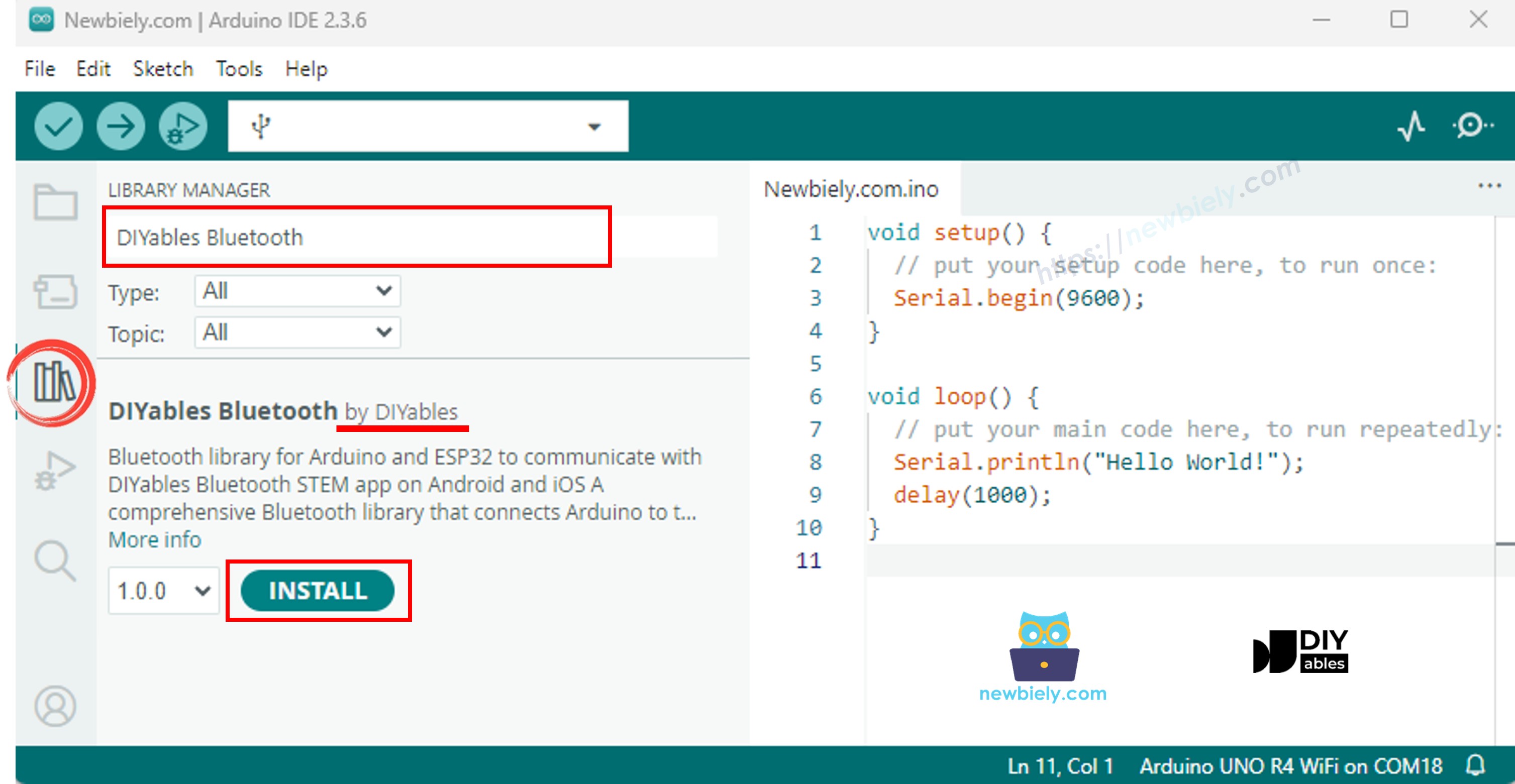
Điều hướng đến biểu tượng Libraries ở thanh bên trái của Arduino IDE.
Tìm kiếm "DIYables Bluetooth", sau đó tìm thư viện DIYables Bluetooth của DIYables
Nhấp nút Install để cài đặt thư viện.
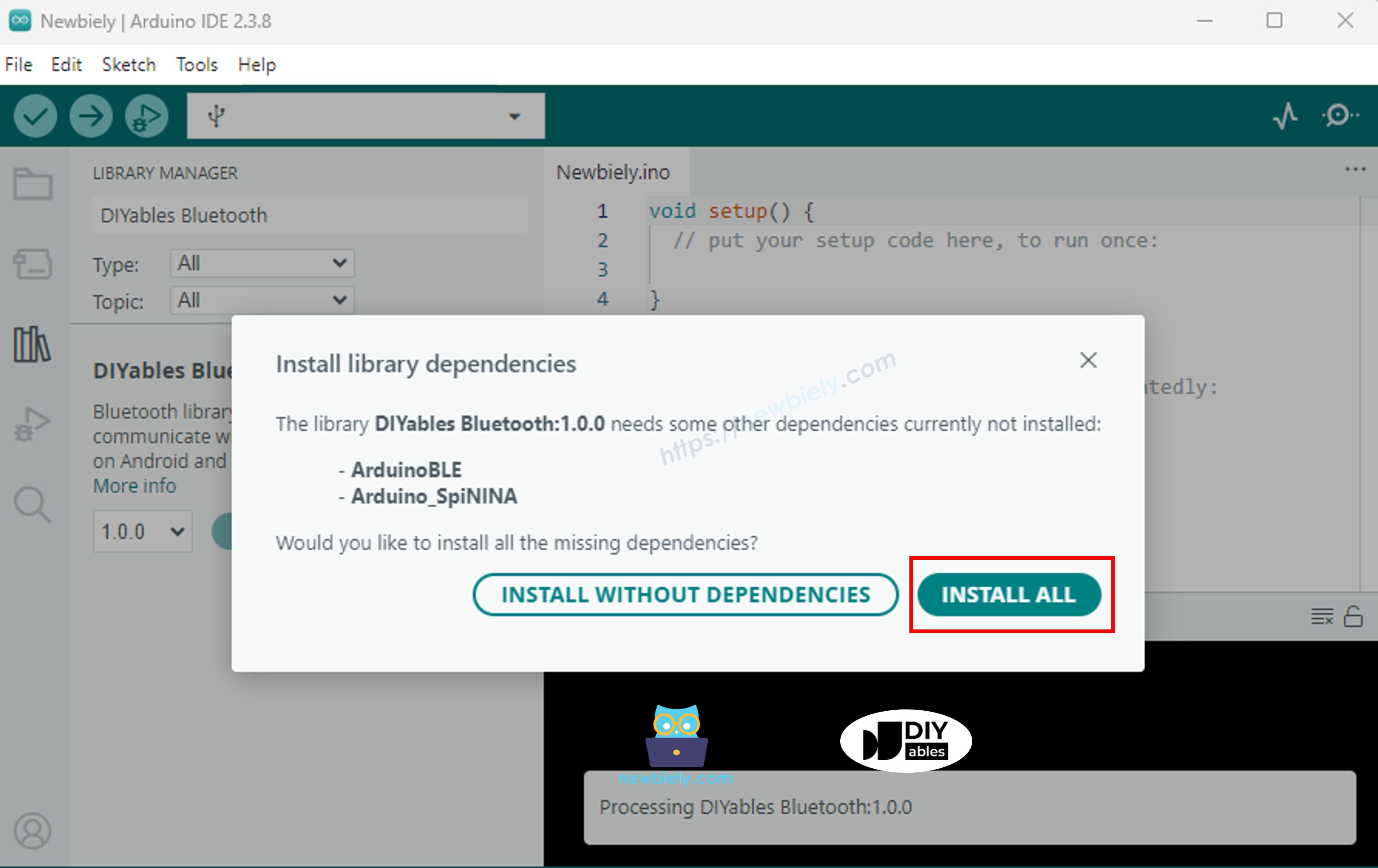
Bạn sẽ được yêu cầu cài đặt một số thư viện phụ thuộc khác
Nhấp nút Install All để cài đặt tất cả các thư viện phụ thuộc.
Chọn một trong hai chế độ Bluetooth dưới đây tùy thuộc vào nhu cầu của bạn:
Code ESP32 Classic Bluetooth (chỉ hoạt động với app trên Android)
Lưu ý: Classic Bluetooth KHÔNG được hỗ trợ trên iOS. Nếu bạn cần hỗ trợ iOS, hãy sử dụng code BLE bên dưới.
Trong Arduino IDE, đi đến File Examples DIYables Bluetooth Esp32Bluetooth_Chat example, hoặc sao chép code trên và dán vào editor của Arduino IDE
/* * DIYables Bluetooth Library - ESP32 Classic Bluetooth Chat Example * Works with DIYables Bluetooth STEM app on Android * Note: Classic Bluetooth is NOT supported on iOS. Use BLE examples for iOS support. * * This example demonstrates the Bluetooth Chat feature: * - Two-way text messaging via Bluetooth * - Receive messages from mobile app * - Send messages to mobile app * * Compatible Boards: * - ESP32 (all variants with Classic Bluetooth) * - ESP32-WROOM-32 * - ESP32-DevKitC * - ESP32-WROVER * * Note: Select "Huge APP (3MB No OTA/1MB SPIFFS)" partition scheme * in Arduino IDE: Tools > Partition Scheme * * Setup: * 1. Upload the sketch to your ESP32 * 2. Open Serial Monitor (115200 baud) to see connection status and messages * 3. Use DIYables Bluetooth App to connect and chat * * Tutorial: https://diyables.io/bluetooth-app * Author: DIYables */#include <DIYables_BluetoothServer.h>#include <DIYables_BluetoothChat.h>#include <platforms/DIYables_Esp32Bluetooth.h>// Create Bluetooth instancesDIYables_Esp32Bluetooth bluetooth("ESP32_Chat");DIYables_BluetoothServer bluetoothServer(bluetooth);// Create Chat app instanceDIYables_BluetoothChat bluetoothChat;// Variables for periodic messagesunsignedlong lastMessageTime = 0;constunsignedlong MESSAGE_INTERVAL = 10000; // Send message every 10 secondsint messageCount = 0;voidsetup() {Serial.begin(115200);delay(1000);Serial.println("DIYables Bluetooth - ESP32 Chat Example");// Initialize Bluetooth server with platform-specific implementation bluetoothServer.begin();// Add chat app to server bluetoothServer.addApp(&bluetoothChat);// Set up connection event callbacks bluetoothServer.setOnConnected([]() {Serial.println("Bluetooth connected!"); bluetoothChat.send("Hello! ESP32 is ready to chat."); }); bluetoothServer.setOnDisconnected([]() {Serial.println("Bluetooth disconnected!"); messageCount = 0; });// Set up callback for received chat messages bluetoothChat.onChatMessage([](const String& message) {Serial.print("Received: ");Serial.println(message);// Echo the message backString response = "Echo: "; response += message; bluetoothChat.send(response);// You can add custom command handling hereif (message.equalsIgnoreCase("ping")) { bluetoothChat.send("pong!"); } elseif (message.equalsIgnoreCase("status")) { bluetoothChat.send("ESP32 is running normally"); } elseif (message.equalsIgnoreCase("time")) {String timeMsg = "Uptime: "; timeMsg += String(millis() / 1000); timeMsg += " seconds"; bluetoothChat.send(timeMsg); } elseif (message.equalsIgnoreCase("heap")) {String heapMsg = "Free heap: "; heapMsg += String(ESP.getFreeHeap()); heapMsg += " bytes"; bluetoothChat.send(heapMsg); } });Serial.println("Waiting for Bluetooth connection..."); Serial.println("Type 'ping', 'status', 'time', or'heap' in the app to test commands");}void loop() {// Handle Bluetooth server communications bluetoothServer.loop();// Send periodic status message (only when connected)if (bluetooth.isConnected() && millis() - lastMessageTime >= MESSAGE_INTERVAL) { lastMessageTime = millis(); messageCount++;String statusMsg = "Status update #"; statusMsg += String(messageCount); statusMsg += " - All systems operational"; bluetoothChat.send(statusMsg);Serial.print("Sent: ");Serial.println(statusMsg); }// Optional: Read from Serial and send to Bluetoothif (Serial.available()) {String serialMsg = Serial.readStringUntil('\n'); serialMsg.trim();if (serialMsg.length() > 0 && bluetooth.isConnected()) { bluetoothChat.send(serialMsg);Serial.print("Sent from Serial: ");Serial.println(serialMsg); } }delay(10);}
Nhấp nút Upload trên Arduino IDE để upload code lên ESP32
Mở Serial Monitor
Kiểm tra kết quả trên Serial Monitor. Nó trông giống như sau:
Newbiely | Arduino IDE 2.3.8
──
☐
✕
File
Edit
Sketch
Tools
Help
ESP32 Dev Module
Newbiely.ino
···
8Serial.println("Hello World!");
Output
Serial Monitor
Message (Enter to send message to 'ESP32 Dev Module' on 'COM15')
New Line
9600 baud
DIYables Bluetooth - ESP32 Chat Example
Waiting for Bluetooth connection...
Type 'ping', 'status', 'time', or 'heap' in the app to test commands
Ln 11, Col 1
ESP32 Dev Module on COM15
2
Code ESP32 BLE (hoạt động với app trên cả Android và iOS)
Trong Arduino IDE, đi đến File Examples DIYables Bluetooth Esp32BLE_Chat example, hoặc sao chép code trên và dán vào editor của Arduino IDE
/* * DIYables Bluetooth Library - ESP32 BLE Chat Example * Works with DIYables Bluetooth STEM app on Android and iOS * * This example demonstrates the Bluetooth Chat feature: * - Two-way text messaging via Bluetooth * - Receive messages from mobile app * - Send messages to mobile app * * Compatible Boards: * - ESP32-WROOM-32 * - ESP32-DevKitC * - ESP32-WROVER * - ESP32-S3 * - ESP32-C3 * - Any ESP32 board supporting BLE * * Note: Select "Huge APP (3MB No OTA/1MB SPIFFS)" partition scheme * in Arduino IDE: Tools > Partition Scheme * * Setup: * 1. Upload the sketch to your ESP32 * 2. Open Serial Monitor (115200 baud) to see connection status and messages * 3. Use DIYables Bluetooth App to connect and chat * * Tutorial: https://diyables.io/bluetooth-app * Author: DIYables */#include <DIYables_BluetoothServer.h>#include <DIYables_BluetoothChat.h>#include <platforms/DIYables_Esp32BLE.h>// BLE Configurationconst char* DEVICE_NAME = "ESP32BLE_Chat";const char* SERVICE_UUID = "19B10000-E8F2-537E-4F6C-D104768A1214";const char* TX_UUID = "19B10001-E8F2-537E-4F6C-D104768A1214";const char* RX_UUID = "19B10002-E8F2-537E-4F6C-D104768A1214";// Create Bluetooth instancesDIYables_Esp32BLE bluetooth(DEVICE_NAME, SERVICE_UUID, TX_UUID, RX_UUID);DIYables_BluetoothServer bluetoothServer(bluetooth);// Create Chat app instanceDIYables_BluetoothChat bluetoothChat;// Variables for periodic messagesunsignedlong lastMessageTime = 0;constunsignedlong MESSAGE_INTERVAL = 10000; // Send message every 10 secondsint messageCount = 0;voidsetup() {Serial.begin(115200);delay(1000);Serial.println("DIYables Bluetooth - ESP32 BLE Chat Example");// Initialize Bluetooth server with platform-specific implementation bluetoothServer.begin();// Add chat app to server bluetoothServer.addApp(&bluetoothChat);// Set up connection event callbacks bluetoothServer.setOnConnected([]() {Serial.println("Bluetooth connected!"); bluetoothChat.send("Hello! ESP32 BLE is ready to chat."); }); bluetoothServer.setOnDisconnected([]() {Serial.println("Bluetooth disconnected!"); messageCount = 0; });// Set up callback for received chat messages bluetoothChat.onChatMessage([](const String& message) {Serial.print("Received: ");Serial.println(message);// Echo the message backString response = "Echo: "; response += message; bluetoothChat.send(response);// Custom command handlingif (message.equalsIgnoreCase("ping")) { bluetoothChat.send("pong!"); } elseif (message.equalsIgnoreCase("status")) { bluetoothChat.send("ESP32 BLE is running normally"); } elseif (message.equalsIgnoreCase("time")) {String timeMsg = "Uptime: "; timeMsg += String(millis() / 1000); timeMsg += " seconds"; bluetoothChat.send(timeMsg); } elseif (message.equalsIgnoreCase("heap")) {String heapMsg = "Free heap: "; heapMsg += String(ESP.getFreeHeap()); heapMsg += " bytes"; bluetoothChat.send(heapMsg); } });Serial.println("Waiting for Bluetooth connection..."); Serial.println("Type 'ping', 'status', 'time', or'heap' in the app to test commands");}void loop() { bluetoothServer.loop(); if (bluetooth.isConnected() && millis() - lastMessageTime >= MESSAGE_INTERVAL) { lastMessageTime = millis(); messageCount++; String statusMsg = "Status update #"; statusMsg += String(messageCount); statusMsg += " - All systems operational"; bluetoothChat.send(statusMsg); Serial.print("Sent: "); Serial.println(statusMsg); } if (Serial.available()) { String serialMsg = Serial.readStringUntil('\n'); serialMsg.trim();if (serialMsg.length() > 0 && bluetooth.isConnected()) { bluetoothChat.send(serialMsg);Serial.print("Sent from Serial: ");Serial.println(serialMsg); } }delay(10);}
Nhấp nút Upload trên Arduino IDE để upload code lên ESP32
Mở Serial Monitor
Kiểm tra kết quả trên Serial Monitor. Nó trông giống như sau:
Newbiely | Arduino IDE 2.3.8
──
☐
✕
File
Edit
Sketch
Tools
Help
ESP32 Dev Module
Newbiely.ino
···
8Serial.println("Hello World!");
Output
Serial Monitor
Message (Enter to send message to 'ESP32 Dev Module' on 'COM15')
New Line
9600 baud
DIYables Bluetooth - ESP32 BLE Chat Example
Waiting for Bluetooth connection...
Type 'ping', 'status', 'time', or 'heap' in the app to test commands
Ln 11, Col 1
ESP32 Dev Module on COM15
2
Ứng Dụng Di Động
Cài đặt DIYables Bluetooth App trên smartphone của bạn: Android | iOS
Nếu bạn đang sử dụng code ESP32 Classic Bluetooth, bạn cần ghép nối ESP32 với điện thoại Android trước khi mở app:
Vào Settings > Bluetooth của điện thoại
Đảm bảo Bluetooth được bật
Điện thoại sẽ quét các thiết bị có sẵn
Tìm và nhấn "ESP32_Chat" trong danh sách thiết bị có sẵn
Xác nhận yêu cầu ghép nối (không cần PIN)
Đợi cho đến khi hiển thị "Paired" dưới tên thiết bị
Nếu bạn đang sử dụng code ESP32 BLE, không cần ghép nối. Chỉ cần chuyển sang bước tiếp theo.
Mở DIYables Bluetooth App
Khi mở app lần đầu tiên, nó sẽ yêu cầu quyền. Vui lòng cấp các quyền sau:
Quyền Nearby Devices (Android 12+) / quyền Bluetooth (iOS) - cần thiết để quét và kết nối với các thiết bị Bluetooth
Quyền Location (chỉ Android 11 và thấp hơn) - được yêu cầu bởi các phiên bản Android cũ để quét thiết bị BLE
Đảm bảo Bluetooth được bật trên điện thoại
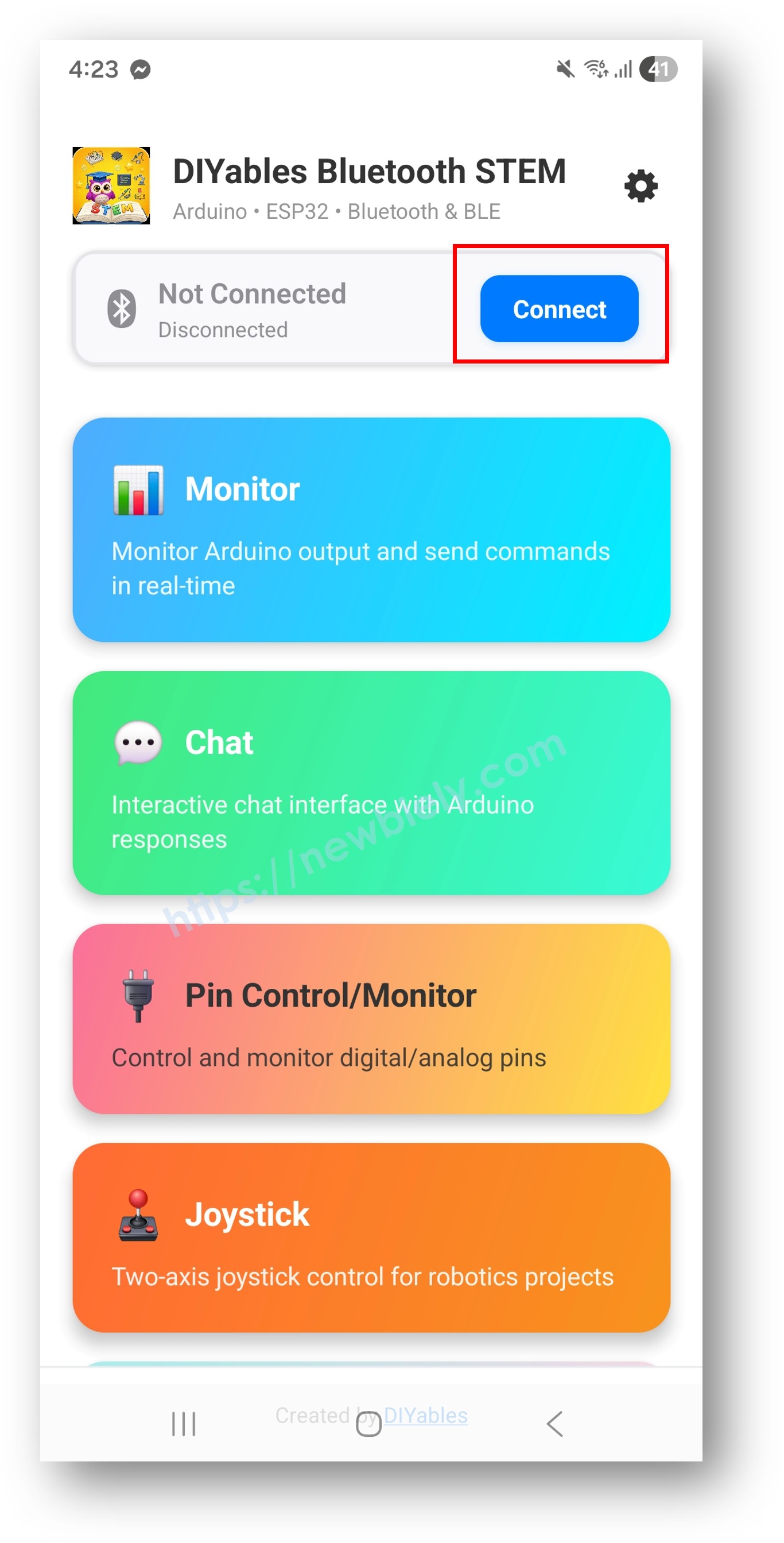
Trên màn hình chính, nhấn nút Connect. App sẽ quét cả thiết bị BLE và Classic Bluetooth.
Tìm và nhấn thiết bị của bạn trong kết quả quét để kết nối:
Đối với Classic Bluetooth: nhấn "ESP32_Chat"
Đối với BLE: nhấn "ESP32BLE_Chat"
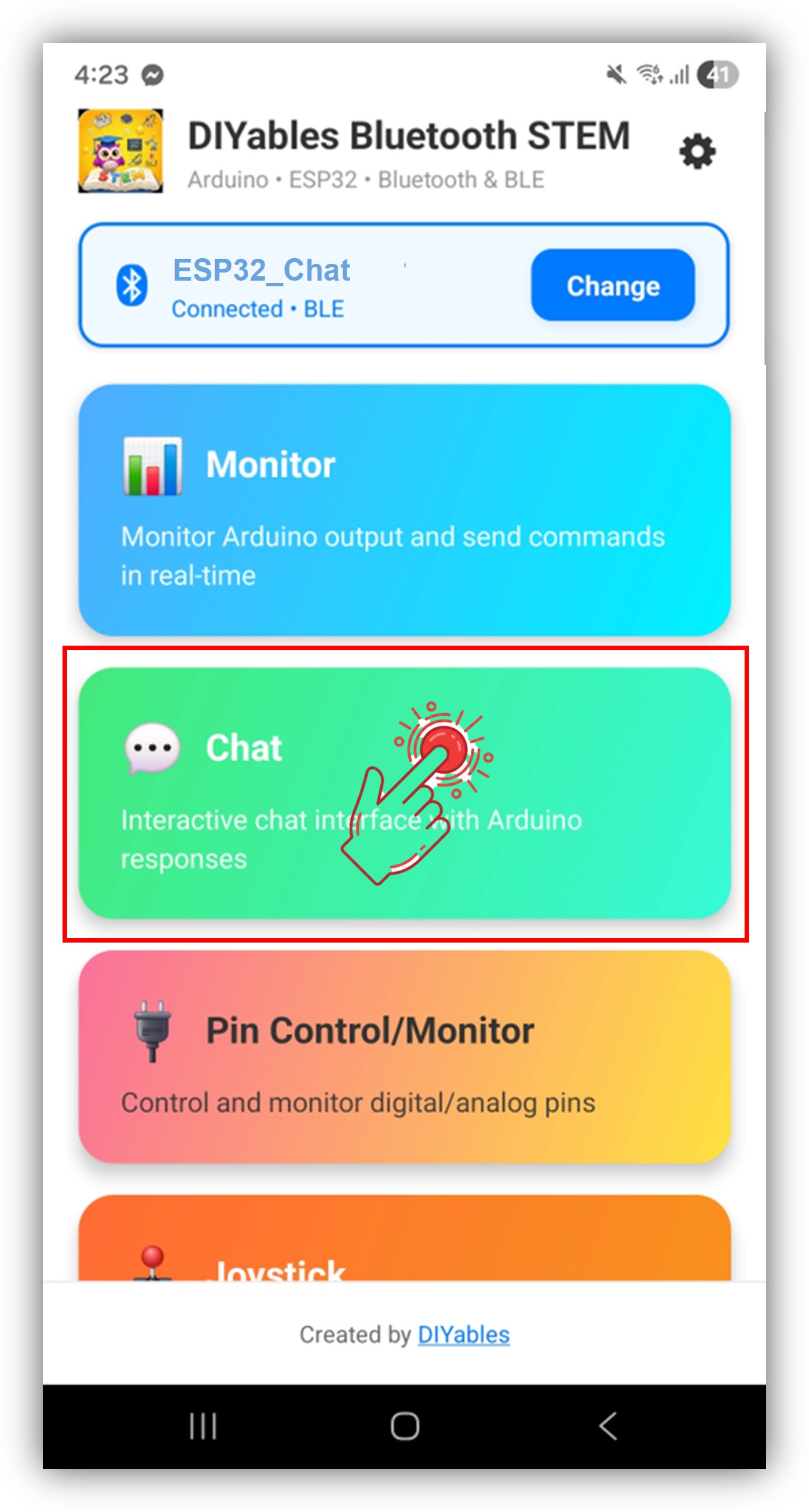
Sau khi kết nối, app tự động quay về màn hình chính. Chọn ứng dụng Chat từ menu app.
Lưu ý: Bạn có thể nhấn biểu tượng cài đặt trên màn hình chính để ẩn/hiện các app trên màn hình chính. Để biết thêm chi tiết, xem DIYables Bluetooth App User Manual.
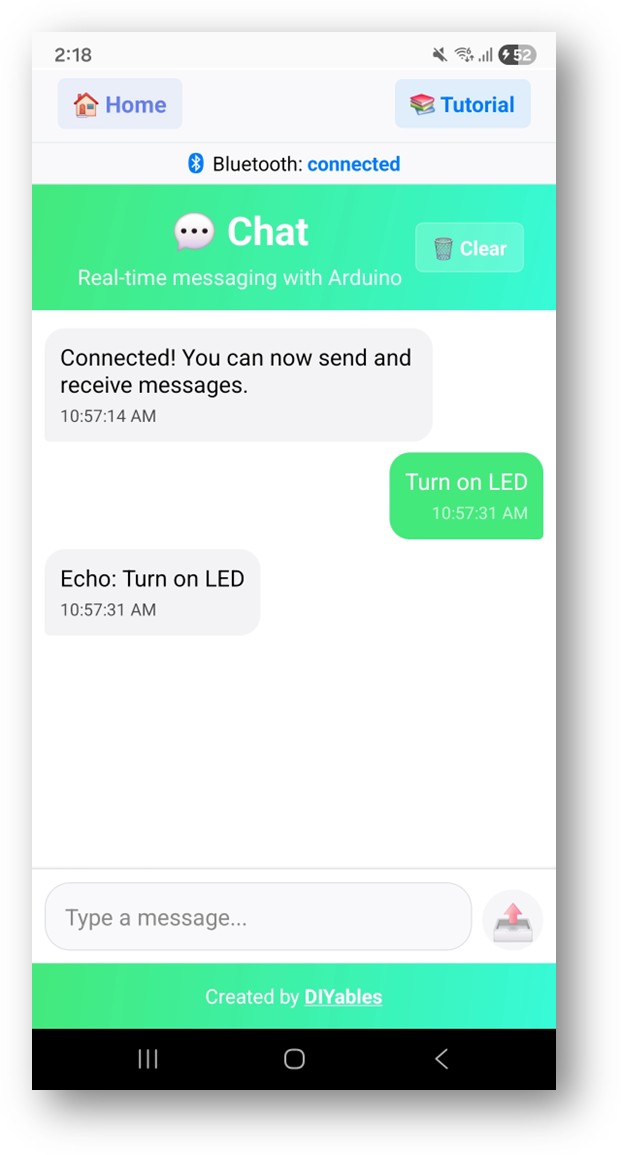
Nhập tin nhắn vào ô nhập văn bản và nhấn Send
Bây giờ hãy nhìn lại Serial Monitor trên Arduino IDE. Bạn sẽ thấy:
Newbiely | Arduino IDE 2.3.8
──
☐
✕
File
Edit
Sketch
Tools
Help
ESP32 Dev Module
Newbiely.ino
···
8Serial.println("Hello World!");
Output
Serial Monitor
Message (Enter to send message to 'ESP32 Dev Module' on 'COM15')
New Line
9600 baud
Bluetooth connected!
Received: Hello
Received: ping
Received: status
Sent: Status update #1 - All systems operational
Ln 11, Col 1
ESP32 Dev Module on COM15
2
Nhập tin nhắn trong app và quan sát phản hồi thời gian thực trong Serial Monitor
Thử các lệnh tích hợp: ping, status, time, heap
Bạn cũng có thể nhập tin nhắn trong Serial Monitor và chúng sẽ được gửi đến app
Tùy Chỉnh Sáng Tạo - Điều Chỉnh Code Cho Dự Án Của Bạn
Nhận Tin Nhắn Từ App
Sử dụng callback onChatMessage() để xử lý tin nhắn nhận được từ app. Bạn có thể định nghĩa bất kỳ từ lệnh tùy chỉnh nào phù hợp với dự án của mình — ESP32 sẽ phản ứng tương ứng:
Bạn có thể thêm nhiều lệnh tùy chỉnh bằng cách thêm nhiều khối elseif. Ví dụ, thêm RELAY_ON / RELAY_OFF để điều khiển relay, hoặc READ để kích hoạt đọc cảm biến — bất kỳ từ nào bạn nhập trong app đều trở thành lệnh.
Gửi Tin Nhắn Đến App
Bạn có thể gửi tin nhắn văn bản từ ESP32 đến app bất kỳ lúc nào:
// Gửi tin nhắn văn bản đơn giảnbluetoothChat.send("Hello from ESP32!");// Gửi dữ liệu cảm biến dưới dạng văn bảnfloat temperature = 25.3;bluetoothChat.send("Temperature: " + String(temperature) + "°C");// Gửi cập nhật trạng tháibluetoothChat.send("System ready");
Xử Lý Sự Kiện Kết Nối
Bạn có thể phát hiện khi app kết nối hoặc ngắt kết nối khỏi ESP32:
// Được gọi khi app kết nối với ESP32bluetoothServer.setOnConnected([]() {Serial.println("Bluetooth connected!"); bluetoothChat.send("Welcome! ESP32 is ready to chat.");});// Được gọi khi app ngắt kết nối khỏi ESP32bluetoothServer.setOnDisconnected([]() {Serial.println("Bluetooth disconnected!");});// Kiểm tra trạng thái kết nối ở bất kỳ đâu trong codeif (bluetoothServer.isConnected()) { bluetoothChat.send("Still connected!");}
Cầu Nối Serial-to-Bluetooth
Chuyển tiếp tin nhắn được nhập trong Arduino IDE Serial Monitor đến app Bluetooth:
voidloop() { bluetoothServer.loop();// Đọc từ Serial và gửi đến Bluetoothif (Serial.available()) {String serialMsg = Serial.readStringUntil('\n'); serialMsg.trim();if (serialMsg.length() > 0 && bluetooth.isConnected()) { bluetoothChat.send(serialMsg);Serial.print("Sent from Serial: ");Serial.println(serialMsg); } }delay(10);}
Cách Sử Dụng Chat
Điều Khiển Giao Diện App
Giao diện chat trong DIYables Bluetooth App cung cấp:
Danh Sách Tin Nhắn: Danh sách có thể cuộn hiển thị tin nhắn đã gửi và nhận
Ô Nhập Văn Bản: Nhập tin nhắn của bạn ở dưới cùng
Nút Send: Nhấn để gửi tin nhắn đã nhập
Auto-scroll: Tự động cuộn đến tin nhắn mới nhất
Lệnh Tích Sẵn
Code ví dụ bao gồm các lệnh tích sẵn sau:
ping → Phản hồi với "pong!"
status → Báo cáo trạng thái chạy của ESP32
time → Hiển thị thời gian hoạt động bằng giây
heap → Hiển thị bộ nhớ heap còn trống bằng byte
Ví Dụ Lập Trình
Chat Echo Cơ Bản
voidsetup() {// Thiết lập callback chat bluetoothChat.onChatMessage([](const String& message) {Serial.print("Received: ");Serial.println(message);// Echo tin nhắn trở lại bluetoothChat.send("Echo: " + message); });}
Điều Khiển LED Dựa Trên Lệnh
constint LED_PIN = 2; // LED tích hợpconstint RED_PIN = 16;constint GREEN_PIN = 17;constint BLUE_PIN = 18;voidsetup() {pinMode(LED_PIN, OUTPUT);pinMode(RED_PIN, OUTPUT);pinMode(GREEN_PIN, OUTPUT);pinMode(BLUE_PIN, OUTPUT); bluetoothChat.onChatMessage([](constString& message) {String cmd = message; cmd.toUpperCase();if (cmd == "LED ON") {digitalWrite(LED_PIN, HIGH); bluetoothChat.send("LED is now ON"); } elseif (cmd == "LED OFF") {digitalWrite(LED_PIN, LOW); bluetoothChat.send("LED is now OFF"); } elseif (cmd == "RED") {digitalWrite(RED_PIN, HIGH);digitalWrite(GREEN_PIN, LOW);digitalWrite(BLUE_PIN, LOW); bluetoothChat.send("Red LED activated"); } elseif (cmd == "GREEN") {digitalWrite(RED_PIN, LOW);digitalWrite(GREEN_PIN, HIGH);digitalWrite(BLUE_PIN, LOW); bluetoothChat.send("Green LED activated"); } elseif (cmd == "BLUE") {digitalWrite(RED_PIN, LOW);digitalWrite(GREEN_PIN, LOW);digitalWrite(BLUE_PIN, HIGH); bluetoothChat.send("Blue LED activated"); } elseif (cmd == "OFF") {digitalWrite(RED_PIN, LOW);digitalWrite(GREEN_PIN, LOW);digitalWrite(BLUE_PIN, LOW); bluetoothChat.send("All LEDs off"); } elseif (cmd == "HELP") { bluetoothChat.send("Commands: LED ON, LED OFF, RED, GREEN, BLUE, OFF, HELP"); } else { bluetoothChat.send("Unknown command. Type HELP for list."); } });}

 English for KidsHọc tiếng Anh vui nhộn cho trẻ nhỏ.Tải về trênGoogle PlayTải về trênApp Store
 Bubble NoteGhi chú tự xóa — viết như nhắn tin.Tải về trênGoogle PlayTải về trênApp Store
 Tôi Không MuaĐánh bại mua sắm bốc đồng, tiết kiệm hơn.Tải về trênGoogle PlayTải về trênApp Store
 Con Đường Tri ThứcBài thi thử để học mọi thứ.Tải về trênGoogle PlayTải về trênApp Store